AI Canvas
Generative AI features, such as the AI Canvas, can be creative in their responses. You should always validate the summary generated by AI for accuracy and quality. Oracle NetSuite does not assume responsibility or liability for the use or interpretation of the generated content.
The AI Canvas is an analysis workspace in Ask Oracle. You can use the canvas when you need more than a single chat answer, or when you want a persistent artifact you can review, refine, and return to. For example, you could ask Ask Oracle to create a canvas that includes an overview of your business's financial performance for a past financial period. Ask Oracle would then use the canvas to present you with a near-instant report tailored to you and your business that includes insights, key metrics, and visualizations.
Canvas artifacts are persisted in Ask Oracle conversation history with auto-generated titles and timestamps, and can be reopened later for continued analysis. You can export Canvas output to PDF when you need a static copy. The AI Canvas does not support direct in-canvas editing, multi-user collaboration, or auto-triggering by the system or agents. Retention follows Ask Oracle conversation history of 90 days.
AI Canvas visual overview
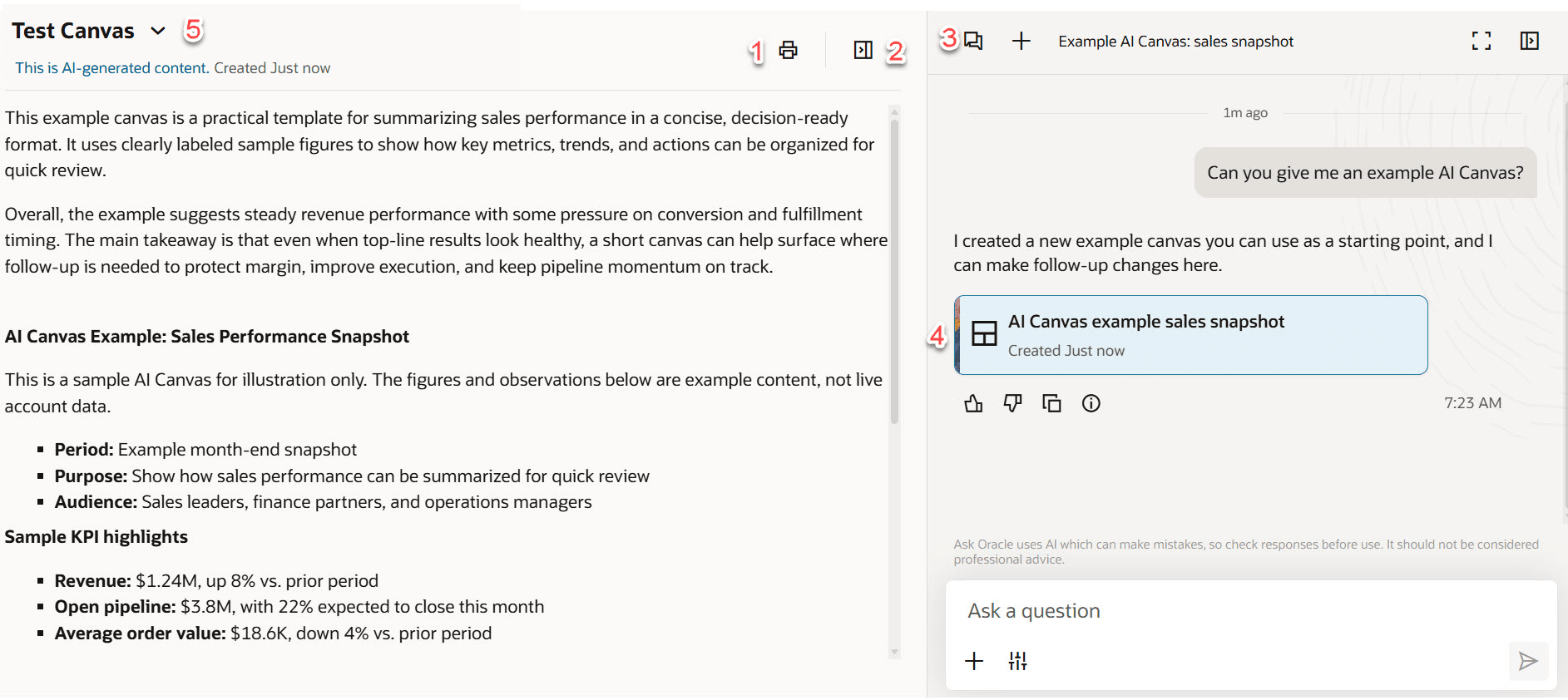
Each of the following numbered actions corresponds to the icons indicated in the following image:
-
Print your canvas or print to PDF.
-
Hide your canvas.
-
See old chats where previous canvases are stored.
-
Click the canvas name in a chat to open it.
-
See older snapshots of the same AI Canvas.
Creating an AI Canvas
To create a canvas:
-
Open Ask Oracle from the toolbar at the bottom of the screen. To learn more about Ask Oracle, see Ask Oracle.
-
Ask for Ask Oracle to create a canvas.
Ask Oracle runs the structured analysis and returns a Canvas artifact in chat.
-
The canvas opens in a drawer, where results are presented in a structured format that can include narrative text, KPI cards, tables, and charts.
-
After the initial canvas is generated, continue the analysis through follow-up questions in the chat.
Each follow-up produces a new snapshot version of the same canvas, so updates are additive and traceable rather than overwriting prior results. This makes the workspace useful for iterative reasoning over time, especially when you need to compare interpretations, investigate drivers, and document how conclusions evolved.
Moving between snapshots of an AI Canvas
When you're working with an AI Canvas, you can see the older versions of your canvas, and switch between them. To access these snapshots:
-
In the chat where your AI Canvas is located, open the AI Canvas by clicking on it.
-
Click on the title of the canvas to see the available snapshots.