Setting Up Token-based Authentication for Profitability and Cost Management Sync
You must set up token-based authentication (TBA) in your Profitability and Cost Management application to enable connection to NetSuite.
For general information, see the following help topics:
To set up token-based authentication:
-
In NetSuite, go to Setup > Integration > Manage Integrations > New.
-
In the Name field, enter a name for this integration record that should represent your Profitability and Cost Management application.
-
In the Description field, enter a description to help you identify this integration record in NetSuite.
-
In the State field, leave the default Enabled option.
-
On the Authentication tab, make sure the Token-based Authentication box is checked.
-
Make any other necessary changes, and then click Save.
NetSuite generates the consumer key and consumer secret on the integration record.
-
Save the consumer key and consumer secret.
Note:The consumer key and consumer secret show only one time. If you lose these credentials, you can regenerate new ones. For more information, see Regenerating a Consumer Key and Secret.
-
Go to Setup > Users/Roles > Access Tokens > New.
-
On the Access Token page:
-
From the Application Name list, select the created integration record.
-
From the User list, select the user that should be used for the integration with your Profitability and Cost Management.
For information about setting up the integration user, see Setting Up the Integration User Record for Profitability and Cost Management Sync.
-
From the Role list, select NSPC Integration, or your custom role that gives sufficient permissions to the integration user.
-
The Token Name field is populated with a concatenation of Application Name, User, and Role.
-
Click Save.
NetSuite generates the Token ID and Token Secret on the page.
-
Save the generated Token ID and Token Secret.
Note:The Token ID and Token Secret show only one time. If you lose these credentials, you must create a new token.
-
-
In your Profitability and Cost Management application, click the Navigator icon
 , and then click Data Exchange.
 -
Click Actions, go to Setup, and then select Applications.
-
On the Applications page, click the Configure Connections icon
 .
. -
On the Connections page, click the Add icon
 , and then select NetSuite.
 -
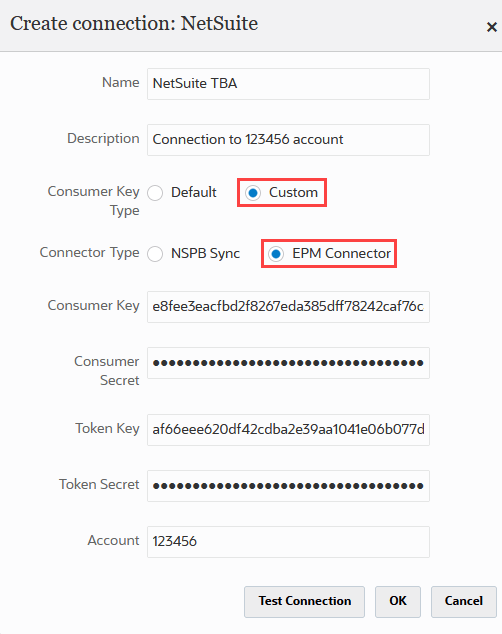
In the Create connection: NetSuite popup window, do the following:
-
In the Name field, enter a name for the connection.
-
In the Description field, enter a description to help you identify this connection.
-
For the Consumer Key Type, choose Custom.
-
For the Connector Type, choose EPM Connector.
-
In the Consumer Key and Consumer Secret fields, enter the generated consumer key and consumer secret.
-
In the Token Key and Token Secret fields, enter the generated Token ID and Token Secret.
-
In the Account field, enter the integration user's NetSuite Account ID. The value must match exactly, including uppercase and lowercase letters. You can find the account ID at Setup > Company > Company Information in the Account ID field.
The following screenshot shows the Custom and EPM Connector connection configurations for Profitability and Cost Management Sync:
-
-
Click Test Connection.
-
If a popup window confirms that the connection to NetSuite was successful, click OK to complete the connection configuration.
Related Topics
- Profitability and Cost Management Sync Installation and Setup
- Required Features for Installing the Profitability and Cost Management Sync SuiteApp
- Installing the Profitability and Cost Management Sync SuiteApp
- Role Permissions for Profitability and Cost Management Sync Users
- Setting Up the Integration User for Profitability and Cost Management Sync
- Setting Up the Connection to Profitability and Cost Management
- Scheduling Script Deployments for Profitability and Cost Management Sync
- Profitability and Cost Management Sync Configuration Checklist
- Portlets for Profitability and Cost Management Sync