NetSuite Connector Platform Mappings Screen UI Elements
The data syncs of NetSuite Connector Platform share the mappings screen and common UI elements.
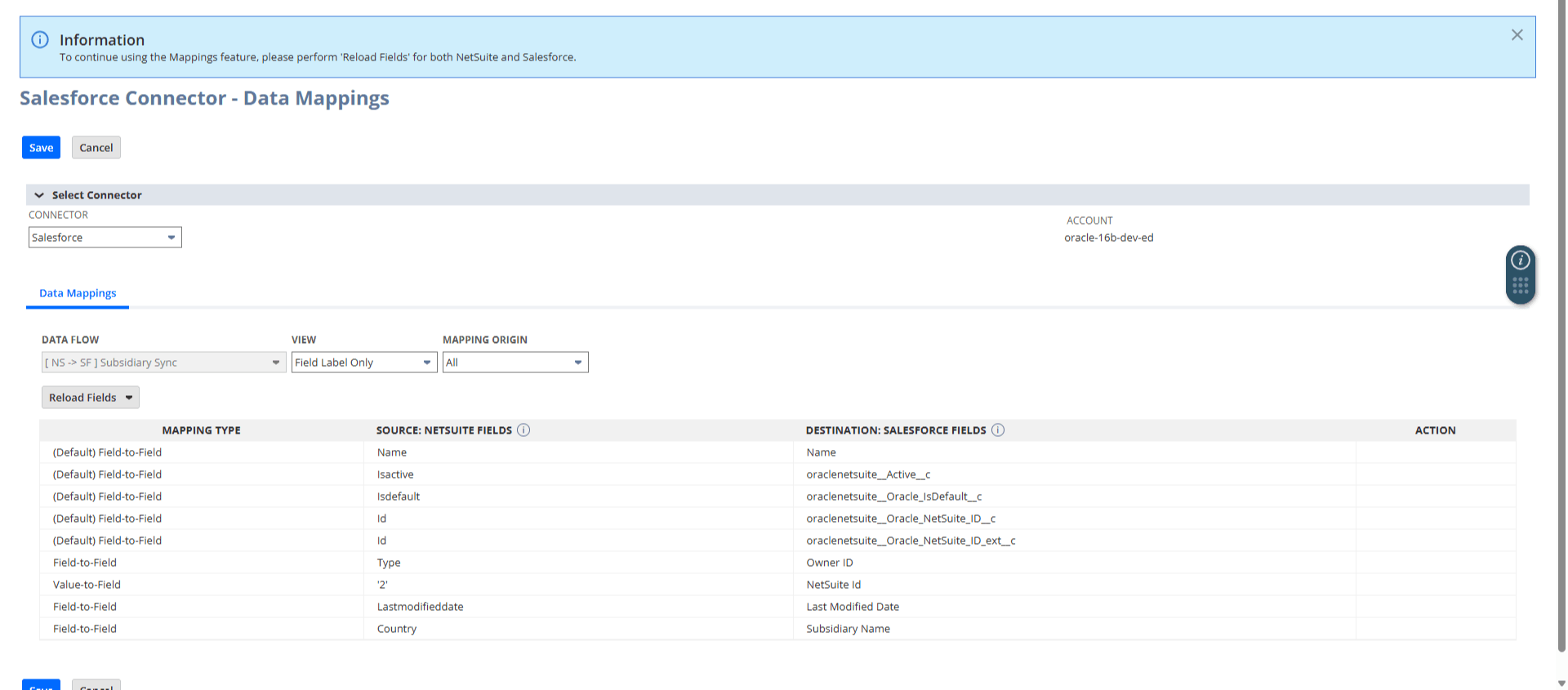
Page-Level Save and Cancel
The page-level Save and Cancel buttons are available on the top and bottom areas of the Mappings screen. Use Save to save modified mappings and exit Edit mode. If you want to close edit mode without saving changes, click Cancel.
Data Mappings Filters
You can filter the displayed mappings using the View and Mapping Origin filters. The availability of filters can vary depending on the data flow. See Applicable Filters for Salesforce Connector Syncs for more information.
Reload Fields
Use Reload Fields, to refresh the available fields for Source and Destination. See Source and Destination Fields for more information.
In Edit mode, recently added fields in NetSuite or Salesforce may not be searchable in Source or Destination fields. Use Reload fields to add recently added fields.
-
Reload Fields > NetSuite - If there are added fields on the NetSuite record.
-
Reload Fields > Salesforce - If there are added fields on the Salesforce object.
-
Reload Fields > NetSuite and Salesforce - If there are added fields on both NetSuite and Salesforce.
Completing the Reload Fields action can take 5-10 minutes. After, the recently added fields can be searched in the Source and Destination fields in the mapping operations.
When you click Reload Fields, you can choose to reload fields from NetSuite, Salesforce, or both. You need to do this in case you have fields in NetSuite or Salesforce that are not displayed in the source or destination fields during mapping. Reloading fields may take 5-10 minutes, depending on the number of updated fields.