Viewing the Report Detailing Member Movement and Deletion
After making member ID corrections, members might be deleted or moved. A report file detailing any member movement (to a different parent) or deletion is generated and placed in the Outbox in a csv (comma-delimited) file format. Review the report to reaggregate some of the stored parent members where the child hierarchy may have changed.
For example:
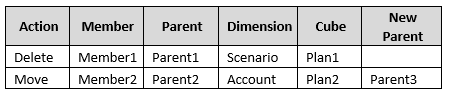
If a correction is made, the system generates a CSV file to the Outbox folder, and the
filename is automatically generated with the application name followed by
_autocorrect.csv; for example,
vision_autocorrect.csv. No file is created if no issue was
addressed. If a previous *_autocorrect.csv file exists and a correction
is made during a subsequent run, this file is overwritten.
After running a Refresh Database job with the Validate Metadata setting, you can download the export file from the Outbox.
To download the file:
-
From the Jobs console, click the All Jobs tab.
-
Click the checkbox next to a job to select it.
-
At the top of the All Jobs tab, click
 , and select Export.