IPM Insights: Insights Analysis
Use Insights Analysis directly from an IPM insight to investigate variances, anomalies, and gaps between planner forecasts and predictions. Insights Analysis identifies where the movement is concentrated and, for supported relationships, quantifies the business effects contributing to it.
While the Insight explains what happened; Insights Analysis explains why it happened.
Insights Analysis includes:
- Key Contributor Analysis, which explains WHERE the variance is.
- Variance Decomposition Analysis, which explains WHAT makes up that variance.
Applies To: FreeForm, Planning
Key Contributor Analysis identifies contributing members across dimensions and shows whether the movement is concentrated in particular segments or spread more broadly. In this example, an anomaly insight is analyzed to determine that F-Series USA was the key contributor to the anomaly:
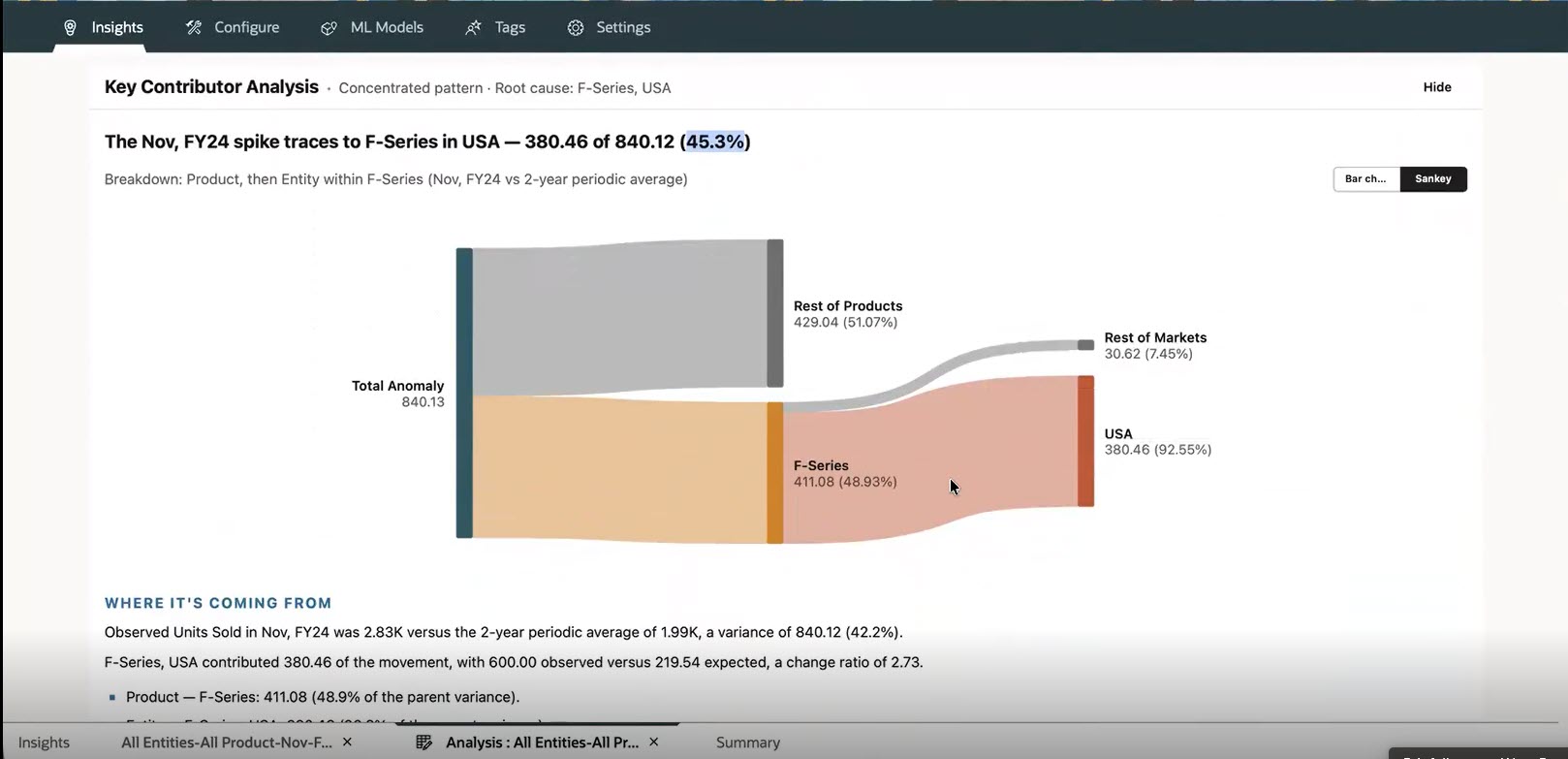
Key Contributor Analysis
Variance Decomposition Analysis can analyze three decomposition relationships:
- Price volume mix uses volume, rate, and mix to explain the change in revenue. Note that Mix applies at parent scopes.
- Foreign exchange rate uses operations and rate effects to separate business movement from currency translation.
- Margin uses volume, price, cost, and mix to explain the margin movement.
In this example, Variance Decomposition Analysis explains the sudden change in gross margin in a period movement variance insight:
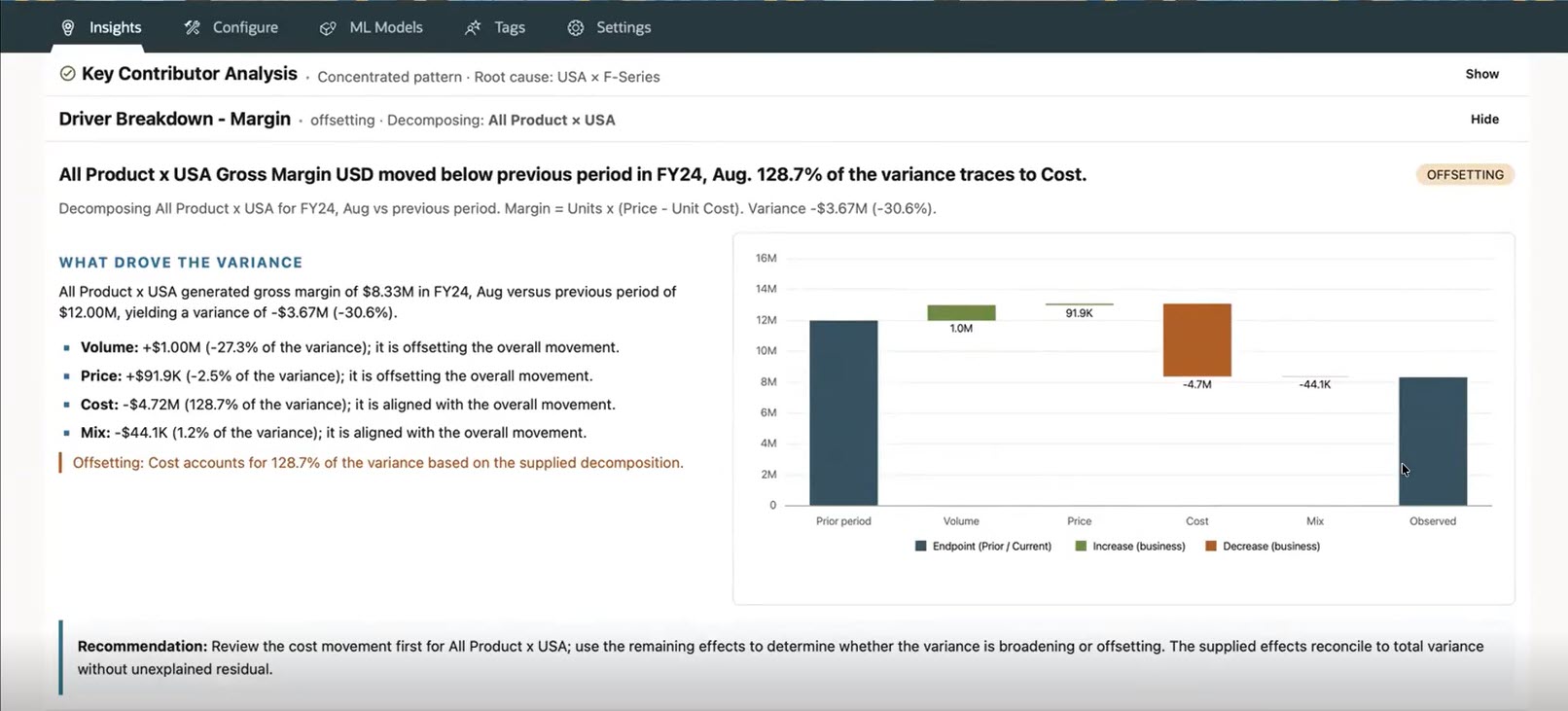
Variance Decomposition Analysis Driver Breakdown
To use Insights Analysis:
- From the Home page, click IPM and then click Insights.
- Click the link in the Details column for the insight you want to analyze.
- Click Analysis.
- To see details about the Key Contributors, click View Key Contributors .
- To perform a variance decomposition analysis, in the Driver Breakdown area, click Decompose into Driver effects, enter details on the Driver Breakdown: Confirm decomposition form, and then click Decompose.
Business Benefit: Insights Analysis helps finance teams understand why exceptions occur by identifying key contributors, breaking down variances, and providing clear explanations of the findings. This reduces time spent on manual analysis, makes insights accessible to finance stakeholders without advanced Excel skills, and supports faster, more informed corrective action.
Steps to enable and configure
To enable GenAI:
- From the Home Page, click Application, and then click Settings.
- In the Enable AI section, select Generative AI.
Tips and considerations
- You must enable GenAI to use Insights Analysis.
- Insights Analysis is available for all insight types.
- Key Contributor Analysis is only applicable at parent level where the parent is aggregating. Variance Decomposition Analysis is applicable at all levels.
- Driver Breakdown requires a supported relationship and the necessary driver data.
Key resources
- FreeForm
- Working with FreeForm
- Planning
- Working with Planning