Fulfillment-Based Consolidated Invoices with Charges from Multiple Sources
Generate invoices by consolidating charge lines from multiple sources based on completion of specific activities. Billing specialists can review draft invoices and make corrections before generating the final invoice. This streamlined approach optimizes the invoicing process, aligns with contractual obligations, enhances billing precision, and simplifies settlement through seamless cash application.
Specific activities such as order shipment, service provisioning, or service delivery define the fulfilment events that trigger invoice generation, as agreed in the customer contract.
Business benefits include:
- Enhances billing efficiency by consolidating invoice lines from multiple sources into a single billable transaction as per contractual agreement.
- Streamlines cash applications with potentially reduced transaction volumes.
- Supports proactive charge line validation, helping to minimize disputes and post-invoice adjustments.
- Augments the collections process and cash flow management.
Steps to enable and configure
NOTE: Pre-requisite: Before enabling fulfillment-based consolidation, ensure that the Consolidated Invoices with Charges from Multiple Sources feature is active in your environment. This functionality, introduced in the 25D release, enables the consolidation of charge lines from multiple sources into a single invoice, based on predefined billing frequencies. To activate this feature, log a Service Request (SR) and request a promotion code. Once the feature is enabled, you can configure and extend it for fulfillment-based consolidation.
Use the following steps to enable fulfillment-based consolidation:
1. Configure Consolidated Billing Terms
- Navigate to the Manage Consolidated Billing Terms task under the Consolidated Billing section in the Billing work area.
- Define customer-specific consolidation settings using the VB Excel interface.
- Save and validate the configuration.
2. Update Customer Account Profiles
- Go to the Consolidated Billing section of the applicable Customer Account Profile.
- Select Enable Consolidated Billing, associate the relevant Billing Terms, and optionally enable Review Invoice Lines Before Import.
- Repeat these steps for each customer account requiring fulfillment-based consolidation.
3. Schedule the following backend processes to run periodically, in the sequence listed below:
- Import Receivables Transactions Using AutoInvoice (with feeder system sources) – Identifies charge lines eligible for consolidation.
- Consolidate Charge Lines for Invoice Import into Receivables (source: ORA_Consolidated Invoice) – Groups eligible lines according to the configured billing terms.
- Import Receivables Transactions Using AutoInvoice (source: ORA_Consolidated Invoice) – Creates consolidated invoices in Receivables.
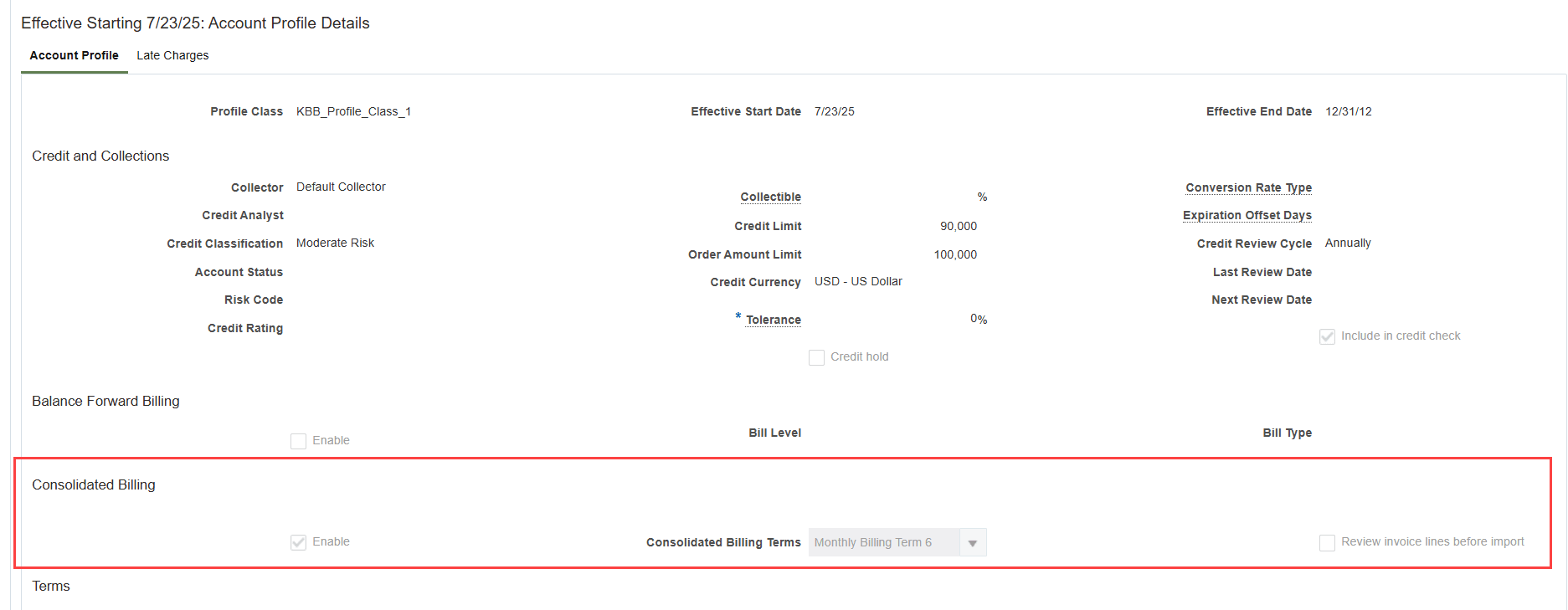
Customer Account Profile
Managing Consolidated Billing Terms
Key configuration parameters for fulfillment-based consolidation include:
- Consolidation Method: Select Fulfillment-based.
- Cut-off date is the date on which the invoice should be generated even when all the related lines are not yet fulfilled. Use the below parameters to determine the date -
- Cut-off Date Basis: Select First Billable Line Date.
- Cut-off Days: Specify the number of days.
- Transaction Date Handling: Select one of the following:
- Current Date – Uses the date on which the consolidation process runs.
- Latest Fulfilled Line Date – Uses the latest transaction date among all eligible fulfilled lines.
- Inclusions: Specify the transaction sources to include in consolidation.
- Exclusions: Define criteria such as payment terms, receipt methods, business units, legal entities, and Exclude Unrelated Services.
Example: All charges originating from a sales order are intended to be consolidated into a single invoice once all sales order lines are fulfilled.
- If the first sales order line is interfaced to Receivables on 1-Dec and the Cut-off Days is 10, the system generates a consolidated invoice on 10-Dec, including all available charge lines in the Receivables interface table — even if some lines are not yet fulfilled.
- If all lines are fulfilled before 10-Dec, the invoice is generated as soon as the last line is fulfilled.
If the AutoInvoice process is executed on 12-Dec:
- With Transaction Date Handling = Current Date, the transaction date will be 12-Dec.
- With Transaction Date Handling = Latest Fulfilled Line Date, and the last line is interfaced on 8-Dec, the transaction date will be 8-Dec.
Enabling Consolidation at the Customer Account Profile Level
You can enable consolidation at the Customer Account Profile level using any of the following methods:
1. Manual update through UI:
- Update the customer profile in the new Consolidated Billing section under Customer Account > Profile History.
2. Profile Class Updates via UI:
- Modify customer profile classes and propagate changes to customer profiles using the Manage Receivables Customer Profile Classes task, now available from the Customers section in the Billing work area.
- Choose from three propagation options:
- Apply changes to new profiles only.
- Apply changes to unmodified profiles and version existing unmodified profiles.
- Apply changes to all profiles and version all existing profiles.
3. Mass Update via FBDI (File-Based Data Import)
- Populate new attributes in the RA_CUSTOMER_PROFILES_INT_ALL tab of the FBDI template (columns DZ to EB).
4. SOAP Service Integration
- Create or update customer profiles using the available SOAP service.
Managing Source Data for Consolidation
Transactional data from Oracle Order Management (OM) and Oracle Subscription Management (OSS) are integrated to generate charge lines for Receivables consolidation. The Billing Set Number acts as the key identifier for managing and tracking fulfillment events, with Order Management serving as the controlling system.
Following is the business process flow -
- Assign a Billing Set Number to sales order lines within an order. This ensures that all related lines are consolidated into a single invoice once fulfillment is complete.
- Integrate with Oracle Subscription Management (OSS): If a sales order line is fulfilled through subscription integration, then the corresponding subscription product line inherits the Billing Set Number on its bill lines for the first billing period.
- Trigger Invoice Consolidation: Once all sales order lines under a Billing Set Number are fulfilled and interfaced to Receivables, from both Order Management and Subscription Management, the fulfillment event is marked complete. All charge lines for that Billing Set Number are then consolidated into an invoice.
Managing the Consolidation Process
Use the Manage Draft Consolidated Bills (ADFdi) task, available under Consolidated Billing in the Billing work area, to manage consolidation-related activities. This task allows you to:
- Review charge lines before invoice import.
- Perform ad hoc billing operations.
To proceed with invoicing:
- Change the consolidation status of all Ready for Review lines to Ready for Billing.
- For immediate billing, set the status to Bill Now.
Tips and considerations
- Carefully review all updates before propagating revisions from profile classes to individual customer profiles—especially when using the Apply changes to all profiles and version all existing profiles option. Applying this option may overwrite previously updated attributes.
- Consolidated invoices will not be generated if any charge line associated with a customer account contains errors. Ensure that all such errors are corrected using the Manage AutoInvoice Lines (ADFdi) task before initiating invoice creation.
- Before enabling consolidation, execute the Import Receivables Transactions using AutoInvoice process to clear all pending interface lines.
- Consolidation for fulfillment-based billing currently supports charge lines originating only from Oracle Order Management and Oracle Subscription Management.
- When consolidation is enabled, always use the Import Receivables Transactions using AutoInvoice ESS job. Replace any existing schedules or dependencies on the Import AutoInvoice process.
- Consolidated invoices are generated using the predefined transaction source ORA_Consolidated Invoice. The originating feeder system source appears as the Line Transaction Source on each invoice line for reference.
- Fulfillment-based consolidation is supported only when a sales order serves as the primary source of customer contract fulfillment and is integrated with other delivery systems.
- Key grouping attributes from sales order lines are propagated to related subscription contracts. These attributes must remain consistent and not be overridden either manually or through service mappers, to prevent unintended invoice splitting.
- Only the bill lines of the first billing period from a subscription product line participate in consolidation. Subsequent billing periods' bill lines are processed independently and may generate separate invoices based on grouping rules.
- The attributes Purchase Order, Purchase Order Revision, Purchase Order Date, Comments, and Internal Notes are excluded from mandatory grouping criteria. These appear as informational references on the resulting invoice lines.
- If a customer account is configured for Review of Draft Lines, invoice creation will be on hold until all draft lines for an invoice are approved and cleared for billing.
Key resources
For more information on managing charge lines for consolidation within Order Management, see Redwood: Create One Invoice for Physical Items, Coverages, and Subscriptions.
Access requirements
To use this feature, you need these privileges:
- Manage Customer Profiles (AR_MANAGE_CUSTOMER_PROFILES_PRIV)
- Import Receivables Transactions (AR_IMPORT_RECEIVABLES_TRANSACTIONS_PRIV)
- Manage Receivables Billing Terms (AR_MANAGE_BILLING_TERMS_PRIV)