Expenses Agent for Email-Based Expense Completion
Employees respond in natural language to email requests from the Expenses Agent for additional details, such as policy justifications or attendee information. This conversational workflow enables automatic completion and submission of expenses once all required information is provided, streamlining expense reporting and enhancing the employee experience. The agent can resolve scenarios involving the following information: attendee names and emails, delegates, merchant name, dates, justifications, project, task, company, cost center, and spend authorization.
Employees start by emailing receipts from meals, flights, or other expenses directly to the Expenses Agent. In line with company policy, employees may provide additional details, such as justifications, cost centers, expense type, payment method, or any personal expense amounts, within the email. The Expenses Agent automatically processes this information, creates a new expense, and replies using email if any required details are missing, such as the names and emails of the attendees or project information.
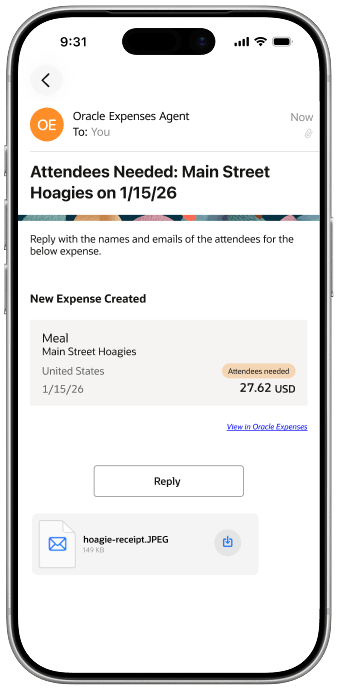
A sample email from the expenses agent creating an expense and requesting additional information.
Employees can respond to this using the provided email template by clicking the reply button in the body of the email or through a standard email reply. Any additional information sent by the employee in this reply will be added to the expense.
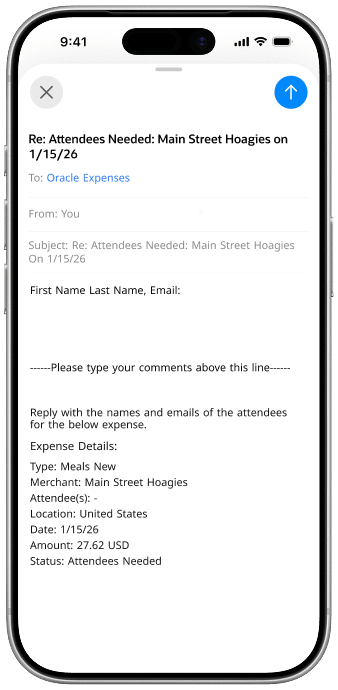
A sample email template after clicking the reply button in the previous email from the agent.
Once all necessary details are complete, the expense is marked as ready to submit (or will be auto-submitted if that option is enabled). For issues that cannot be resolved through email, a link will be provided to access the Expenses application and complete the process manually.
The business benefit of this feature includes significantly enhancing the employee expense management process by automating the submission, validation, and completion of expenses. By allowing employees to forward receipts directly via email, organizations reduce the reliance on manual data entry and minimize common errors associated with traditional expense reporting. Automated prompts for missing or inconsistent information ensure that required details are captured early, which helps reduce back-and-forth between the employee and the agent. Streamlined processing accelerates the reimbursement cycle, supports compliance initiatives with more accurate and complete data capture, and frees up valuable time for both employees and administrators.
Steps to enable and configure
Use the Opt In UI to enable this feature. For instructions, refer to the Optional Uptake of New Features section of this document.
Offering: Financials
This feature requires the enablement of the Expenses Agent (Touchless Expenses). Refer to the 25D What's New and the Detailed Adoption Guide for steps to enable and configure.
- Existing customers using the Expenses Agent before 26B must enable the FSM opt-in Email-Based Expense Completion Using Expenses Agent to complete expenses using email.
- For new customers using the Expenses Agent in 26B, this opt-in is enabled by default.
After the feature is enabled, configure the following profile option using Manage Profile Options for the Expenses application and module.
- Profile Option Code: EXM_AGENTIC_EMAIL_PROCESSING
- Profile Option Name: EXM_AGENTIC_EMAIL_PROCESSING
- Enable the profile option level as Enabled and Updatable based on the preferred rollout approach.
- For a pilot rollout, use the User level; for an organization-wide rollout, use the Site level.
- Set the profile value under Manage Administrator Profile Values for the profile option EXM_AGENTIC_EMAIL_PROCESSING using the values in the below table based on pilot rollout or organization-wide rollout.
Setup by Rollout Approach
| Pilot Rollout (Recommended) | Organization-wide Rollout |
|---|---|
|
Profile Level = User
|
Profile Level = Site
|
Note: Enabling the above opt-in and profile option is required to use the 26B feature Expense Policy Inquiry Enhancements Using Expenses Agent also.
For step by step information of above, review this knowledge document in My Oracle Support (note: KB916477).
Tips and considerations
- Receipts must be clear and attached in a supported format (JPEG, PNG, PDF).
- For best results, users should put their expense instruction at the top of the email body, before signatures, disclaimers, or forwarded message chains, and use clear field-and-value wording such as “Set expense type to Meals” or “Update project to ABC Constructions and task number to 01.”
- Keep each receipt attachment under 4 MB. Text-only emails without a real receipt attachment aren’t a recommended way to create expenses.
- Expense policies and related validations must be configured for the agent to properly enforce rules.
- Errors such as invalid cost centers and missing mandatory fields result in one concise email prompting corrective action.
- If required information cannot be supplied using email such as tax code classification or if unable to resolve project or cost center or other information provided by the user, the agent will direct the employee to the UI for manual completion. If the agent directs the employee to Oracle Expenses, the employee should complete the expense in the application instead of continuing to reply to the email thread. Email-based guided completion supports a maximum of two guided reply turns.
- Auto-submission may occur when all required data is present; expenses pending employee-related details are tagged for review.
- The email subject is taken as the default expense description if the user doesn't specify the expense description explicitly in the email body instructions.
Key resources
Configure Email Receipt Forwarding
Access requirements
No new access requirements.