Redwood: Manage B2B Certificates
You can now use a Redwood page to define, manage, and maintain the digital certificates used to enable encryption and decryption for collaboration messages exchanged with your trading partners using the AS2 protocol via Oracle B2B.
This helps protect sensitive data in transit and meet organizational security and compliance requirements.
Steps to enable and configure
You can access this functionality by enabling the feature Simplify Configuration and Processing for B2B Messaging or the profile option ORA_CMK_MESSAGING_CERTIFICATES_REDWOOD_ENABLED.
- In the Setup and Maintenance work area, search for and select the Manage Administrator Profile Values task.
- On the Manage Administrator Profile Values page, search for and select the ORA_CMK_MESSAGING_CERTIFICATES_REDWOOD_ENABLED profile option code.
- In the Profile Values section, set the Site Level to Yes or No.
- Yes = enables the feature
- No = disables the feature
- Select Save and Close.
- After enabling the Redwood page, you need to log out and log in again to access the Messaging Certificates task from the task panel.
You can perform the following steps to set up digital certificates:
- Create Keystore Password: Creates or sets the keystore password, which is required to securely store and access certificates and private keys in the B2B keystore.
- Generate Certificate: Creates a new self-signed X.509 digital certificate and its associated key pair in the B2B keystore.
- Import Certificate: Imports an external certificate or keystore into the B2B keystore so it can be used for secure messaging configuration.
- Generate Certificate Signing Request: Generates a certificate signing request (CSR) using an existing key pair, which can be sent to a certificate authority (CA) to obtain a trusted, signed certificate.
- Export Certificate: Exports the selected certificate from the keystore to a file (typically <alias>.cer), so it can be shared or used in B2B/AS2 configuration.
- Import Signed Certificate: Imports a CA-signed certificate and associates it with the existing private key, effectively replacing the self-signed certificate for use in trusted B2B/AS2 exchanges.
- Delete Certificate: Deletes the selected certificate entry (and associated private key, if present) from the B2B keystore, making it unavailable for B2B/AS2 message security.
Create Keystore Password
- Navigate to Messaging Certificates, select Keystore Password.
- Enter the password and Save.
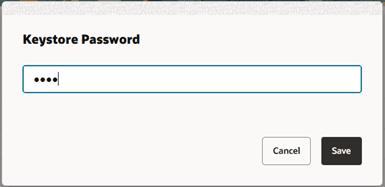
Keystore Password
Generate Certificate
- On the Messaging Certificates page, select Generate.
- Select Submit after you've added the details for the new certificate.
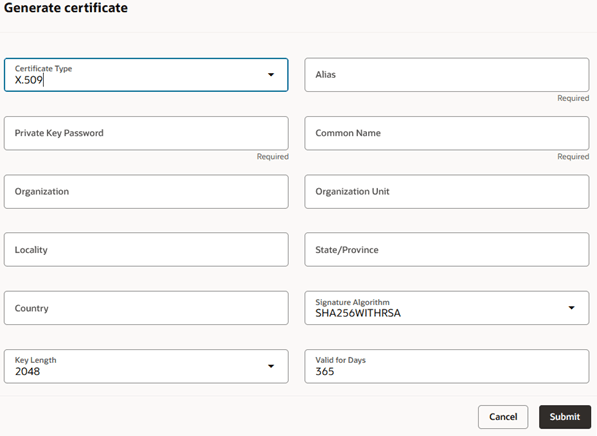
Generate Certificate
Import Certificate
- On the Messaging Certificates page, select Import.
- Select Import and Close after you've added the details.
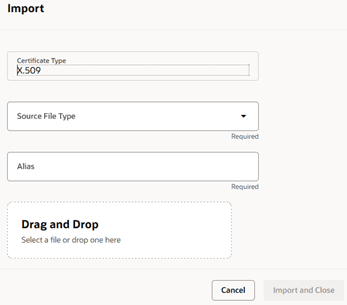
Import Certificate
Generate Certificate Signing Request
- On the Messaging Certificates page, locate the self-signed private key for which you want to create a CSR.
- In the Actions column, select Generate Certificate Signing Request.
- Enter the Private Key Password for the selected key entry, then select Save As.
- Choose the download location and file name. The default name is <alias>.cer.
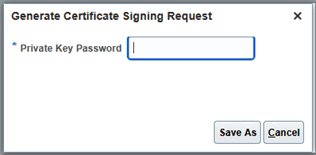
Generate Certificate Signing Request
Export Certificate
- On the Messaging Certificates page, locate the certificate to export.
- In the Actions column, select Export > Certificate.
- Choose the download location and file name. The default name is <alias>.cer.
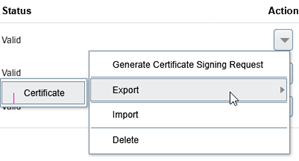
Export Certificate
Import Signed Certificate
- Under Actions, select Import Signed Certificate.
- Select Import after you've added the details.
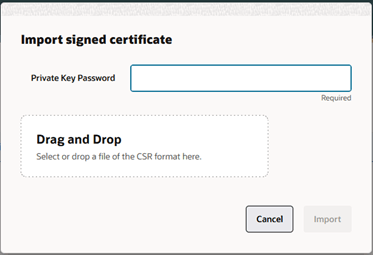
Import Signed Certificate
Delete Certificate
- Under Actions, select Delete.
- On a public key, select Delete.
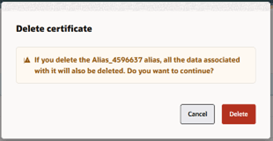
Delete Public Key
- On a private key, select Delete after you’ve added the required details.
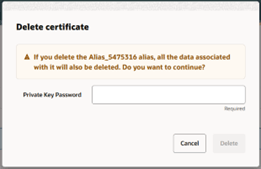
Delete Private Key
Tips and considerations
- Before generating or importing certificates, you must enter a keystore password.
- The keystore password defined in Messaging Certificates needs to match the Oracle B2B keytore password.
- Import supports two types:
- Import a certificate (.cer) file:
- Uploads a single public certificate and stores it under the alias you provide.
- After import, the page shows the certificate with Private Key not selected. This means it’s a public certificate only and no private key was imported.
- Import a keystore:
- Uploads an entire keystore that may contain one or more certificates and private keys.
- Requires the keystore password and, if applicable, a private key password so the system can read and securely store those entries.
- Import a certificate (.cer) file:
- The Generate option:
- Generates the public-private key pair using the selected signature algorithm and key length.
- Creates a self-signed certificate valid for the number of days specified.
- Stores it as a private key entry identified by the provided alias.
- The Generate Certificate Signing Request prompts for the private key password to authorize use of that private key for generating the request.
- The Export option exports the public certificate and not the private key.
- The Import Signed Certificate updates the keystore entry, so the certificate is now Trusted (the Type changes from Self-Signed to Trusted) while continuing to use the same underlying private key.
- The Delete option:
- Requires the private key password when deleting a certificate entry that includes a private key to confirm authorization.
- Allows deletion of a public certificate without a password since no private key material is involved.
Key resources
Refer to the Configuring and Managing B2B Messaging for Oracle Fusion Cloud SCM guide on the Oracle Help Center.
Access requirements
Users who are assigned a configured job role that contains this privilege can access this feature:
Manage B2B Certificates (CMK_MANAGE_B2B_CERTIFICATES_PRIV).
This privilege was available prior to this update.