Fixed Asset Inquiry Assistant
The Inquiry Assistant provides a conversational way to access asset information and activity without navigating through multiple pages or reports. The assistant helps to quickly retrieve asset details and review book activity through a guided, self-service experience.
The following options are presented when you open the assistant:
- Show Asset Details for a Book
- Show Current Period Activity for a Book
- Show the List of Books Available for Inquiry
Show Asset Details for a Book
You can retrieve detailed information for assets within a selected asset book. The assistant provides access to key asset attributes, including asset number, description, category, cost, and depreciation information. You can quickly search for and review asset information without navigating through multiple inquiry pages.
You can ask the assistant to show the following categories of details for a particular asset:
- General
- Financial
- Depreciation
- Distribution
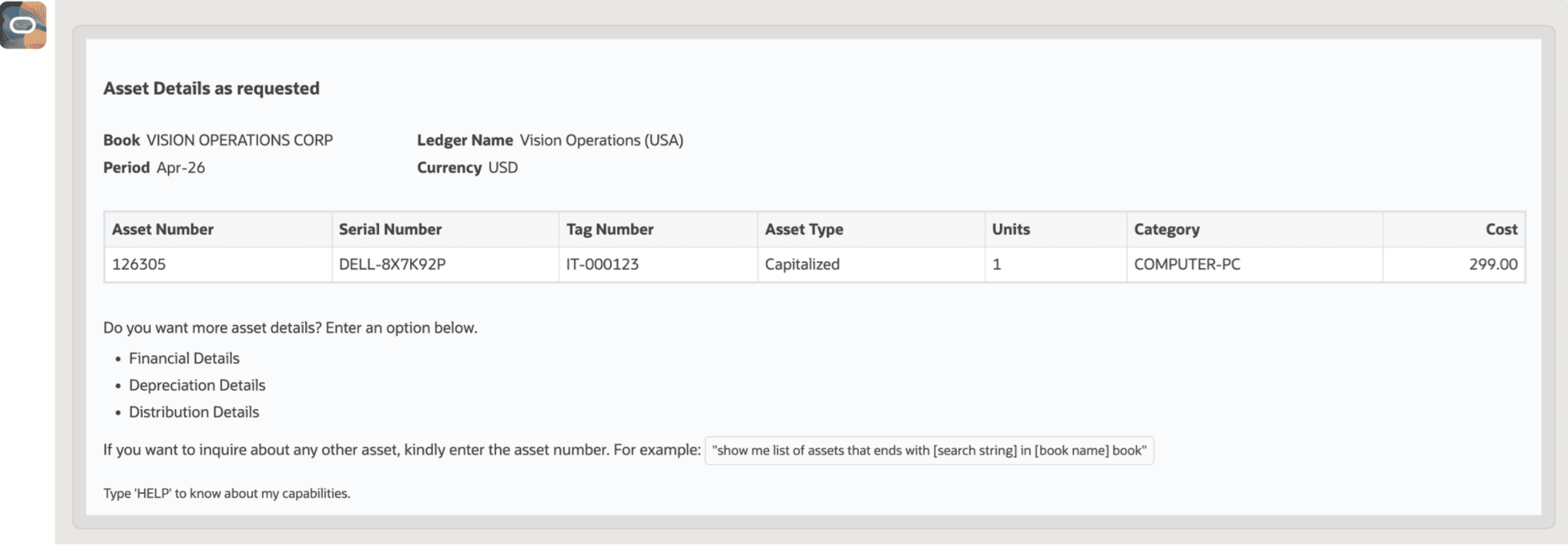
When you request details for a specific category, the Assistant shows the corresponding list of attributes for the asset. For example, if you ask to show the General details of an asset, the Assistant shows the following attributes: Asset Number, Serial Number, Tag Number, Asset Type, Units, Category, and Cost.
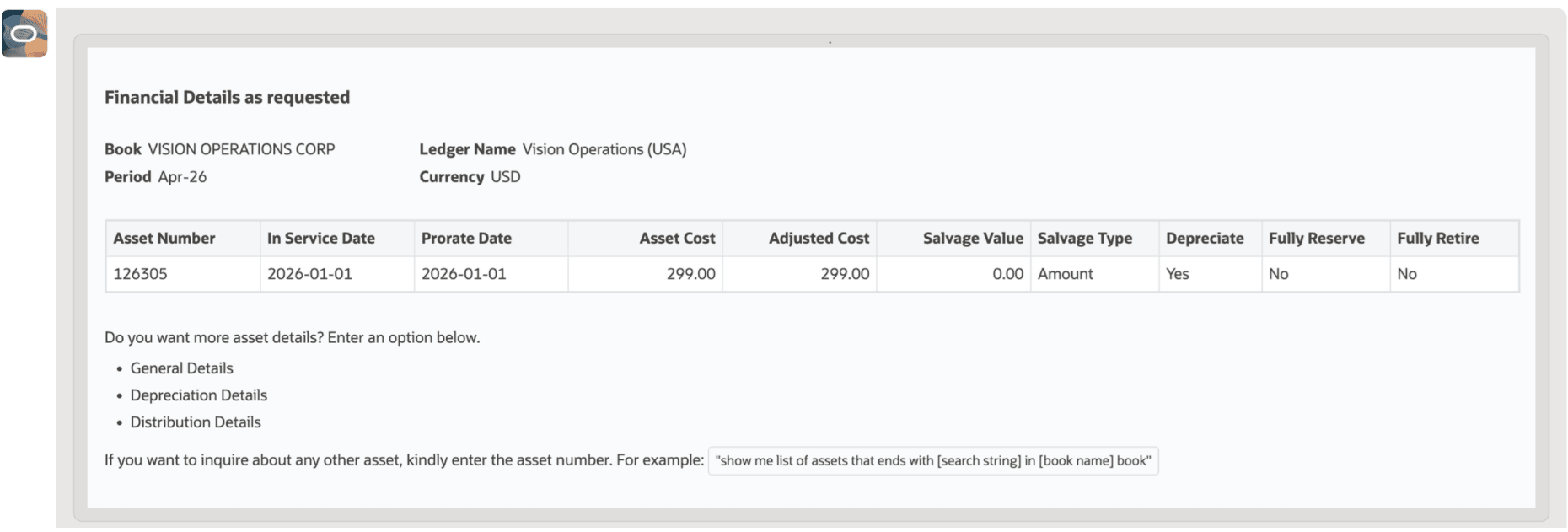
If you ask to show the Financial details of an asset, the Assistant shows: Asset Number, In Service Date, Prorate Date, Asset Cost, Adjusted Cost, Salvage Value, Salvage Type, and Depreciate.
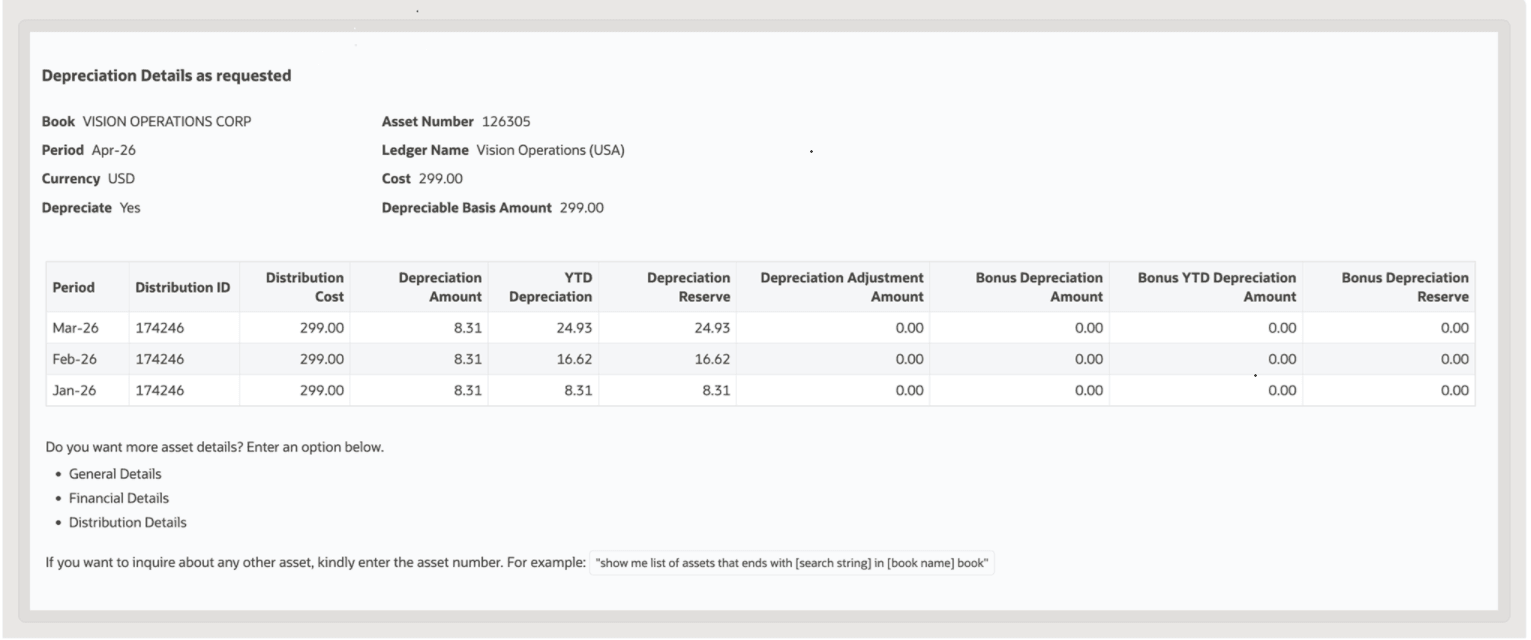
If you ask to show the Depreciation details of an asset, the Assistant shows: Distribution ID, Distribution Cost, Depreciation Amount, YTD Depreciation, Depreciation Reserve, Depreciation Adjustment Amount, Bonus Depreciation Amount, and Bonus YTD Depreciation Amount.
If you ask to show the distribution details of an asset, the Assistant shows: Asset Number, Distribution ID, Units Assigned, Location, Expense account.
Show Current Period Activity for a Book
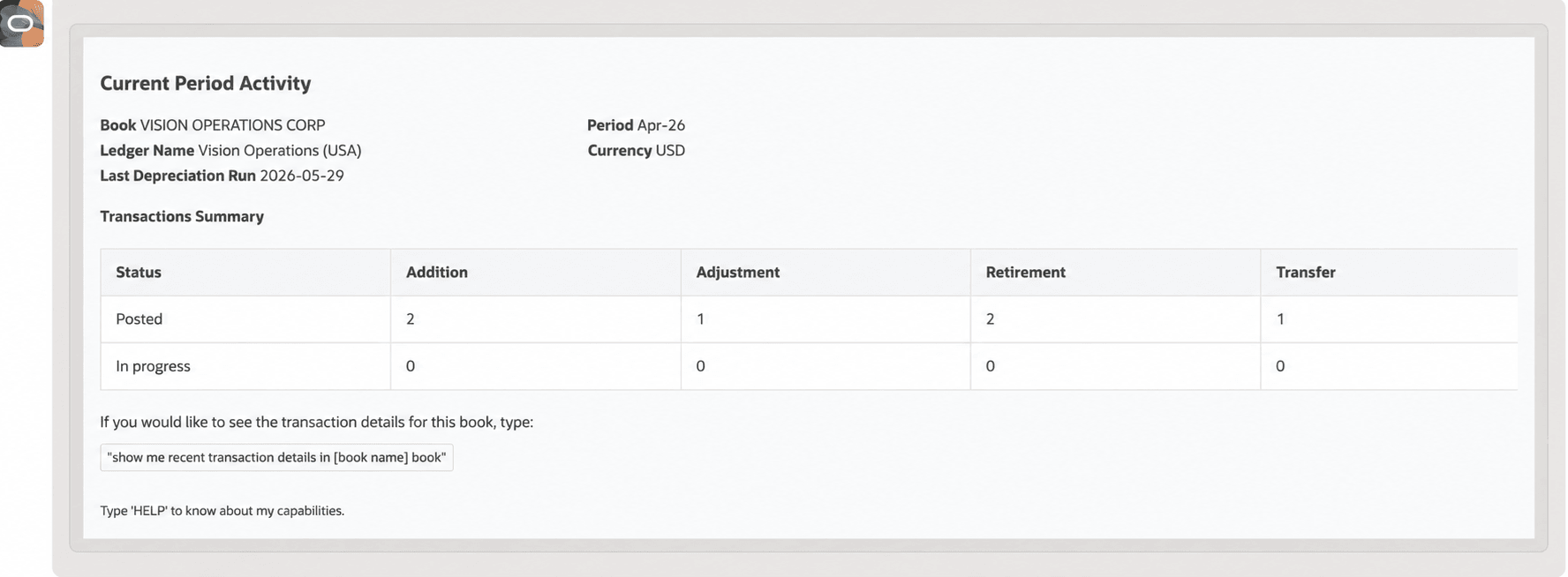
You can view asset activity for the current accounting period within a selected asset book. The assistant summarizes transactions and activity such as asset additions, adjustments, transfers, and retirements events, providing a snapshot of the number of transactions in progress and posted. This provides a convenient way to monitor recent asset activity and understand changes affecting the selected book during the current period. You can then drill down into recent transactions to review and validate activity affecting asset balances and depreciation. This visibility helps support period-end reconciliation, transaction verification, audit inquiries, and analysis of changes within an asset book.
Show the List of Books Available for Inquiry
You can only submit inquiries for the books for which you have data access security permissions.
These capabilities provide a streamlined and efficient approach to accessing fixed asset information,helping find answers quickly and gain visibility into asset details and current period activity,
Business benefits include:
- Eliminates manual effort in retrieving asset data and reduces the time taken to search for asset information.
- Enables users to access information pertaining to assets quickly using natural language interaction.
- Improves overall user productivity and efficiency by providing real time and accurate asset information.
Steps to enable and configure
- Refer to the Access requirements section to set up the required security roles and privileges.
- After the required security roles and privileges are set up, users can access the Fixed Asset Inquiry Assistant from the Explore area on the AI Agents page.
Tips and considerations
- For the best experience, manually resize the assistant window to full screen.
- Enter Help in the assistant to access the help screen and view user guidance.
- The assistant can only inquire on one book at a time and cannot support multiple books in a single question.
- The assistant does not support inquiries into alternate ledger currencies.
- The assistant displays a maximum of 10 of the most recently added assets. Users can refine their search by providing the Asset Number, Asset Description, or Serial Number of the asset that they want to inquire about.
- The transaction details for an asset or book show only the 5 most recent transactions.
- Natural language conversation is English-only in this phase.
Key resources
Access requirements
The Fixed Asset Inquiry Assistant requires data security access to asset books in order to accept and process inquiries about specific assets. Access to asset book data can be granted through the custom job role. If the user already has an Assets job role, then the existing book access granted to that role is sufficient. The job role should have the Submit Fixed Asset Reports data security policy.
To provide user access to the Fixed Asset Inquiry Assistant, complete these steps:
- Navigate to the Security Console.
- Create a new custom job role with the following details
- Role Name: Specify a name, for example, Asset Inquiry Agent Custom Role
- Role Code: Specify a code, for example, FA_INQUIRY_AGENT_CUSTOM_ROLE
- Role Category: Financials – Job Roles
- Enable the Enable Permission Groups option.
- Navigate to Function Security Policies and add the following privileges:
- Access FSCM Integration Rest Service
- Inquire Fixed Asset
- View Fixed Asset Books
- Navigate to Role Hierarchy > Roles and Permission Groups and add the following roles:
- ORA_FA_FIXED_ASSET_INQUIRY_ASSISTANT_DUTY
- Add the required users to the custom job role, then save and submit the role.