Retirement Assistant
Retirement Assistant is designed to simplify and streamline the asset retirement process through an intuitive conversational experience that helps fixed asset accountants submit, review, and process retirement activity more efficiently. The assistant also supports the processing of retirement requests submitted through the Fixed Asset Retirement Request Assistant, and resolve retirement exceptions through a conversational, guided experience.
Retire Assets:
You can provide retirement details by asking to retire a specific asset using an Asset Number, Serial Number, or Tag Number, and can also use operators such as starts with, contains, and ends with. Retirement details may also be provided by pasting text for one or more assets or by uploading a file. After the details are entered, the assistant shows the selected assets to review them before proceeding. At that point, the you can continue the retirement with the selected assets, add more assets, or remove selected assets.
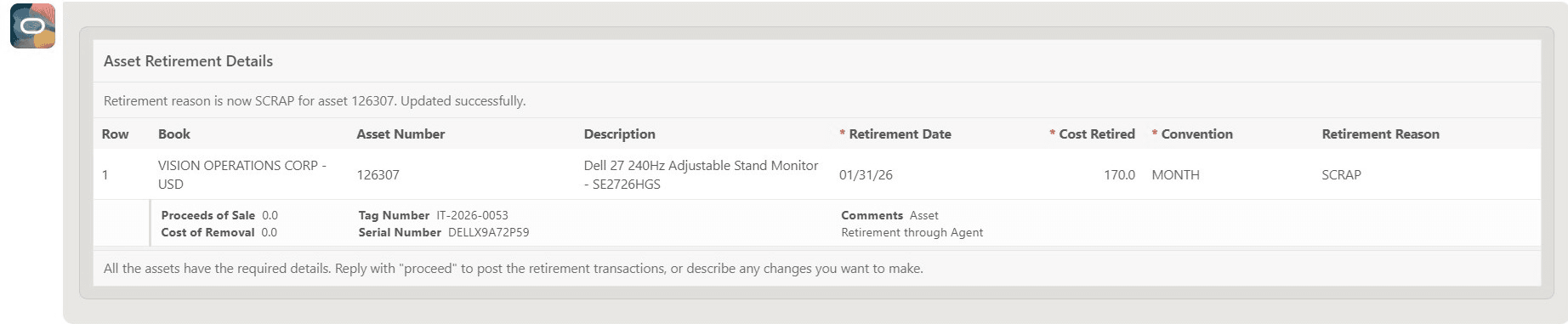
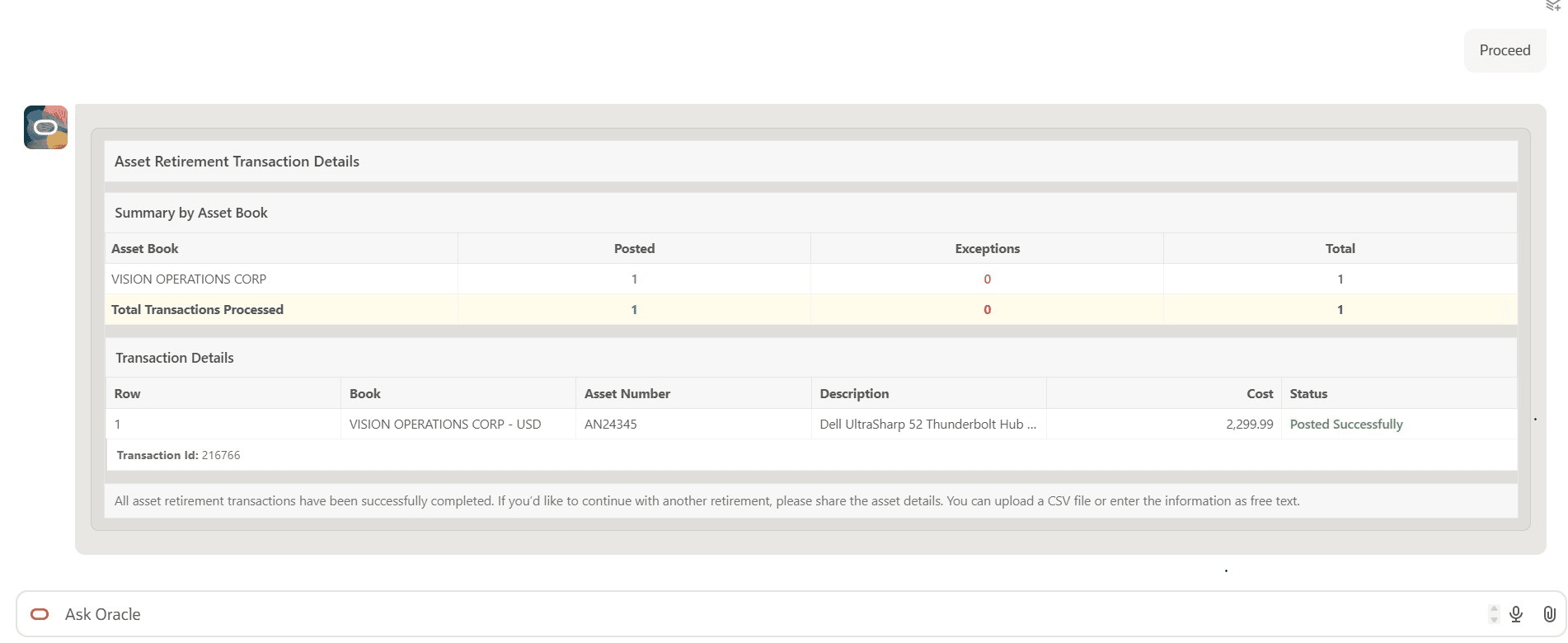
Once you complete all retirement details for each asset including Retirement Date and Retirement Convention along with optional details such as Predefined Retirement Reason, Proceeds of Sale, Cost of Removal, and Transaction Comment, proceed to retire the asset. The assistant displays the posting status of each asset for review. If any retirements fail during processing, users can review the failed retirements, update the necessary information, and resubmit the process.
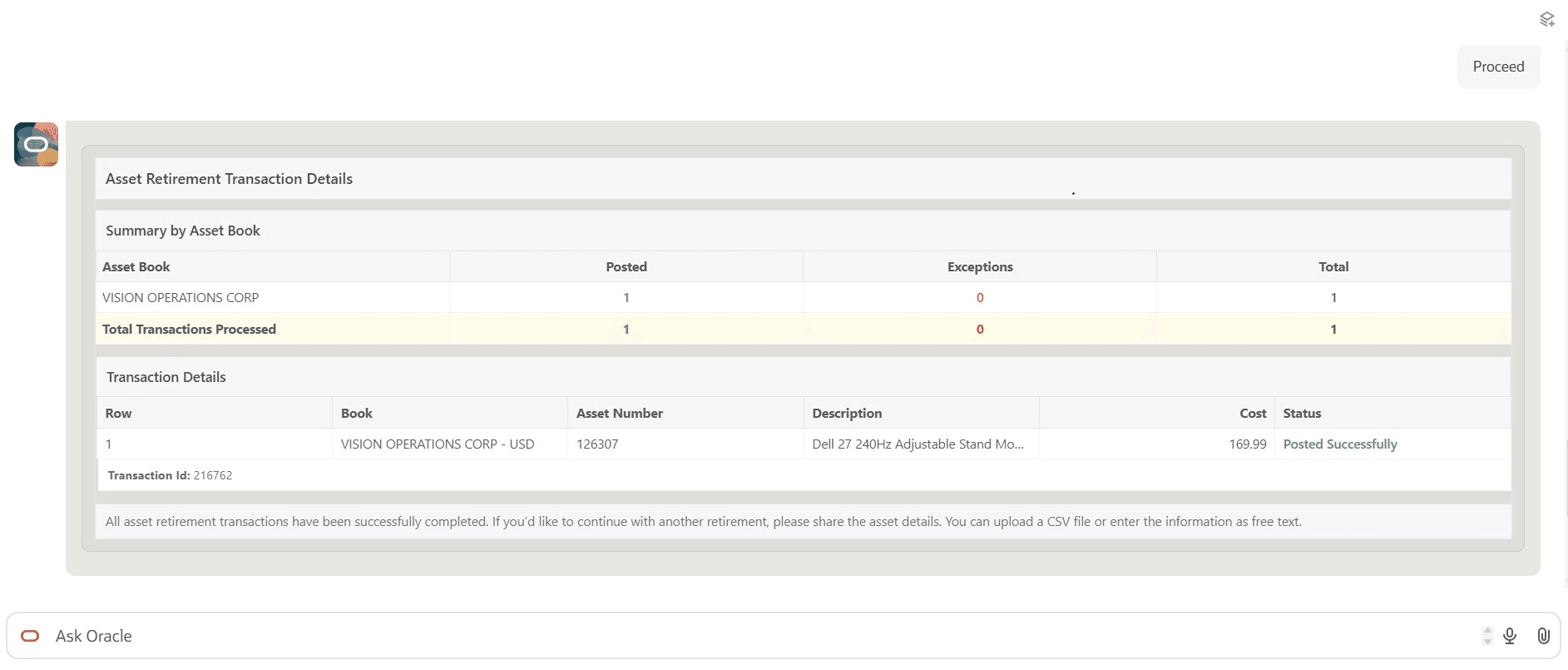
Review Retirement Requests
Fixed asset accountants can review and process retirement requests that were previously submitted through the Retirement Request Assistant. Users can review retirement details, update fields such as Retirement Date, Retirement Convention, Proceeds of Sale, and Cost of Removal, and then post the retirement transactions directly from the assistant.
Note: Users can access only the Retirement Request Assistant submissions for asset books to which they have data access.
You can now view all available AI Agents from the AI Agents and Applications page.To access this page, add /fscmUI/redwood/human-resources/ai-studio/agent-explore to the end of the URL for your application environment. For example, https://example.com/fscmUI/redwood/human-resources/ai-studio/agent-explore.
From the AI Agents and Appliction page you can:
- Search for available agents
- View your conversations with agents
- Start or resume a chat session with an agent
Key Capabilities
The Retirement Assistant provides the following capabilities:
• Retire a single asset or multiple assets through conversational and guided experience.
• Retire assets using Asset Number, Serial Number, or Tag Number.
• Upload files or paste text containing retirement details.
• View and resolve retirement exceptions.
• Process retirement requests submitted through the Retirement Request Assistant.
Business benefits include:
- Simplifies the asset retirement process through a guided experience.
- Reduces manual effort and simplifies complex retirement activities, enabling to complete retirements faster and with greater accuracy.
- Built-in validation and structured data collection help reduce errors.
- Reduces rework by allowing failed retirements to be corrected and completed without starting over.
Steps to enable and configure
No steps are required to enable this feature.
Tips and considerations
- AI Agents and Applications page displays all headless AI agents delivered by Financials. However, you can interact only with the AI agents that your job role grants access to.
- Only full cost retirement is supported. Unit retirement and source line retirement are not supported.
- After the retirement is successfully posted, use the Asset Inquiry page to review the transaction details.
- Entry of Descriptive Flexfield (DFF) details is not supported when performing retirements through this assistant.
- Retire up to 25 assets in a single interaction. Create additional interactions if you have more than 25 assets to retire.
- Natural language conversation is English-only in this phase
- No workflow approvals are triggered when retirement transactions are processed through this assistant, even if the asset book is enabled for Retirement Approvals. This behavior applies to both retirements created directly within the assistant and retirements originating from the Retirement Request Assistant.
- For the best user experience, manually resize the assistant window to full screen.
- Enter Help in the assistant to access the help screen and view user guidance.
Key resources
Explore AI Agents for Oracle Fusion Cloud Applications
How do I use AI Agent Studio?
Access requirements
This Retirement Assistant requires data security access to asset book to create retirements, and to view and process retirement requests submitted through the Retirement Request Assistant. Access to asset book data can be granted through the above custom job role. If the user already has an Assets job role, then the existing book access granted to that role is sufficient. The job role should have the Retire Fixed Asset data security policy.
To provide user access the Retirement Assistant, complete these steps:
- Navigate to the Security Console.
- Create a new custom job role with the following details:
- Role Name: Specify a name, for example, Retirement Request Agent Custom Role
- Role Code: Specify a code, for example, RETIREMENT_AGENT_CUSTOM_ROLE
- Role Category: Financials – Job Roles
- Enable the Enable Permission Groups option
- Navigate to Role Hierarchy > Roles and Privileges and add the following roles:
- ORA_FUN_FIN_AI_AGENT_RUNTIME_DUTY_HCM
- ORA_FUN_FIN_AI_AGENT_RUNTIME_DUTY
- Navigate to Role Hierarchy > Roles and Permission Groups and add the following roles:
- ORA_DR_FAI_GENERATIVE_AI_AGENT_FIN_ADMINISTRATOR_DUTY
- ORA_DR_FAI_GENERATIVE_AI_AGENT_RUNTIME_DUTY
- ORA_FA_FIXED_ASSET_RETIREMENT_ASSISTANT_DUTY
- Add the required users to the custom job role, then save and submit the role.