Project Contract Bill Transactions Assistant
Helps users find, review, and summarize bill transactions through a guided conversational experience, enabling faster billing review and decision-making.
Use the Project Contract Bill Transactions Assistant to:
- Find and review bill transactions by project, contract, status, or date range.
- Summarize bill transactions by status for a project or contract.
Users can enter a supported request directly in natural language or use guided prompt formats as shown below:
- Show bill transactions in [Status] for Project: [Project Name/Number].
- Summarize bill transactions in [Status] for Contract: [Contract Name/Number].
- Show bill transactions between "[mm/dd/yyyy]" and "[mm/dd/yyyy]".
- What’s the total amount to bill for Project: [Project Name/Number].
The assistant interprets the request, validates the project, contract, status, and date range values where applicable, and returns matching bill transactions in a summarized format.
Example Flow
John, a project billing specialist, is preparing invoices for a consulting project before the monthly billing run. He wants a quick summary of bill transactions by status to understand how much is ready to bill and whether any transactions need attention.
John navigates to the Agent Explore area and initiates the Project Contract Bill Transactions Assistant. He enters a request such as:
What’s the total amount ready to bill for Contract: Hilman and Associates?
The assistant interprets the request, validates the contract, and returns the total amount for bill transactions that are ready to bill. The guided summary helps John make faster decisions without manually filtering and aggregating bill transactions across multiple pages.
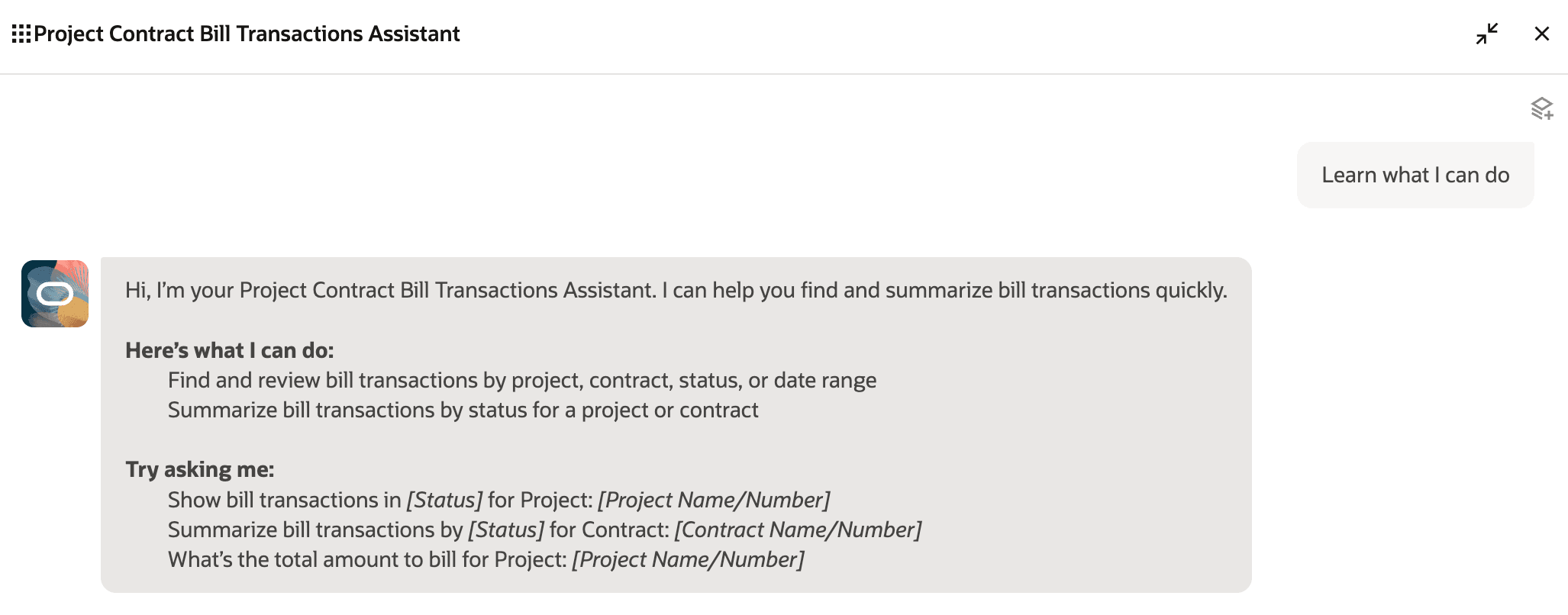
Agent Introduction
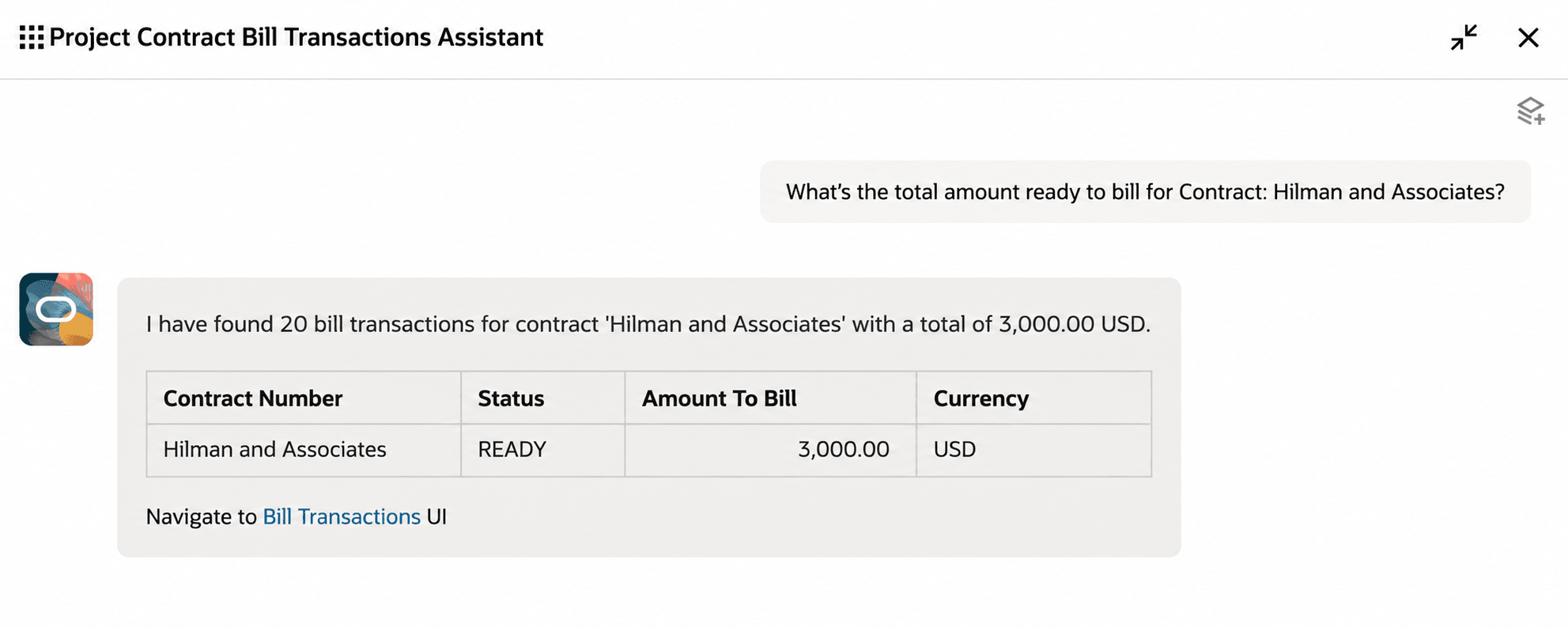
Bill Transactions Summary
Next, John wants to review the individual bill transactions that are ready to bill for the same contract. John tells the assistant:
Show bill transactions in Ready for Contract: Hilman and Associates.
The assistant interprets the request, validates the contract and bill transaction status, and retrieves the matching bill transactions. The results are displayed in a tabular format so John can quickly review the amount, quantity, status, and other key transaction details:
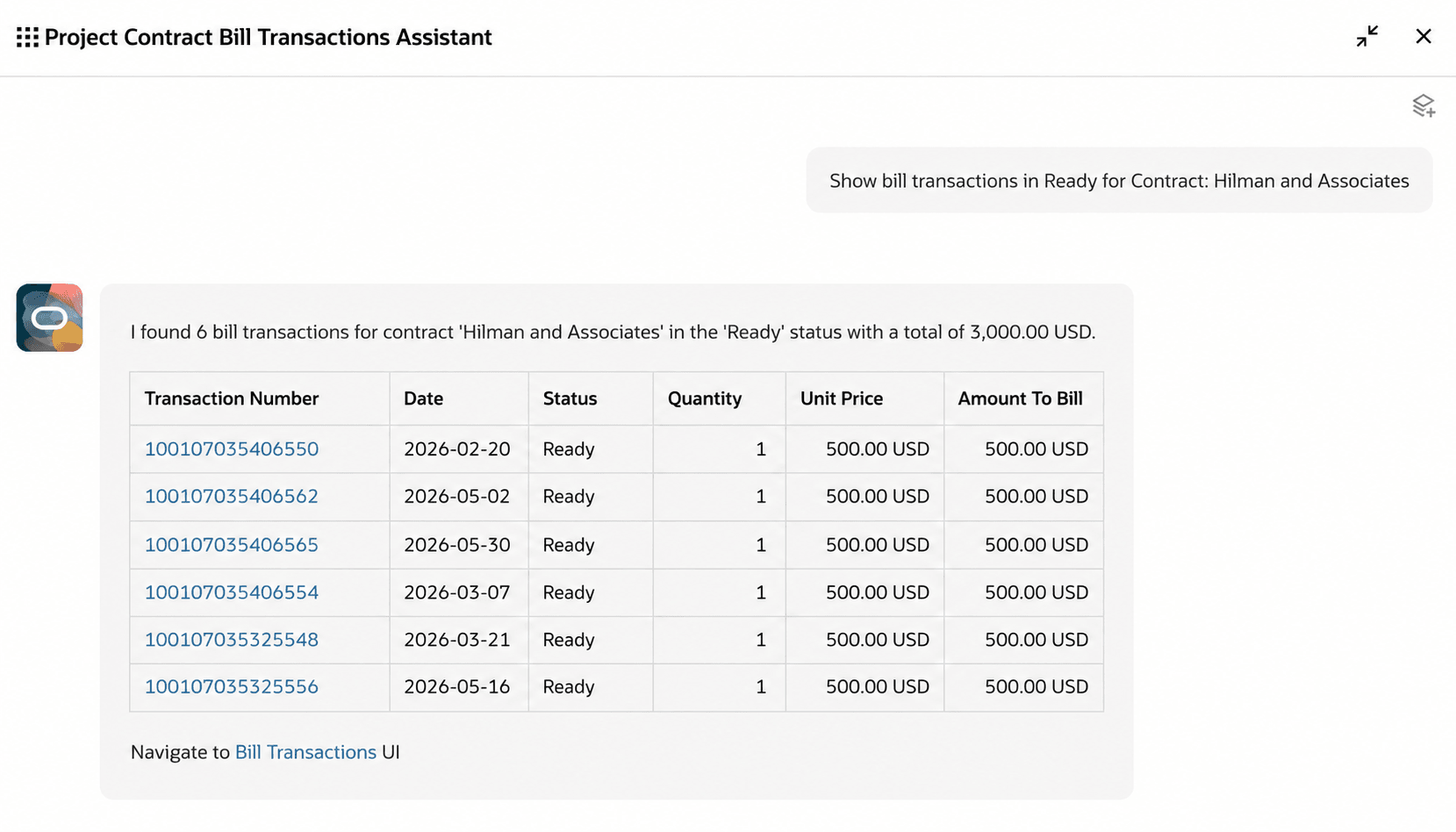
Review Bill Transactions
If John wants to narrow the review to a specific period, he can ask:
Show bill transactions for Contract: Hilman and Associates between "05/01/2026" and "05/30/2026".
The assistant applies the date range and returns only the bill transactions that match the contract and transaction dates. John can continue his review in the Bill Transactions page using the Navigate to Bill Transactions UI link if detailed follow-up or corrective action is needed:
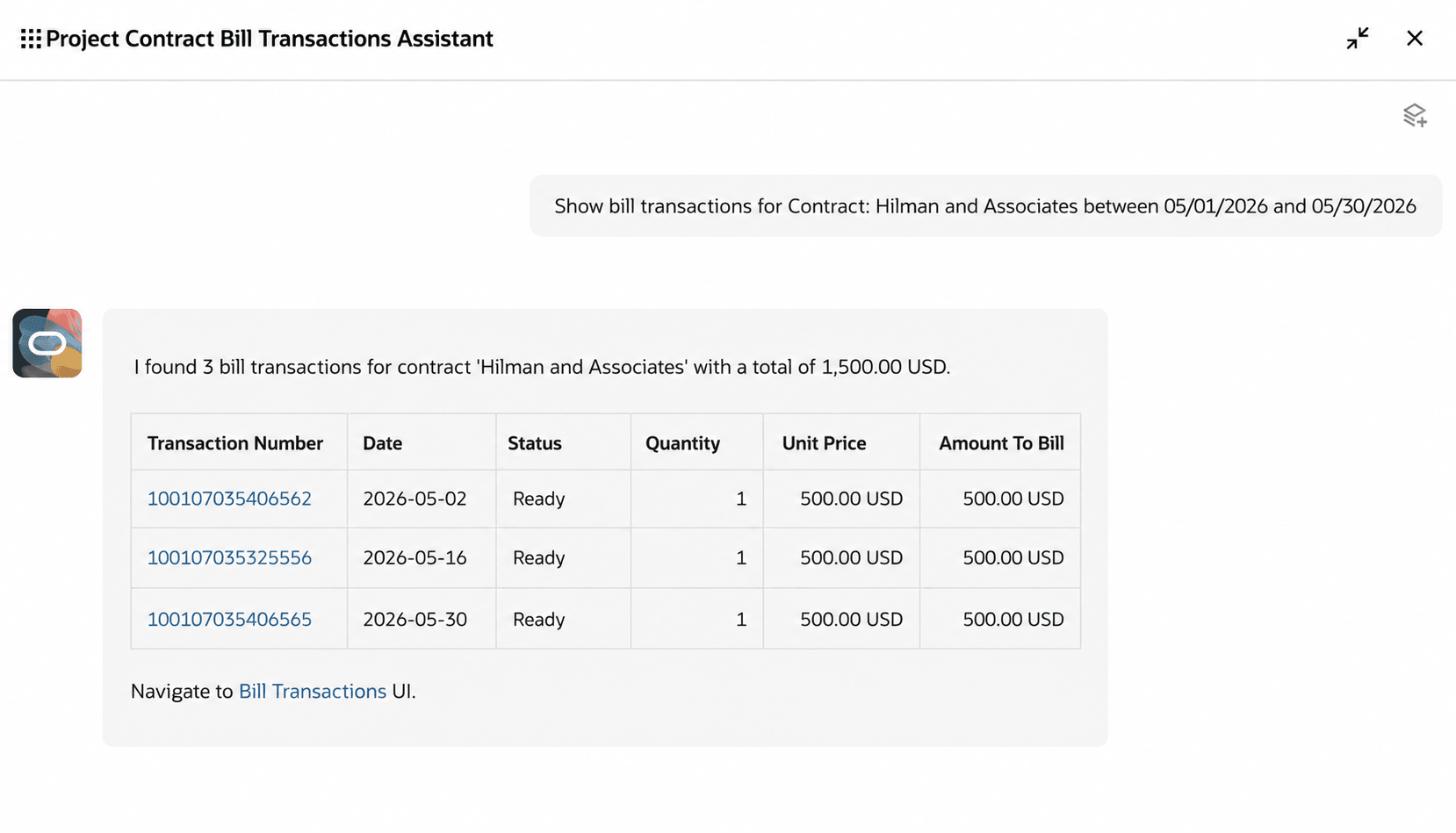
Filtering Bill Transactions by Date Range
The benefits of this feature are:
- Speed up billing review by allowing users to review bill transactions using natural language.
- Reduce manual effort by minimizing the need to apply multiple filters in the Bill Transactions page.
- Help users make faster billing decisions by summarizing matching bill transactions.
- Support faster exception triage and billing-cycle analysis by helping users quickly identify transactions that need review.
Steps to enable and configure
Project Contract Bill Transactions Assistant role is needed to use the assistant within the AI Agent Studio. Refer to the Access Requirements section for details.
Tips and considerations
Keep these points in mind when using the assistant:
- Provide at least one meaningful search criterion, such as project, contract, status, or date range.
- Start requests with a clear action word, such as 'Show' or 'Summarize'.
- Currently users can only review the bill transactions, any actions must be taken in the relevant Project Billing pages.
- Access to project contract bill transaction records is controlled by the user's existing data access.
- Currently only English is supported as an input language.
Key resources
Access requirements
Take the following steps to provide users access to the Project Contract Bill Transactions Assistant.
A) Users without the Project Billing Specialist Role
To enable users without the seeded Project Billing Specialist role or a custom Project Billing Specialist role, create and assign a custom role with the following configurations.
- In the Basic Information section of the custom role, ensure that the Enable Permission Groups option is selected.
- Navigate to Function Security Policies > Privileges and add the following privileges:
- View Project Contract Bill Transactions Service (PJB_VIEW_PROJECT_CONTRACT_BILL_TRANSACTIONS_PRIV)
- Manage Project Contract Bill Transaction (PJB_MANAGE_PROJECT_CONTRACT_BILL_TRANSACTION_PRIV)
- View Contract (OKC_VIEW_CONTRACT_PRIV)
- Get Project Setups (PJF_GET_PROJECT_SETUPS_PRIV)
- Navigate to Permission Groups section and add the following permission groups:
- read:Project Contract Bill Transaction (oraErpCoreProjectBillingTransactions_ProjectContractBillTransaction_read)
- read:Project Contract Billing Event Bill Transaction (oraErpCoreProjectBillingTransactions_ProjectContractBillingEventBillTransaction_read)
- read:Project Contract Cost Bill Transaction (oraErpCoreProjectBillingTransactions_ProjectContractCostBillTransaction_read)
- For each of these permission groups, set the Security View to Business Unit Access Rows and All Fields.
-
Navigate to Data Security Policies and add the following data security policy:
Grant on Business Unit- Data Resource: Bill Transaction for table PJB_BILL_TRXS
- Data Set: Select by Instance Set
- Condition Name: Access to project contract bill transactions for table PJB_BILL_TRXS for the contract business units
- Actions: View Project Contract Bill Transaction Data
- Navigate to Role Hierarchy > Roles and Privileges and add the following duty role:
- Project Contract Invoice Management (ORA_PJB_PROJECT_CONTRACT_INVOICE_MANAGEMENT_DUTY)
- Navigate to Role Hierarchy > Roles and Permission Groups and add the following duty roles:
- Project Contract Bill Transactions Assistant (ORA_PJB_PROJECT_CONTRACT_BILL_TRANSACTIONS_ASSISTANT_DUTY)
- Project Inquiry (ORA_PJF_PROJECT_INQUIRY_DUTY)
- Assign the custom role to the user.
- Ensure that the user and the new custom role have the appropriate business unit data access.
Data Security Policies
Ensure that users have business unit data access for the project contract bill transactions and contracts they need to review.
B) Users With the Seeded or Custom Project Billing Specialist Role
To enable users with the seeded Project Billing Specialist role or a custom Project Billing Specialist role, create and assign a custom role with the following configuration.
- In the Basic Information section of the custom role, ensure that the Enable Permission Groups option is selected.
- Navigate to Function Security Policies > Privileges and add the following privilege:
- View Contract (OKC_VIEW_CONTRACT_PRIV)
- Navigate to Permission Groups section and add the following permission groups:
- read:Project Contract Bill Transaction (oraErpCoreProjectBillingTransactions_ProjectContractBillTransaction_read)
- read:Project Contract Billing Event Bill Transaction (oraErpCoreProjectBillingTransactions_ProjectContractBillingEventBillTransaction_read)
- read:Project Contract Cost Bill Transaction (oraErpCoreProjectBillingTransactions_ProjectContractCostBillTransaction_read)
- For each of these permission groups, set the Security View to Business Unit Access Rows and All Fields.
- Navigate to Role Hierarchy > Roles and Permission Groups and add the following duty roles:
- Project Contract Bill Transactions Assistant (ORA_PJB_PROJECT_CONTRACT_BILL_TRANSACTIONS_ASSISTANT_DUTY)
- Project Inquiry (ORA_PJF_PROJECT_INQUIRY_DUTY)
- Assign this custom role to the user who already has the predefined Project Billing Specialist role, or a custom role that is an exact copy of the Project Billing Specialist role.
In addition, the user must have the appropriate Resource Role and Organization setup in Manage Users to access contracts in the relevant business unit(s).
Also ensure that users have the required business unit data access for the bill transactions they need to review.
Note: Run the financial maintenance stream job in case the Job role information is modified in last 24 hours in Manage Data Access or Project Roles Setup.
{
"OperationName":"submitESSJobRequest",
"JobPackageName":"oracle/apps/ess/financials/commonModules/shared/common/interfaceLoader",
"JobDefName":"MaintenanceStream",
"ESSParameters":"OAR_LOAD_BALANCE"
}