Project Contract Invoicing Assistant
The Project Contract Invoicing Assistant enables you to search and review invoices by business unit, customer, contract number, and status. It also allows you to process invoices to Released status after review and create cancel credit invoices for original standard invoices. The assistant provides a guided experience to streamline invoice processing and improve operational efficiency.
Example Flow
As a Project Billing Specialist, Elena wants to use the Project Contract Invoicing Assistant to efficiently review, process, approve, release, and correct project contract invoices through a conversational and guided experience, enabling faster, more accurate billing operations with reduced manual effort.
Worked Example 1: Reviewing Invoices and Filtering by Contract Number
Elena opens the assistant from the Agent Explore home page and starts by inquiring about invoices for a specific business unit and customer. She then narrows the results further by contract number to isolate the exact invoices she needs to review. This helps her quickly identify the right invoice set without repeating searches, as highlighted below.
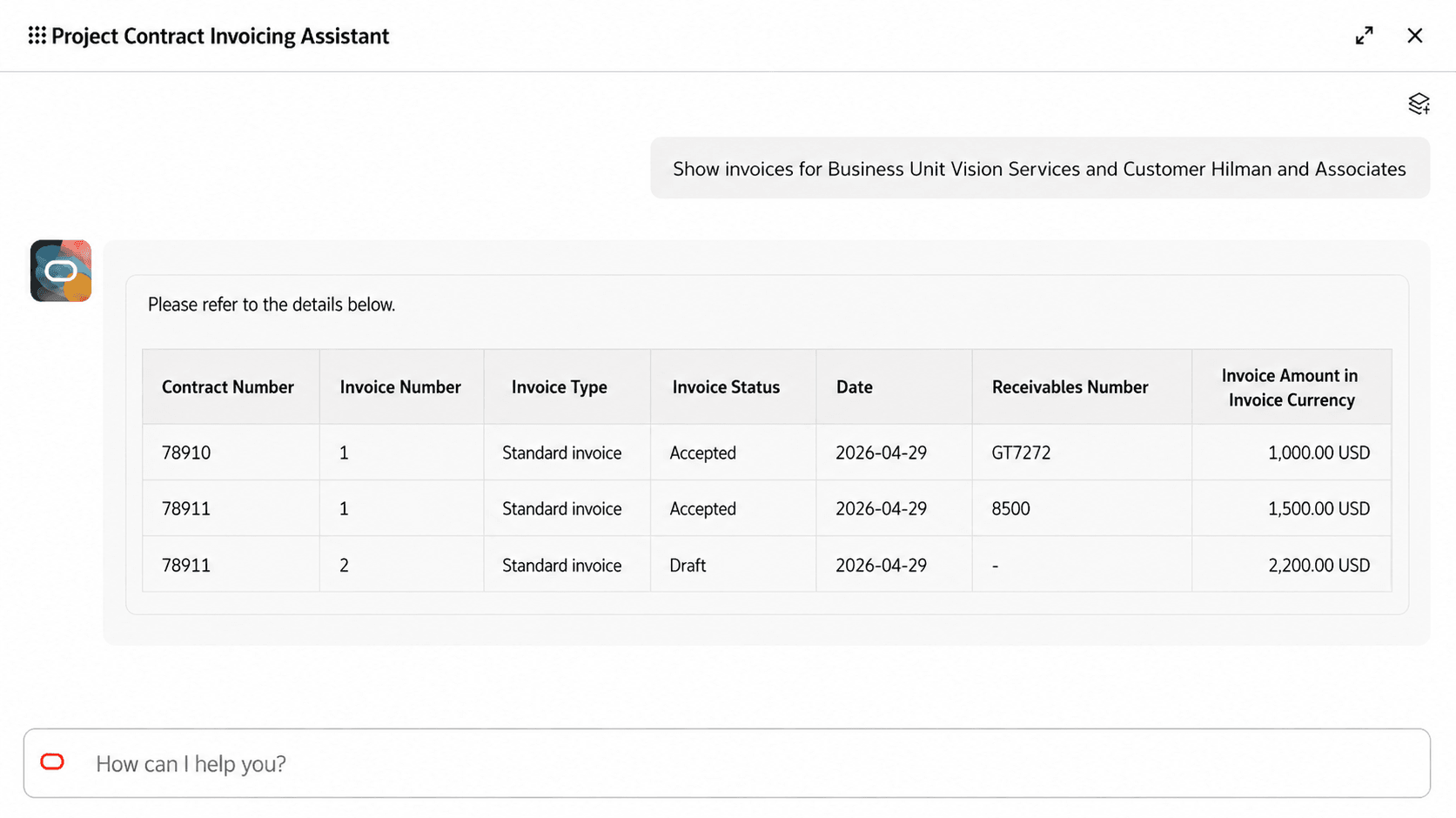
View Invoices by Business Unit and Customer
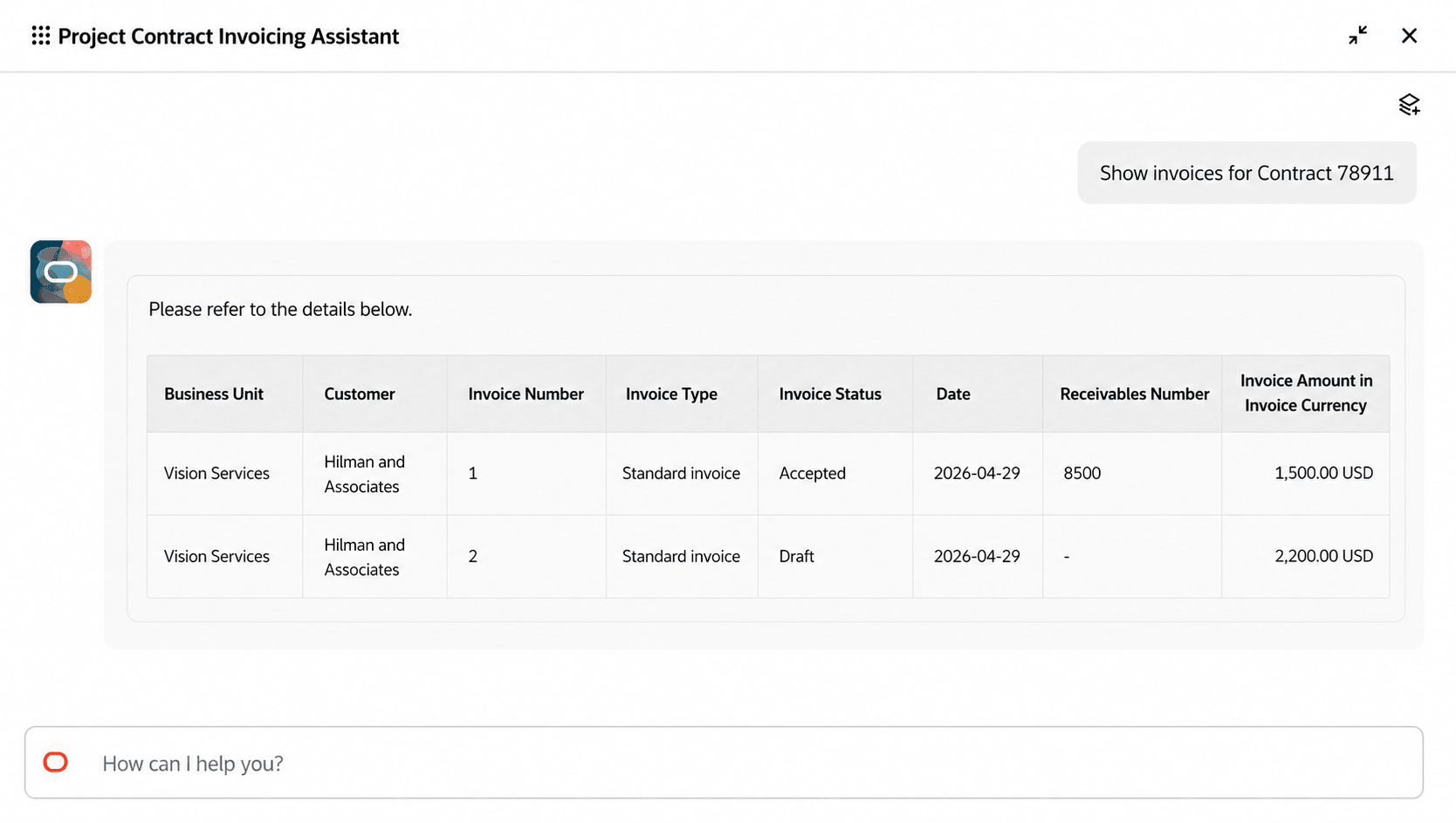
View Invoices by Contract Number
Sample prompts for viewing invoices are listed below:
- Show invoices for Business Unit {Business Unit Name}
- Display invoices for Customer {Customer Name}
- Show invoices for Contract {Contract Number} and Status {Invoice Status}
Worked Example 2: Submitting, approving, and releasing an invoice using a guided experience
After validating the invoice details, Elena uses the assistant to move the invoice through the billing lifecycle. The guided experience helps Elena submit an invoice for approval, progress it through approval, and release it after approval. The assistant provides confirmation after each step to keep Elena informed and reduce the chance of processing errors, as highlighted below.
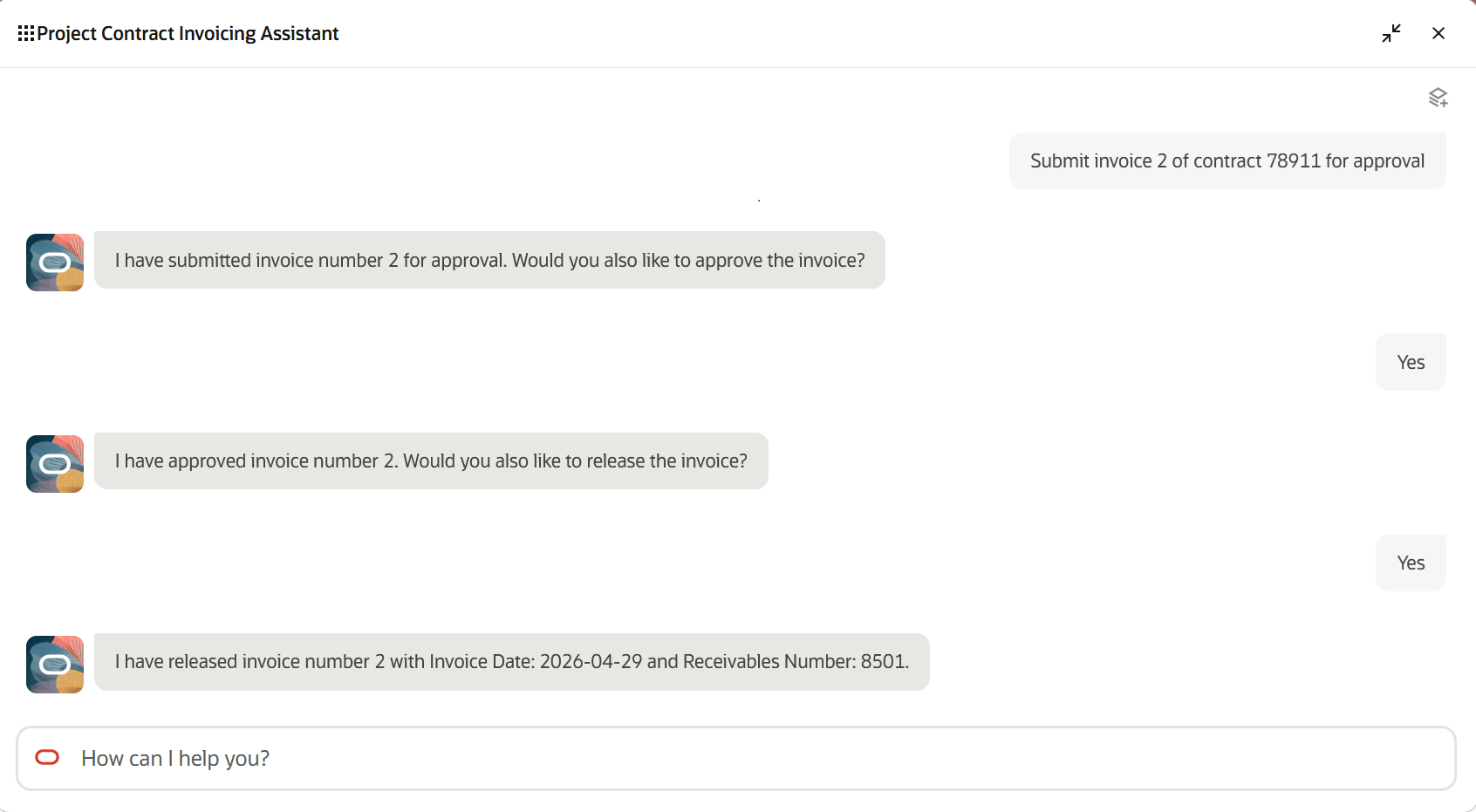
Processing an Invoice Using a Guided Experience
Sample prompts for processing an invoice are listed below:
- Submit invoice {Invoice Number} for contract {Contract Number} for approval (when the invoice is in Draft status)
- Approve invoice {Invoice Number} for contract {Contract Number} (when the invoice is in Submitted status)
- Reject invoice {Invoice Number} for contract {Contract Number} (when the invoice is in Submitted status)
- Release invoice {Invoice Number} for contract {Contract Number} (when the invoice is in Approved status)
- Revert invoice {Invoice Number} for contract {Contract Number} to Draft status (when the invoice is in Rejected status)
Worked Example 3: Canceling an Invoice with a Crediting Action
If Elena discovers an issue after an invoice has been sent to the customer, she can use the assistant to perform the Cancel Invoice crediting action on the original standard invoice. This allows Elena to correct billing mistakes efficiently, as highlighted below.
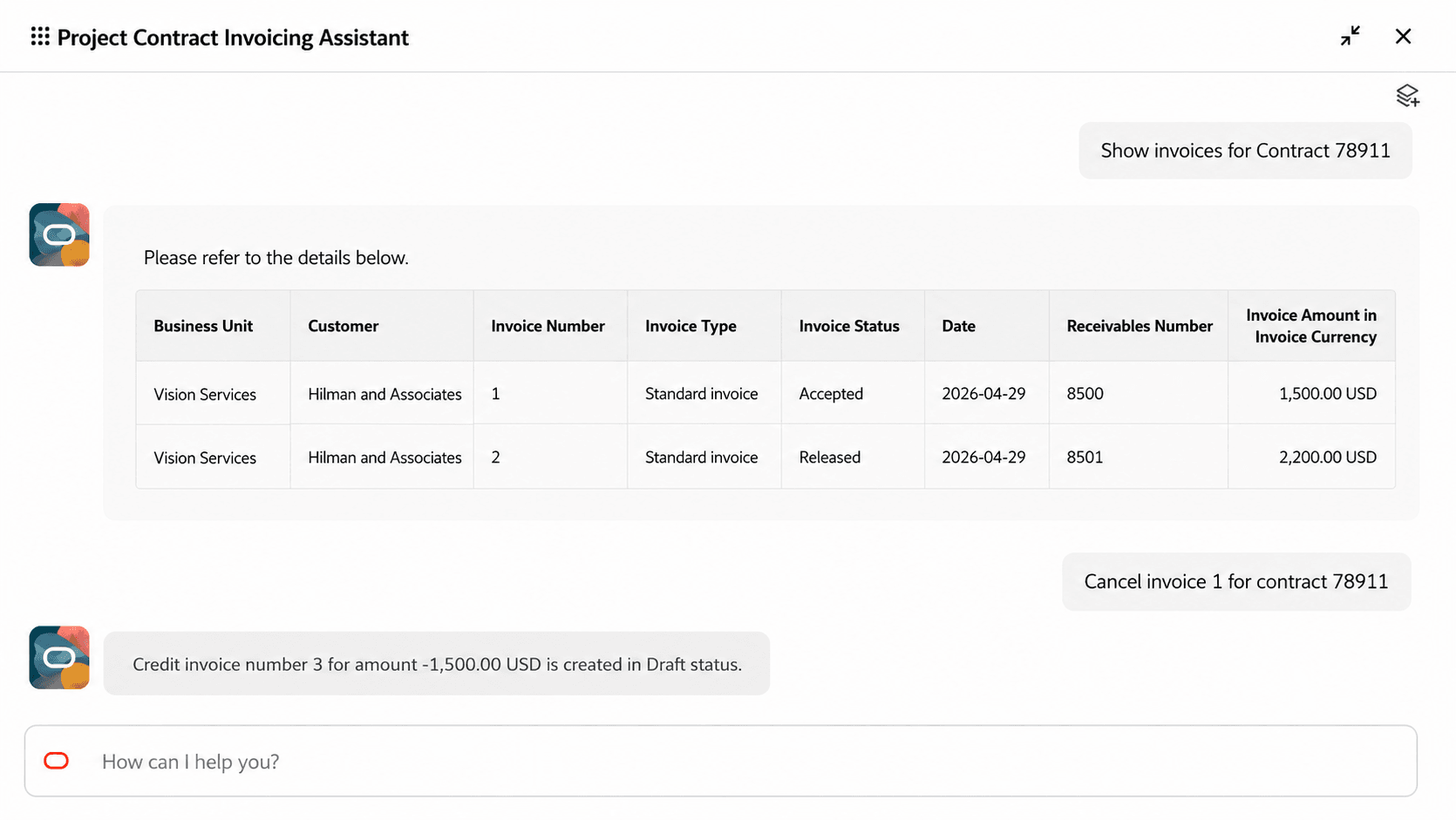
Canceling an Original Standard Invoice
Sample prompts for canceling an original standard invoice are listed below:
- Cancel invoice {Invoice Number} for contract {Contract Number}
The benefits of this feature are:
- Simplified invoice management with natural language interactions.
- Improved user experience through guided interaction flows.
- Accelerated billing cycles through streamlined processing.
- Faster invoice delivery to customers.
Here's the demo of these capabilities:
Steps to enable and configure
Please refer to the Access Requirements section below.
Tips and considerations
- When searching for invoices by Business Unit, Customer, Contract Number, or Status, the exact value must be provided in the user input, as partial values are not recognized by the assistant. The same rule applies when processing an invoice to Released status or canceling an original standard invoice.
- When submitting, approving, or releasing an invoice, if the user request does not include the invoice number or contract number, the assistant prompts the user to provide the required details.
- When releasing an invoice using the assistant, if the invoice numbering method is set to Manual in the Contract Business Unit setup, the assistant prompts the user to provide the Receivables number to be used for releasing the invoice.
- The release of a credit memo or credit invoice is currently not supported by the assistant.
- For unsupported user requests such as generating an invoice for a contract, creating a concession invoice for an original standard invoice, or displaying invoice lines for a specific invoice, the assistant responds by informing the user that these actions are not supported.
- When processing an invoice for a contract, if there are preceding invoices that have not yet been released, or if the user attempts to cancel an original standard invoice that's already fully credited, the assistant provides a reason to the user explaining why the action was not successful.
- Users can use the assistant to perform the Cancel Invoice crediting action only on standard invoices in Accepted status.
- Currently only English is supported as an input language.
Key resources
Access requirements
Use the following steps to provide users access to the Project Contract Invoicing Assistant.
a) Users without the Predefined Project Billing Specialist Role
To enable users who do not have the predefined Project Billing Specialist role, or a custom role that is an exact copy of the Project Billing Specialist role, create and assign a custom role with the following configurations.
- In the Basic Information section of the custom role, ensure that the Enable Permission Groups option is selected.
- Navigate to Function Security Policies > Privileges and add the following functional privilege:
- Manage Project Contract Invoice Service (PJB_MANAGE_PROJECT_CONTRACT_INVOICE_SERVICE_PRIV)
-
Navigate to Data Security Policies and add the following data security policy:
Grant on Business Unit
- Data Resource: Business Unit
- Data Set: Select by Instance Set
- Condition Name: Access the business units for which the user is explicitly authorized
- Actions: Manage Project Contract Invoice
- Navigate to Role Hierarchy > Roles and Privileges and add the following duty role:
- Project Contract Invoice Management (ORA_PJB_PROJECT_CONTRACT_INVOICE_MANAGEMENT_DUTY)
- Navigate to Role Hierarchy > Roles and Permission Groups and add the following duty role:
- Project Contract Invoicing Assistant (ORA_PJB_PROJECT_CONTRACT_INVOICING_ASSISTANT_DUTY)
- Assign the custom role to the user.
- Ensure that the user and the new custom role have the appropriate business unit data access.
b) Users with the Predefined Project Billing Specialist Role
To enable users who already have the predefined Project Billing Specialist role, or a custom role that is an exact copy of the Project Billing Specialist role, create and assign a custom role with the following configurations.
- In the Basic Information section of the custom role, ensure that the Enable Permission Groups option is selected.
- Navigate to Role Hierarchy > Roles and Permission Groups and add the following duty role:
- Project Contract Invoicing Assistant (ORA_PJB_PROJECT_CONTRACT_INVOICING_ASSISTANT_DUTY)
- Assign this custom role to the user who already has the predefined Project Billing Specialist role, or a custom role that is an exact copy of the Project Billing Specialist role.
- Ensure that the user, the predefined Project Billing Specialist role, or the custom role that is an exact copy of the Project Billing Specialist role has the appropriate business unit data access.