Project Contract Validation Assistant
Validate project contracts by checking delivered and custom validation rules, providing resolution details, and enabling corrective action using the Project Contract Validation Assistant. When no validation issues are found, it can also submit the contract for approval. This helps accelerate contract authoring and achieve faster invoicing and revenue recognition.
Note: Due to the subjective nature of contract validations, this assistant is delivered as a template that you can tailor to meet your specific business process needs. After you create an agent from the preconfigured template, users can access the assistant through the Agent Explore page. Please refer to the link for more details.
Worked Example 1: Validating a contract using the assistant and submitting it for approval when no validation errors or warnings exist.
- The user starts by providing the details of a contract that needs to be validated. Sample prompts for validating a contract are listed below:
- Contract number {Contract Number}
- Contract name {Contract Name}
- Validate contract {Contract Number}
- The assistant confirms that there are no validation errors or warnings, and asks the user whether they'd like to submit the contract for approval.
- The assistant confirms that the contract has been submitted for approval, and asks the user if they'd like to validate another contract.
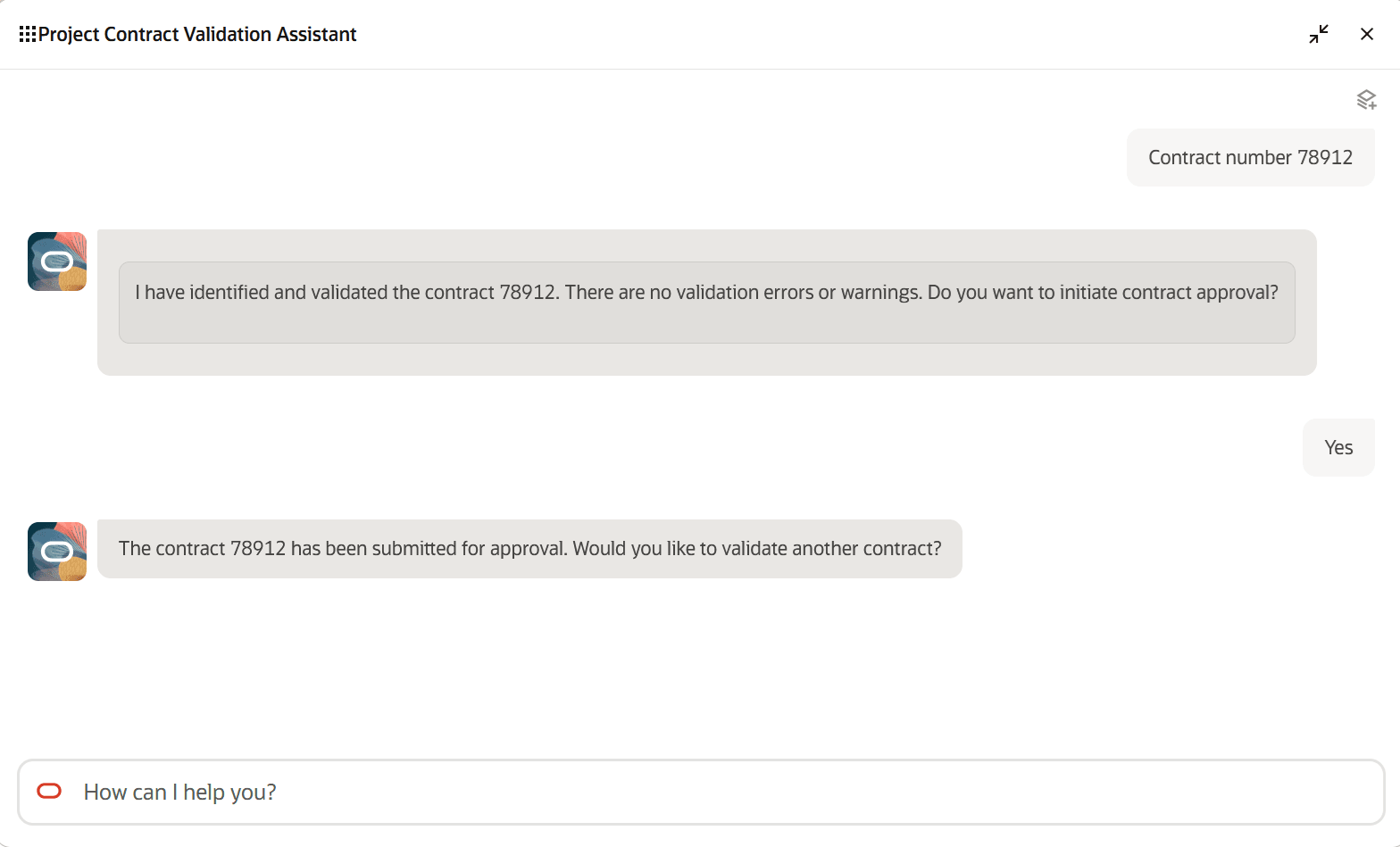
Validating a Contract
Worked Example 2: Validating a contract using the assistant when validation errors or warnings are identified.
- The user starts by providing the details of a contract that needs to be validated. Sample prompts for validating a contract are listed below:
- Contract number {Contract Number}
- Contract name {Contract Name}
- Validate contract {Contract Number}
- The assistant identifies two errors during validation and provides the user with details regarding the cause and suggested resolution.
- To resolve issues, the user must navigate to the Contracts work area and update the contract based on the resolution details provided by the assistant. Once the updates are completed, the user can validate the contract again using the assistant.
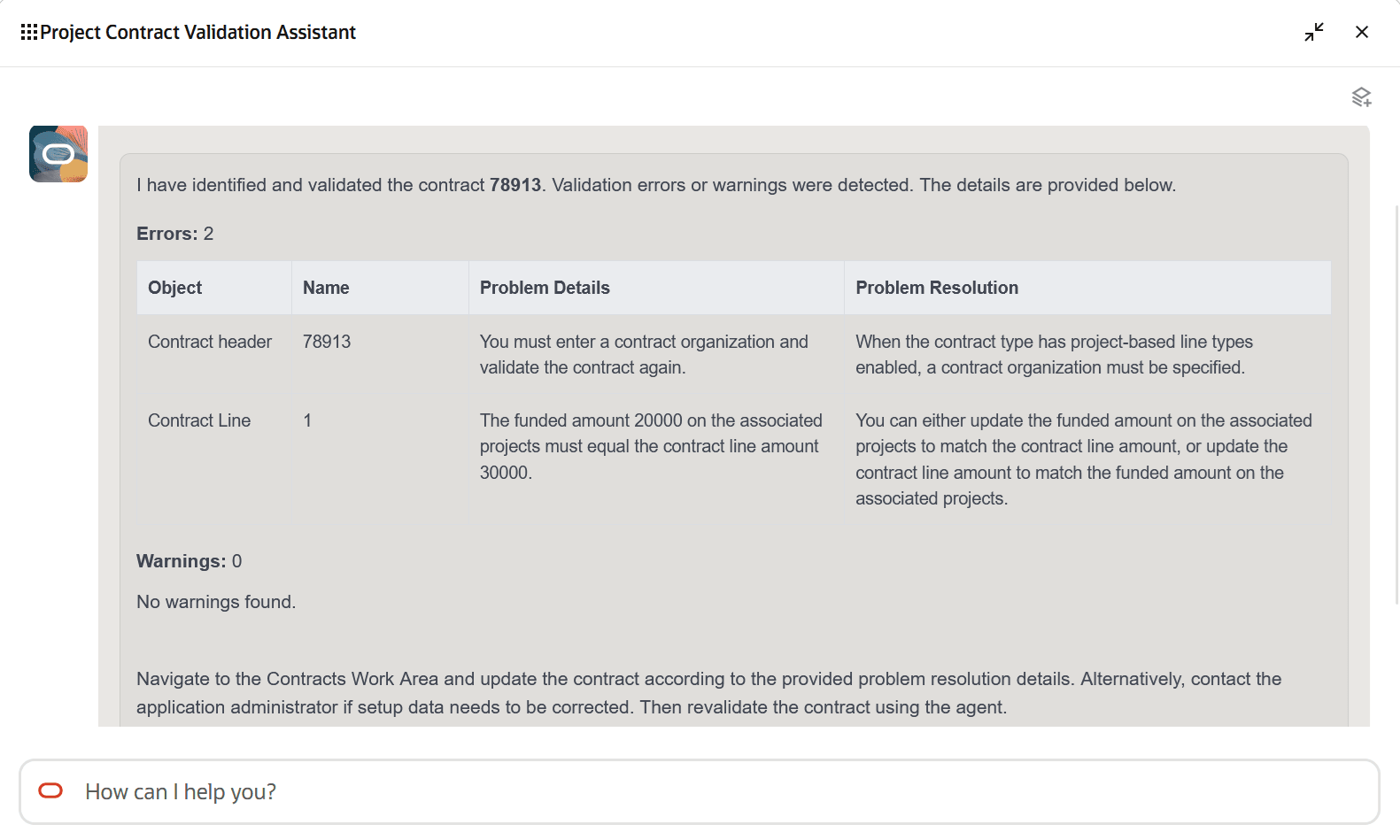
Validating a Contract with Warnings or Errors
The benefits of this feature are:
- Accelerated approvals: Enables faster approvals when no issues are detected.
- Faster invoicing and revenue recognition: Improves cash flow.
- Higher productivity: Provides clear guidance for issue resolution.
Steps to enable and configure
-
The Project Contract Validation Assistant is a preconfigured template. You need to create your own agent using the preconfigured template. To learn how to set up AI agents, see Create AI Agents Using Preconfigured Agent Team Templates.
-
Please refer to the Access Requirements section below.
Tips and considerations
- This assistant supports validation for contracts of type External in a Draft or Under Amendment status.
- Users must provide the exact contract name or number to the assistant, as partial values are not currently supported.
- For requests such as creating, canceling, or closing a contract, the assistant responds by informing the user that these actions are not supported.
- If the contract name or number provided by the user matches multiple contracts, the assistant prompts the user to refine the search by providing additional details such as business unit, customer, or contract type.
- The assistant currently supports validation of one contract at a time.
- Currently only English is supported as an input language.
- In addition to the assistant checking 60+ predefined validations, such as validating the entry of mandatory fields, the template also includes two examples of custom validations:
- Reconcile key contract attributes with attached sales orders and customer purchase orders.
- Verify that the funded amount on the associated project matches the contract line amount.
- The above custom validations are delivered disabled. To enable these validations:
- Navigate to AI Agent Studio -> Agent Teams -> Search for the agent name in the Published list -> Open the agent in Edit mode.
- Note: To access AI Agent Studio, the user must have the Application Implementation Consultant predefined role assigned.
- Edit Capture User Input in the workflow design, as highlighted below:
- Navigate to AI Agent Studio -> Agent Teams -> Search for the agent name in the Published list -> Open the agent in Edit mode.
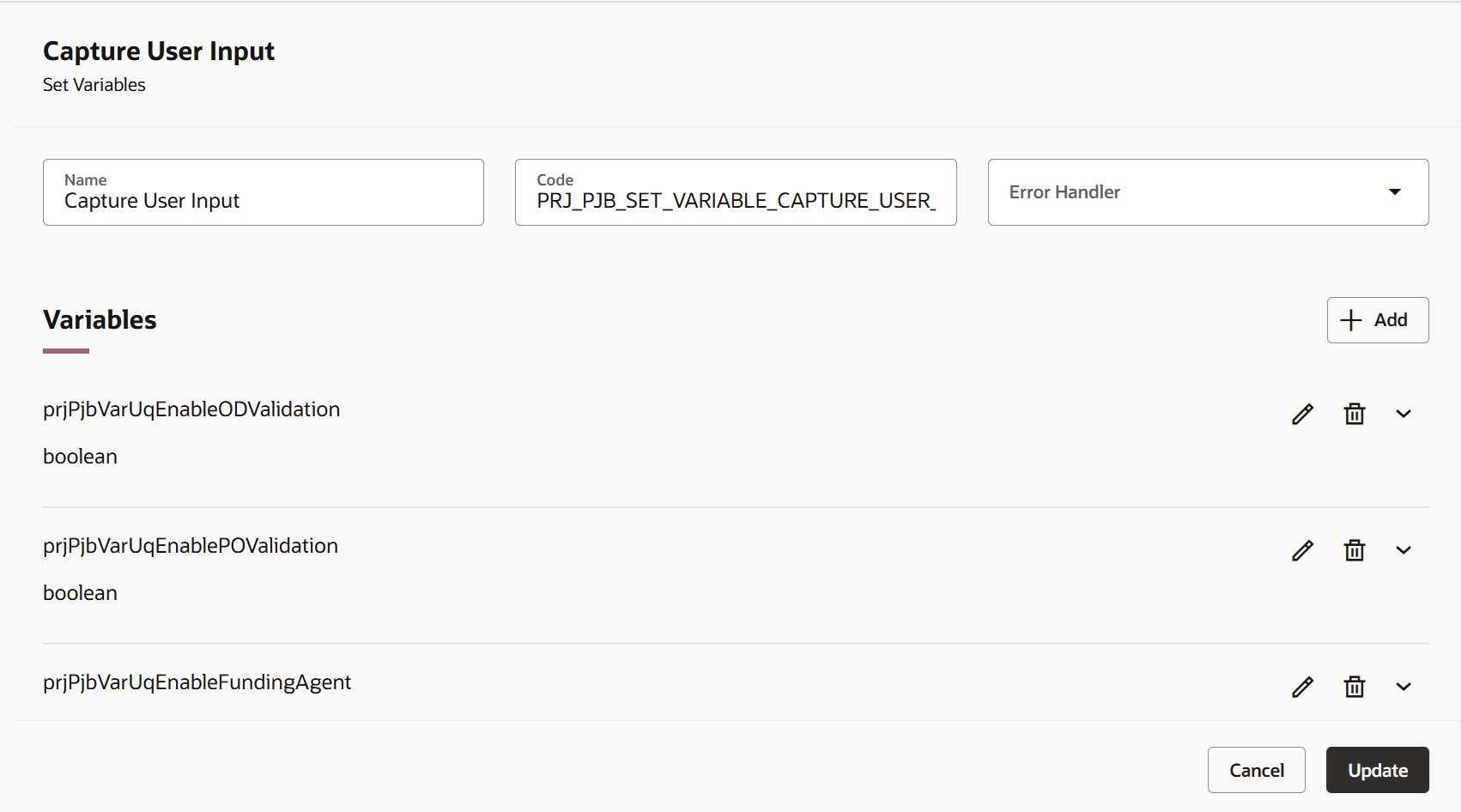
Enable a Custom Validation
- Click Edit for the variable prjPjbVarUqEnableFundingAgent, as highlighted below.
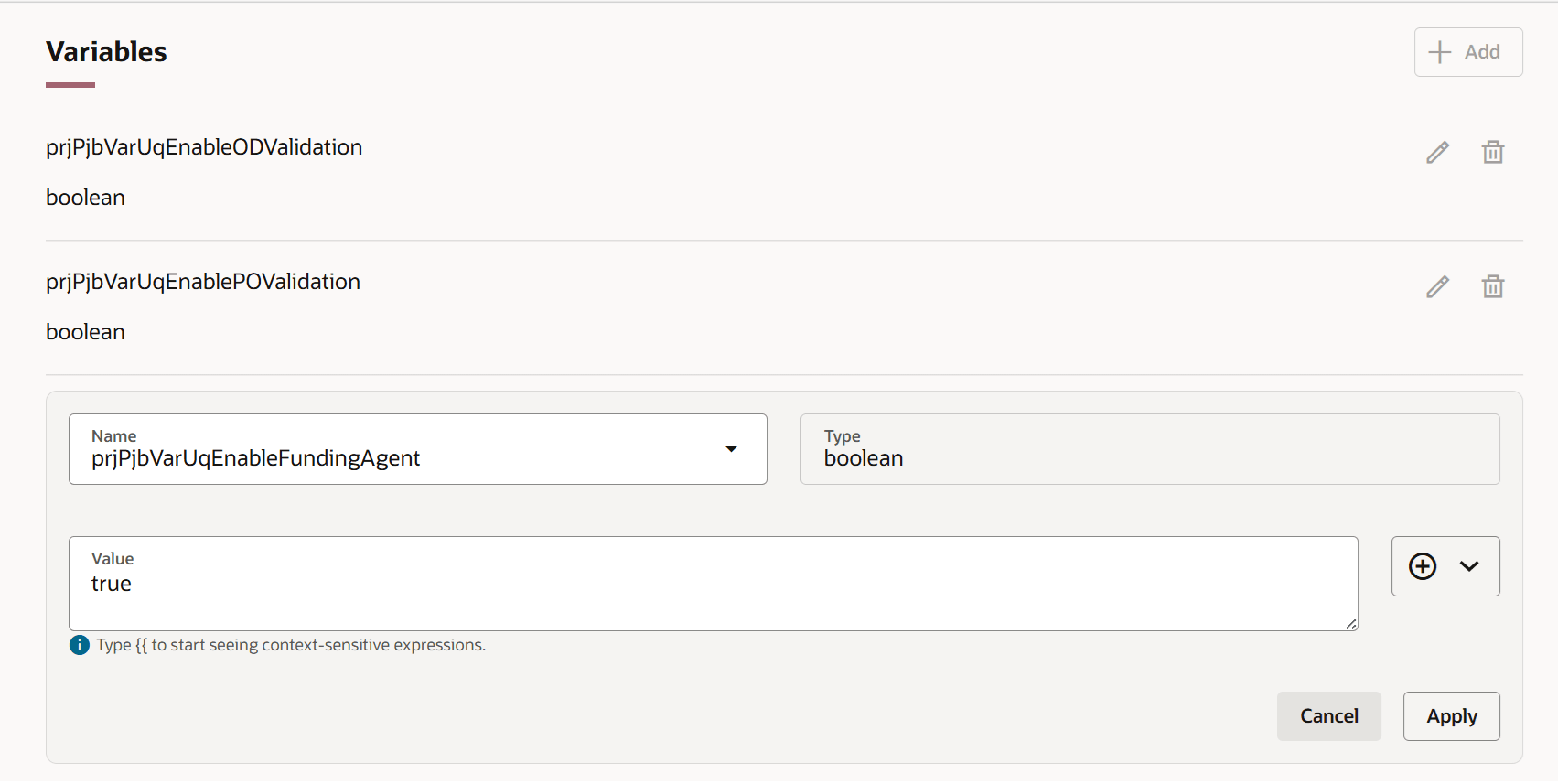
Enable Funding Validation
- Set the value to true to enable the validation. Click Apply, then click Update on the Capture User Input edit popup, and publish the agent.
- With this validation enabled, when validating a contract using the assistant, the funded amount on the associated project must match the contract line amount. If it does not match, it is reported as an error (as shown in Worked Example 2 above). Note that the severity of this custom validation can be configured as either Warning or Error.
Key resources
Access requirements
To access the Project Contract Validation Assistant, users must be assigned the predefined Customer Contract Administrator or Customer Contract Manager role, or a custom role copied from these predefined roles.
The custom role needs to have the following configurations:
a) Function Security Policies > Privileges
Add the following functional privileges:
- Edit Contract (OKC_EDIT_CONTRACT_PRIV)
- Edit Contract by Web Service (OKC_EDIT_CONTRACT_VIA_WEB_SERVICE_PRIV)
- Enable Sell Intent (OKC_MANAGE_CONTRACT_SELL_PRIV)
- View Contract (OKC_VIEW_CONTRACT_PRIV)
b) Data Security Policies
Add the following data security policy:
- Grant on Contract
- Data Resource: Contract Header for Table OKC_K_HEADERS_ALL_B
- Data Set: Select by instance set
- Actions: Update; View Contract; Read; Manage Contract
- Condition: Access the contract for table OKC_K_HEADERS_ALL_B for the business units for which they are authorized
c) Role Hierarchy > Roles and Privileges
Add the following duty roles:
- Contract Amendment (ORA_OKC_CONTRACT_AMENDMENT_DUTY)
- Contract Authoring (ORA_OKC_CONTRACT_AUTHORING_DUTY)
- Contract Search and View Access (ORA_OKC_CONTRACT_SEARCH_VIEW_DUTY)
d) Assign the custom role to the user.
In addition, the user must have the appropriate Resource Role and Organization setup in Manage Users to access contracts in the desired business units.
Associate the predefined or custom role with the agent team using a user with administrator access:
- Navigate to Navigator > Tools > AI Agent Studio.
- Open the Agent Teams tab and edit the agent team for which you want to grant user access.
- Click the Agent Team Settings icon and open the Security tab.
- Add the predefined or custom role.
- Apply the changes, then update and publish the agent team.
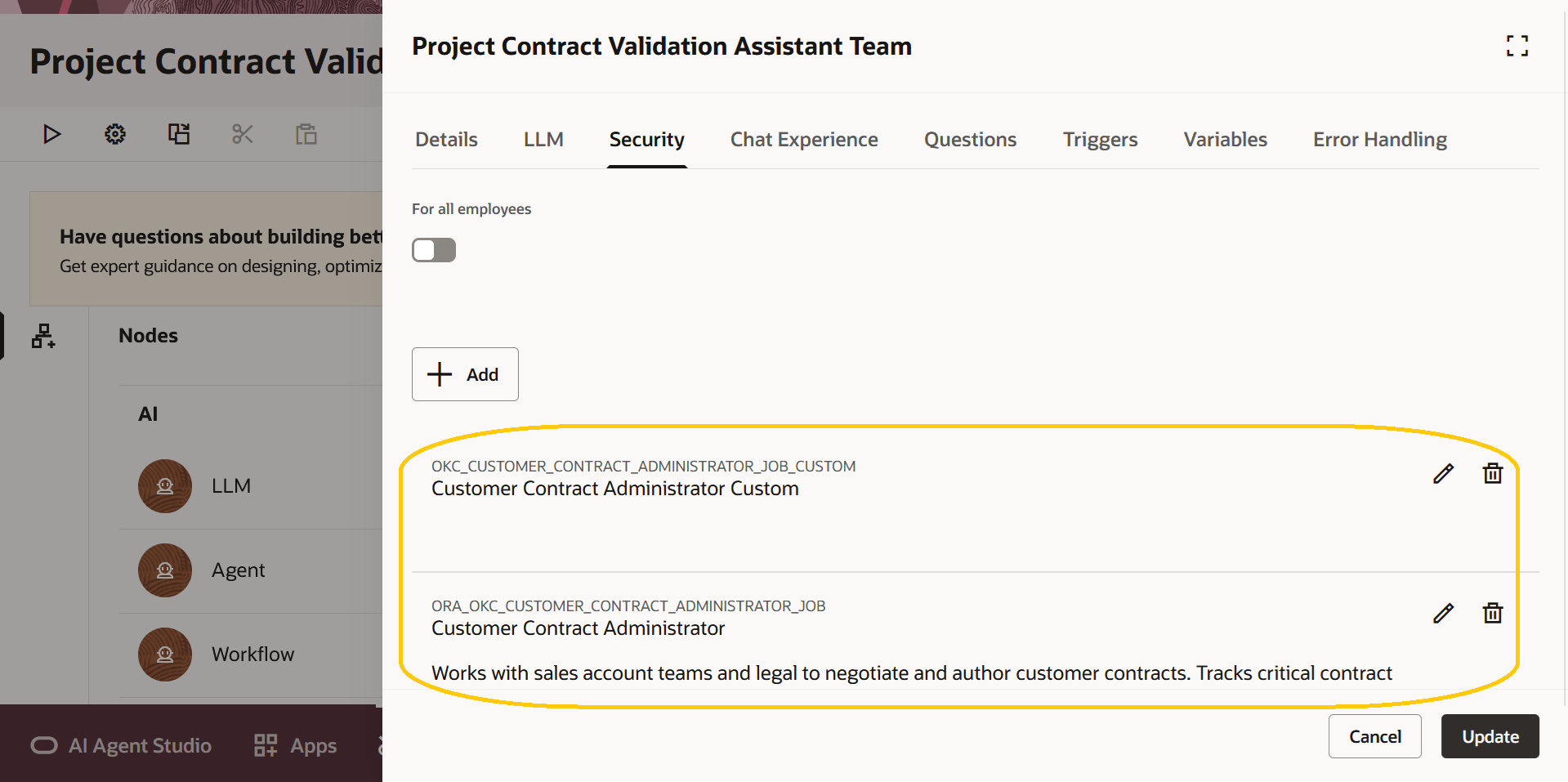
Agent Team Security