Asset Additions Assistant
The Asset Additions Assistant simplifies the asset addition process through an intuitive conversational experience that helps fixed asset accountants submit, review, and process asset additions.
The following options are presented when you open the assistant:
- Add assets
- Show pending additions
Add assets
Note: You can only add assets to asset books for which you have data access.
You can add one or more assets at a time through the assistant, save them as drafts, and prepare and submit them later.
To create an asset, provide the asset book, description, and cost. After saving this information as a template, enter the required details, including location and category.
You only need to enter one segment or part of the segment of the category or location. The guided searches for location and category help classify the asset. The expense account and depreciation rules are automatically defaulted from the selected category.
You can review, update, and submit the asset information as needed.
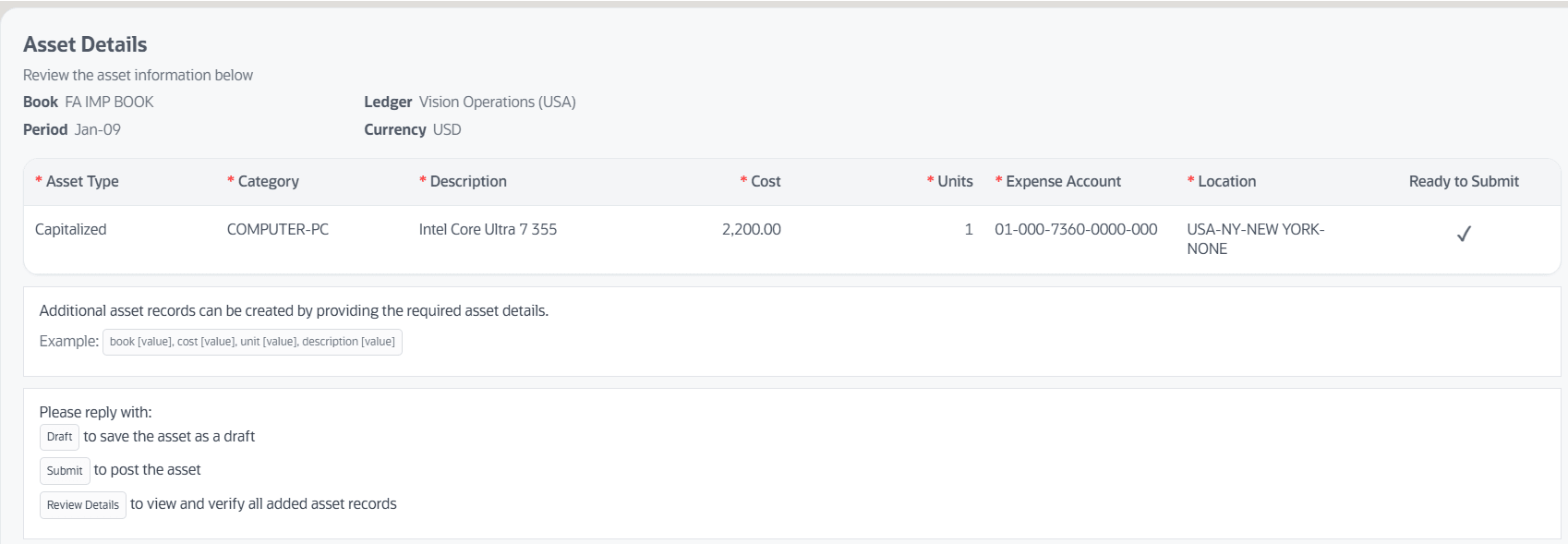
Use the links on the asset number and transaction number to access asset and transaction details.

The same information can be reused to create multiple assets.
Show pending additions
Search the saved additions in draft mode by description, and creation date.
After updating the transactions, you can either save them in Draft status for later review or submit them for posting.
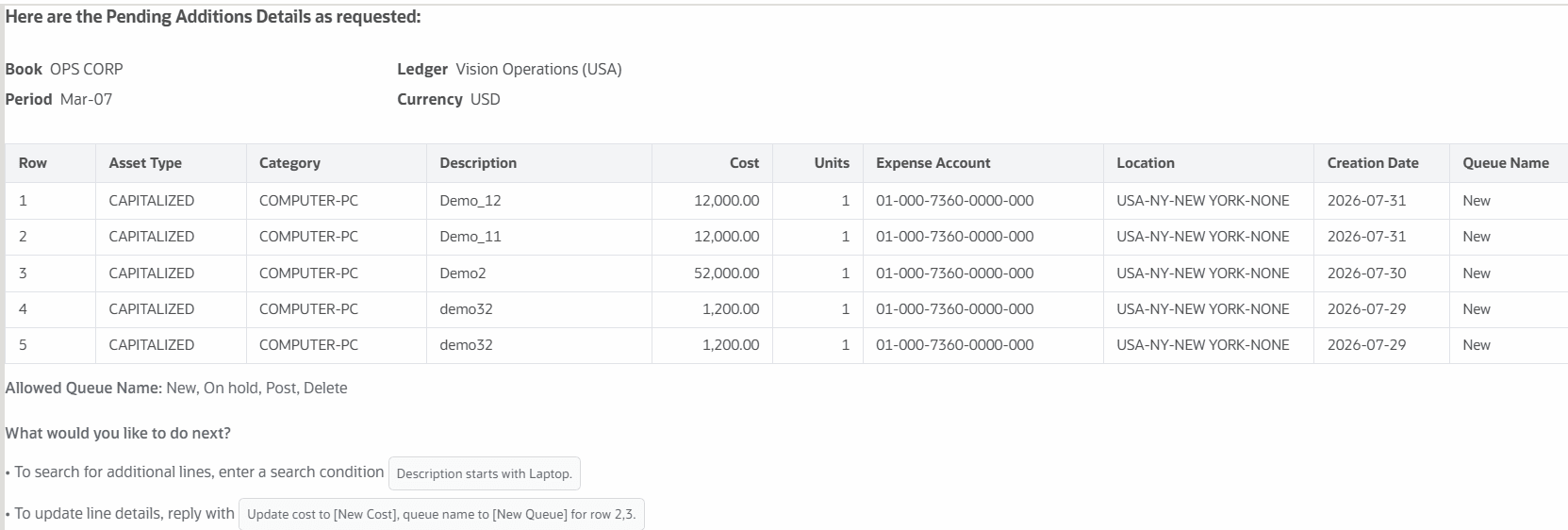
By saving transactions in draft status you can review and update asset information before submitting it for posting. You can search draft additions, update key details such as the description, cost, and category, change the queue status to Post, and submit the transactions for processing.
You can paste addition details text for one or more assets directly into the Add Assets window.
Business benefits include:
- Simplifies the end-to-end process of creating, reviewing, and submitting fixed asset additions through an intuitive conversational experience.
- Supports the creation of single or multiple assets at once, reducing repetitive work and manual intervention.
- Searchable draft records and consistent processing steps improve visibility into asset additions and support audit and compliance requirements.
Steps to enable and configure
- Refer to the Access requirements section to set up the required security roles and privileges.
- After the required security roles and privileges are set up, users can access the Asset Additions Assistant from the Explore area on the AI Agents page.
Tips and considerations
- For the best user experience, manually resize the assistant window to full screen.
- Enter Help in the assistant to access the help screen and view user guidance.
- The assistant does not support displaying alternate ledger currencies.
- No workflow approvals are triggered when addition transactions are processed through this assistant, even if the asset book is enabled for Addition Approvals. This behavior applies to additions created directly within the assistant.
- Entry of descriptive flexfield details is not supported when performing additions through this assistant.
- The assistant can only perform addition for one asset book at a time and cannot support multiple books in a single transaction.
- The in-service date of the asset defaults to the last day of the current open period.
- The depreciation method, depreciation expense defaults from the category rules.
- You can view up to 10 of the most recent addition transactions in Pending Additions.
- You can prepare additions only for assets that were added using the assistant.
- You can't add assets with tag number and multiple distribution lines.
- In Pending Additions, you can search for assets created in Draft status by using the description field. Select one of the available operators—Starts With, Contains, Ends With, or Equals—to refine the search results. You can also use days to identify assets while searching with the creation date.
- You can update the asset location, category, cost and description and depreciation expense of the asset while preparing the additions.
- You can't update the in- service date and the depreciation method of the asset.
- Natural language conversation is English-only.
Key resources
Access requirements
The Asset Additions Assistant requires data security access to asset books to create additions and to view and submit the additions. Access to asset book data can be granted through the custom job role. If the user already has an Assets job role, then the existing book access granted to that role is sufficient. The job role should have the Add Fixed Asset data security policy.
To provide user access to the Asset Addition Assistant, complete these steps:
- Go to the Security Console.
- Create a new custom job role with the following details:
- Role Name: Specify a name, for example, Asset Addition Agent Custom Role
- Role Code: Specify a code, for example, ASSET_ADDITION_AGENT_CUSTOM_ROLE
- Role Category: Financials – Job Roles
- Enable the Enable Permission Groups option
- Go to Function Security Policies and add the following privileges:
- Access FSCM Integration Rest Service
- Add Fixed Asset
- View Fixed Asset Books
- Post Mass Additions
- Go to Role Hierarchy > Roles and Permission Groups and add the following roles:
- ORA_FA_FIXED_ASSET_ADDITION_ASSISTANT_DUTY
- Add the required users to the custom job role, then save and submit the role.