Depreciation Expense Projection Assistant
The Depreciation Expenses Projection Assistant runs depreciation expense projections across multiple periods for the assets in a book and breaks down results by key dimensions. It helps asset managers understand depreciation trends over a selected period range, identify the assets with the greatest depreciation impact, and make informed financial decisions using filtered summaries instead of manual spreadsheet analysis.
When you open the Assistant, the following options are available:
- Submit new depreciation projection for a book.
- Analyze existing projections.
Submit new depreciation projection for a book
You can submit a depreciation projection for assets in a selected asset book and period range. Optionally, you can include dimensions such as category and location to refine the projection.
If a projection already exists for the selected criteria, the system displays an indication that it has already been submitted. This reduces duplicate submissions and avoids unnecessary processing.

Before submission, a confirmation displays the details of the requested projection. You can select the link to access the submitted ESS process or track the requested projection directly through the Assistant.
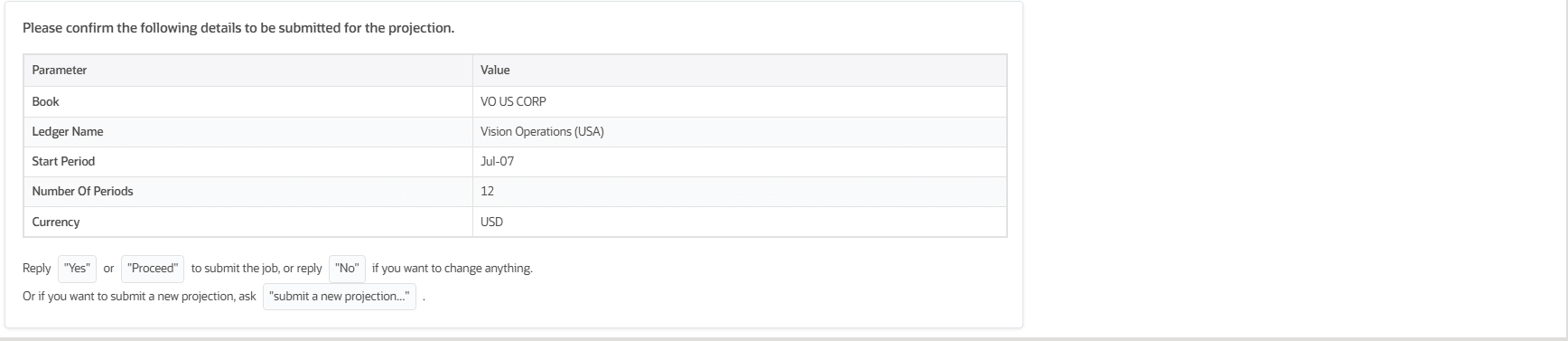
Guided prompts are available for further analysis, including:
- Show the assets contributing the highest depreciation for this period
- Show results grouped by category
- Analyze results by location
- Show results for the current fiscal year
Analyze existing projections
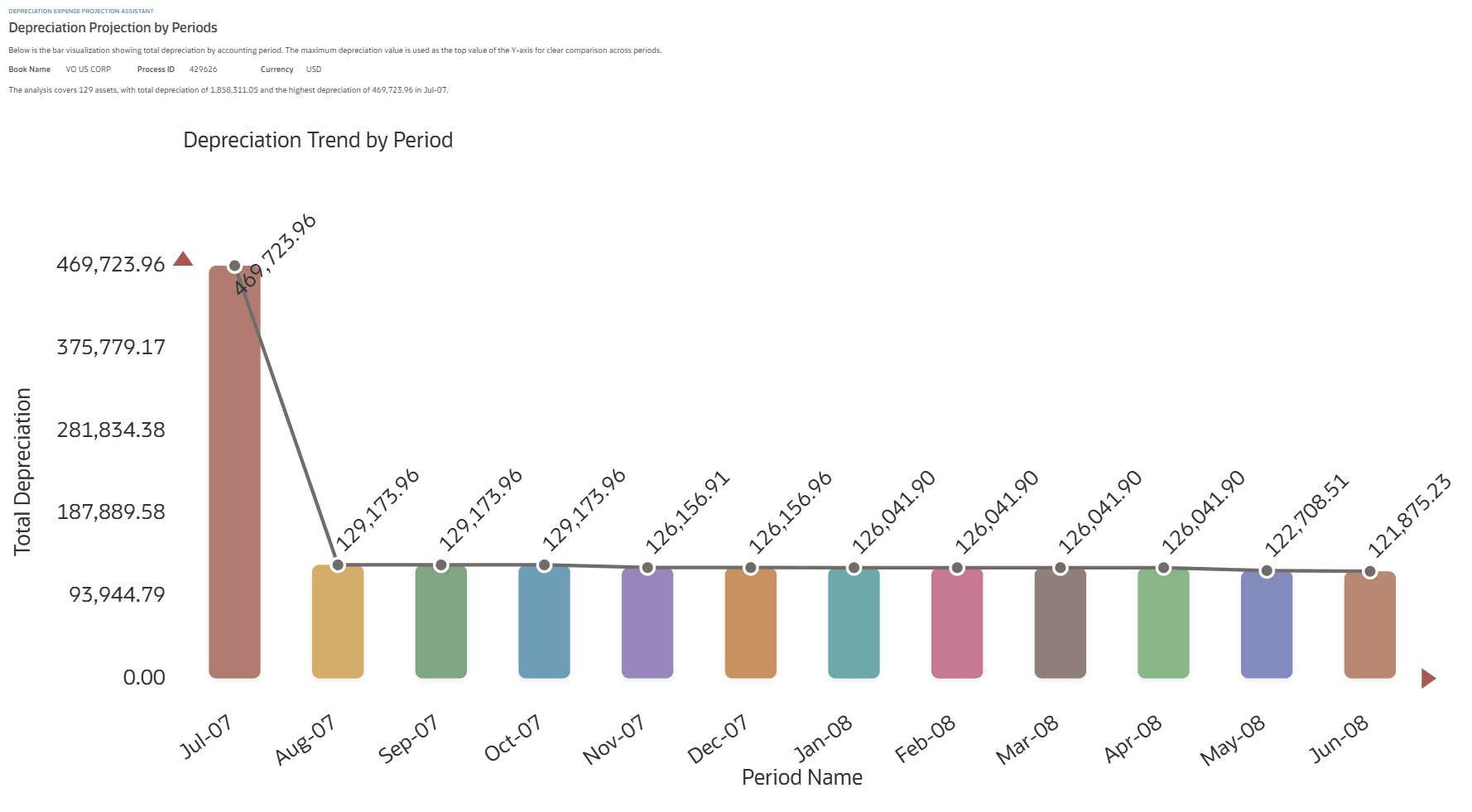
You can view existing depreciation projections in a graphical format. The graph displays the depreciation trend by period, the number of assets included in the analysis, and the period with the highest recorded depreciation.
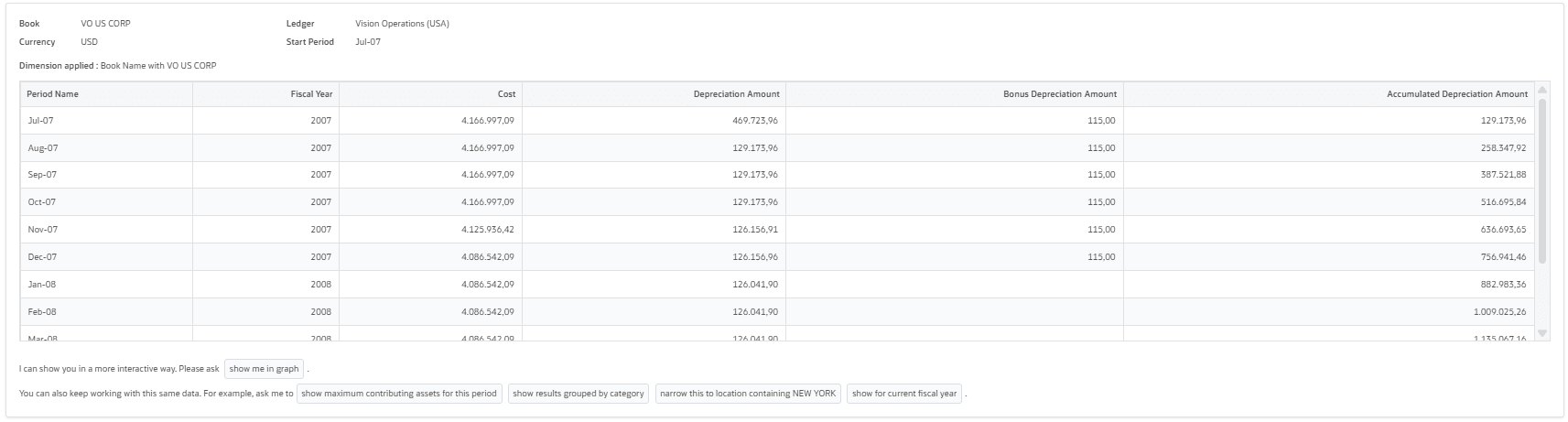
The depreciation expenses details can be viewed in tabular form , which displays the period , year , cost and other depreciation amount.
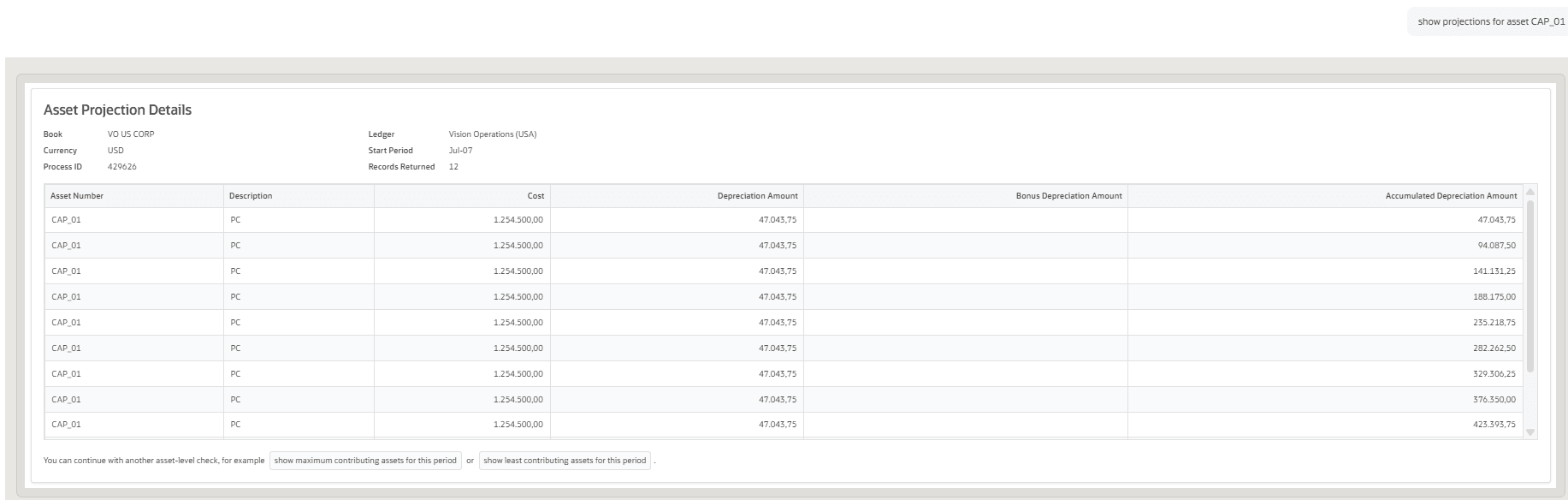
You can perform additional analysis at the asset level, view projection details for a specific asset number, and identify the assets with the highest or lowest depreciation contribution for a selected period.
The business benefits include:
- Reduces the time and effort required to prepare depreciation forecasts across multiple periods.
- Eliminates manual spreadsheet-based analysis by providing guided projections and summaries.
- Improves financial planning and budgeting through timely visibility into projected depreciation expense.
- Helps identify assets, categories, locations, and expense accounts with the highest depreciation impact.
- Improves decision-making through graphical trend analysis and asset-level depreciation details.
Steps to enable and configure
- Refer to the Access requirements section to set up the required security roles and privileges.
- After the required security roles and privileges are set up, users can access the Depreciation Expenses Projection Assistant from the Explore area on the AI Agents page.
Tips and considerations
- For the best user experience, manually resize the assistant window to full screen.
- Enter Help in the assistant to access the help screen and view user guidance.
- The assistant does not support displaying alternate ledger currencies.
- Interact with the Assistant through the recommended guided prompts, and enter natural-language input only when selecting row numbers.
- Natural language conversation is English-only.
Key resources
Explore AI Agents for Oracle Fusion Cloud Applications
How do I use AI Agent Studio?
Access requirements
The Depreciation Expenses Projection Assistant requires data security access to asset book to project depreciation expenses in a book and analyze depreciation impact over a selected period range with attribute-based breakdowns. Access to asset book data can be granted through the custom job role. If the user already has an Assets job role, then the existing book access granted to that role is sufficient. The job role should have the Retire Fixed Asset data security policy.
To provide user access to the Depreciation Projection Assistant, complete these steps:
- Go to the Security Console.
- Create a new custom job role with the following details:
- Role Name: Specify a name, for example, Depreciation Projection Custom Role
- Role Code: Specify a code, for example,
- DEPRN_PROJECTION_ASST_CUSTOM_ROLE
- Role Category: Financials – Job Roles
- Enable the Enable Permission Groups option.
- Go to Function Security Policies and add the following privileges:
- Access FSCM Integration Rest Service
- Submit Fixed Asset What if Depreciation Analysis
- Go to Role Hierarchy > Roles and Permission Groups and add the following roles:
- ORA_FA_FIXED_ASSET_DEPRECIATION_PROJECTION_ASSISTANT_DUTY
- Add the required users to the custom job role, then save and submit the role.