Ingest Contract Documents Using AI
Use Ingest Contract Documents Using AI feature to efficiently bring existing contract documents into Enterprise Contracts and convert them into contract records with less manual effort. Organizations may have large volumes of contract documents stored outside the application as PDFs, Word documents, or in shared repositories. Manually creating contracts from these documents can be time-consuming and inconsistent.
Contract Ingestion streamlines this process by enabling you to process multiple documents in a batch. You can scan and review the documents, identify contract types, extract contract information and key terms, review and correct the results, and create contract records in Enterprise Contracts.
The process is available from the Contract Ingestion menu on the Redwood contracts list page. Users with the Manage Contract Ingestion Duty role can create and manage ingestion batches.
Create and Manage Ingestion Batches
Use the Contract Ingestion Batches page to view existing ingestion batches or create a new batch.
The page provides dashboard metrics that help you monitor batches by processing state, including batches requiring action, batches in progress, and completed batches. You can search and filter batches using information such as batch name, description, status, submission date, business unit, source, and submitted by. Select Create Batch to create a new ingestion batch
Step 1: Upload Contract Documents
In the first step of the guided process, upload the contract documents you want to ingest. You can upload one or multiple PDF, image-based PDF, and Word documents. ZIP files aren't currently supported. Uploaded documents are listed so that you can review, download, or delete them before scanning begins.
Specify the Business Unit in which the contracts will be created. The available business units are based on your data access.
You can also specify a Contract Type. Select a contract type when all documents in the batch belong to the same contract type. Select Auto-detect when the documents can belong to different contract types and you want AI to identify the contract type for each document during the Classify Documents step.
When you select Continue, the application prompts you to confirm that scanning should start. After scanning starts, you can no longer add or remove documents. The application begins scanning the documents and takes you to the Review Scan Results step. You can also save the batch and continue later.
Step 2: Review Scan Results
The second step displays the results of document scanning and OCR processing.
The page provides an overview of the scanned documents through metrics such as:
- Total Detected – the total number of documents detected during scanning.
- Ready to Process – documents that were successfully scanned and are available for further processing.
- Requires Attention – documents that couldn't be successfully processed because of scanning issues.
The review results identify documents that require attention before they can proceed through the ingestion process.
For example, documents can be identified as:
- Duplicates – documents with the same file name and file size.
- Encrypted or Unreadable – documents whose contents can't be read because they are password protected or encrypted.
You can download the scan results as a spreadsheet. The downloaded results include information about successfully scanned and documents with error. Select Continue to proceed.
If all uploaded documents failed scanning, the application doesn't allow classification to start and displays an error instructing you to create a new batch, upload documents, and scan them again.
Step 3: Classify Documents
The Classify Documents step is available when Auto-detect is selected as the contract type.
AI evaluates each successfully scanned document against the contract classification criteria defined by your organization and proposes a contract type. The classification criteria are defined in the Contract Type Classification Policy, where you can specify the indicators, rules, and exceptions used to identify contract types
The page displays information such as:
- Document Name
- Proposed Contract Type
- Classification Rationale
- Override Contract Type
- Classification Score
The Classification Rationale provides the evidence used to identify the proposed contract type. The confidence score indicates how strongly the document matches the proposed contract type.
You can manually override the proposed contract type if necessary. The override can be performed inline from the results table. If no contract type can be identified, the proposed contract type is left blank and the confidence score is zero. When multiple contract types match, the contract type with the highest score is selected.
The page also provides metrics for:
- Documents Classified
- Low Confidence
- Unable to Classify
You can review the documents with low confidence or documents that couldn't be classified and manually provide a contract type where appropriate. You can also use Classify Again to rerun classification for the same set of documents. The application warns that manually entered contract types will be replaced when classification is rerun. Once classification is complete and the required contract types have been assigned, continue to key term extraction.
Step 4: Extract Key Terms
The Extract Key Terms step uses AI to extract contract information from documents based on the selected contract type.
The extraction criteria are defined through a key term policy document. Organizations can customize the extraction guidance for their contract types and key terms. Only documents with an assigned contract type are considered for key term extraction.
The process can extract standard contract attributes such as:
- Contract Number
- Supplier
- Customer
- Start Date
- End Date
- Currency
- Amount
- Authoring Party
- Payment Terms
- Carrier
- Freight Terms
- FOB
- Agreed Amount
- Amount Limit
- Minimum Release Amount
- Encumbrance Level
- Pricing Effective Date
- Committed Amount
Only contract header standard attributes are supported.
The application uses the contract type to determine which fields are relevant to a particular contract. For example, fields that apply only to purchase agreements aren't considered for sell-side contract types.
AI can semantically match extracted values to configured list-of-values values where applicable. The results show the extracted information and provide a confidence score for the extracted fields. The document-level confidence score is calculated from the confidence scores of the extracted fields. The Required Fields indicator shows whether all required information is available. When required fields are missing, the application indicates the number of missing fields. When all required fields are available, the status is Complete.
You can review and edit extracted information before creating the contracts. You can also rerun key term extraction when needed. When you rerun key term extraction, the manually entered key terms are replaced.
Step 5: Review and Create Contracts
In the final step, review the extracted contract information before creating contract records.
The page provides summary metrics such as:
- Uploaded Documents
- Scanned
- Classified
- Key Terms Extracted
Ready to Create identifies documents that have all mandatory information required for contract creation. You can review information such as the contract number, file name, contract type, supplier, customer, and status before creating the contracts.
When you select Create Contract, the application starts contract creation as a background process. You receive an email when contract creation is complete.
After successful contract creation, the application displays the created contract numbers. Select a contract number to open the corresponding contract. Document used to create contract is added as a primary contract document in the resulting contract. In the key terms extraction only contract header attributes are extracted. For contract types with lines, only contract header will be created and lines won’t be created. The status of these contracts will be Draft.
Contract Status
Contract types with lines are created in Draft status.
For contract types without lines, the contract status is determined based on the contract dates:
- If the current date is between the contract start and end dates, the contract is created in Active status.
- If the current date is after the contract end date, the contract is created in Expired status.
- If the contract doesn't have an end date, the contract is created in Active status.
-
You can also configure specific contract types to be created in Draft status through the Contract Key Terms Extraction Policy.
Processing Status and Notifications
The ingestion batch progresses through statuses that indicate where the batch is in the process:
Status Meaning
Draft Batch has been created but processing hasn't started
Scanning in Progress Documents are being scanned
Pending Classification Scanning is complete and classification can begin
Classification in Progress Documents are being classified
Pending Key Term Extraction Classification is complete
Key Term Extraction in Progress Key terms are being extracted
Pending Contract Creation Extraction is complete and contracts can be created
Contract Creation in Progress Contracts are being created
Completed Batch processing is complete
Error An error occurred during processing
An Error status indicates that an error occurred during processing.
Email notifications are sent to the user who initiates each major processing stage:
- Document scanning completed
- Contract classification completed
- Key term extraction completed
- Contract creation completed
The emails provide a link to the relevant step so users can review the results and continue processing.
Contract Ingestion helps reduce the manual effort required to bring existing contract documents into Enterprise Contracts. Instead of manually creating contract records and entering contract information for every document, users can process multiple documents as a batch and use AI to assist with classification and key term extraction.
The guided process also provides review and correction points before contracts are created, helping users validate AI-generated results and address missing information before the data becomes a contract record.
Steps to enable and configure
Prepare the Contract Type Classification Policy and Contract Key Terms Extraction Policy documents and upload them to Oracle AI Agent Studio.
1. Contract Type Classification Policy
In this document, define the rules used to determine contract types. Ensure that the Contract Type and Intent exactly match the values defined in the Manage Contract Types UI and that the contract types are active as of the current date. The ingestion process retrieves these rules and instructions and uses them to identify and determine the contract type of each contract document.
The sample document titled Sample Contract Type Classification Policy is available for download from My Oracle Support.
You can modify the values marked in red. Don't modify the document title, description, or field headers.
- Contract Type – Specify the contract type exactly as defined in the Manage Contract Types UI.
- Intent – Specify the contract intent as Buy or Sell, matching the intent defined for the contract type in the Manage Contract Types UI.
- Classification Indicators – Specify the characteristics, keywords, phrases, and other indicators used to identify documents that belong to this contract type.
- Additional Rules or Exceptions – Specify any additional rules, conditions, or exceptions that should be considered when determining whether a document belongs to this contract type.
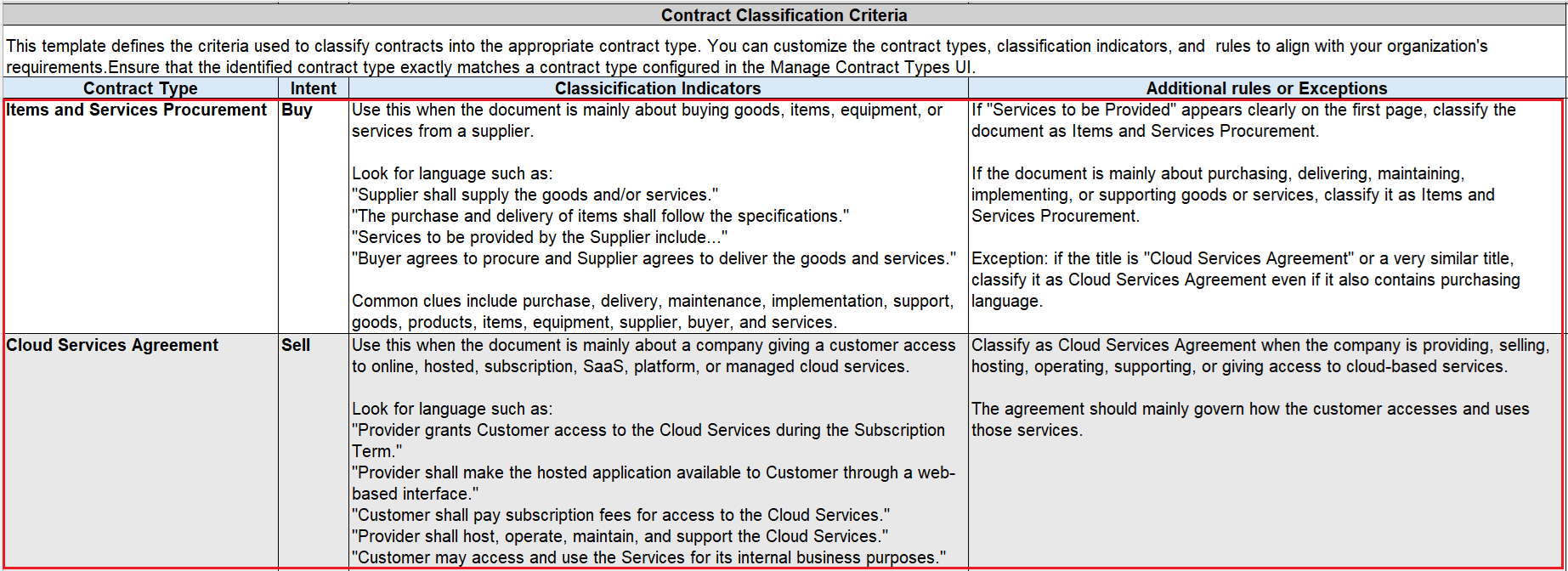
Contract Classification Policy Document
2. Contract Key Terms Extraction Policy
In this document, review the extraction guidance used to extract standard contract header attributes (key terms) from contract documents. The ingestion process uses this guidance to identify and extract the key terms from each contract document.
You don't need to modify the seeded extraction guidance if it works for your contract documents. You can customize the Extraction Guidance based on how the information is presented in your contract documents. If Extraction Guidance isn't specified for a key term, the Description is used as the extraction instruction.
The sample document titled Sample Contract Key Terms Extraction Policy is available for download from My Oracle Support.
You can modify only the Extraction Guidance values marked in red. Don't modify any other fields, field values, the document title, description, or field headers.
- Contract Type – Indicates whether the key term applies to all contract types or only to relevant contract types.
- Mandatory – Indicates whether the key term is required for contract creation.
- REST Attribute Name – Identifies the REST attribute associated with the key term.
- Field Name – Identifies the contract header field to be extracted.
- Description – Describes the key term and is used as the extraction instruction when Extraction Guidance isn't specified.
- Extraction Guidance – Provides instructions for identifying and extracting the key term from contract documents. Customize this guidance based on how the information is presented in your contract documents.
In this document, the prompt or the extraction guidance for extracting the standard attributes in the contract header (key terms) are provided. AI uses this guidance to extract the key terms from the contract documents.
You don't need to modify the extraction guidance if the seeded one works for your document. You can also choose to modify the guidance according to how the fields can be identified in your contract document. In this spreadsheet, only Extraction Guidance, marked in Red can be modified.Don't modify any other fields or field values in this spreadsheet.
The sample document titled Sample Contract Key Terms Extraction Policy is available for download from My Oracle Support.
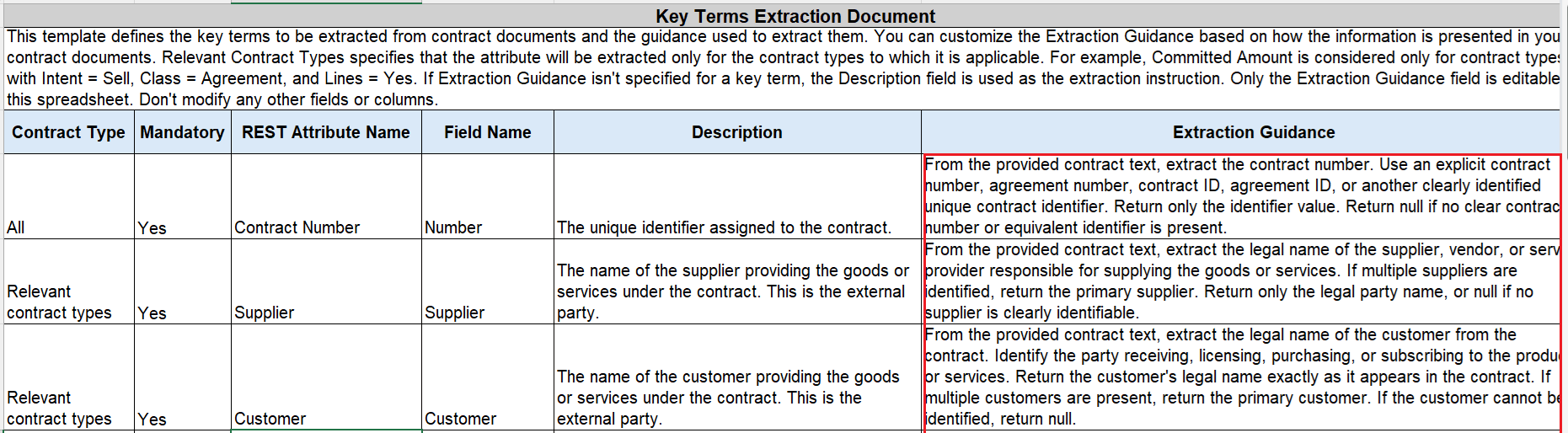
Contract Key Terms Extraction Policy
Upload Policy documents
Contract Classification Policy Document by following the below steps. Repeat these steps for the Contract Key Terms Extraction Policy.
From the home page, navigate to Tools->AI Agent Studio
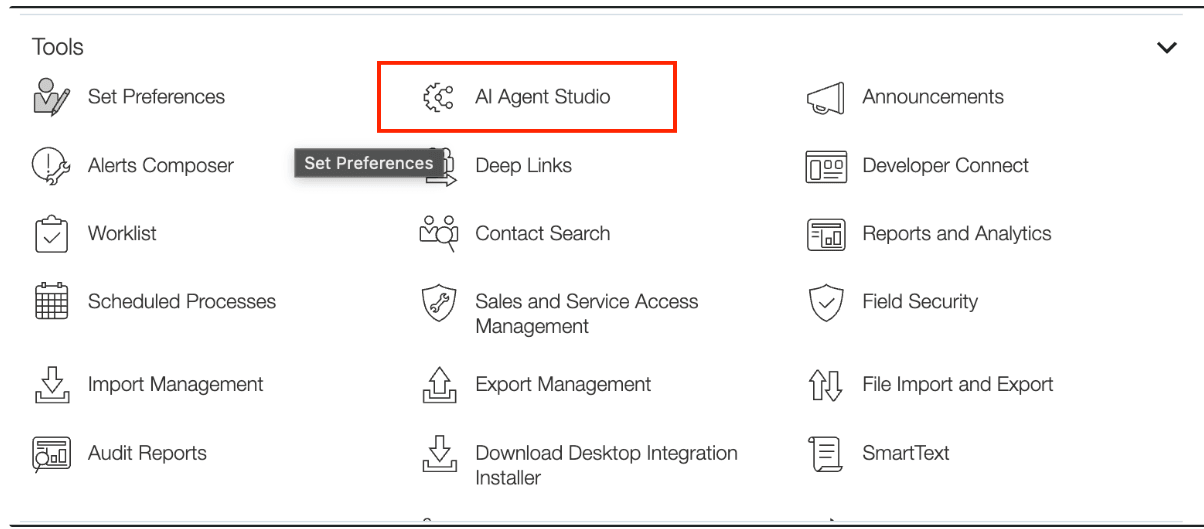
AI Agent Studio
Click on Policy Models
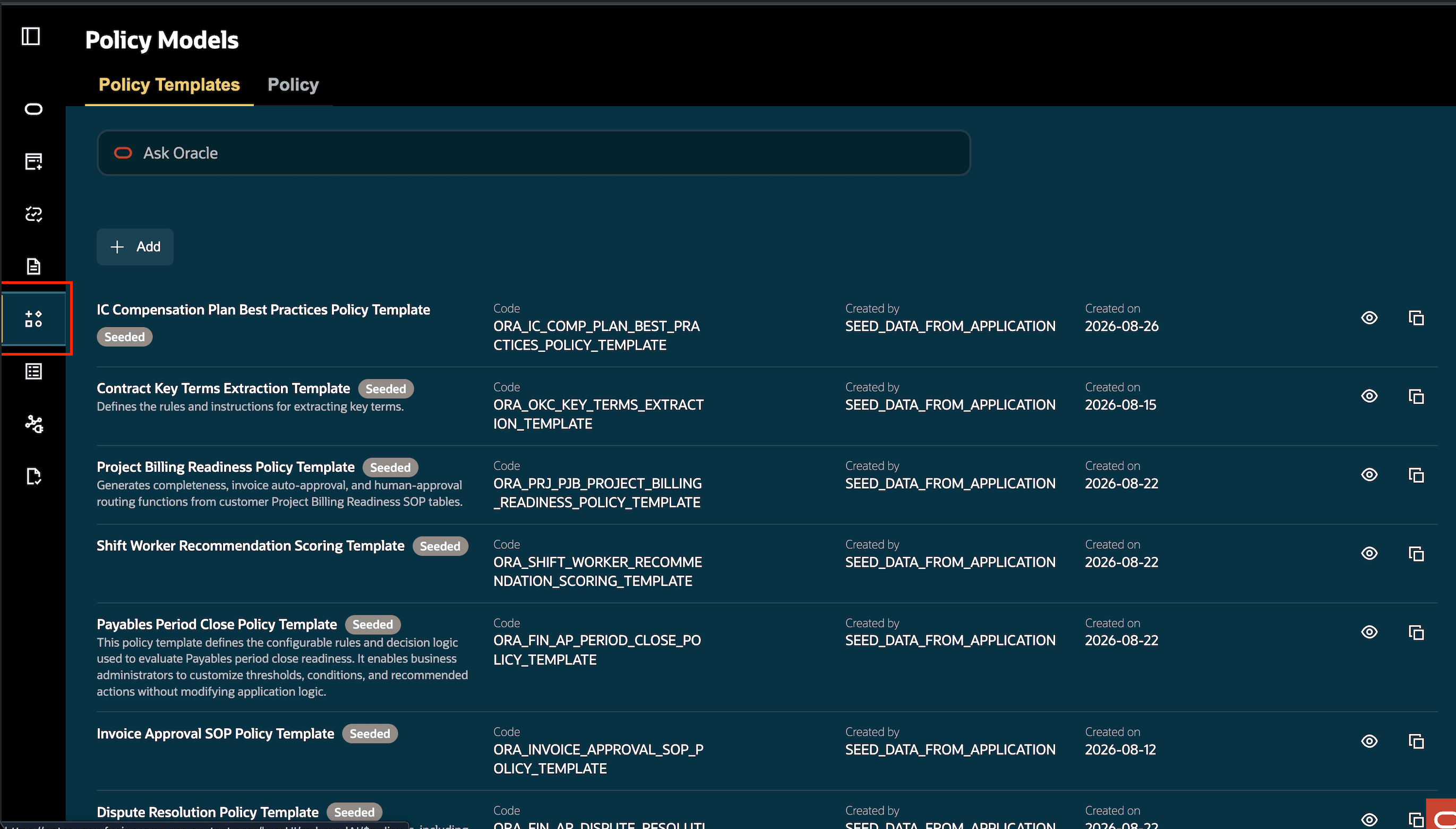
Policy Models
Click on Policy tab
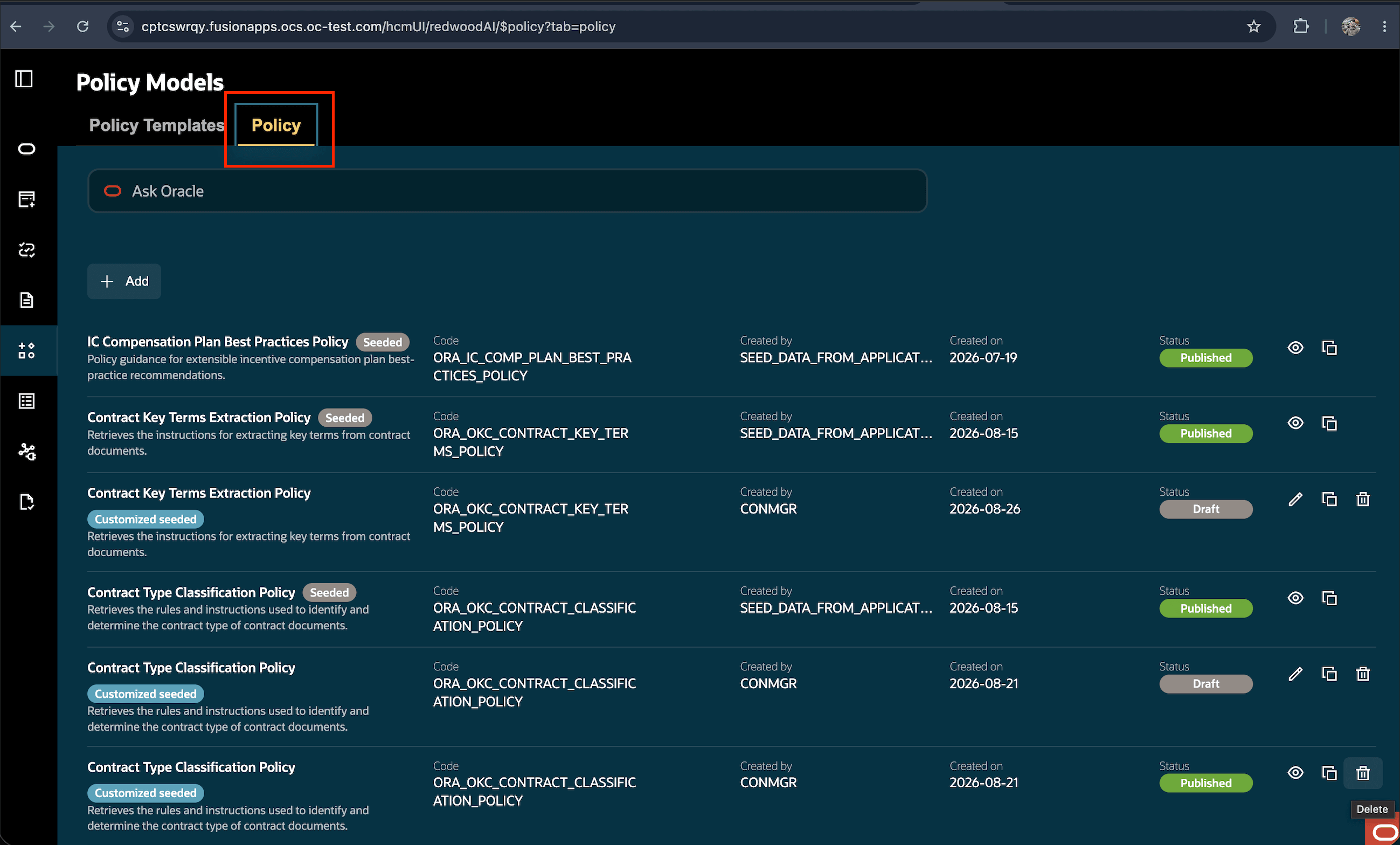
Policy Tab
Search for Contract Type Classification Policy and click View
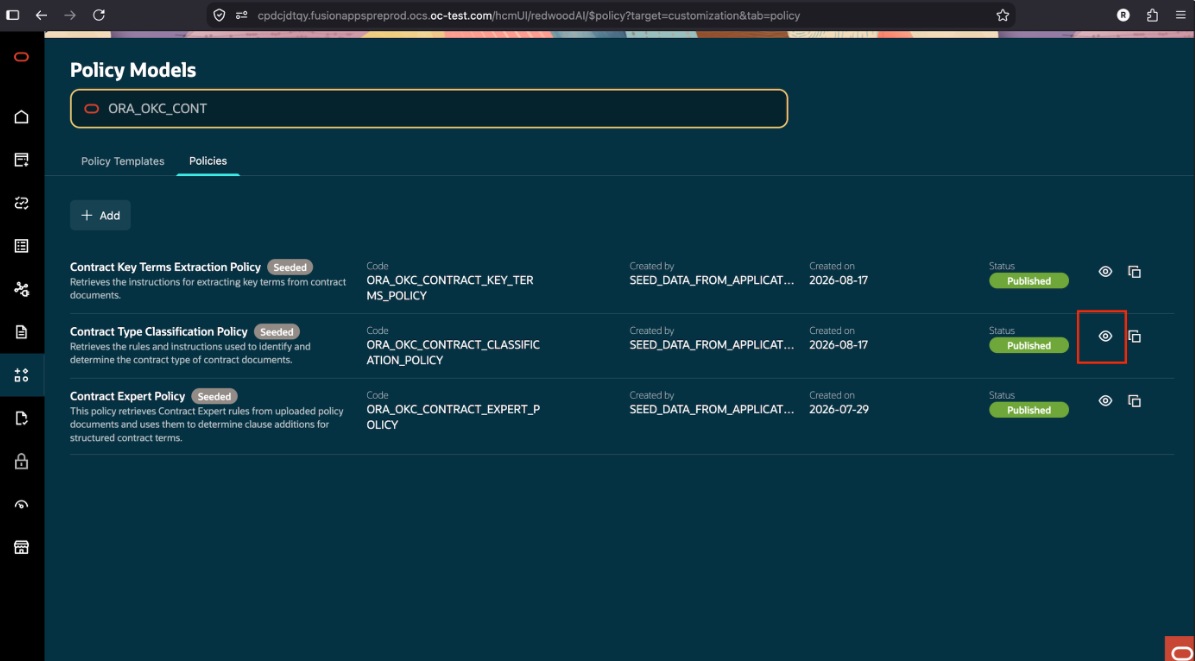
Contract Type Classification Policy
Click on Customize button
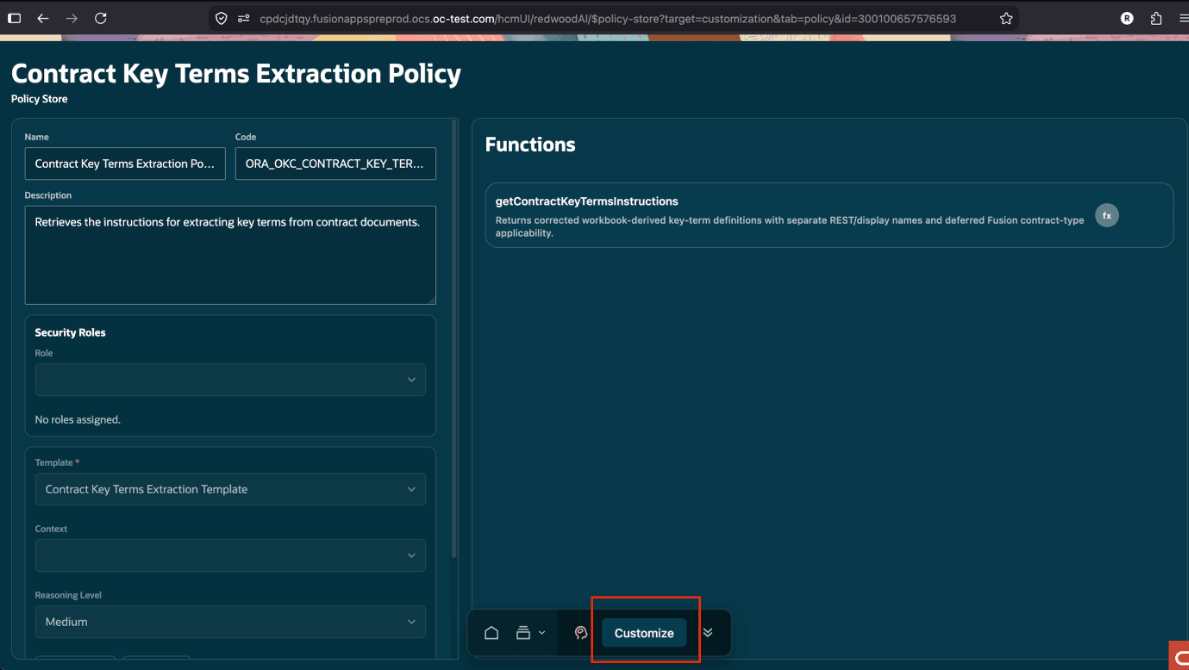
Customize Button
Click Choose File and upload the Contract Type Classification Policy document that you've prepared.
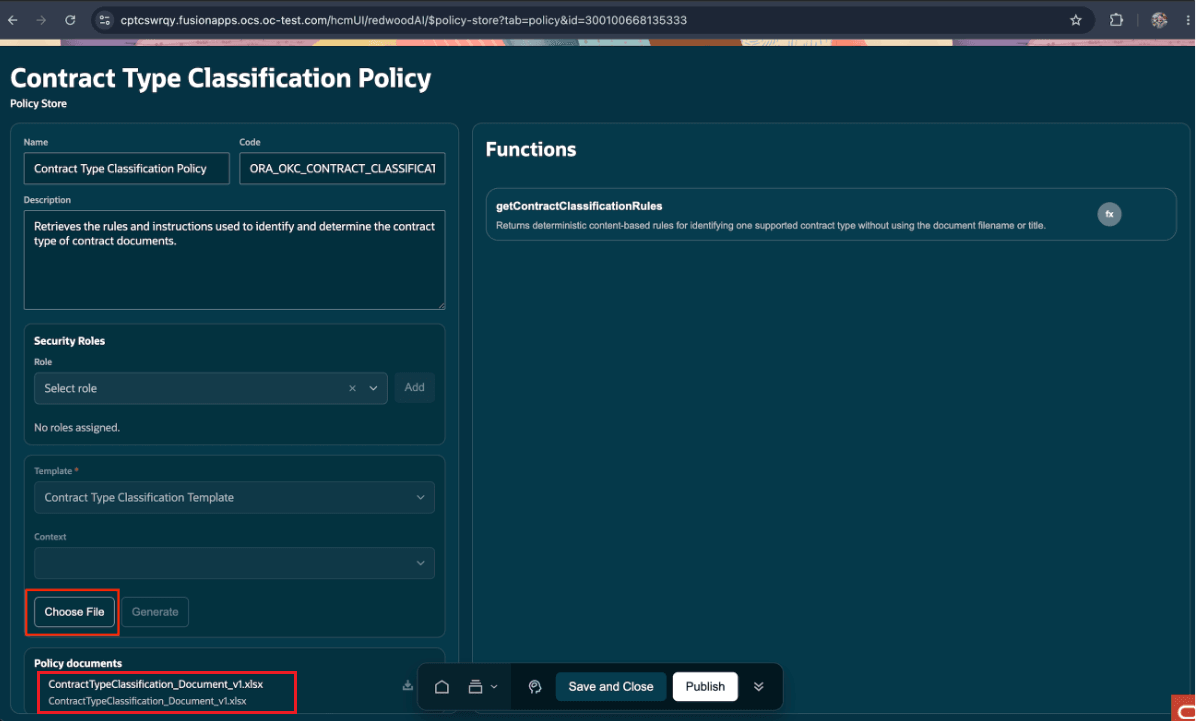
Choose File
Click Generate
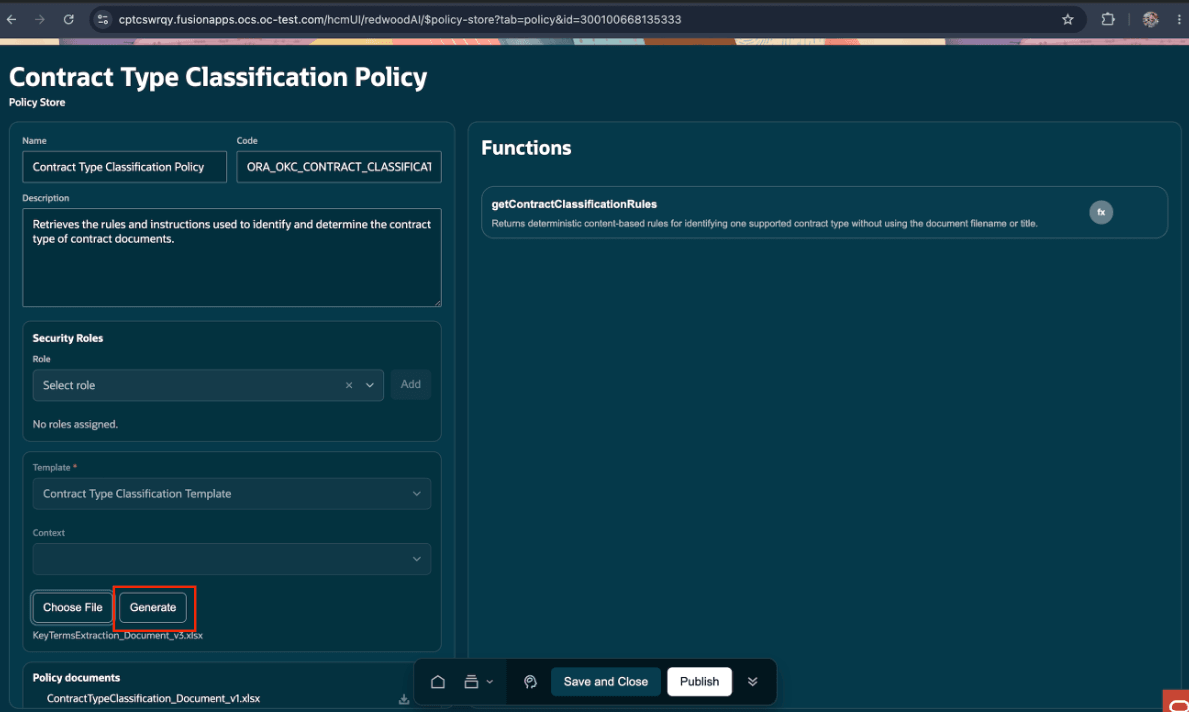
Click Generate
Click on Generate
Wait for a few minutes and verify the document content is present in the Source Code tab
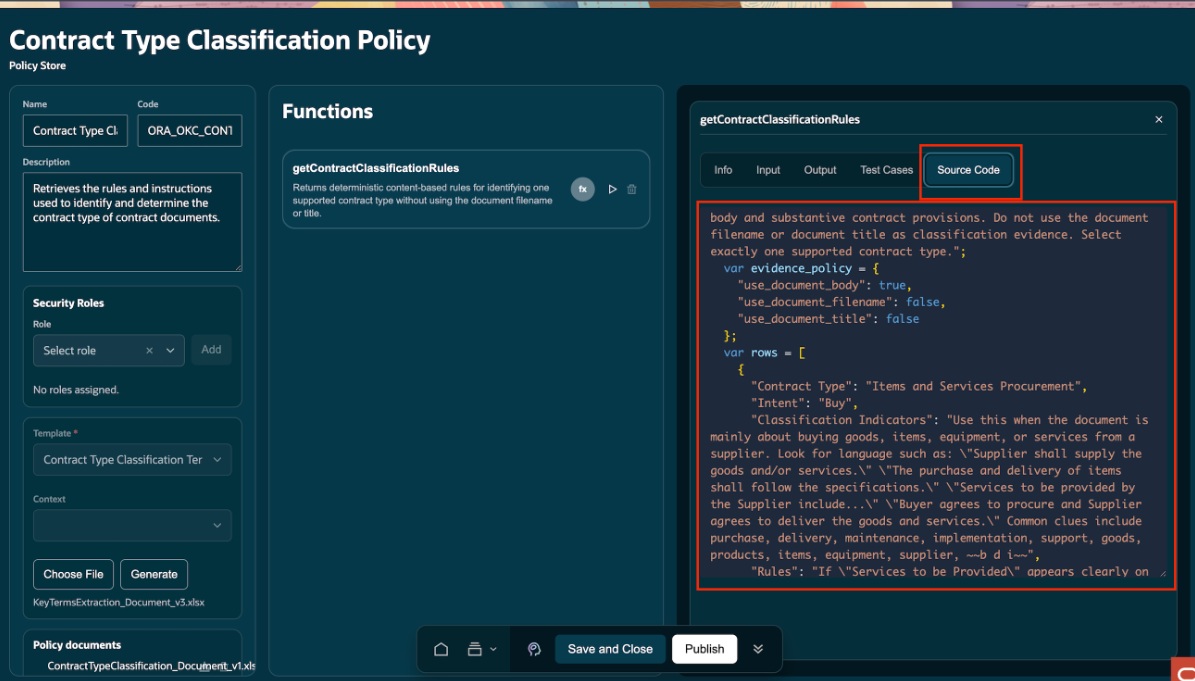
Source Tab
Click Publish
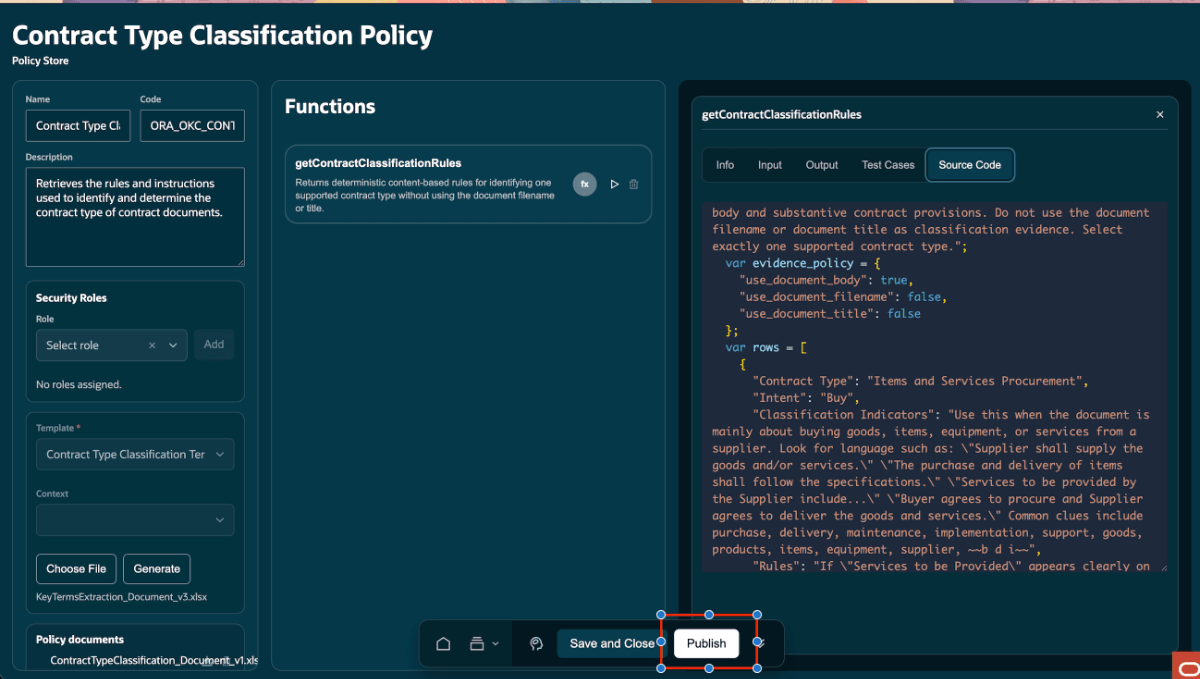
Ensure that Contract Type Classification Policy is Customized Seeded and Published.
Publish Button
Access requirements
Users who create and process contract ingestion batches must have the following duty role:
- Duty role name: Manage Contract Ingestion Duty
- Duty role code: ORA_OKC_MANAGE_CONTRACT_INGESTION_DUTY
Add this duty role to a custom job role and run the scheduled processes mentioned below.
Steps to Add a Duty Role to a Custom Job Role
- Navigate to Tools > Security Console from the Navigator menu.
- Click the Roles tab.
- Search for your custom job role. (If it is a seeded Oracle role, click the down arrow next to the role and select Copy Role to create a custom editable version.)
- Click the down arrow next to your custom job role and select Edit Role.
- Click Next until you reach the Role Hierarchy page.
- Click Add Role.
- In the Add Role Membership dialog box, search for the duty role, Manage Contract Ingestion Duty
- Select the duty role and click Add Role Membership.
- Click OK to close the confirmation and close the dialog box once finished.
- Click Next through any remaining configuration pages, then click Save and Close
Run the following scheduled processes.
- Send Pending LDAP Requests
- Retrieve Latest LDAP Changes
- Import User and Role Application Security Data
Administrator Access
- Administrators who configure or customize the Contract Document Ingestion Analyst policy workflow in AI Agent Studio must have a configured job role with the required AI Agent Studio duty roles.
- The job role must include these duty roles:
Duty Role and Role Code
- Fai Genai Agent CX Administrator - ORA_DR_FAI_GENERATIVE_AI_AGENT_CX_ADMINISTRATOR_DUTY
- Manage CX AI Agents - ORA_ZCA_MANAGE_CX_AI_AGENTS
- Manage CX AI Agents - ORA_ZCA_MANAGE_CX_AI_AGENTS_HCM
Enable Permission Groups
While adding the required duty roles to the job role, administrators must select Enable Permission Groups in Security Console.
This action enables the permission groups associated with the role so users assigned to the job role can access the required Oracle AI Agent Studio and Contract Expert workflow capabilities.
Steps:
- Go to Security Console.
- Search for the required job role.
- Open the role.
- Select Enable Permission Groups.
- Review the details.
- Select Enable Permission Groups in the dialog.
- Save the role changes.
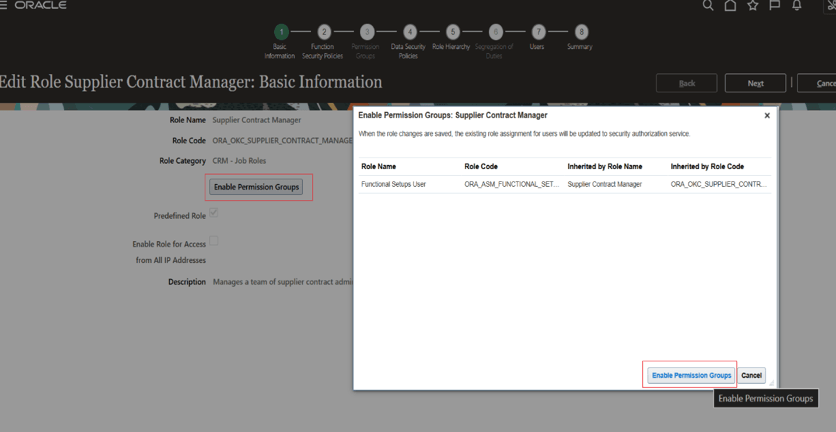
Enable Permission Groups
Administrators will also need permission groups to manage function templates, function template attachments, and prompt templates. Security views must be added as All Rows and All Fields for each permission group.
Required permission groups include:
- create Function Template
- delete Function Template
- read Function Template
- update Function Template
- create Function Template Attachment
- delete Function Template Attachment
- read Function Template Attachment
- update Function Template Attachment
- create Prompt Template
- delete Prompt Template
- read Prompt Template
- update Prompt Template
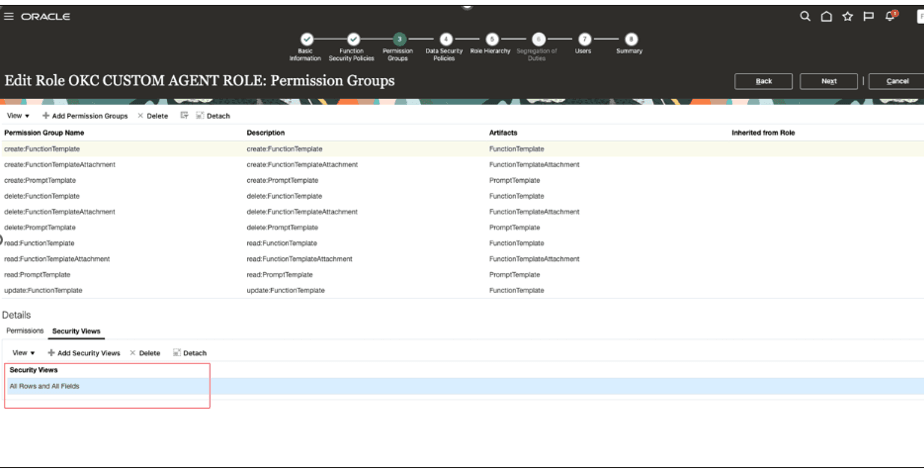
Security Views
Runtime User Access
Users who create and manage ingestion batches must have access to invoke the Contract Document Ingestion Analyst workflow.
The required runtime duty role is:
Fai Genai Agent Runtime Duty - ORA_DR_FAI_GENERATIVE_AI_AGENT_RUNTIME_DUTY
This duty role is added out of the box to these job roles:
- Customer Contract Manager
- Customer Contract Administrator
- Supplier Contract Manager
- Supplier Contract Administrator
- Enterprise Contract Manager
For runtime access, the user's job role must also be added to the Contract Document Ingestion Analyst workflow security. This enables the user to create and manage contract ingestion batches.