Stock Profile Integration in Individual Compensation Plans
You can now setup a stock profile for individual compensation plans that use Shares as the unit. After the plan gets final approval, the allocation uses details from the stock profile to fill in fields on the stock table, such as grant name, grant price, trading symbol and grant ID, for each stock award. In the past, only the trading symbol, grant ID, grant date, and number of shares were filled in automatically.
Let’s look at an example, starting with the details for a stock profile, which you can access from the Stock Profiles page:
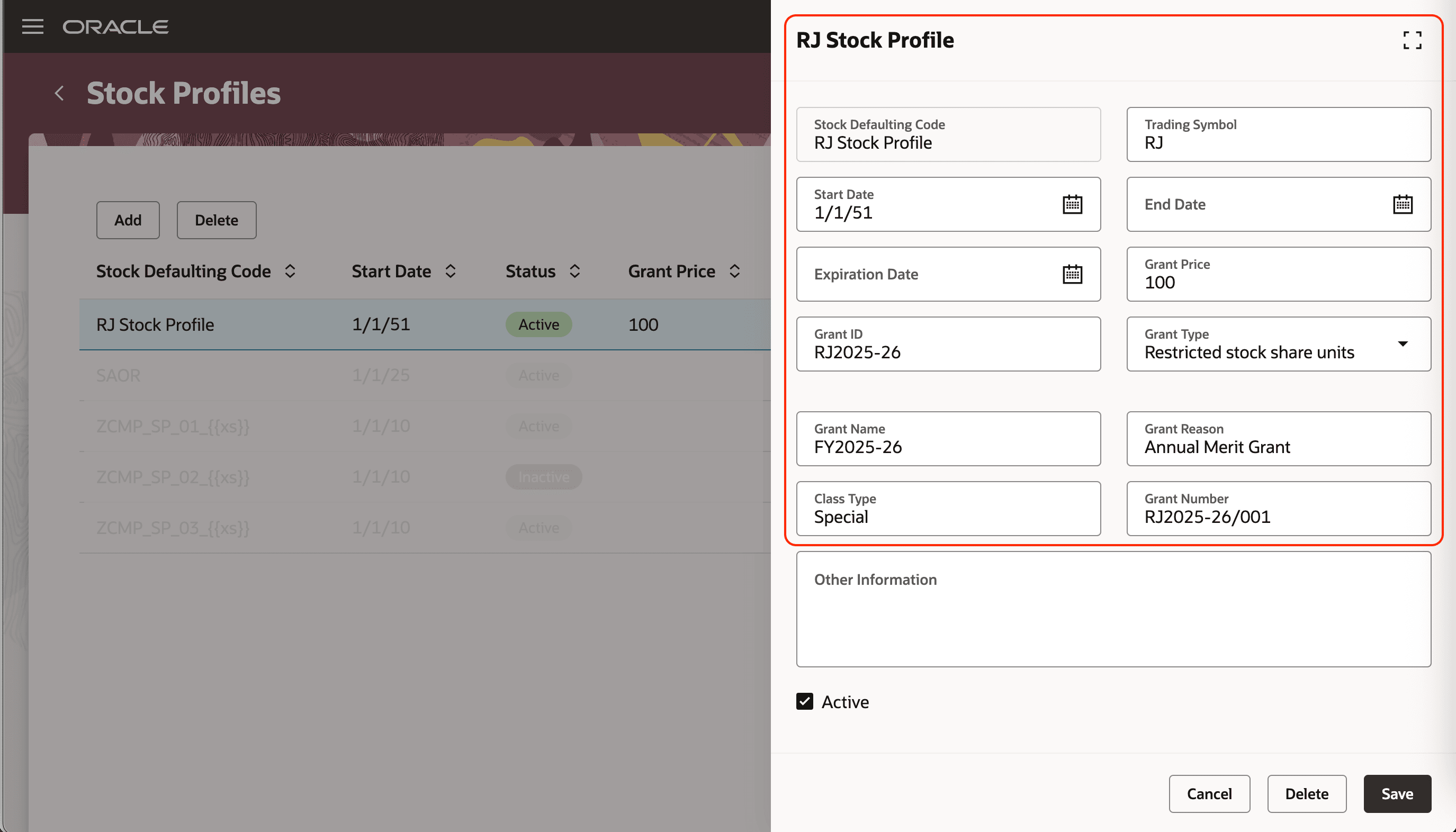
Stock Profile Details in a Stock Profile Drawer
When you create individual compensation plans with the Shares unit, you can select a stock profile. To help you find the correct profile, the list includes details, such as the defaulting code, status, start date, and grant price, type, and name.
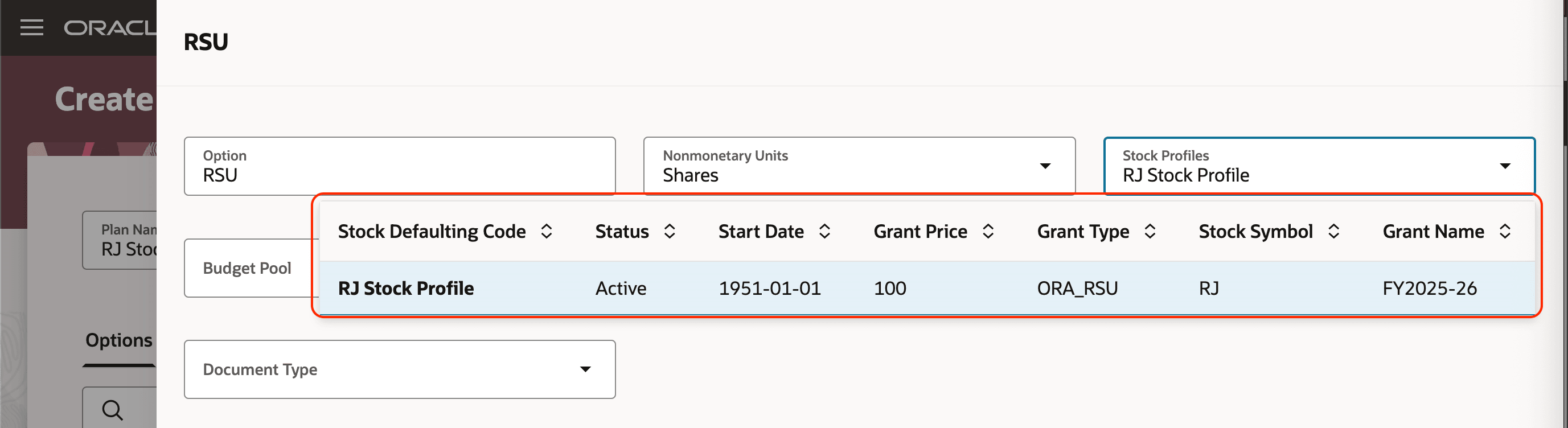
Stock Profile Details Visible from the Create Individual Compensation Plan Page
When people allocation individual compensation, they can use the Additional Compensation section to grant stock by picking the individual compensation plan with the appropriate stock profile.
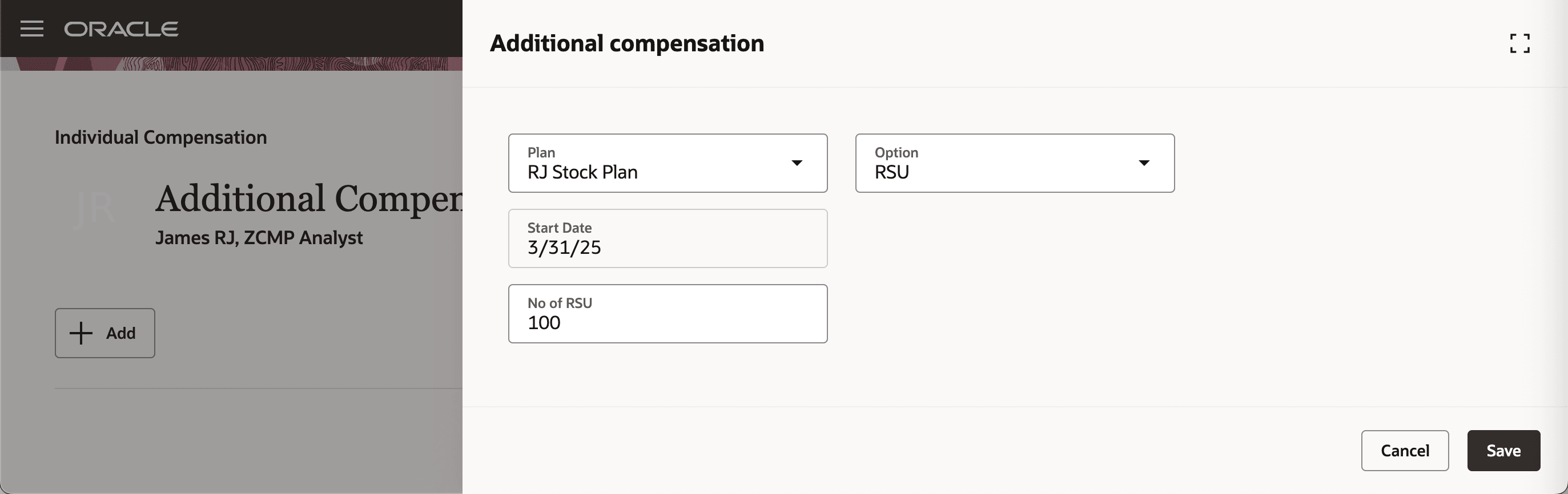
Additional Compensation Drawer of An Individual Compensation Allocation That Includes the Stock Plan
After the allocation is approved, the stock grant is created using details from the stock profile and allocation.
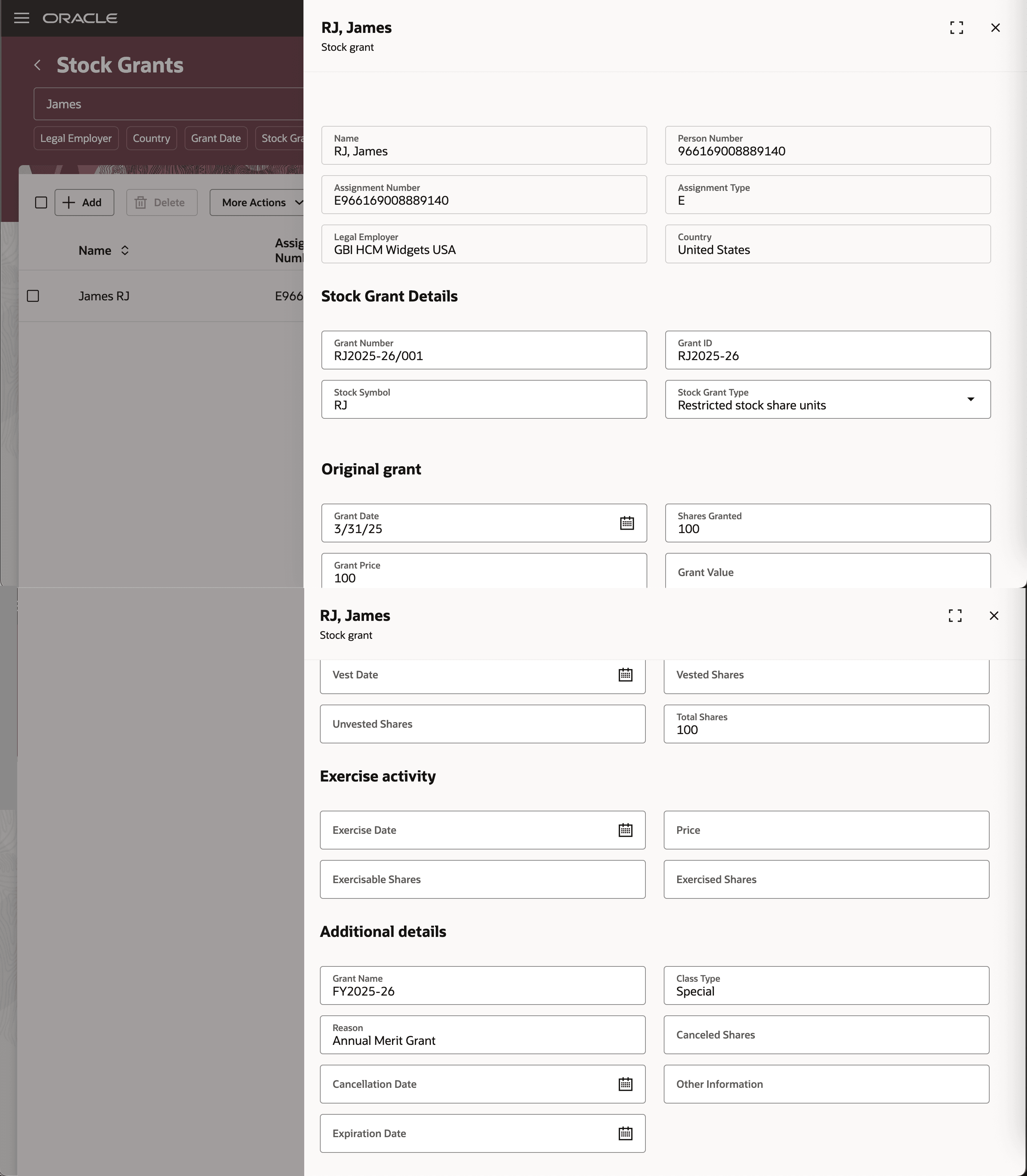
Stock Grant Details
This enhancement helps organizations manage employee stock compensation more smoothly and with greater confidence. By automatically using the full stock profile details, you reduce manual entry and the chance of errors, saving time for HR and payroll teams. It ensures consistency and accuracy for each stock award, which can simplify tracking and reporting.
Steps to enable and configure
You don't need to do anything to enable this feature.
Tips and considerations
Existing plans that don’t use the stock profile remain unaffected by this enhancement unless you need to change the Grant Type or Trading Symbol settings. If changes are required, you must use the stock profile.
You can add the stock profile to an individual compensation plan from the Redwood Individual Compensation Plan page. Stock grant details are updated using stock profile only when you use the Redwood individual compensation pages or sections.
Key resources
See the release 25D feature Stock: Introduction of a New Task for Stock Profile.