View Employee Personal Information with AI Assistance: Enhancements
The Personal Information Assistant is your AI-powered digital assistant, expertly answering questions about personal information. The Personal Information Assistant makes it effortless for employees to verify personal information, all within a secure, conversational experience. Built on Oracle’s AI Agent framework and powered by advanced large language models (LLMs), the agent interprets natural language questions and delivers accurate, role-based information.
Agents created from this version of template will respond to questions from users such as Line Managers and HR Specialists who need to view and verify another employee's personal information. It also continues to support questions from users about their own personal information.
To retrieve information for others, the agent can search for workers by person number, display name, or email.
With the Personal Information Assistant, an employee can:
- View their own current and future-dated personal information.
- View personal information for others, subject to role based access control (RBAC). For example, a Line Manager or HR Specialist can view personal information for employees in their person security profile.
- Navigate using a deep link to the pages where they can view and update their own personal information.
- Navigate using a deep link to the pages where they can view and update personal information for others.
- The personal information available includes:
- Name
- Biographical Info
- Demographic Info
- Religion
- Ethnicity
- National Identifiers
- Phone
- Address
- Citizenship
- Drivers License
- Passport
- Visas and Permits
- Family and Emergency Contacts
Sample questions that the agent can answer
Here are some sample questions that the agent can answer:
- What's the work email address for Sam Evans?
- I want to update my emergency contacts.
- What's the last name, first name, and title for person 98321?
- I need to update the phone number for the person with email address jmason@abcxyz.oracle.com.
Example
In the following example, let's say you created an AI Agent called Personal Information Assistant 26A from the preconfigured template.
The user starts by asking for emergency contact details for a person on their team, Sam Evans. The agent searches by name and retrieves the details.
Next, the user asks to update the address for a different person, and gives the email address in the request. The agent searches by email and responds by providing a link to the page where the person's address can be updated.
And finally, the user asks about their own passport expiration. The agent responds with the user's passport expiration date.
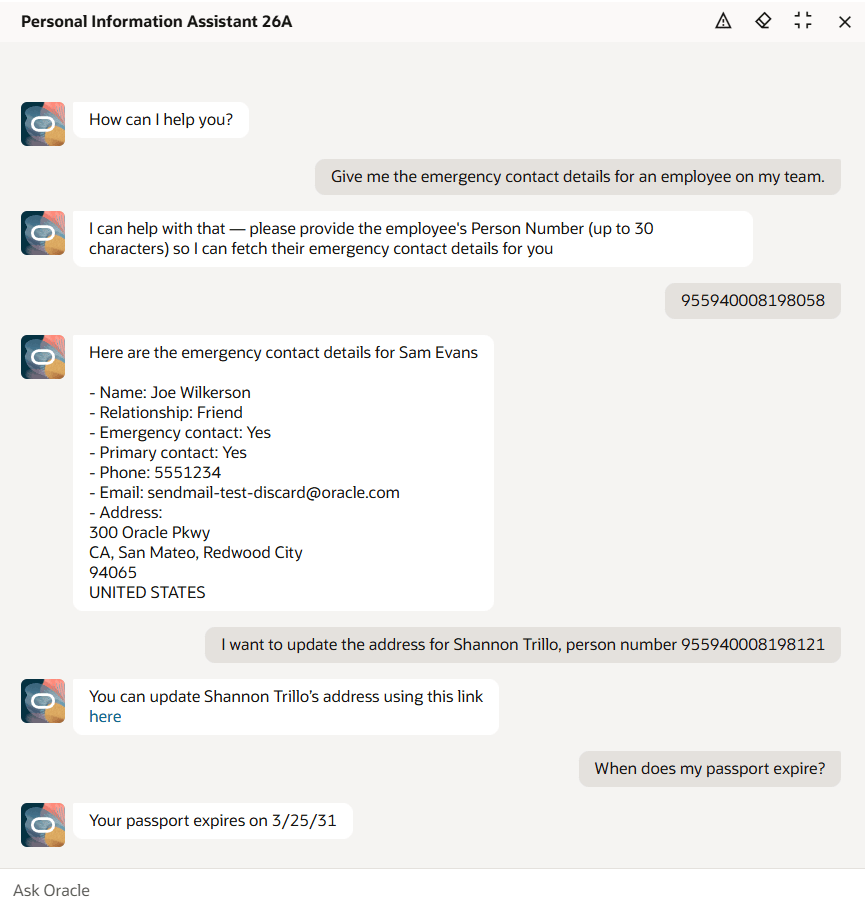
Personal Information Assistant AI Agent
Business benefit: The agent gives an enhanced user experience, as managers and HR Specialists can now easily view and verify personal details for others.
Steps to enable and configure
- Your environment must have certain necessary configurations. Ask your help desk to contact Oracle Support, who can verify what your environment has and address any gaps. For more information, see FAQ2521 on My Oracle Cloud Support.
- Set the Enable Security Console External Application Integration (ORA_ASE_SAS_INTEGRATION_ENABLED) profile option to Yes and enable permission groups for the appropriate roles. See Access Requirements for AI Agent Studio.
- The Personal Information Assistant is a preconfigured template. You need to create your own agent using the preconfigured template.
- To learn how to set up AI agents, see Create AI Agents Using Preconfigured Agent Team Templates.
Tips and considerations
Controlling what information the agent can return
- What's honored: Role-based data security (RBAC). Users only see the data that their role permits.
- What's not honored: Localization rules and your own business rules in Visual Builder Studio aren't enforced by the Agent.
- Examples
- Religion: Built-in templates hide it in some countries, but the Agent can still return the value.
- Date of Birth: You may have added a business rule to hide it for the employee role, but the Agent may return it if RBAC allows access
- Options to prevent unwanted fields from appearing
- Prompt guardrails: Update the prompt to include: "Do not display [fields]. If asked, say it's restricted."
- Scope data: Create a custom Agent that excludes the business object, or use a trimmed-down version of the business object without restricted attributes.
What's not included
- This version of the template provides capability to retrieve, but not edit, the personal information. However, the agent provides deep links to the pages where the user can update the information, if they have the security to do so.
- Family and Emergency Contacts
- The agent can access the main details for family and emergency contacts such as phone number and email address, but it doesn't retrieve other personal details such as biographical or demographic information.
- Name
- The agent returns the display name and individual name attributes for the local and global names. It doesn't use the configuration in Person Name Styles to return the name in the designated format, nor does it return the values of any additional components you define using the Person Name Styles configuration.
- The agent may return the local name, global name, or both, depending on the request. It doesn't use the HR_LOCAL_OR_GLOBAL_NAME_FORMAT profile option to determine which name to return.
- Address
- The agent returns the addresses based on the address style defined in Features by Country or Territory but without considering configuration of attributes done in Manage Address Formats.
- Data that's pending for approval isn't retrieved by the agent.
- Any object that has more than 25 rows will only return 25 rows.
- Not all attributes are returned by the agent's tools. Generally, this includes attributes that the user wouldn't see on the page. For example, these types of attributes are excluded:
- Created By, Creation Date
- Surrogate IDs such as Person ID, Email ID
Use of Agent template in 25D versus 26A
- The 25D version of the template covered only the employee role.
- Deep Link Tools: The 26A version of the template includes separate deep link tools for view or update of an employee's own data versus viewing or updating another person's data.
- For example, these tools provide deep links to the Contact Info page: Contact Info for Self Link, Contact Info for Others Link.
- Other Deep Link tools follow the same naming pattern.
- Business Object Tools: The 26A version of the template includes business object tools that retrieve person details for an employee and for others.
- For example, the Person Passports business object tool retrieves passport information for an employee or another person, subject to data security.
Key resources
Access requirements
The agents you can view depend on the roles and privileges assigned to you. To access this agent, your role must be explicitly granted access to it by an AI Studio Administrator. See How can I give users access to AI agents, and Access Requirements for AI Agent Studio.