Redwood Experience: Interview Schedule Details Page
Take advantage of the Interview Schedule Details page that has been recreated in the Redwood toolset called Visual Builder Studio.
When the Redwood profile options are enabled and you navigate to the job requisition’s Interviews tab and click on an interview schedule, you’ll see the new Schedule Details page. The Schedule Details page is also available from My Client Groups > Show More > Hiring > Manage Shared Interview Schedules.
Below are key highlights of the new Redwood page.
Header
The status of the interview schedule is displayed in the header. The status can be Active or Inactive. Statuses are the same for both Hiring Team and Candidate schedules. (Published and Unpublished statuses aren’t used in Redwood).
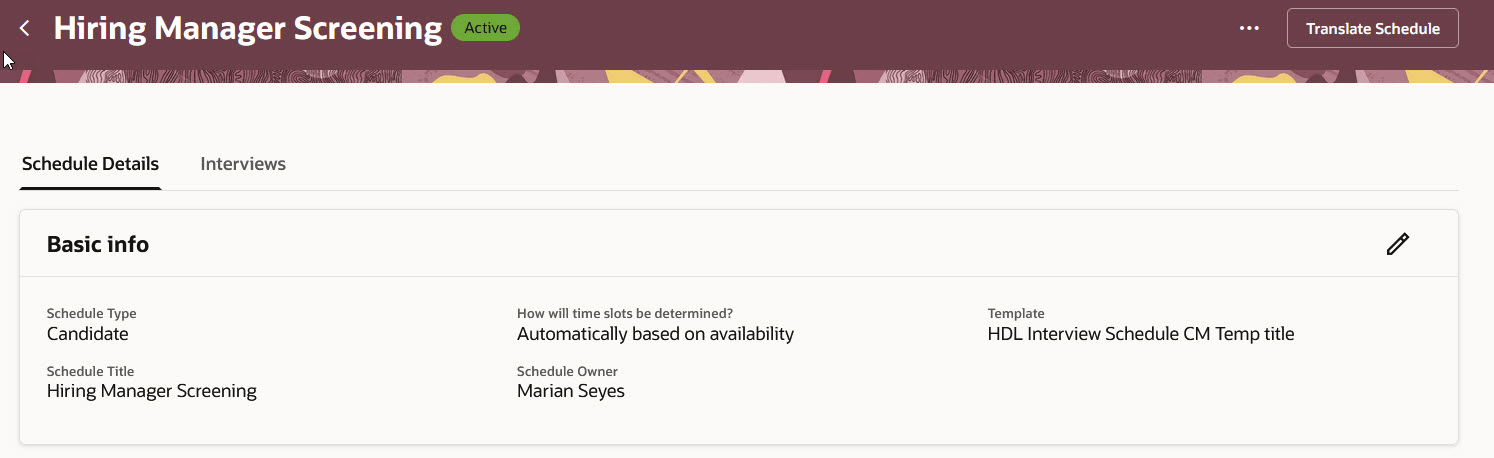
Interview Schedule Status in the Page Header
Schedule Details Tab
You can modify most fields on the Schedule Details tab. Changing a field value doesn’t impact existing interviews. Also, some fields have been reorganized or renamed to add clarity.
Basic info
- Schedule Type: The schedule types are now called Hiring Team (instead of Hiring Team Managed) and Candidate (instead of Candidate Managed).
- How will time slots be determined: This field is only displayed for Candidate schedule type and if Recruiting Booster is enabled with a calendar integration. The field indicates whether time slots are automatically created based on the interviewer's availability (using calendar integration) or if they're created manually by users.
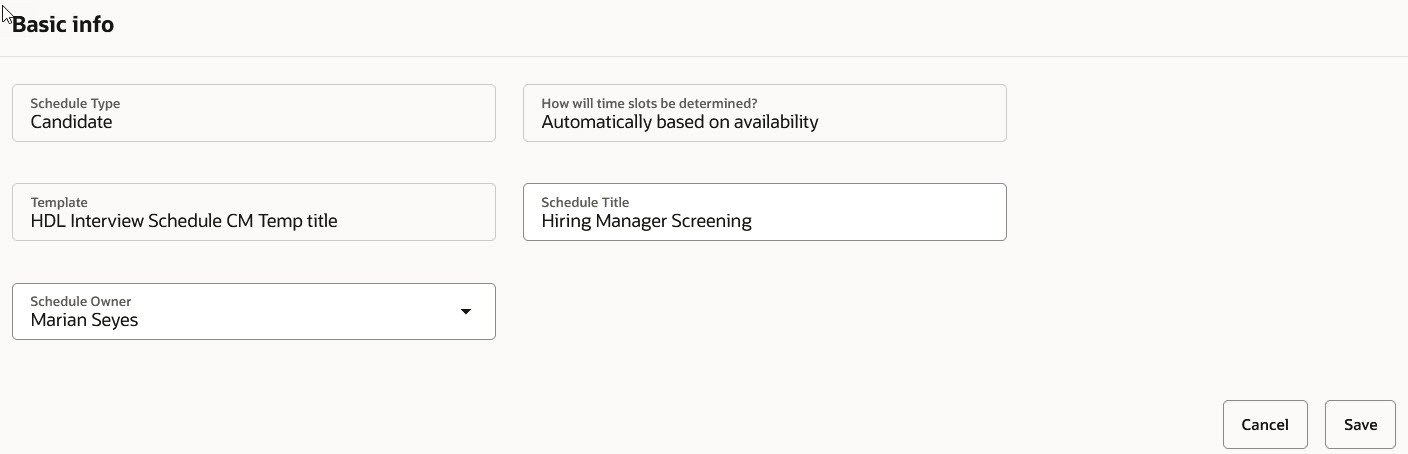
Basic Info Section on the Schedule Details Tab
Configuration
- Fields in the Configuration section vary depending on the schedule type.
- When can candidates schedule their interview: If you select "Same day", candidates can select an interview time slot the same day that they access the scheduling page. If you select "Number of days", candidates can select an interview time slot after a number of days after which they accessed the scheduling page.
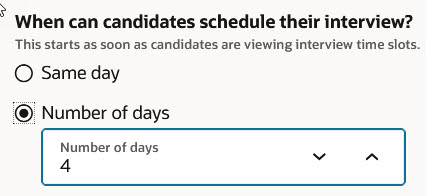
Configuration Section on the Schedule Details Tab
Interview resources
- These new fields were added: Interviewer guidelines and Documents. Both fields are used to provide additional information to the interviewers.
- When AI Assist is enabled, you can use it to generate text in these fields: Before scheduling the interview, For the scheduled interview, Additional notes, Interviewer guidelines. The content generated by AI takes into account details of the requisitions to which the schedule is associated. For shared schedules, AI doesn't consider the details of the requisition because shared schedules can be associated to multiple requisitions.
- When you decide to add .ics attachments to the interview invite, you can now send the attachments to candidates, interviewers, or both.
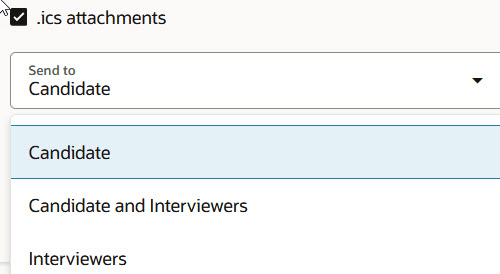
.ics Attachments on the Schedule Details Tab
Associated requisitions
- This section appears only for shared interview schedules. It displays requisitions and requisition templates to which the schedule is associated to. Requisitions and Requisition Templates now appear in two different panels. You can also display inactive requisitions or requisition templates.
Interviews Tab
The Interviews tab displays the scheduled interviews and time slots created for the schedule. The info displayed varies depending on the type of schedule.
- You can use the View Requisition and View Candidate filters to filter the interviews. The View Requisition filter is only available for shared schedules (for requisition-specific schedules, all interviews/slot are for the same requisition). The View Candidate filter is always available.
- Slots are displayed in different colors depending on their status.
- You can decide to display or hide time slots with specific statuses.
- You can click a time slot to view more details.
- You can add time slots for Candidate schedules.
- When you view an interview, clicking on an interview opens a preview of the interview details. I sent you a screenshot of the preview.

Filters on the Interviews Tab
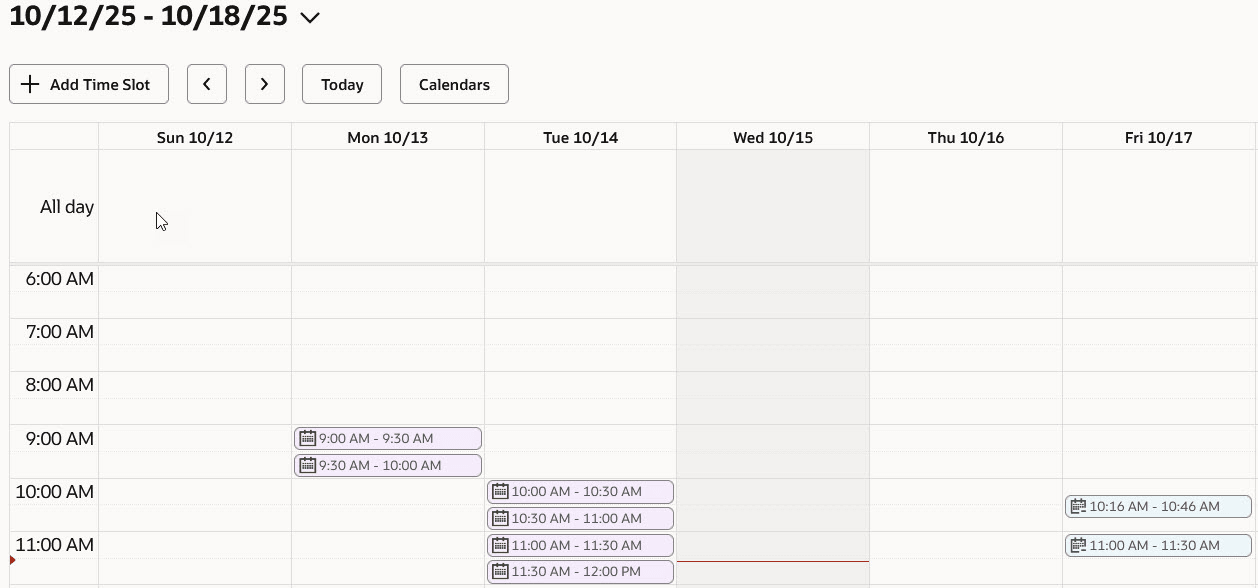
Interview Time Slot Colored Status
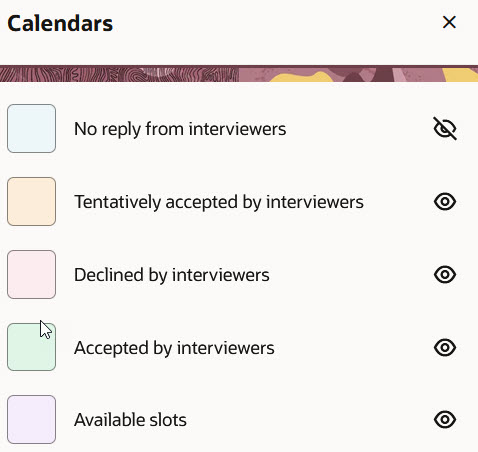
Display or Hide Time Slots by Status
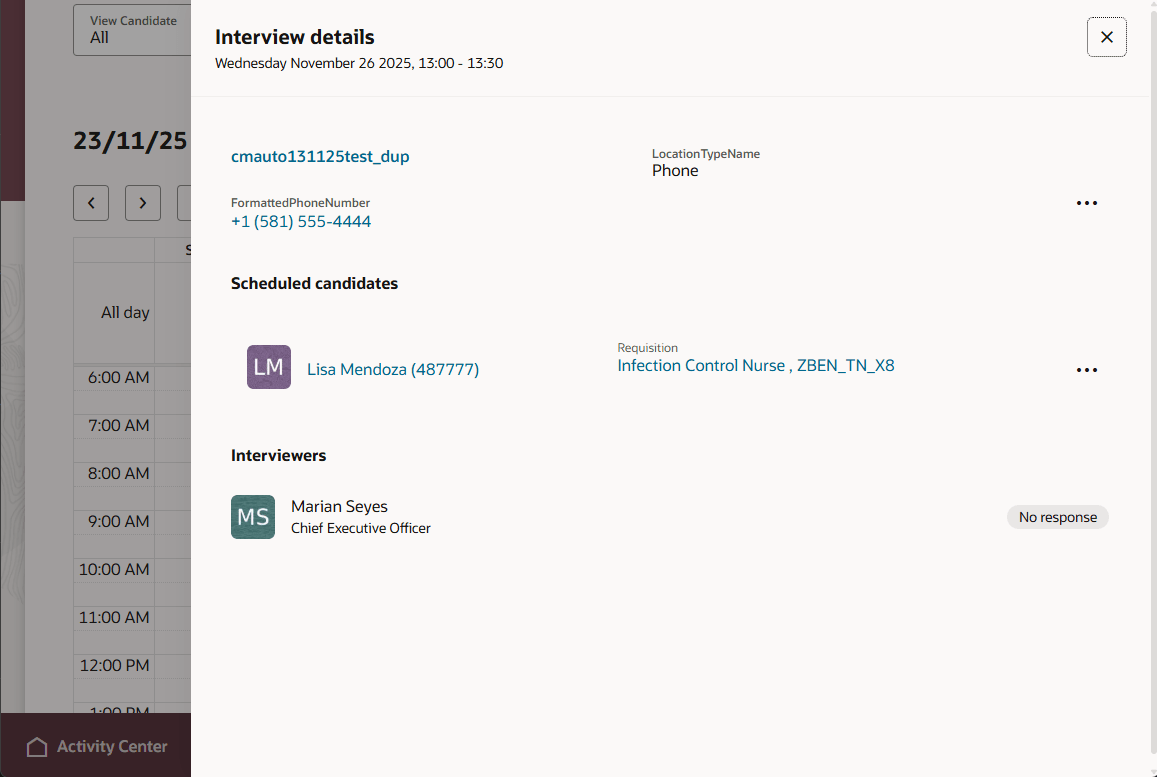
Viewing Interview Details
Actions
These actions are available the Schedule Details tab:
- Translate Schedule: This action is available for both active and inactive schedules. For details, see the 26A What`s New feature called …
- Duplicate Schedule: When you use this action, the Create Schedule flow opens and displays the details of the selected schedule.
- Inactivate: Use this action to inactivate an active schedule.
- Activate: Use this action to activate an inactive schedule.
Business benefit: The new Interview Schedule Details page provides a consistent Redwood look and feel experience for users.
Steps to enable and configure
To use the Redwood Interview Schedule Details page, you need to enable these profile options:
- ORA_IRC_INTERVIEW_REDWOOD_ENABLED
- ORA_IRC_JOB_APPLICATION_REDWOOD_ENABLED
- ORA_IRC_RECRUITING_REDWOOD_ENABLED
For details, see How do I enable a profile option?
You can customize the display of sections and fields using Visual Builder Studio. For details on enabling and customizing Redwood for HCM, see How do I adopt Redwood for HCM? and Extending Redwood Applications for HCM and SCM Using Visual Builder Studio.