Redwood Experience: Interview Details Page
Take advantage of the Interview Details page that has been recreated in the Redwood toolset called Visual Builder Studio. When the Redwood profile options are enabled, you’ll see the new Interview Details page.
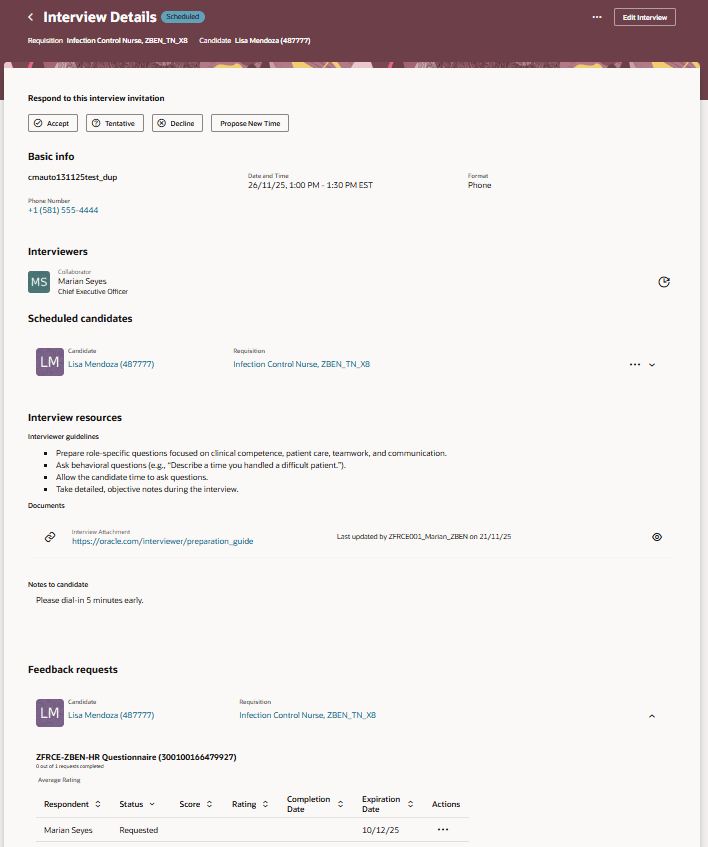
Redwood Interview Details Page
Below are key highlights of the Redwood Interview Details page compared to the responsive UI.
Basic info
This section displays basic details about the interview.

Basic Info Section on the Interview Details Page
Interviewers
You have an option to resend the Interview Scheduled notification to the interviewers.

Interviewers Section on the Interview Details Page
Scheduled candidates
You can click the candidate and job requisition links, which open a drawer providing more details. You can click the Actions menu to take action about the candidates scheduled for the interview.
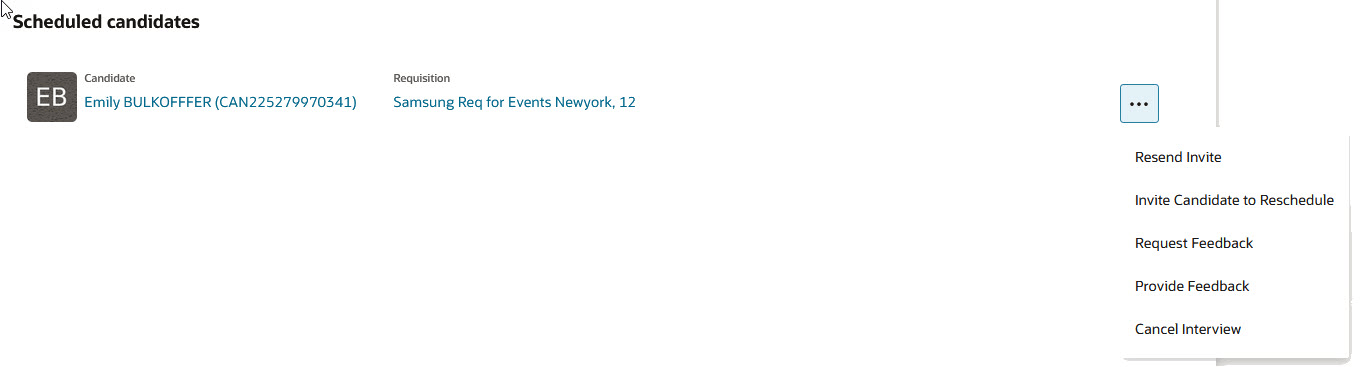
Scheduled Candidates Section on the Interview Details Page
Interview resources
You can see the interviewer guidelines, attachments, and notes for candidates that were added to the interview.
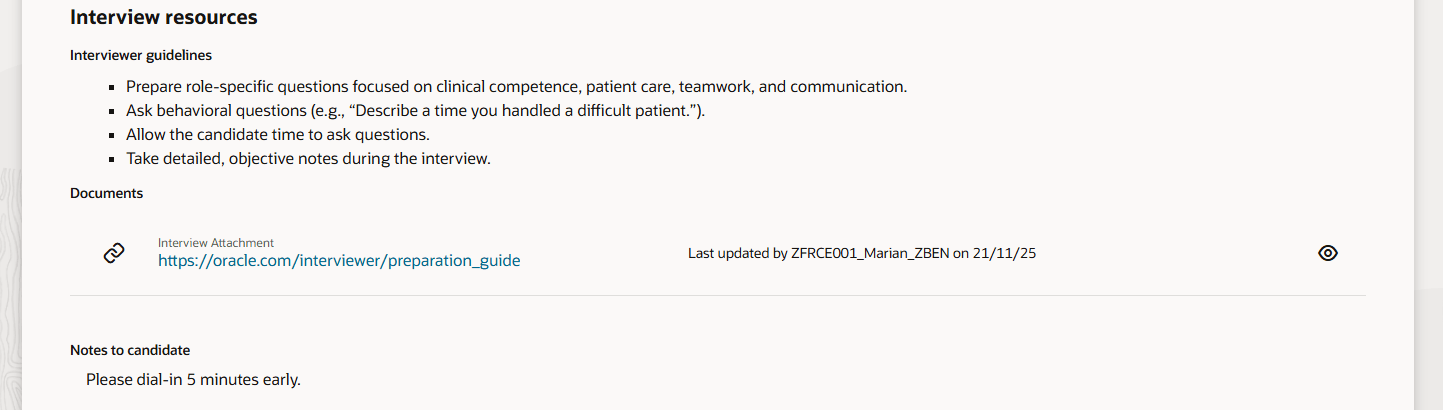
Interview Resources Section on the Interview Details Page
Feedback requests
This section displays the list of feedback requests associated with the interview.
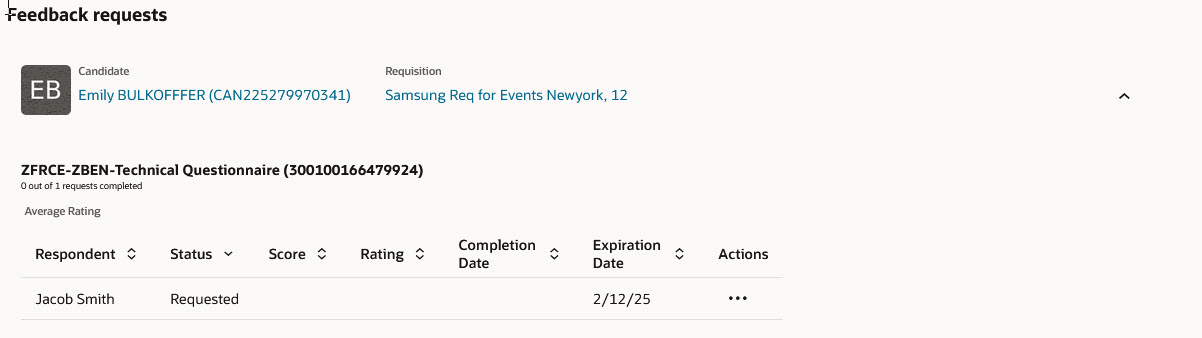
Feedback Requests Section on the Interview Details Page
Actions on the Interview Details Page
- Edit Interview: By default, the info displayed on the Interview Details page is read-only. You need to use the Edit Interview action to make changes. All sections of the page can be edited at once to avoid sending multiple update notifications to participants when changes are made to different sections. When you edit the interview:
- You can add and remove interviewers, and see proposed time slots based on the interviewers' availability. Seeing proposed time slots based on the interviewers availability is only available when a calendar integration is enabled (Microsoft 365 or Google).
- You can add additional attachments for the interviewers in the Documents field.
- When AI Assist is enabled , you can use it to generate text in these fields: Before scheduling the interview, For the scheduled interview, Additional notes, interviewer guidelines. The content generated by AI takes into account details of the requisitions to which the schedule is associated.
- Resend Invite: Use this action to resend the Interview Scheduled notification to each interviewer.
- Download Invite: Use this action to download the interviewers' .ics file. The action is only available if the interview schedule is configured to include a calendar file for interviewers.
- Download Candidate Calendar File: Use this action to download the candidate's .ics file. The action is available only if the interview schedule is configured to send calendar files to candidates. This allows recruiters to manually share the calendar file with the candidates.
- Request Feedback: This action opens a drawer where you can enter details to request feedback for the interview.
- Provide Feedback: This action opens the Provide Feedback page where you can provide unsolicited feedback for the candidate interview.
- Cancel Interview: Use this action to cancel the interview for the candidate.
- Invite Candidate to Reschedule: This action opens a drawer where you can enter the earliest available date for candidates to reschedule the interview. This action is only available if the interview was scheduled using candidate managed scheduling.
Responding to the Interview
If you’re an interviewer on the interview, you can respond to the interview invitation. You can accept the invitation, tentatively accept the interview, decline it, or propose a new time. The Propose new time drawer can display the interviewer's availability if a calendar integration is enabled (Microsoft 365 or Google).
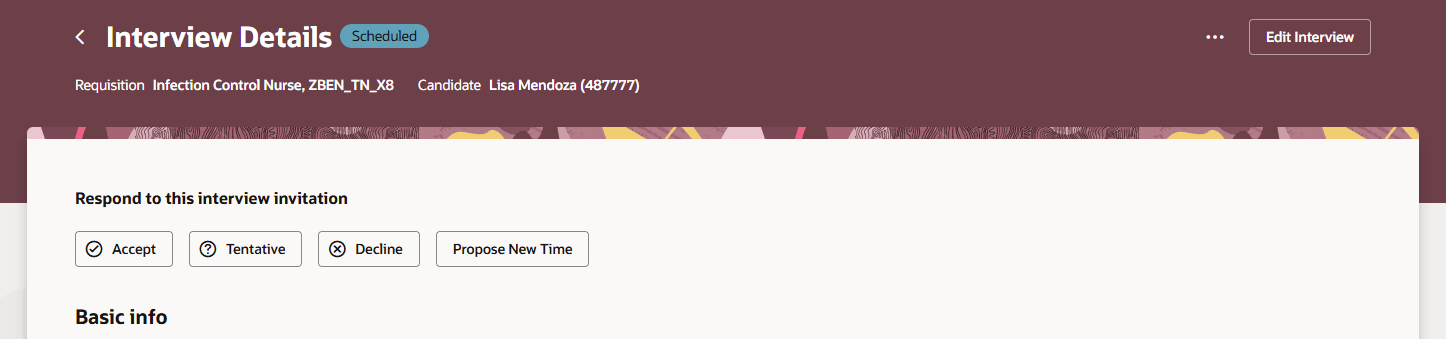
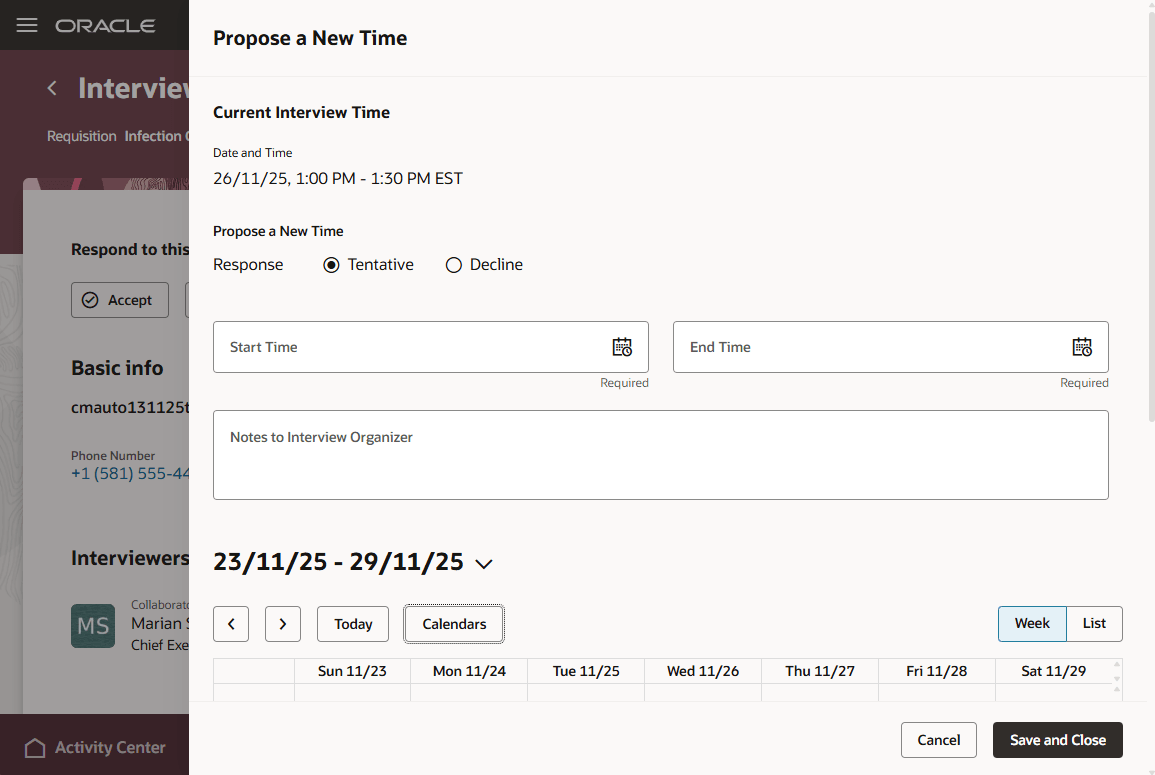
Propose a New Time Page
Respond to this Interview Invitation
When you respond to the interview, your response is displayed. But you still can modify it.
Multiples Candidates Scheduled for an Interview
In the header, the label "Multiple" is displayed as the candidate name (as opposed to the name of the candidate when only one candidate has been scheduled).
Business benefit: The Redwood version of the Interview Details page provides an improved user experience and surfaces additional information for interviewers, enabling better preparation and a more efficient interview process.
Steps to enable and configure
You need to enable these profile options to use the Redwood Interview Details page:
- ORA_IRC_INTERVIEW_REDWOOD_ENABLED
- ORA_IRC_JOB_APPLICATION_REDWOOD_ENABLED
- ORA_IRC_RECRUITING_REDWOOD_ENABLED
For details, see How do I enable a profile option?
You can customize the display of sections and fields using Visual Builder Studio. For details, see How do I adopt Redwood for HCM? and Extending Redwood Applications for HCM and SCM Using Visual Builder Studio.