Redwood Experience: Create a Job Requisition Template
When Redwood profile options are enabled, upon clicking the Create button on the Redwood Job Requisition Templates list page, you’ll see 3 options to create different types of job requisition templates:
- Standalone
- For Jobs
- For Positions
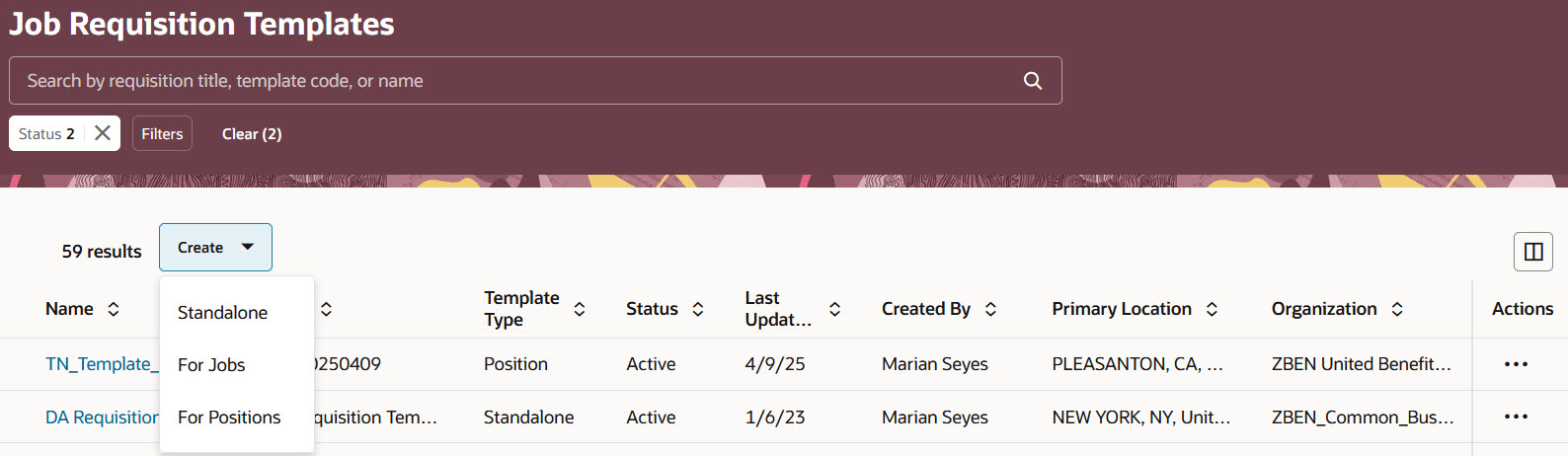
Options to Create Job Requisition Templates
After you select one of the options, you’ll be taken to the Redwood job requisition template creation flow. Below are the key highlights of this flow.
The Redwood user experience for the job requisition template creation flow is consistent with that of the job requisition creation flow. However, the functionalities are the same as create job requisition template flow in responsive UI.
The job requisition template creation flow contains the following sections. Sections are optional.
- Basic info
- Hiring team
- Requisition structure
- Details
- Work requirements
- Posting description
- Licenses and certifications: This section was added to support the automatic data transfer from the job requisition template to the create job requisition flow in Redwood.
- Offer info
- Configuration
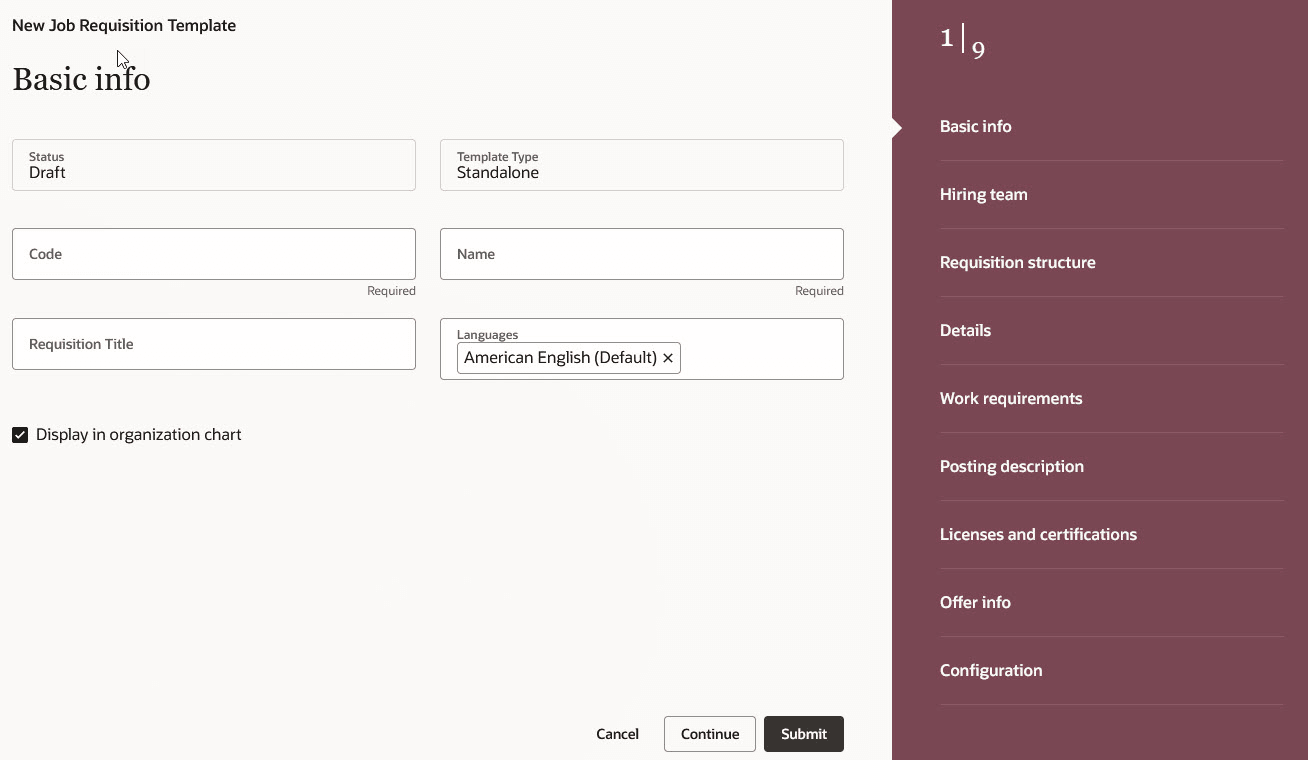
Sections in the Job Requisition Template Creation Flow
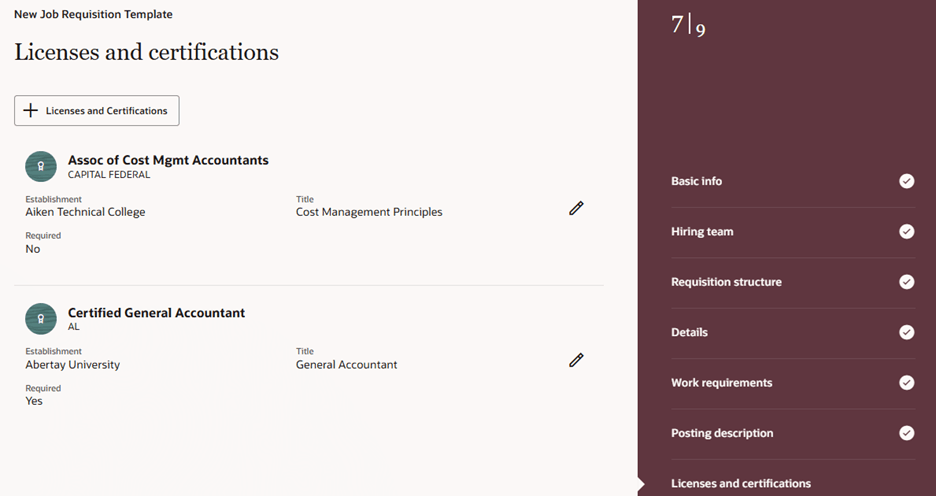
Licenses and Certifications Section
The job requisition template is created when you click the Submit button. Its status is set to Draft.
When you open a draft job requisition template, these sections are available in the Details tab:
- Internal prescreening questions
- External prescreening questions
- Interview questionnaires
These new tabs are available to add more information to the job requisition template:
- Screening Services
- Job Formatting
- Interviews
When all the required info is added in the tabs and sections of the job requisition template, click Activate so that recruiters and hiring managers can use the newly created job requisition template when they create job requisitions.
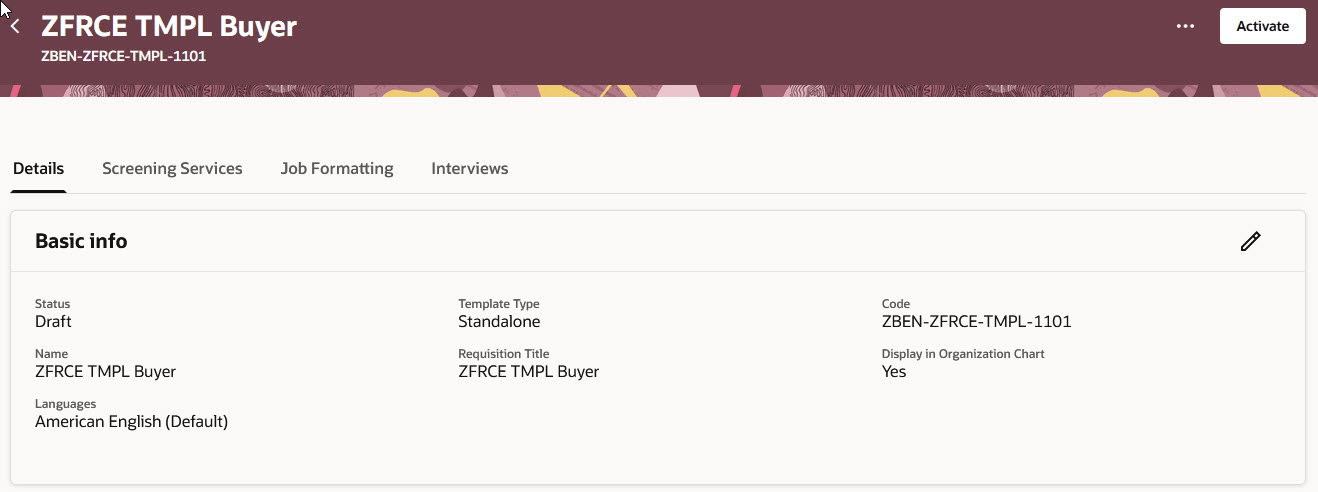
Activate Button on the Job Requisition Template Page
Important info about the Hiring team section in the Redwood job requisition template creation flow
The first time you select a hiring manager in the Hiring team section, the Business Unit, Department, Legal Employer, and Primary Work Location fields in the Offer info section are updated based on the selected hiring manager's assignment info. No special message is displayed. However, when you modify the default values of the Business Unit, Department, Legal Employer, and Primary Work Location fields in the Offer info section and then change the hiring manager during the same creation flow, the Offer info fields won’t be updated automatically based on the new hiring manager you selected. A message will be displayed asking you if you want to update the field values. For example, let's say you modify the only Business Unit and Department fields in the Offer Info section. Later, you changed the Hiring Manager which has different values for Business Unit, Department, Legal Employer and Primary Work Location fields but only the values of the Legal Employer and Primary Work Location fields will change based on the newly selected hiring manager’s assignment info, and Business Unit and Department field values remain unchanged because you modified them.
Business benefit: With the new Redwood job requisition template creation flow, the user experience is greatly improved, and it provides a consistent and modern look and feel.
Steps to enable and configure
To enable the Redwood job requisition template creation flow, you need to enable these profile options:
- ORA_IRC_RECRUITING_REDWOOD_ENABLED
- ORA_IRC_REQUISITION_REDWOOD_ENABLED
For details, see How do I enable a profile option?
For details on enabling and customizing Redwood for HCM, see How do I adopt Redwood for HCM? and Extending Redwood Applications for HCM and SCM Using Visual Builder Studio.
Tips and considerations
Visual Builder Studio extensibility and autocomplete rules as well as guided journeys aren’t supported for the job requisition template creation flow.