Redwood Time Card Enhancements
The following enhancements are designed to help both workers and managers process time cards more smoothly, especially around scheduling handling, tracking changes, time data display, and editing or fixing entries.
Scheduled Hours on Public Holidays (PH)
Now, the scheduled hours calculation looks at public holidays in a way that matches real work life. If there’s no published shift requiring work on a holiday, those holiday hours won’t be counted against a worker. Here’s how it works:
-
No published schedule: The worker is assigned a work pattern, or work schedule or has default hours. For shifts starting before the public holiday that spill over, the whole shift counts for scheduled hours. Shifts starting on the holiday itself don't count. For example, a worker's work pattern has them scheduled to work Monday through Friday, from 8:00p to 2:00a. This week, there's a public holiday on Wednesday. Here are the scheduled hours you see on the time card:
| Mon | Tue | Wed (PH) | Thu | Fri | Sat | Sun |
|---|---|---|---|---|---|---|
|
8:00p to 2:00a, 6h |
8:00p to 2:00a, 6h |
0 hour |
8:00p to 2:00a, 6h |
8:00p to 2:00a, 6h |
0 hour |
0 hour |
- Published schedule: When published, all scheduled shifts—including those starting on the holiday—are counted for scheduled hours. Here are the scheduled hours you see on that same time card if the worker's schedule is published:
| Mon | Tue | Wed (PH) | Thu | Fri | Sat | Sun |
|---|---|---|---|---|---|---|
|
8:00p to 2:00a, 6h |
8:00p to 2:00a, 6h |
8:00p to 2:00a, 6h |
8:00p to 2:00a, 6h |
8:00p to 2:00a, 6h |
0 hour |
0 hour |
Change History Improvement
When reviewing the time card's change history, you'll now see audit details matched to your regional preference. You're no longer locked to universal time. You’ll know exactly who made each change and when, in a way that makes sense for your location.
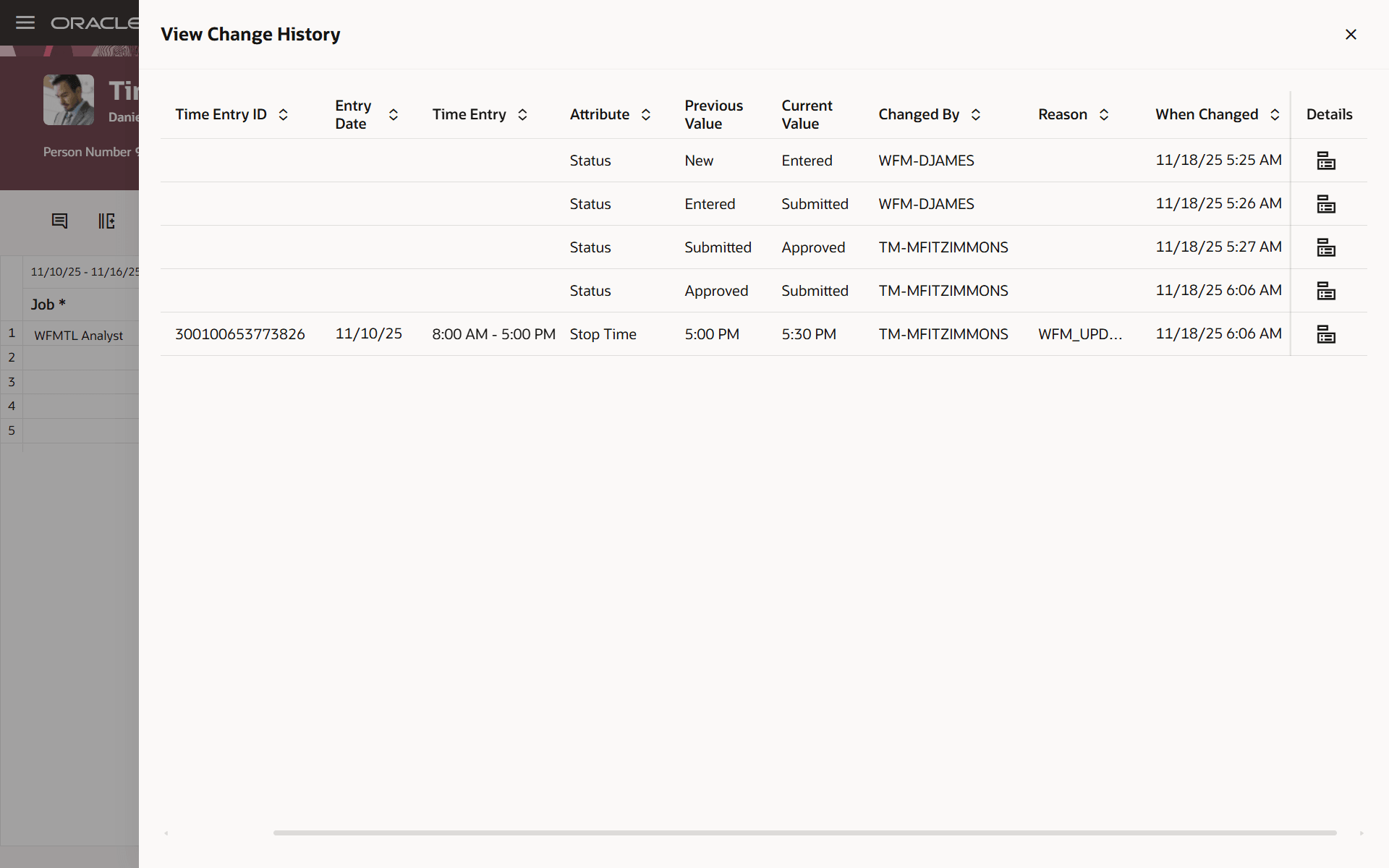
Change History Reviewed by the Manager Who's in Los Angeles
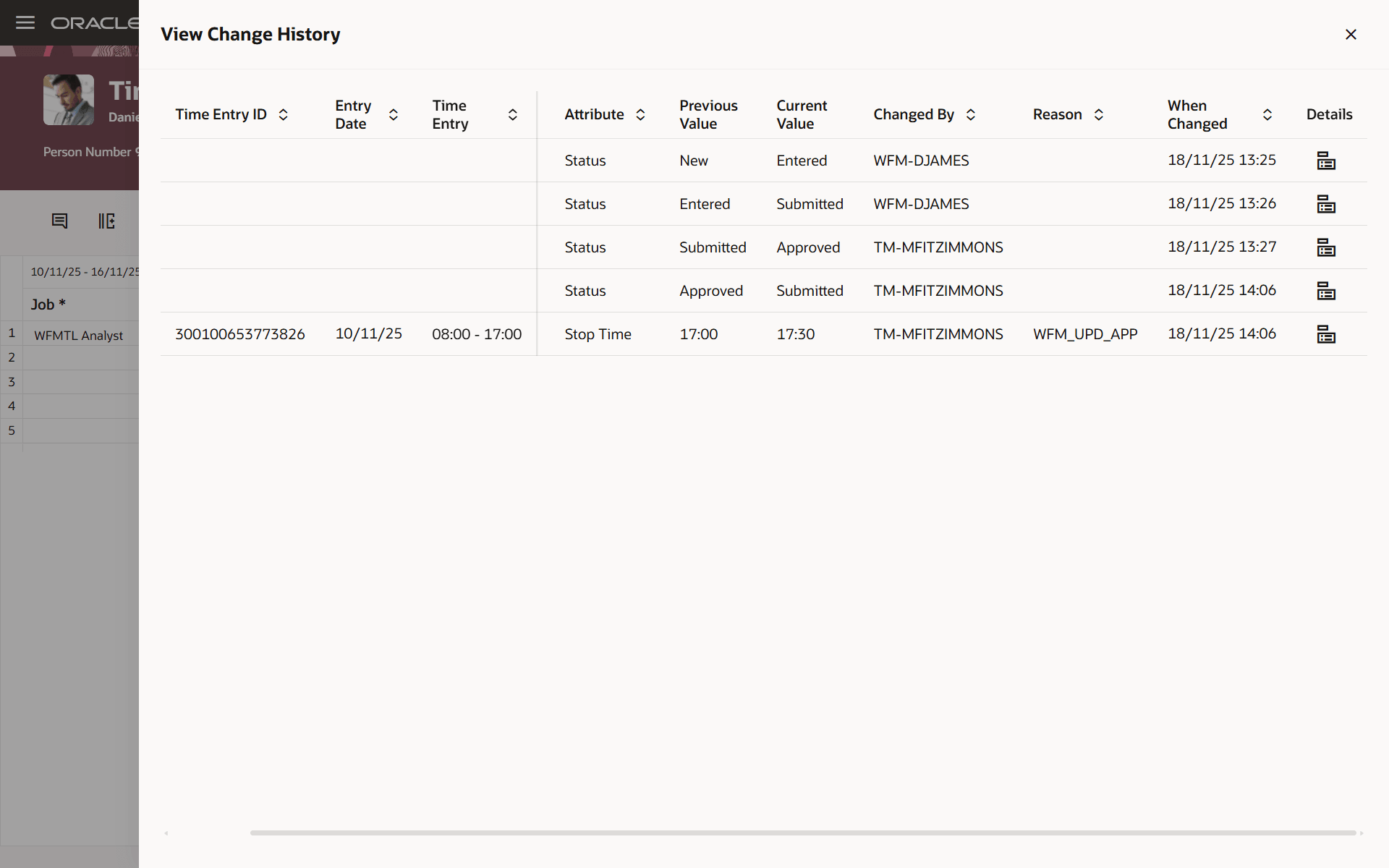
Change History Reviewed by the Worker Who's in London
Flexible Time Measures
You can review time entries, quantities, and totals in the format that feels most natural: select decimals (such as 5.50), or hours and minutes (such as 5:30) on your configuration from the time measure properties page. If you choose decimals, the number of decimals to apply is retrieved from the worker's time entry layout settings already in place. Note that start time and stop time field format still relies on user preferences.
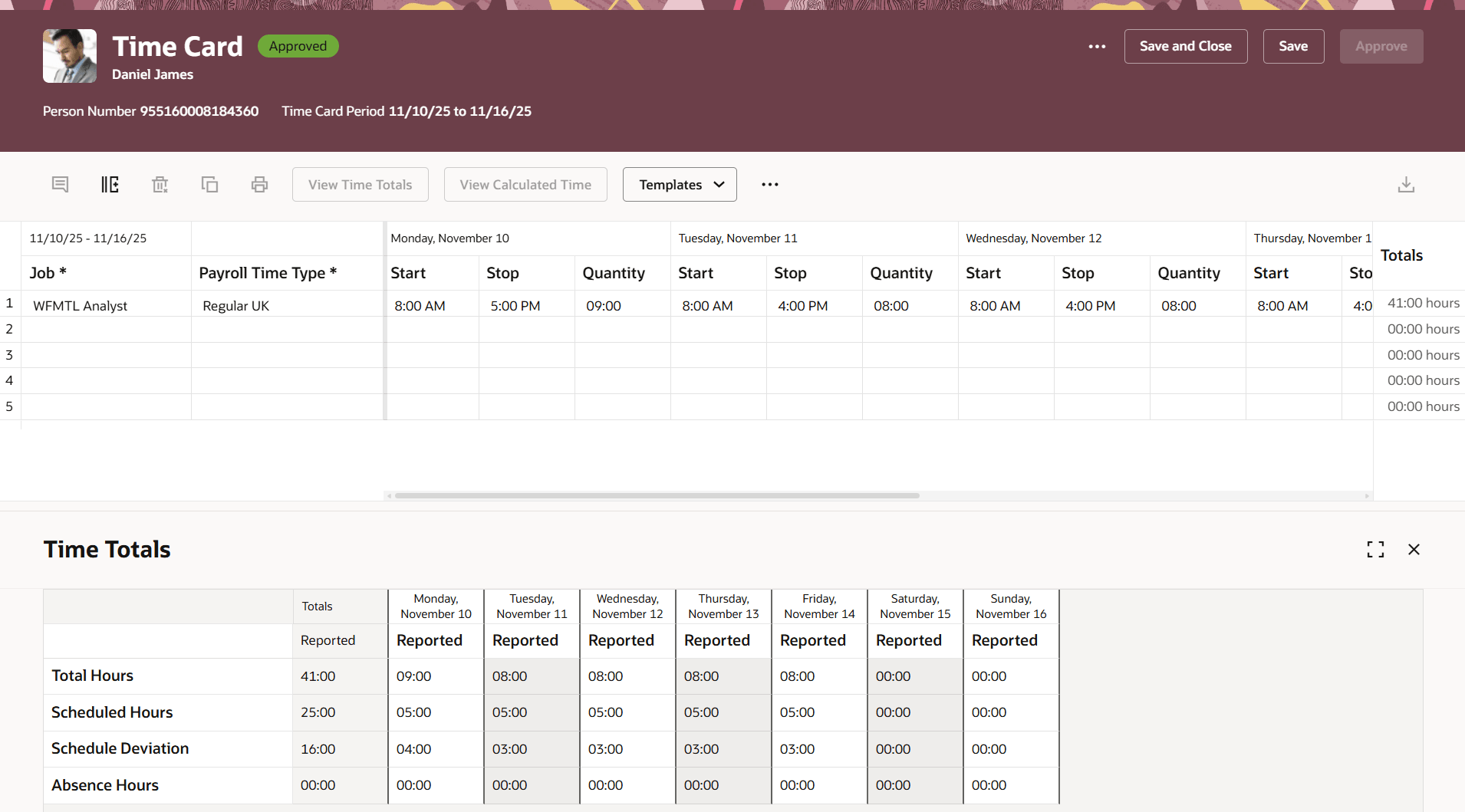
Time Card with Time Totals Measured in Hours and Minutes.
Enhanced Approval Insight
See at-a-glance if a time and labor manager did an override in the approval history. This helps with full transparency from initial entry through final approval.
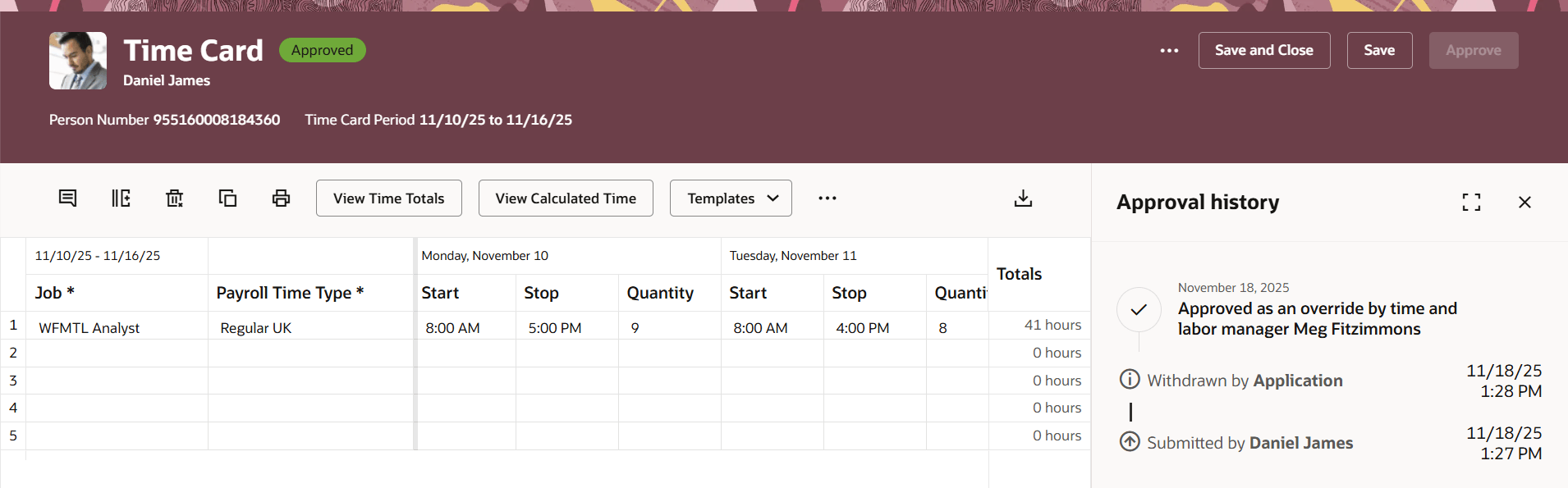
Time Card Approval History Drawer Showing an Approval Override
Smarter Absence Entries and Edits
Editing and adding absences is more clear-cut and policy-controlled.
- Some absence entries now switch to read-only, beyond certain stages or types—backed by absence editing rules.
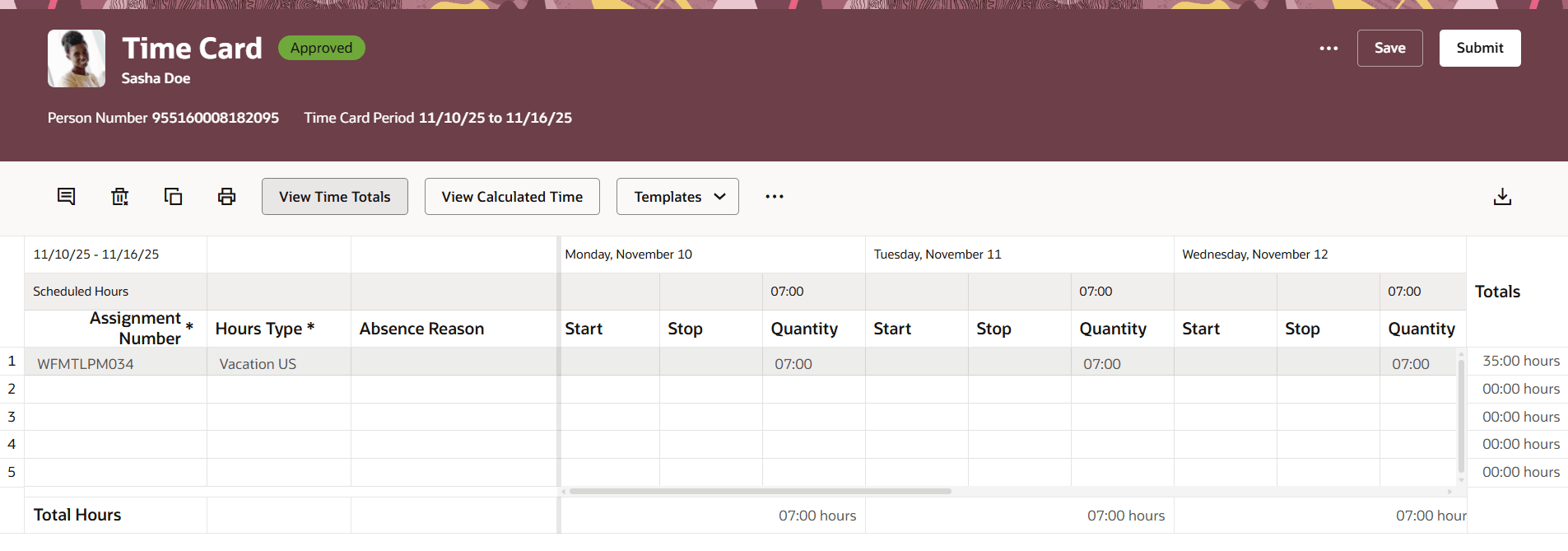
Time Card with a Completed, Locked Absence
- If reasons are required for an absence, you’ll be warned not to forget to include one when entering the absence, and still stopped if missed when submitting.
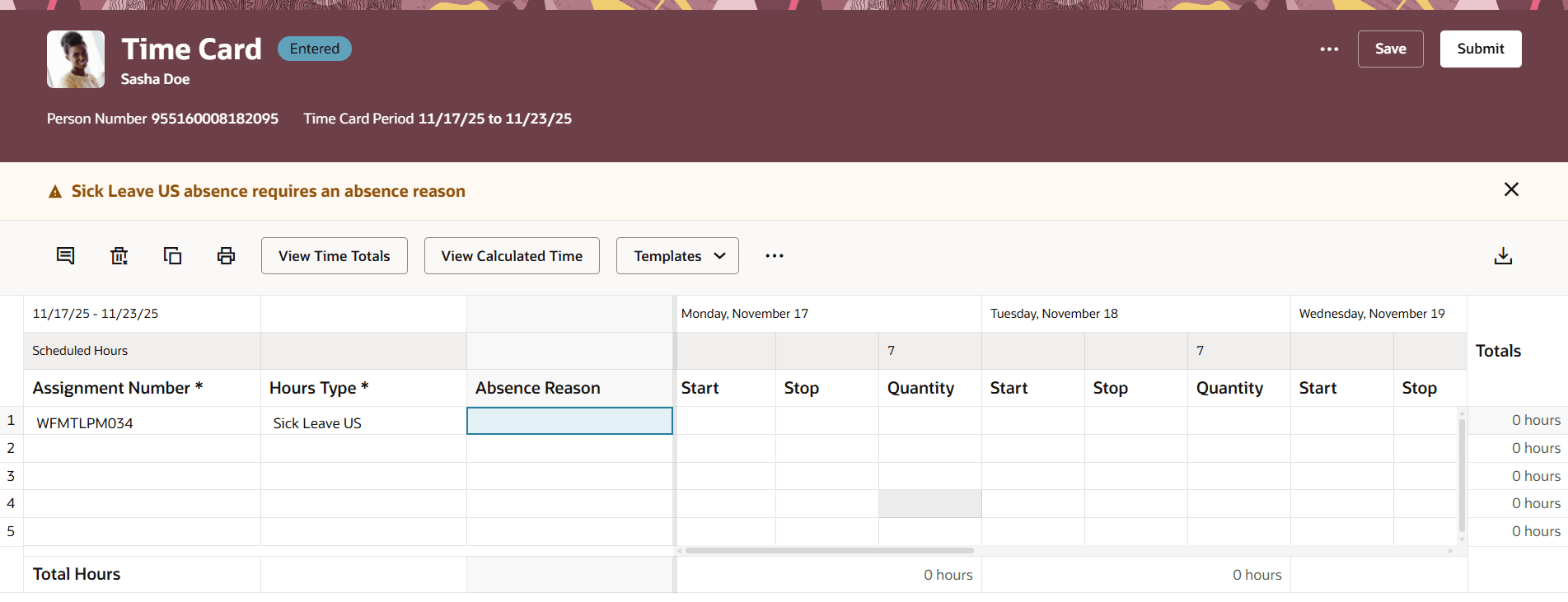
Time Card with a Warning Message for a Required Absence Reason
- If an absence type's reason is not required and can be freely edited, you can update entries without restriction.
Fix and Submit Incomplete or Error Time Cards
Edit and address errors inline, then quickly submit right from the same page with the Submit button. If mistakes remain, the time card will alert you before submission.
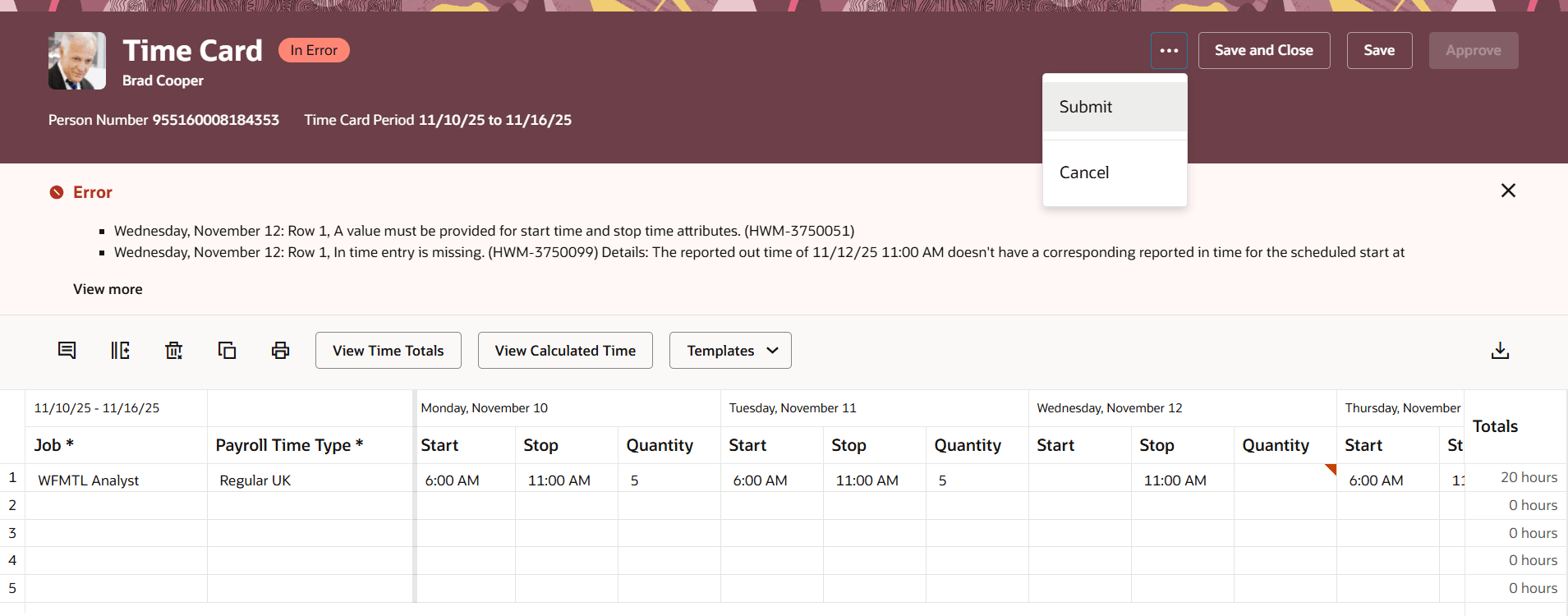
In Error Time Card Showing the More Actions > Submit Option
This upgrade delivers precise, reliable tracking and correction—especially around holidays—showing audits in local time, adding new approval information, supporting flexible time measures, and ensuring absence compliance. It also lets users confidently resolve and submit incomplete or error time cards, streamlining the whole experience.
Steps to enable and configure
- Configure absence management types including editing rules and display properties for reasons from the Absence Management related setup task.
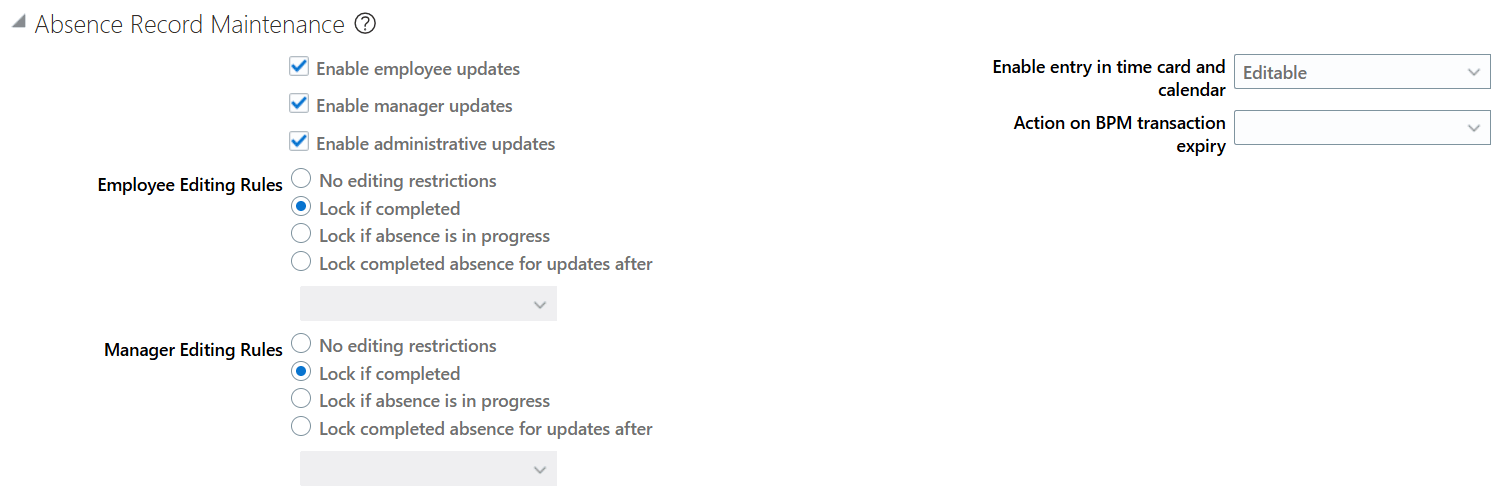
Absence Record Maintenance Section

Primary Absence Details
- Ensure the worker's assigned time entry layout includes Absence Management Type and Absence Reason fields.
- Optionally change the Measure to Show option.
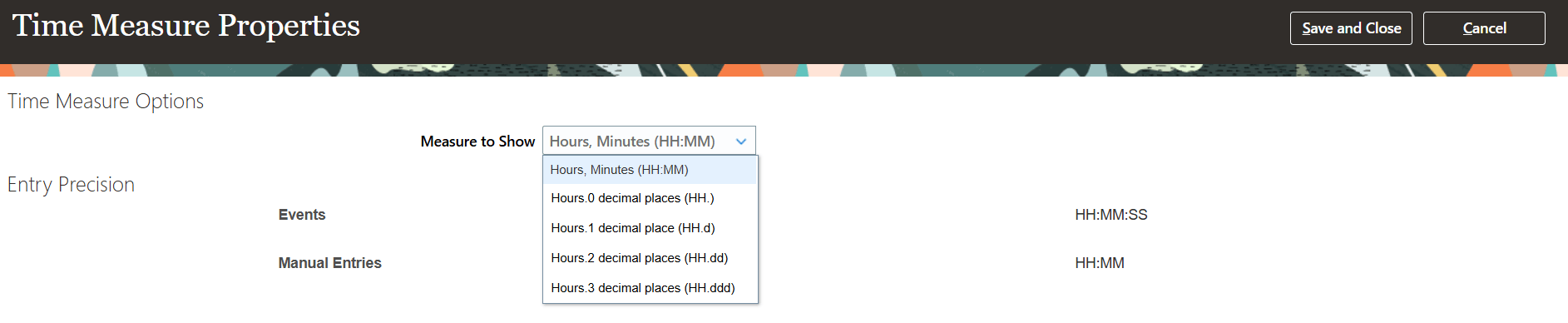
Time Measure Properties Page Showing the Measure to Show Options
Tips and considerations
- Match policies: Make sure your schedule definitions and public holiday rules are kept current for accurate planned hours.
- Local awareness: Adapt workflows to use local time zones for change history, making it easier for global and regional teams to track entries.
- Absence edits: Be aware of read-only behaviors and your absence reason requirements for smooth data flow.
- Validation before submission: Remember, unresolved issues on a time card will prevent submission until cleared within the interface.
Key resources
For more information about Time and Labor profile options for Redwood, see HCM Redwood Pages with Profile Options (Document ID 2922407.1) on My Oracle Support.