Record Partial Unavailability in Worker Availability Preferences
You can now record specific times you aren’t available directly in your availability preferences. Previously, you could record only full-day unavailability. This enhanced visibility ensures your unavailability is checked automatically when viewing, requesting, or being assigned shifts. And the same details appear to your manager for smarter planning.
The main upgrades include:
- Full or partial unavailability options: Mark days or just certain hours as unavailable. For instance, note 2:00 PM to 6:00 PM for a school pickup, not the entire day.
- Integrated calendar display: All your settings appear in your personal calendar.
- Validation during shift actions: Rules warn you when requesting, claiming, or swapping shifts that conflict with your unavailability. You can still proceed with the action.
-
Manager visibility: Managers see your unavailability on the schedule and team schedule during schedule creation and editing. Warning messages appear when they assign shifts that overlap with your unavailable times.
- Schedule generation behavior: During automated schedule generation, the process attempts to avoid scheduling you during unavailable times. But it might assign shifts when coverage is needed. Managers can review validation reports after schedule generation to identify conflicts.
How to Set It
-
Go to My Availability.
-
Pick the date.
-
Select All Day or enter start and end times for partial-day unavailability.
-
Save.
You can edit or delete your entries at any time.
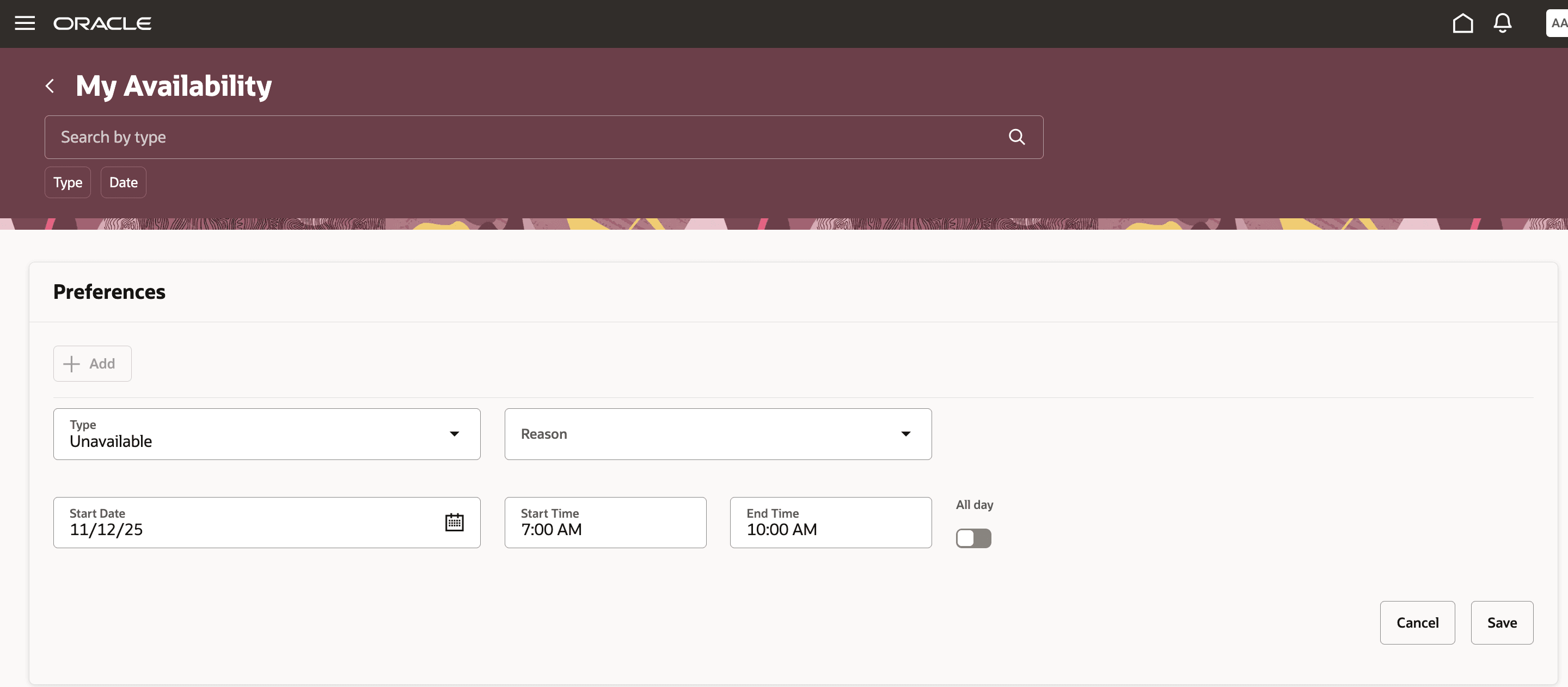
My Availability Page Showing the Unavailable Preference Settings
This enhancement empowers workers to log unavailability by exact time, enriching overall schedule flexibility, accuracy, and fairness. This saves managers time, minimizes shift conflicts, and enables teams to plan with confidence around true availability.
Steps to enable and configure
You don't need to do anything to enable this feature.
Tips and considerations
Make the most of your updated availability options by keeping these points in mind:
- Partial-day unavailability must be at least 15 minutes long and can last up to 24 hours, including overnight periods.
- You can't enter overlapping unavailability on the same day.
- You can't record availability and unavailability on a single day. For example, you can't be available from 9:00 AM to 12:00 PM and unavailable from 2:00 PM to 6:00 PM on the same Tuesday.
- If you're on a fixed work pattern, you can't create unavailability during those fixed hours.
- When you request, claim, or swap shifts, you'll get warnings about any conflicts with your unavailability, but can still continue if you want.
To define reasons relevant to their organizations, scheduling administrators can add and edit the reason codes available in the unavailability reason list by extending the ORA_HTS_WS_AVAILABILITY_TYPE lookup type.
Key resources
For more information about Oracle HCM Cloud Workforce Management capabilities, see these features and enhancements in Oracle HCM Cloud Readiness Documentation:
- Redwood Calendar
- Availability Preferences
- Schedule Validation
- Schedule Generation
Access requirements
Anyone with access to workforce management and the Redwood calendar is ready to use these new unavailability features automatically—no action needed.