Workforce Schedule Violations
On the workforce schedule page, you can now view all shift and worker violations as soon as any update occurs. Clear visual indicators highlight openness or clearance of violations, letting you immediately verify compliance and coverage for every shift. New automation also marks scheduled shifts if employment for workers with future shifts is terminated, moved to a different assignment, or overlap an approved absence. And you can edit and fix violated shifts, including those that are currently part of the self-scheduling process.
Violation types visually highlighted include:
- Shifts that overlap approved absences.
- Assignment-related issues, such as department or job changes, or terminated assignments.
- Conflicting shifts for workers with pending absences, approved holidays, or rest days.
- Breaches of work patterns, such as going over allotted work hours, or working during off days.
- Missing or extra events, such as weekend work, daily time issues, or not enough rest.
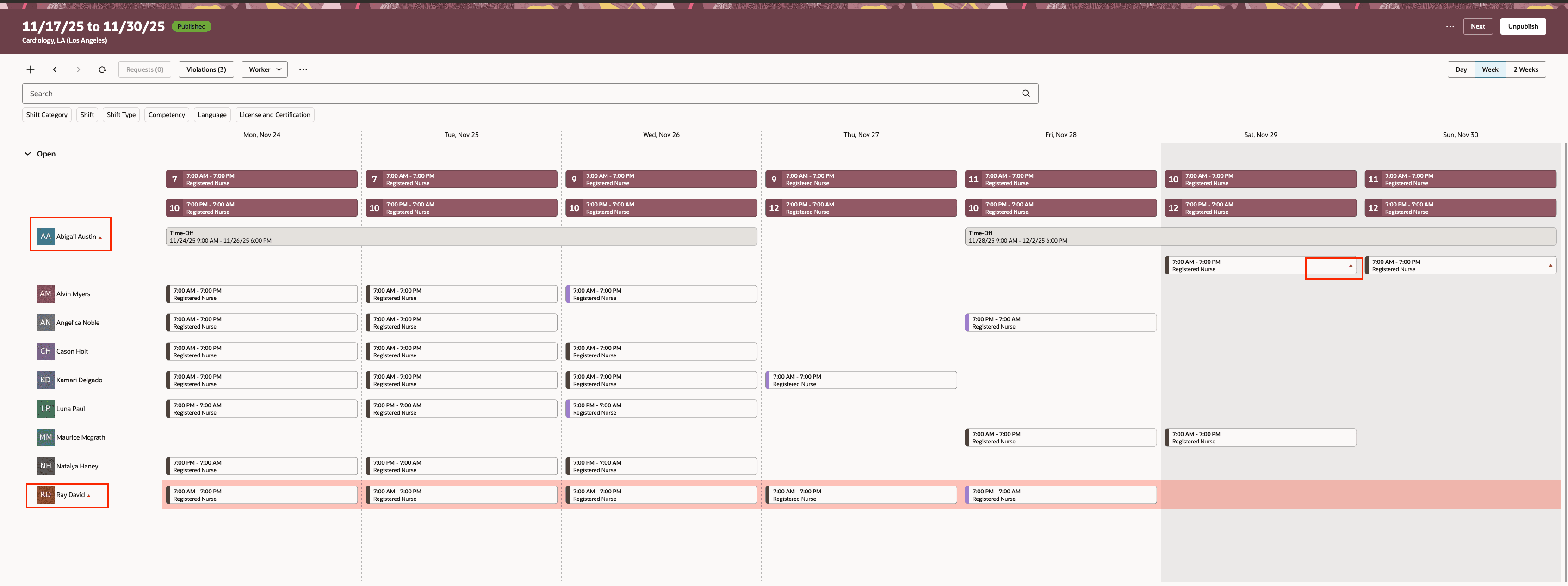
Workforce Schedule Showing Workers and Shifts with Violations
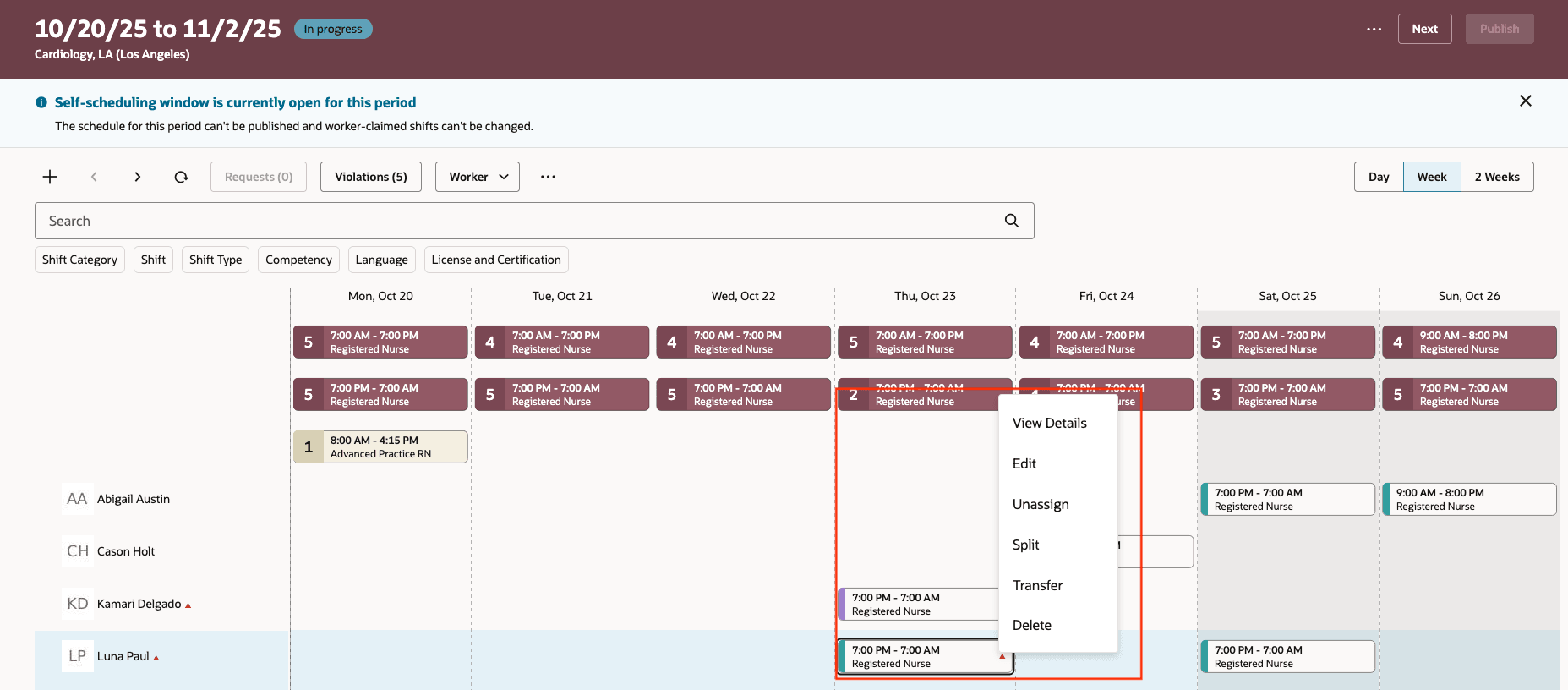
Editing of a Shift with Violation in Self-Scheduling Phase
Managers can now spot, track, and resolve violations without missing anything, improving shift compliance and making complex schedules much easier to manage, especially during roster changes or unexpected staff updates.
Steps to enable and configure
To automatically mark scheduled shifts as in violation whenever an HCM event occurs, such as a status update for a worker's assignment, an assignment change, or an absence approval, you need to schedule the Process Events process. Go to Tools > Scheduled Processes.
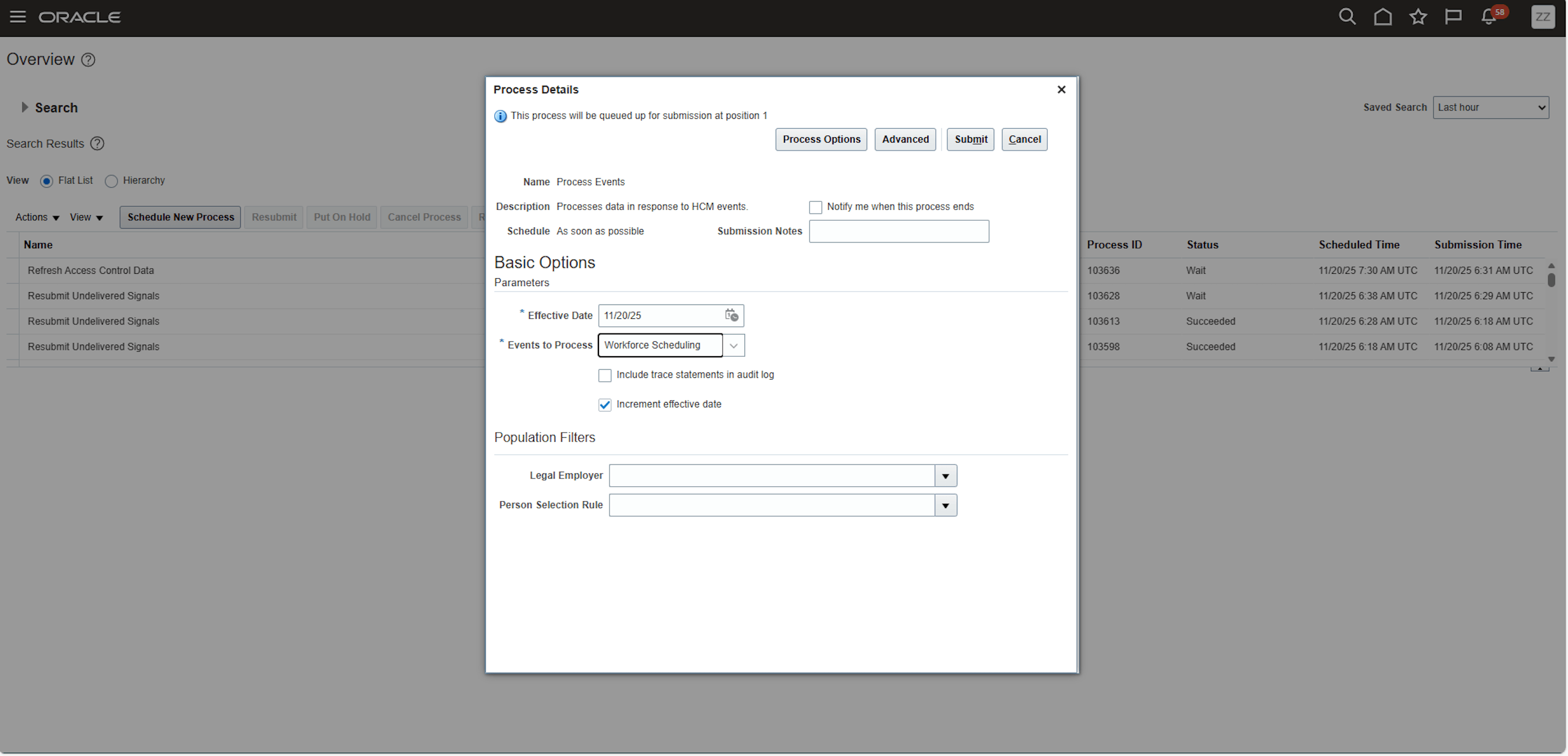
Scheduled Process Dialog Box for Process Events with Effective Date Set and Workforce Scheduling Selected for Events to Process
Tips and considerations
- Review alerts promptly: When you receive a violation alert (due to an employment termination, assignment change, or absence approval), go to the workforce schedule page to make updates as soon as feasible. This ensures no compliance issue lingers.
- Use violation indicators as actionable to-do’s: Treat the violation indicators on the workforce schedule page as immediate prompts—prioritize resolving errors over warnings violation type.
- Leverage the real-time feedback: After updating a shift to resolve a violation, the indicators and violation counts update automatically, confirming your actions were successful.
- Understand violation types (know before you edit): Review the violations panel to understand the violations—knowing the difference between, a skill gap and an FTE overage helps you do the best action.
- Manual changes are still key: The automation marks the problem and sends the alert for the HCM events, but as a manager, reviewing and fixing the issue (such as unassigning a shift or editing hours) remains in your control for optimal schedule.