Worker Calendar Enhancements
The Worker Calendar has been enhanced now to reduce visual noise and inconsistency across schedule views. Workers benefit from clearer event titles, consistent absence rendering, and a calendar layout that matches their organization’s work week. Administrators gain new configuration options to tailor the calendar display to their organization’s needs.
Configurable Event Titles
Administrators can now configure which attribute is displayed as the event title on shift entries in the Work Schedules calendar. Previously, the event title defaulted to the job profile name. With this enhancement, administrators can select from a range of shift, job, department, and location attributes to display the most meaningful information for their workforce.
The configurable event title options include:
- Job Family, Job, Position, or Scheduling Group name (default)
- Job Family, Job, or Position code
- Department name or department code
- Location name or location code
- Shift category, shift name, or shift type
The selected event title applies to claimed shifts during self-scheduling and all scheduled shifts on published schedules. It doesn't apply to open shifts, work patterns, absences, or holidays. If the selected attribute is empty for a given shift, the system falls back to the previously used event title value to avoid blank entries.
Event titles display consistently across Month, Week, Day, and List views on both desktop and mobile.
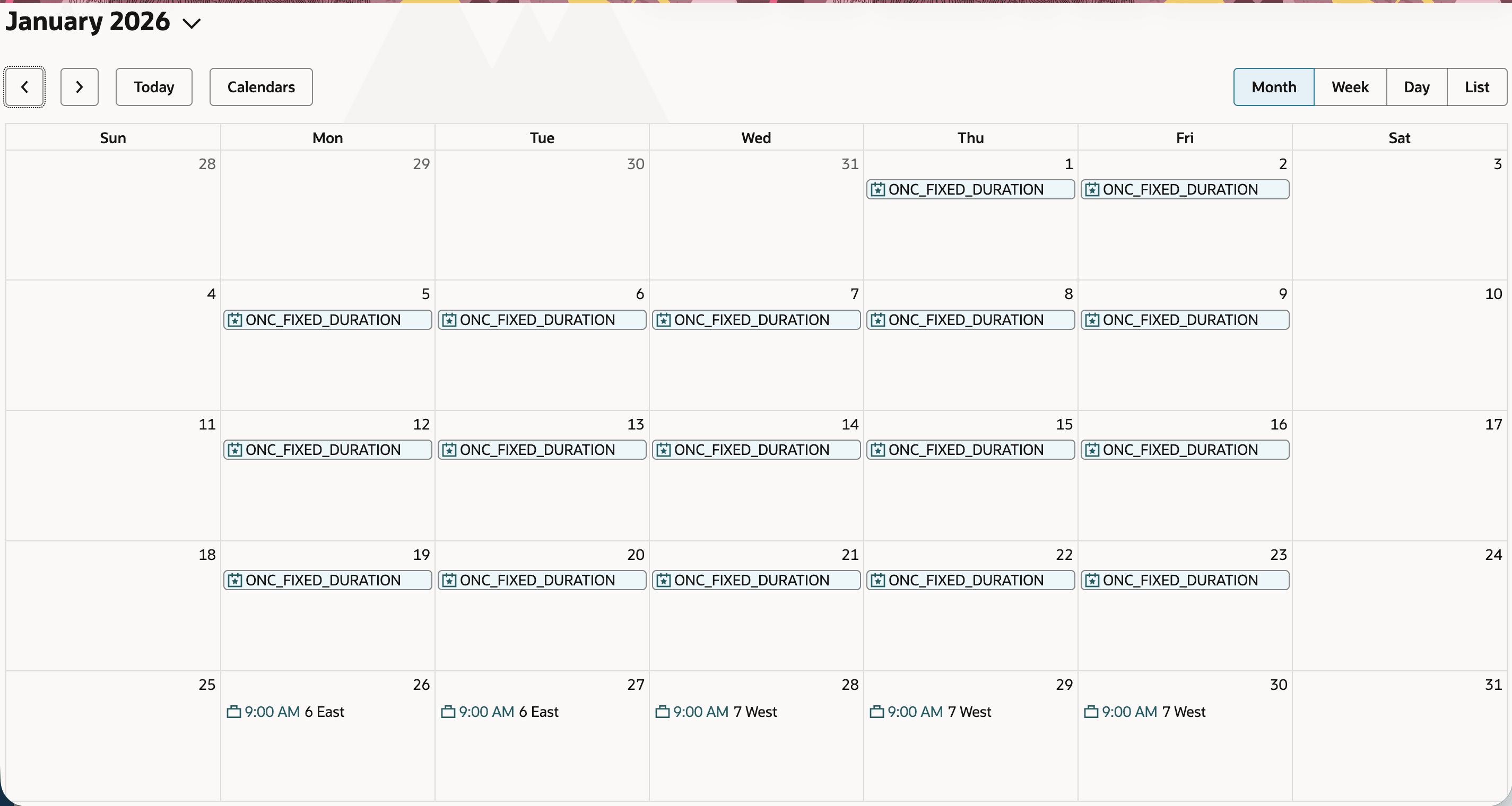
Event Title Displaying Department Name
Single-Day Absence Display on Calendar
Single-day absences now display consistently and clearly across all calendar views, on both desktop and mobile devices. The calendar distinguishes between three types of single-day absences and renders each appropriately:
- Full-day absences appear as all-day blocks in all views.
- Partial absences on a time schedule (with fixed start and end times) appear as time-blocked events at the correct position on the timeline.
- Partial absences on an elapsed schedule (duration only, no fixed times) appear with duration labels such as “Half-day” or “4 hours” in the all-day section.
Overlapping events are displayed without obscuring each other, using stacking or side-by-side positioning. If your organization has enabled the hours-and-minutes duration display format, the calendar honors that setting.
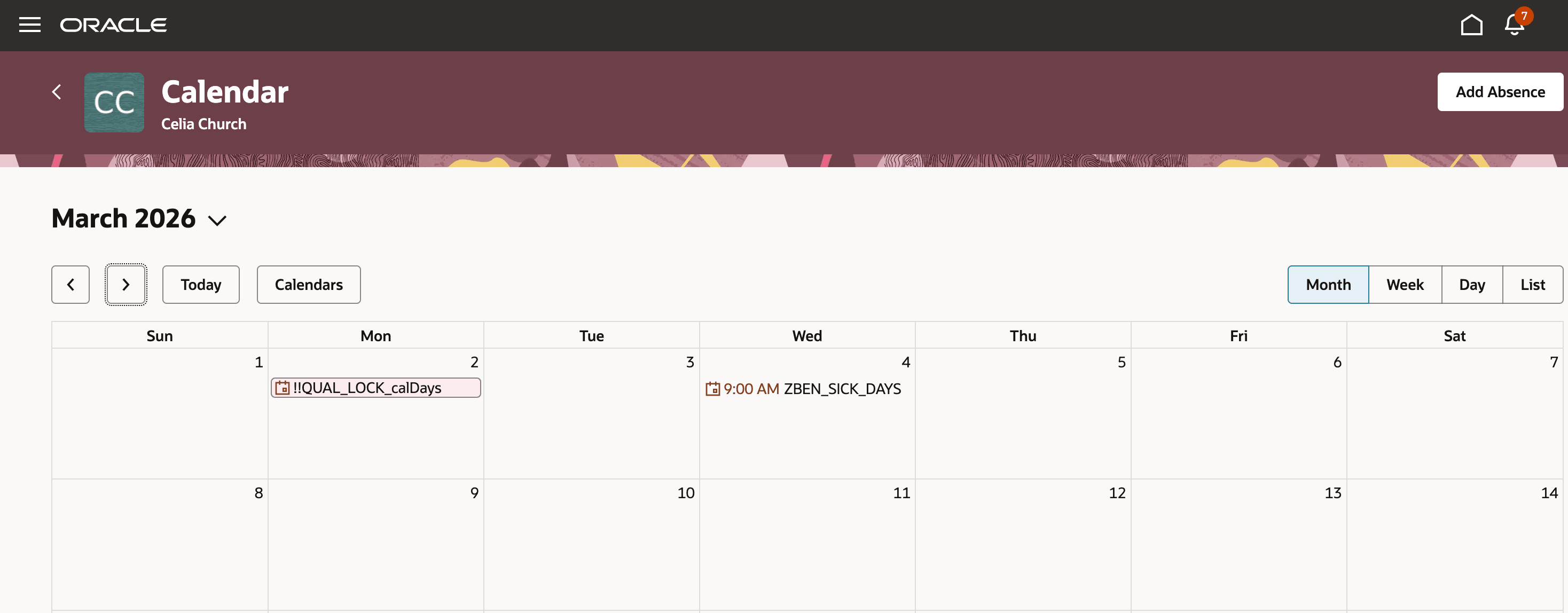
Full-day and Partial Day Absences on Month-view
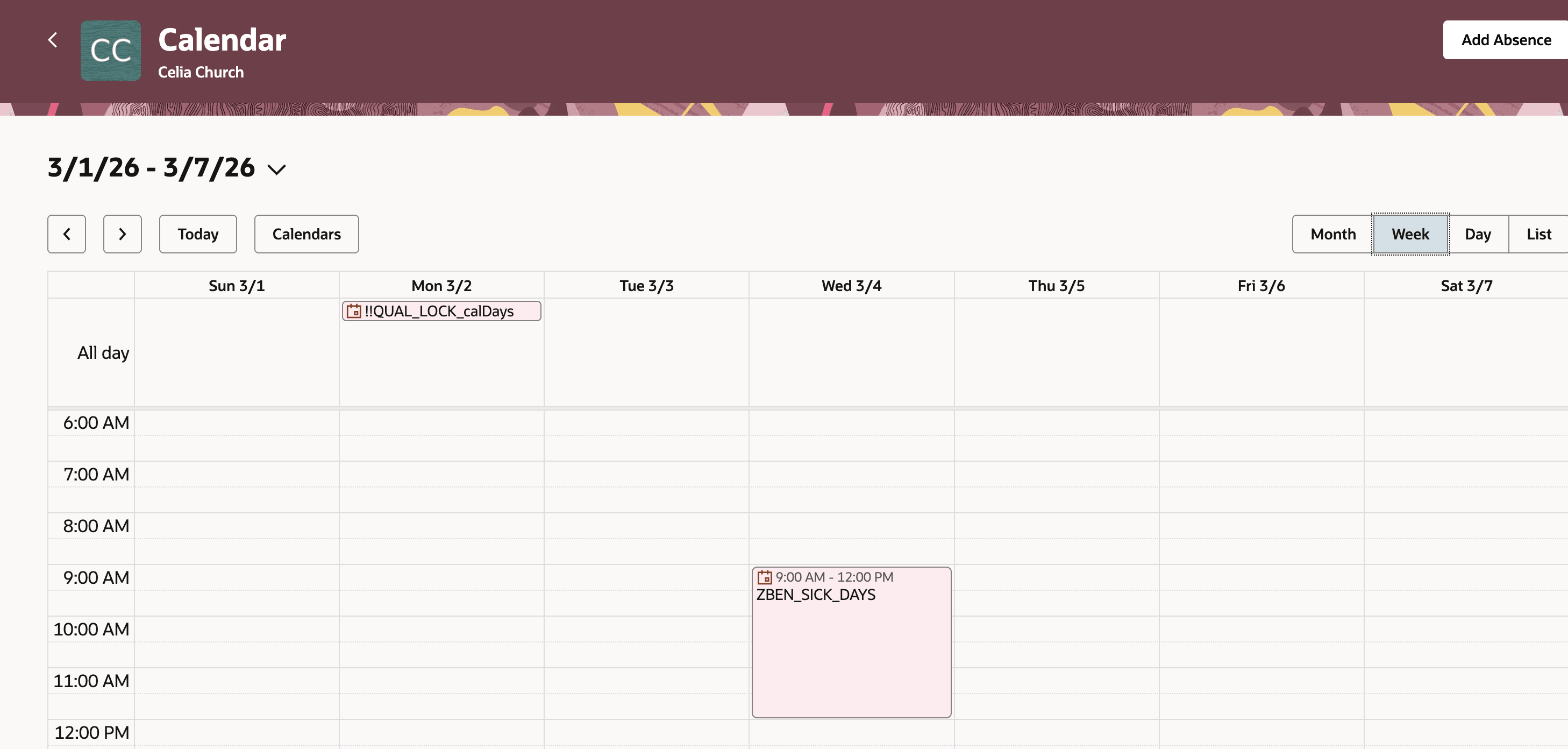
Full-day and Partial Day Absences on Week-view
Practical Use Case Scenarios
| Scenario | What You See | Where It Displays |
|---|---|---|
| Full-day vacation | All-day block labeled with the absence type (e.g., “Vacation”) | Month view: fills the day cell. Week/Day view: all-day section above the timeline. |
| Half-day doctor’s appointment (time schedule, 2:00 PM – 5:00 PM) | Time-blocked event spanning 2:00 PM to 5:00 PM labeled “Doctor Appointment” | Month view: shows with start time. Week/Day view: positioned on the timeline. |
| Partial personal leave (elapsed schedule, 4 hours) | Duration-labeled entry: “Personal Leave (4 hours)” | Month view: shown with duration. Week/Day view: all-day section with duration label. |
Overnight Single-Day Absence Display
Single-day absences that cross midnight (such as a night-shift absence starting at 10:00 PM) now display only on the starting day of the absence. This prevents the same absence from appearing as a duplicate entry on the following day and keeps the calendar uncluttered.
Workers can clearly distinguish overnight single-day absences from true multi-day absences, which continue to span across all affected days as expected.
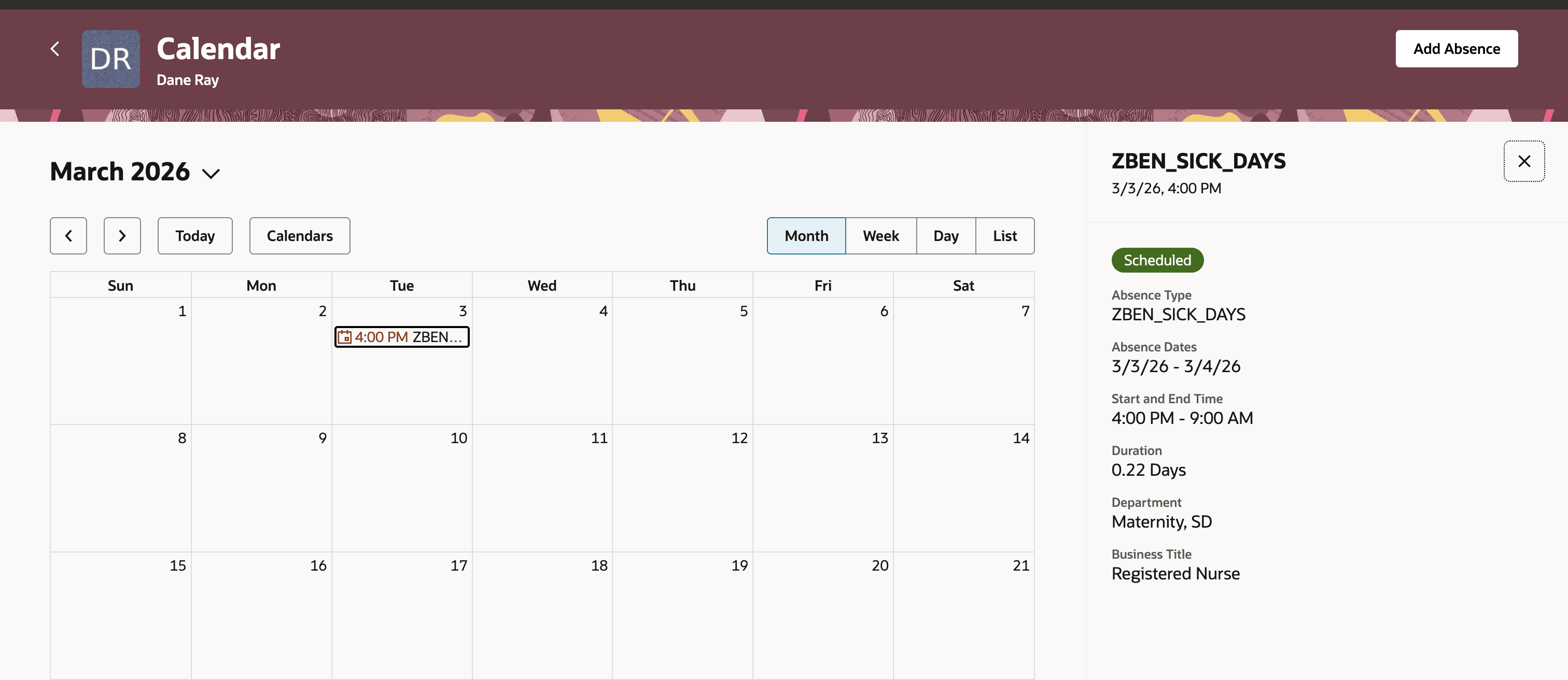
Overnight absence displayed on the start day
Practical Use Case Scenarios
| Scenario | What You See | Where It Displays |
|---|---|---|
| Overnight sick day starting at 10:00 PM | Displayed as “10:00 PM Sick Day” on the starting day only | Month view: single entry on start date. Week/Day view: time block spanning midnight. No duplicate on the next day. |
| Night-shift absence 11:00 PM – 7:00 AM | Displayed under the start date with the full time range | Mobile list view: shown under start date only. No duplicate entry the following morning. |
Configurable Starting Day of the Week
Administrators can now configure which day of the week the calendar begins on, allowing the calendar layout to match the organization’s standard work week. The available options include any day from Sunday through Saturday. If no selection is made, the calendar defaults to the system’s standard start day (Sunday).
The configured starting day applies consistently across Month, Week, Day, and List views on both desktop and mobile devices, and takes effect immediately for all workers.
Practical Use Case Scenarios
| Scenario | Outcome |
|---|---|
| Organization follows a Monday–Friday work week | Administrator sets Monday as the starting day. The calendar’s week and month views begin on Monday for all workers. |
| Healthcare facility operates Sunday–Saturday | Administrator retains the default Sunday start. No configuration change needed. |
| Middle East regional office with a Sunday–Thursday work week | Administrator sets Sunday as the starting day. Calendar views align with the local work week. |
- Faster schedule comprehension – Configurable event titles allow organizations to surface the most relevant information (role, department, location, or shift name) directly on the calendar, reducing the need to open individual shift details.
- Fewer scheduling errors – Consistent and accurate absence rendering across all views helps workers and managers avoid conflicts, double bookings, and missed coverage.
- Reduced confusion from overnight absences – Displaying overnight absences on the starting day only eliminates duplicate entries and keeps the calendar clean and intuitive.
- Organizational alignment – A configurable starting day of the week ensures the calendar reflects each organization’s actual work week, improving usability for global and regional teams.
Steps to enable and configure
Configure Event Title Display
-
Navigate to the WFM calendar configuration in Visual Builder.
-
Locate the Shift Event Title setting.
-
Select the desired attribute from the drop-down list (for example, Shift Name, Department Name, Location Name, or Shift Type).
-
Save the configuration. The selected event title displays immediately across all calendar views for all workers.
If no change is made, the default event title (Job Family / Job / Position / Scheduling Group) continues to display.
Configure Starting Day of the Week
-
Navigate to the WFM calendar configuration in Visual Builder.
-
Locate the Starting Day of Week setting.
-
Select the desired day (Sunday through Saturday) from the drop-down list.
-
Save the configuration. The calendar immediately updates the starting day for all workers across all views.
If no selection is made, the calendar defaults to Sunday.
Single-Day and Overnight Absence Display
No additional setup is required. The improved absence rendering for single-day and overnight absences is available automatically once the release is applied.
Tips and considerations
- Event title configuration applies only to the Work Schedules calendar and only for shifts on published schedules and claimed self-scheduling shifts. Open shifts, work patterns, absences, and holidays are not affected.
- If the selected event title attribute is empty for a particular shift, the system displays the previously used event title value as a fallback to avoid blank entries on the calendar.
- Overnight single-day absences that cross midnight are displayed on the starting day only. True multi-day absences (such as a week-long vacation) continue to span across all affected days.
- Partial absences on an elapsed schedule display with a duration label rather than a time range, since elapsed schedules do not have fixed start and end times.
- The starting day of the week configuration takes effect immediately for all workers. Coordinate with your scheduling teams before making changes to avoid confusion.
- All calendar improvements render consistently across Month, Week, Day, and List views on both desktop and mobile devices.
Key resources
For more information about Workforce Scheduling, see these resources:
- Oracle HCM Cloud Workforce Management: Scheduling documentation
- Oracle Cloud HCM What's New: https://docs.oracle.com/en/cloud/saas/readiness/hcm.html
Access requirements
| Role | Requirement |
|---|---|
| Administrator | Worker calendar configuration access in Visual Builder |
| Workers | Standard calendar view access |