 Expanded Document Records Integration for Redwood Personal Details and Identification Info Pages
We've expanded the integration of Document Records in the Redwood Personal Details page to include the Demographic info, National identifiers, and Biographical Info sections. We've also included the integration on the Identification Info page in the Citizenship, Passports, Visas and permits, and Driver's licenses sections.
By default, the Document Records region isn't displayed. But you can display it using a page property in VB Studio.
Note: For more information, see the Steps to Enable section of this What’s New.
The following image shows the Demographic Info section of the Redwood Personal Details page integrated with Document Records. For India, Marital Status is being edited, and a supporting document is attached. The Document Name is “Marriage certificate,” and the attachment added here will be retained after the transaction is saved.
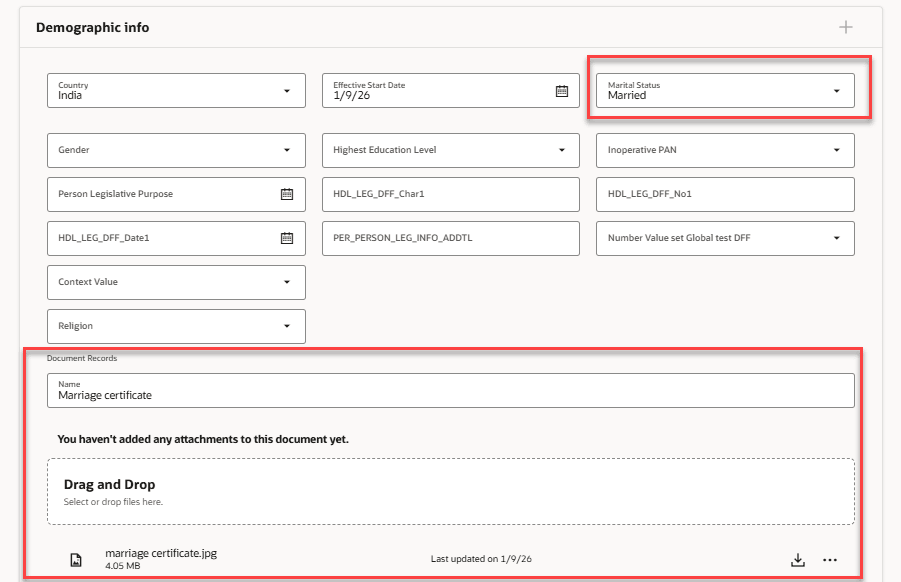
Document Records attachment in Demographic Info section (India)
After saving, open the Document Records panel drawer using the Document Records action under the three-dots menu, as shown in the following image.
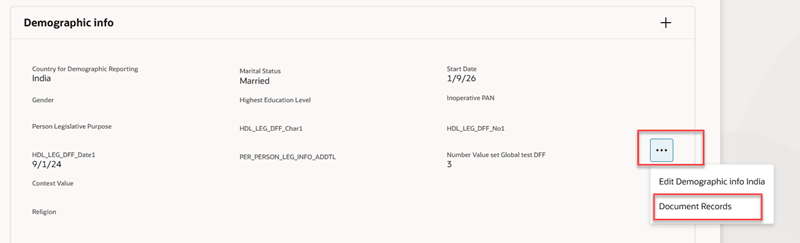
Open Document Records from Demographic Info section (India)
The panel drawer shows the attachment that was added for the Demographic Info for India. In the example, the 1/9/26 date-effective Demographic Info for India row is displayed, but the same attachments appear in the panel drawer for all date-effective rows for India.
You can preview or download attachments from this panel drawer.
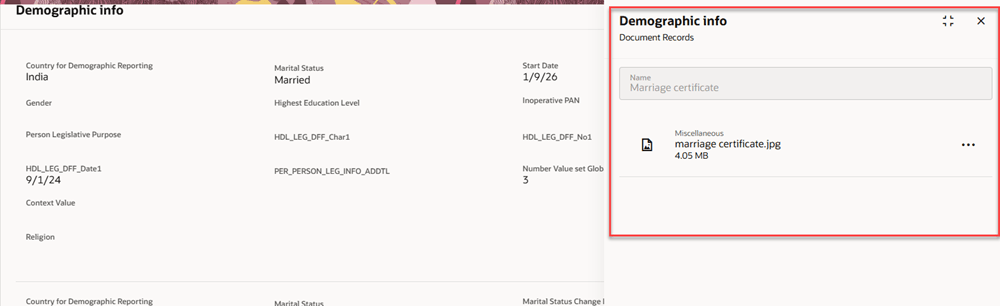
Document Records panel showing Demographic Info attachments (India)
To add or remove attachments, edit any Demographic info date-effective row for India, and return to the Document Records area where you originally added the attachment, as shown in the following image. Use the three-dots menu to select Remove. You can also download or preview the attachment from here.
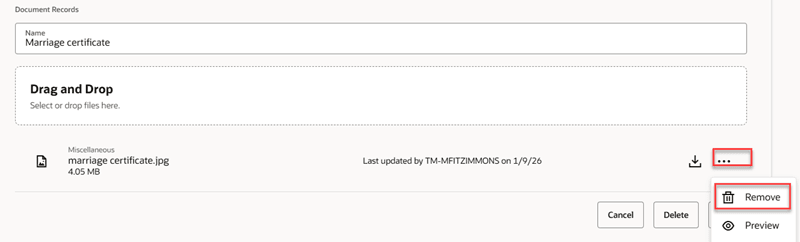
Remove attachment from Document Records
This feature enables you to retain attachments relating to personal details and identification information.
Steps to enable and configure
For more information about how you display the Document Records region, see How do I display the Document Records region on Redwood Person pages?
Tips and considerations
- Effective-dated objects
- When you add an attachment to an effective-dated row, the attachment is visible for all effective-dated rows
- When you remove an attachment from an effective-dated row, the attachment is removed completely and no longer visible from other effective-dated rows
- When approvals are enabled, the page shows two attachment regions:
- Use the first attachment region to add the Document Record, which is the file that must be retained after approval is completed.
- The second attachment region is for the approval transaction only, and it’s not retained after approval.
- Although both the attachment regions appear in the approval notification, you don’t need to upload the same file to both regions. Use the approval attachment only when you want to include a file for review, which you don’t want to be kept as a Document Record.
Key resources
- For more information, refer to these resources on the Oracle Help Center.
- Overview of Document Records in the Implementing Global Human Resources guide.
- Work With Page Properties chapter in Extending Oracle Cloud Applications in Visual Builder Studio Express Mode.
- For information about the Name region, see Name Section of Redwood Personal Details Page is Integrated with Document Records in 26A
Access requirements
You can see the Document Records region if your role has this aggregate privilege: Manage Person Documentation by Worker (ORA_PER_WORKER_DOCUMENT_MANAGEMENT_DUTY).