Supporting Application-Wide Read-Only Mode on Journey Pages
Journey pages work as read-only for users for whom the read-only profile option is enabled.
When the FND_READ_ONLY_MODE profile option is enabled for a user:
-
All journey pages are displayed in read-only mode for that user.
-
A banner message appears at the top of the page indicating that the application is in read-only mode.
-
If the user tries to perform any action, such as creating a new journey template, adding a task to an existing template, or marking an assigned task as complete, an error message is displayed, and the action isn’t allowed.
Note: This feature applies to all journey pages.
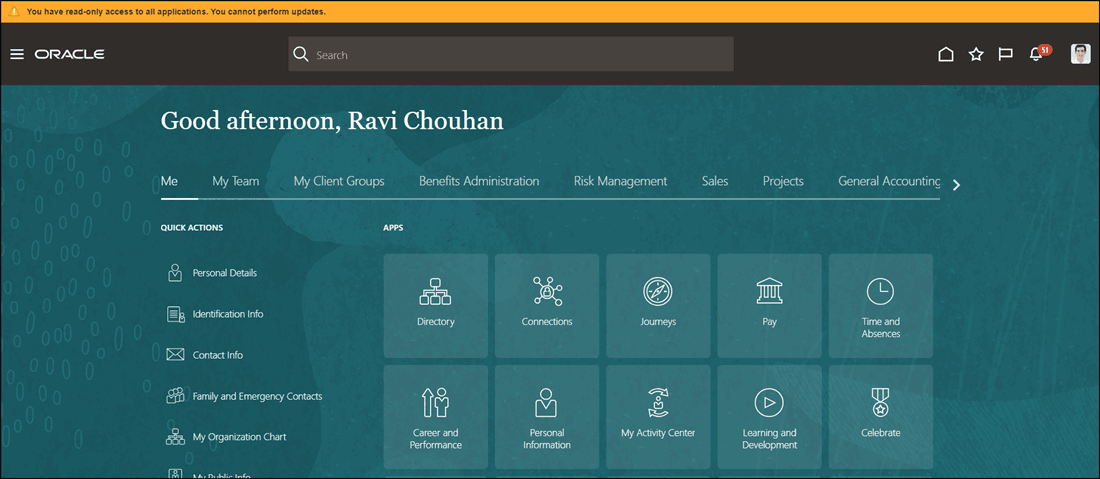
Message Displayed During Login When Read Only Mode is Turned On
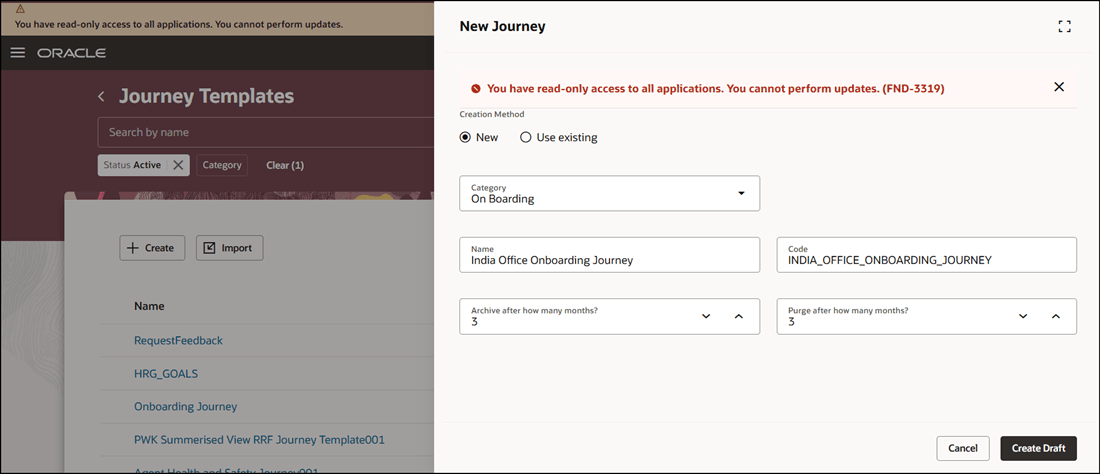
Message Displayed When User Tries to Create and Submit New Journey Template
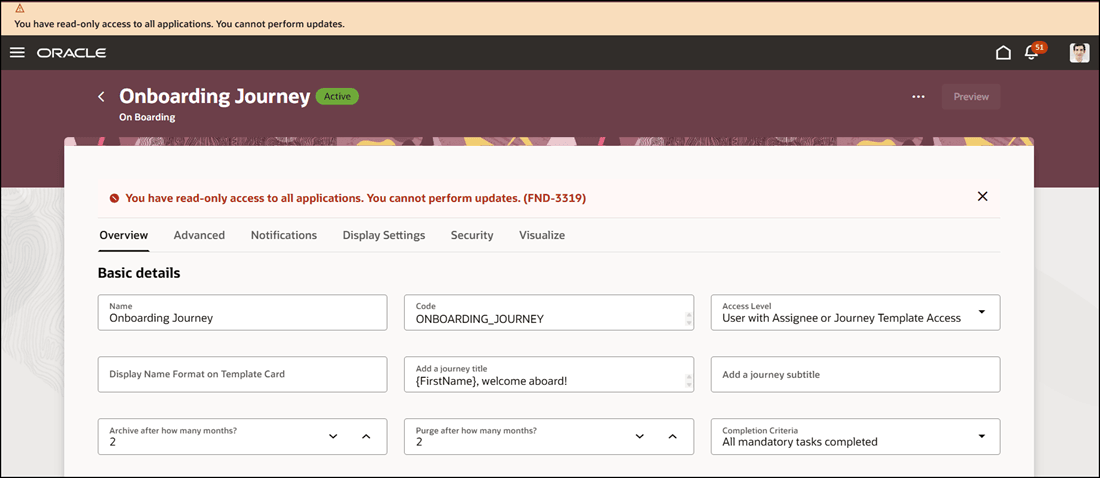
Message Displayed When User Tries to Edit and Save Journey Template
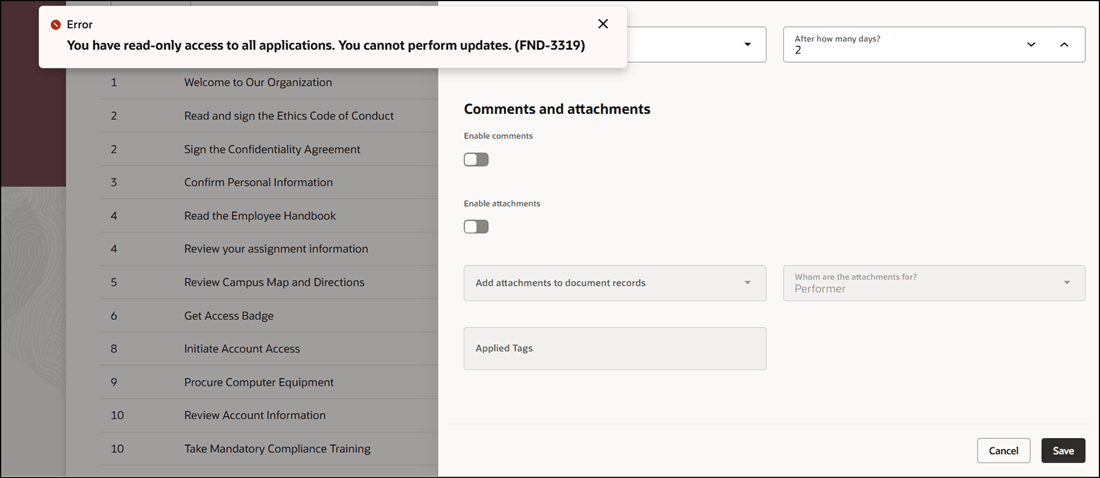
Message Displayed When User Tries to Edit and Save Journey Task
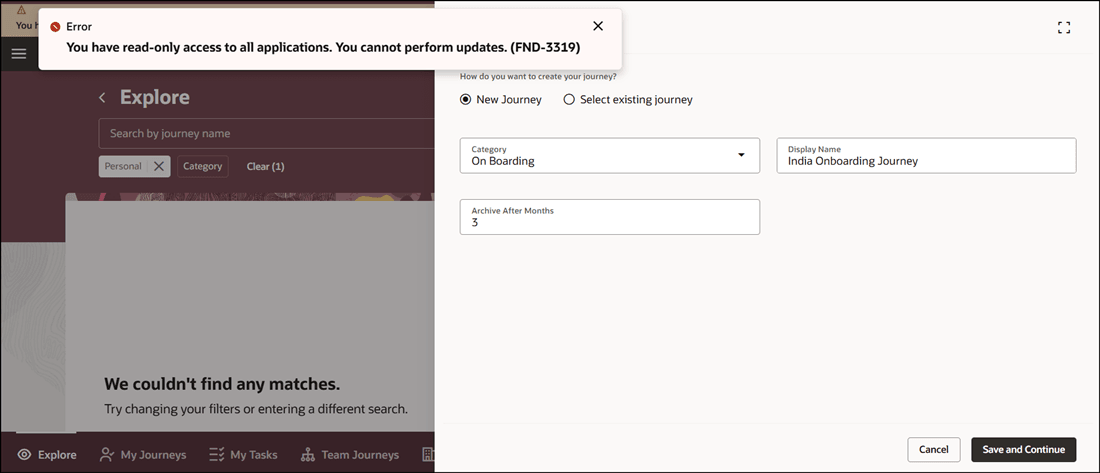
Message Displayed When User Tries to Create and Save Journey from Explore Tab
Provides tighter administrative control by allowing organizations to restrict changes without removing user access entirely. It’s especially useful during audits, system reviews, or transition periods where view-only access is required.
Steps to enable and configure
You need to enable the FND_READ_ONLY_MODE profile option (set the profile value to Enabled at the user profile level) to make journey pages as read only. Once enabled, users can’t make any updates in journey pages. For more information, see this topic: How do I enable a profile option?
Key resources
For more information about journeys, refer to the Implementing and Using Journeys guide on Oracle Help Center.