Diagrammer-Based Journey Templates and Task Management
You can enable users to view, organize, and manage tasks and task groups in the journey template setup through an interactive visual interface. This interface layout accessed through the new Visualize tab on the journey template provides a clear visual representation of task flows and dependencies.
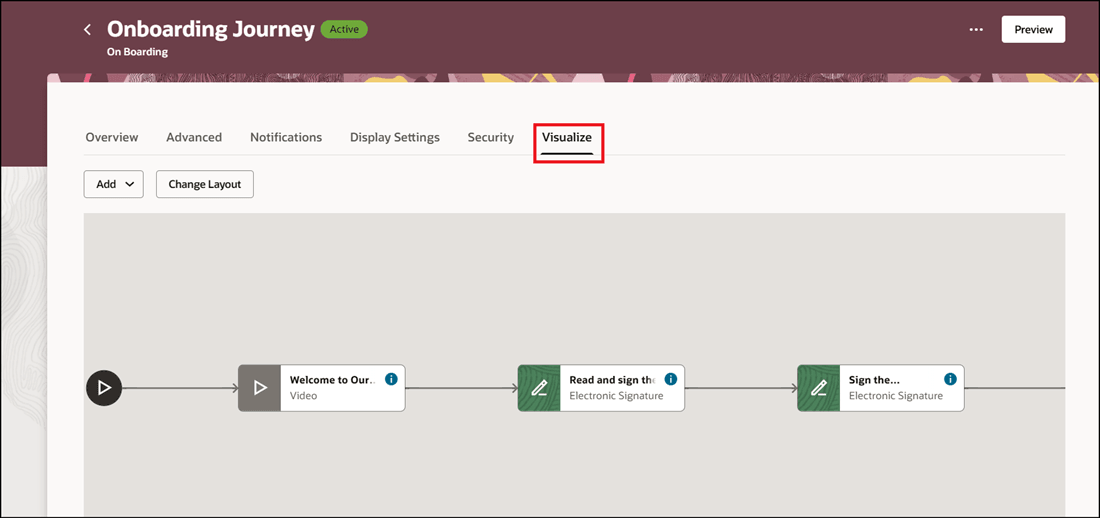
Click Visualize Tab to See the Diagram Layout
You can perform add operations in the diagram layout, such as adding a new task or a task group. The tasks in the layout are displayed sequentially based on their sequence number and represented by the task name, type, and icon. Optional tasks are shown shaded grey in the icon area and mandatory tasks in green. These are the same icons shown in the template preview, and when you run the task.
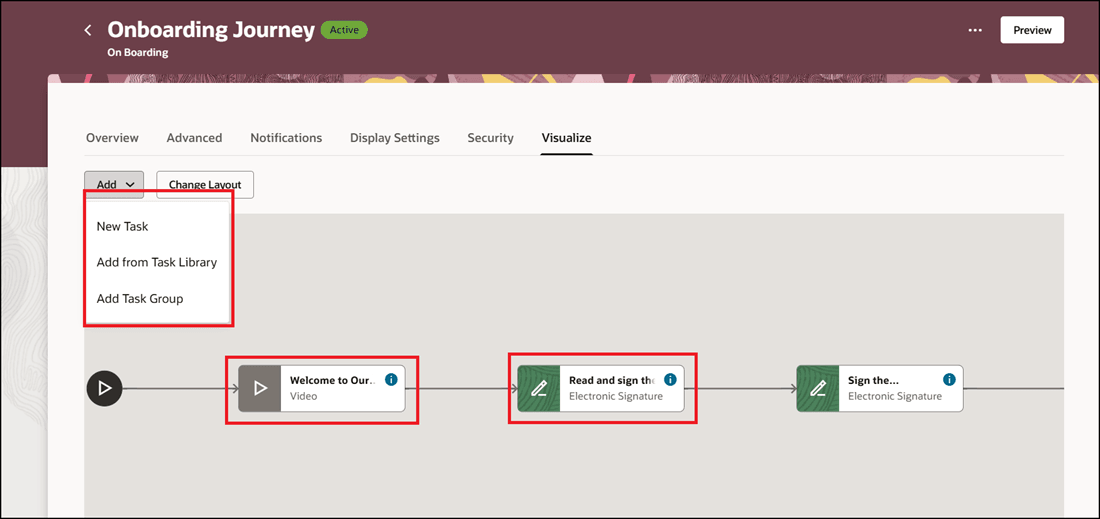
Add Task to the Layout Based on the Sequence
When you add the task, you specify the name, sequence in the task flow, and the task type.
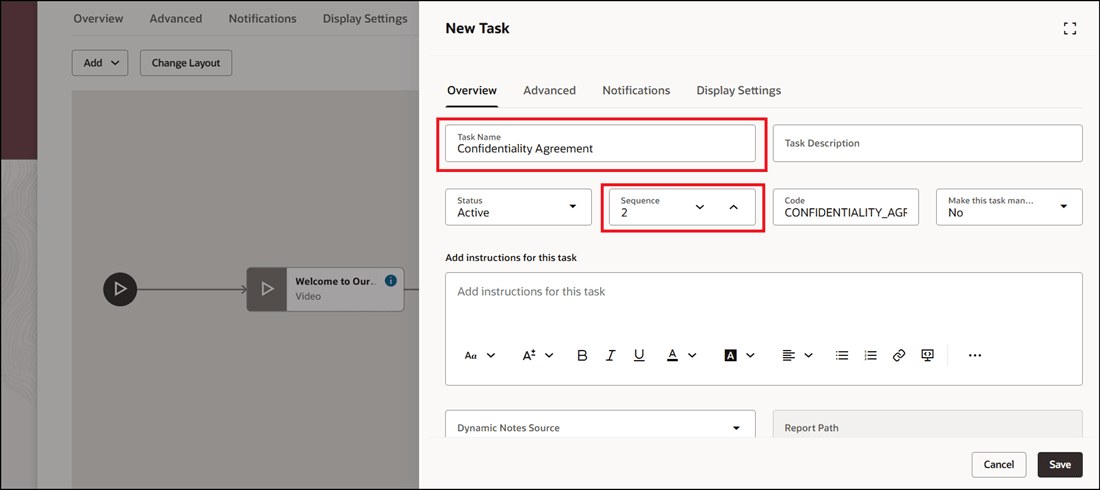
Add Task with its Sequence in Task Flow
The task is added in the task flow based on the sequence specified. Click the 3-dot icon for the task to perform actions, such as edit or delete. You can also click a task block to edit the task.
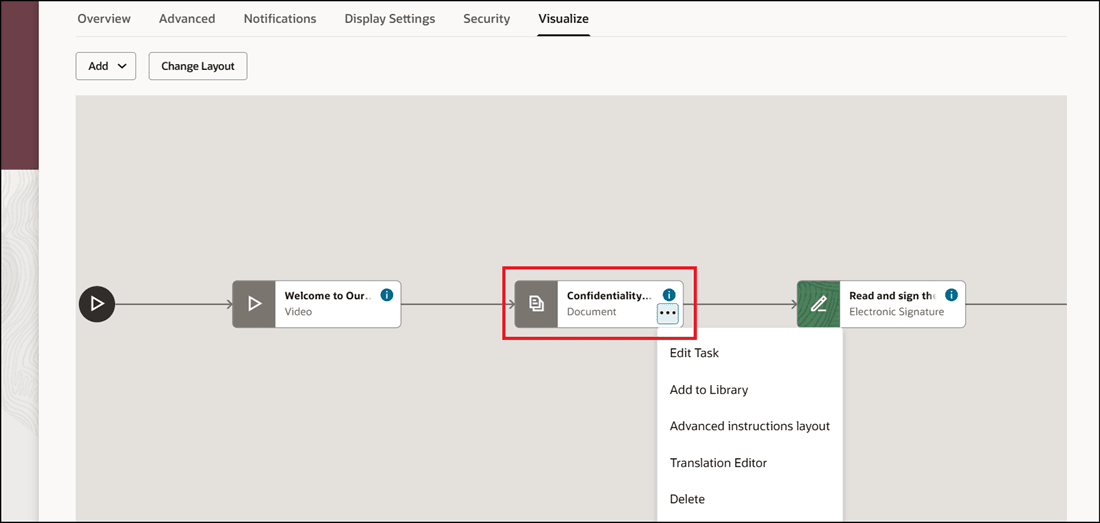
Task Added Based on Specified Sequence
The information icon for a task block displays data, such as the task performer and task duration.
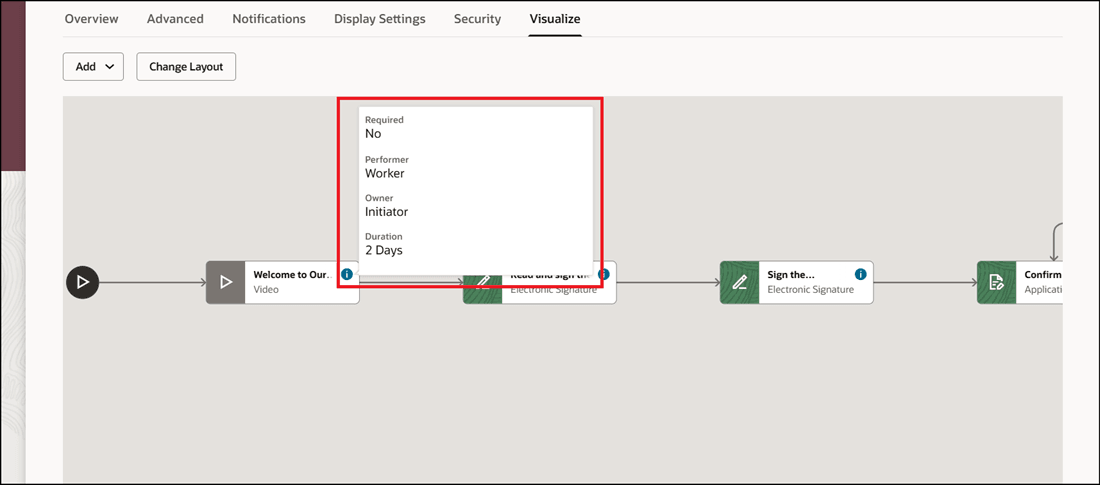
Click Information Icon in Task Block to See Details
You can change the layout to view the diagram vertically. By default, the layout is horizontal.
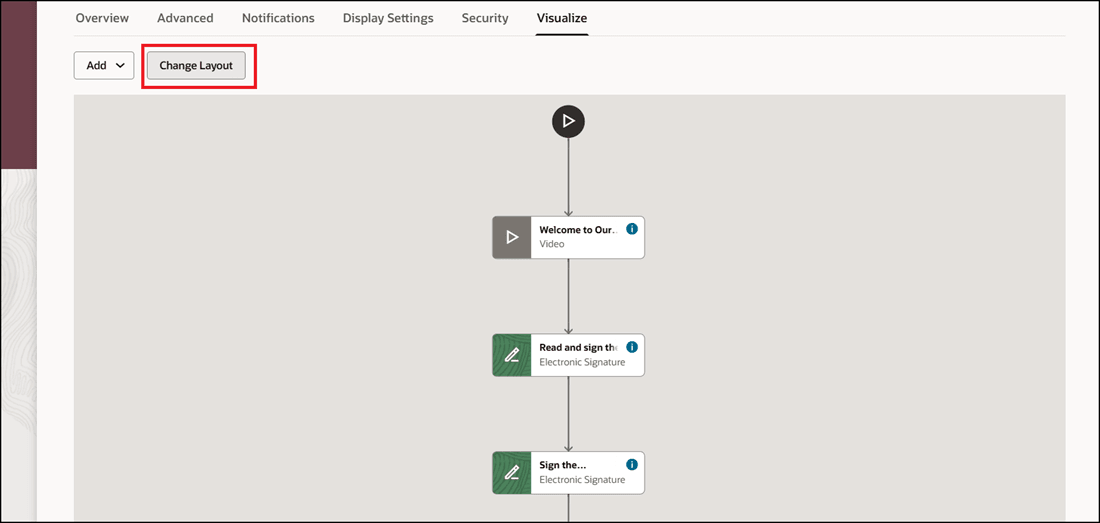
Change Layout for Vertical View of Diagram
The diagram also displays dependencies between tasks if any. In this example, the Review Account Information task has a dependency on the Initiate Account Access task.
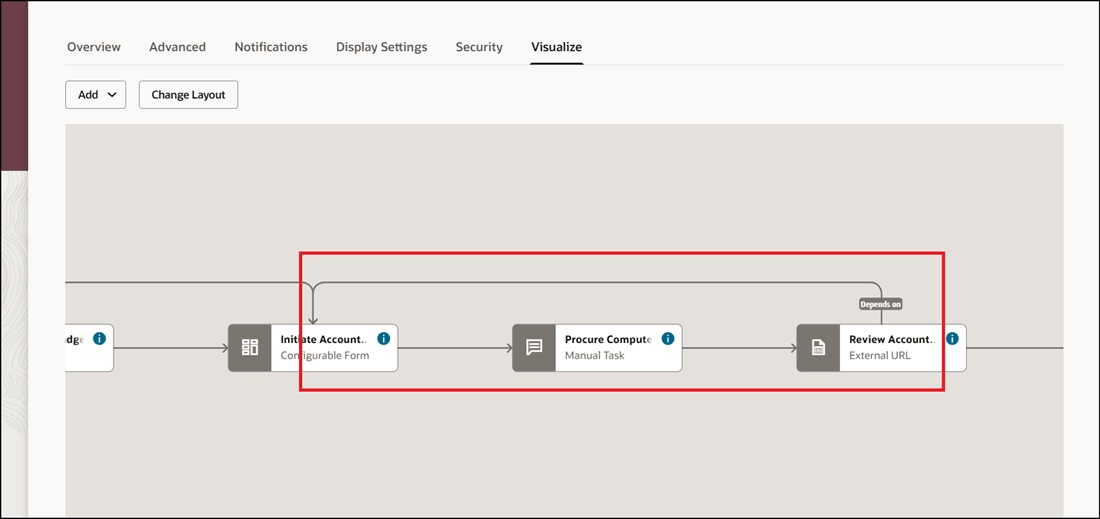
Dependency Displayed Between Tasks
The task group in the diagram can be expanded to display the tasks in the group. You can’t edit the tasks within a task group as the task section is read only and only for representational purpose. However, you can perform actions at the task group level.
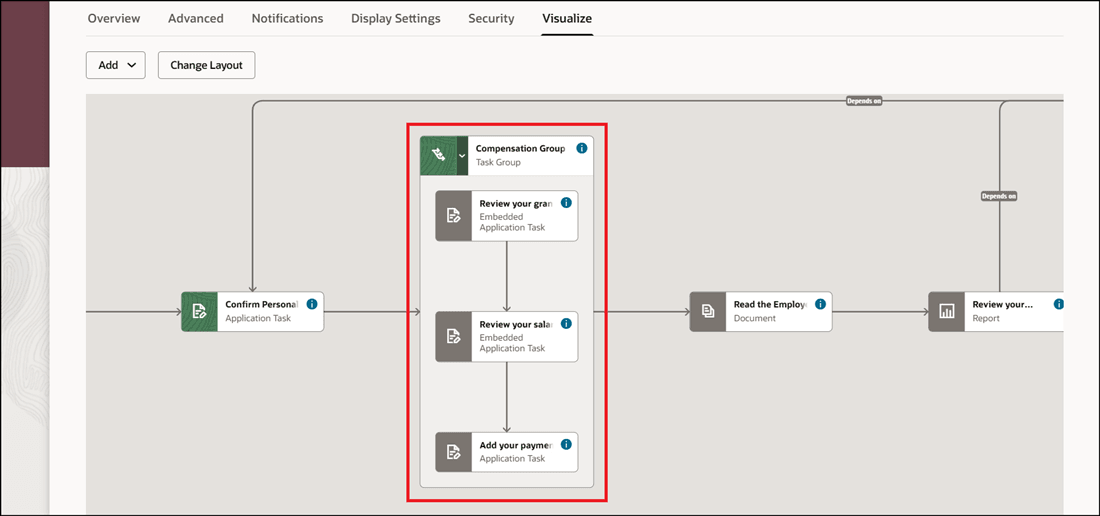
View Tasks Within Task Group
The layout diagram is also available in the Task Group UI for any task group that you create. This allows you to view the task flow within a group.
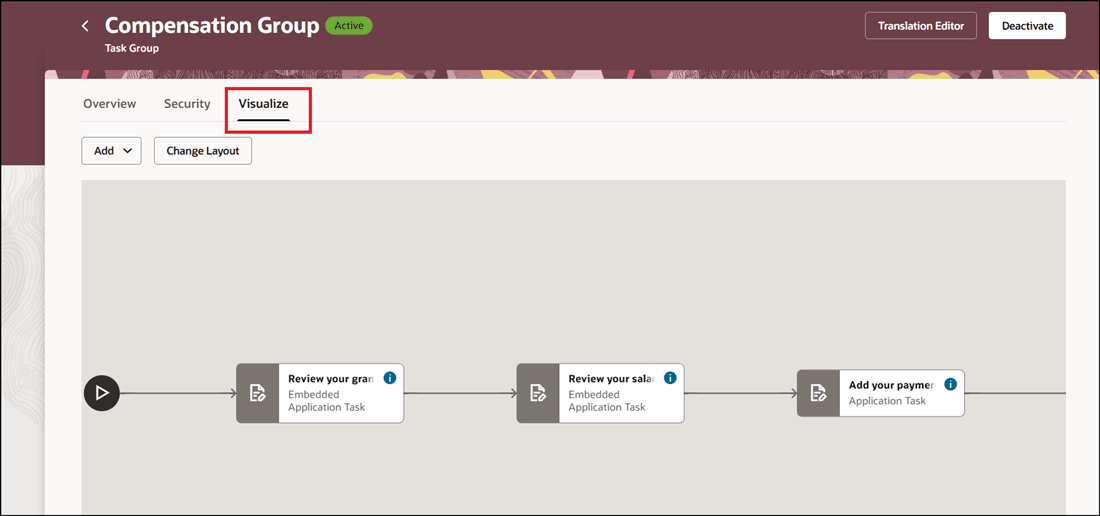
Click Visualize Tab to See Tasks in Task Group
Users will find it easy to scan and visualize the various tasks flows in a journey, including their sequencing and interdependencies.
Steps to enable and configure
For more information, see this topic: View and Manage Tasks in Diagram Layout for Journey Template
Tips and considerations
-
The actions that you do from the Overview > Tasks section of the journey template can also be done in the visualization layout.
-
The layout diagram isn’t available for journey categories, such as Enterprise Onboarding, Enterprise Onboarding Step, Survey, and Guided Journey.
Key resources
For more information about journeys, refer to the Implementing and Using Journeys guide on Oracle Help Center.
Access requirements
You must be granted the Manage Journey (ORA_PER_MANAGE_JOURNEY_TEMPLATE) aggregate privilege to work on journey templates.