Synchronize from Position Field Available in Assignment Step for Redwood Employment Processes
The Synchronize from Position attribute is now available on the Assignment step in Redwood employment processes. When the Synchronize from Position is set to Yes, the changed attributes are displayed in a panel titled "Apply Selected Position Changes," allowing users to select which position attributes to apply.
By default, the Synchronize from Position attribute is hidden and you need to enable it from Business Rules.
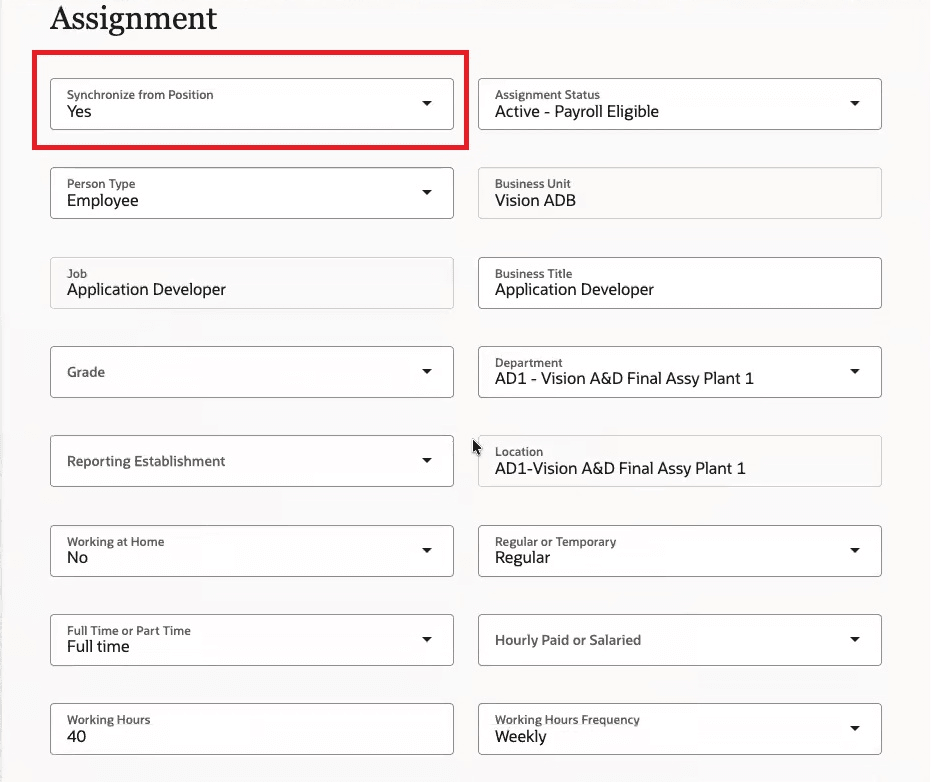
Synchronize from Position on Assignment step
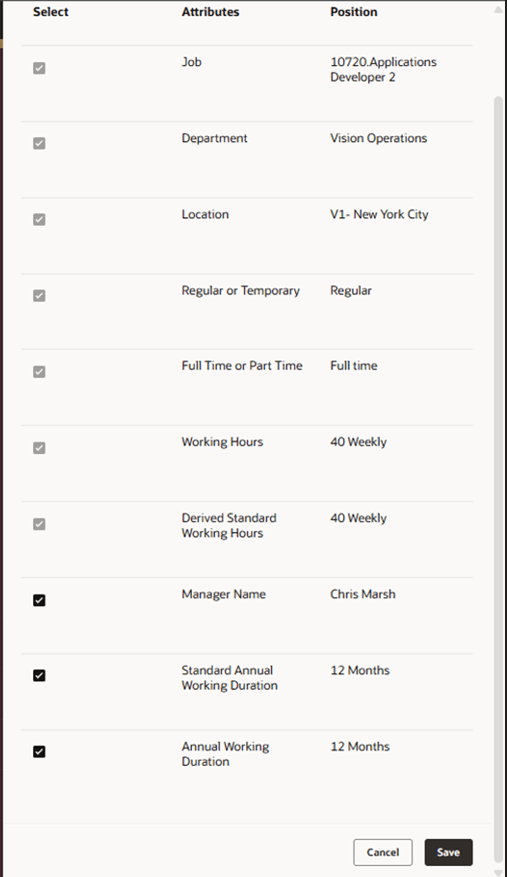
Changed attributes displayed in panel drawer
When the Synchronized from Position value is changed from No to Yes, a panel drawer is displayed listing all position-populated attributes with their corresponding position values. Synchronized attributes appear as selected and the checkbox cannot be deselected by the user, as the value is always synchronized with the position. Non-synchronized attributes are also shown and can be selected or deselected by the user. On clicking Save, only the selected non-synchronized attributes will have values that are copied from the position to the assignment.
Apply Selected Position Changes panel view
This is important for customers who choose to hide the Position Override step in employment flows, as this now ensures that complete position override functionality is available directly on the Assignment step. Customers no longer need to expose the Position Override step to leverage position synchronization and override capabilities. This isn't available for Offer processes.
Use the page property Hide Position Override Drawer in Assignment Section to hide the panel drawer in the Assignment step.
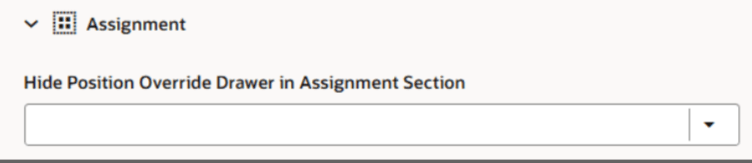
Page property to hide panel drawer
If the panel drawer is hidden using the configuration option, all position-populated values — both synchronized and non-synchronized — are automatically copied to the assignment without any user intervention.
Simplified employment processes by eliminating the need for a separate Position Override Step, reducing configuration complexity, and providing a streamlined user experience for position synchronization directly on the Assignment step.
Steps to enable and configure
For more information, refer to this resource on the Oracle Help Center - How do I hide or show a field in Visual Builder Studio?
Tips and considerations
- If you're enabling the Synchronize from Position field in Assignment step, its recommended to hide the Position Override step in Business Rules.
Key resources
For more information, refer to these resources on the Oracle Help Center:
- Employment Processes in the Using Global Human Resources guide
- Position Synchronization in the Implementing Global Human Resources guide
- How Assignment Values Are Inherited from Position in the Implementing Global Human Resources guide
You can also refer to this What's New announcement in release 25D
For more information, refer to these resources:
- Express Mode in VBS for detailed instructions on using specific Express Mode features.
- Extending Redwood Applications for HCM and SCM Using VB Studio for details on what’s supported by HCM.
- You can refer to the VB Studio documentation "Configure an Oracle Cloud Application" to check the steps to access VB Studio from a Redwood page.
- Extending HCM Redwood Applications Using Visual Builder Studio
- Refer to the Customer Connect forum Visual Builder Studio for HCM