Manage Translations and Duplicate Event
This release helps your organization better connect with diverse learners and answer global learning needs. You can directly translate learning events and activities from the event details page. And duplication of events across all statuses makes setting up new events more consistent and takes just a few clicks.
Translation updates for events and activities include:
- Manage translations from the details page More Actions menu by selecting either Translate Event or Translate Activity.
- Translation and language updates apply instantly for event names, summaries, and descriptions. If multiple activities are present, translation options appear labeled by activity.
- Translate up to three activities at once through the page-level More Actions menu or open and translate each activity individually using the row-level Translate action.
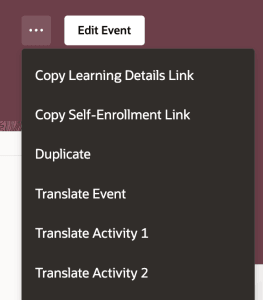
Page-Level More Actions Menu Showing the Translate Event and Translate Activity Options
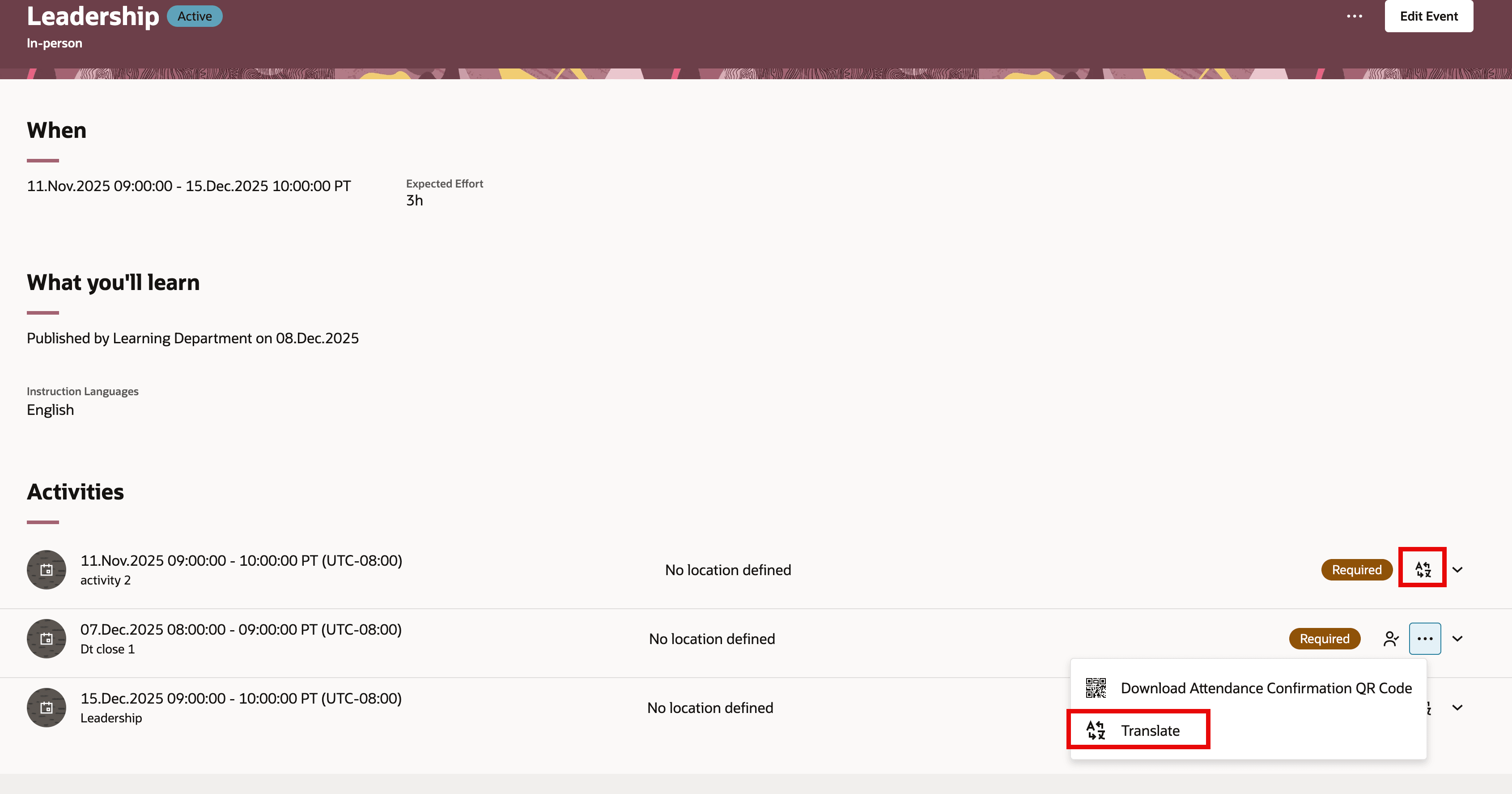
Event Page Showing the Activity Row-Level Translate Action
- Change multiple languages in the translation editor by progressing from one language to the next. Or get a prompt to save before switching, if you edit without saving.
- When you finish, confirmation messages ensure every translation change is registered, and details update on the page right away in the corresponding locations.
Duplication for event learning items provides fast setup options for content managers:
- You can duplicate events you manage by selecting the page-level More Actions > Duplicate option.
- The new draft opens a dialog box for you to set a different name and update the catalog administration profile if needed. Then on the subsequent details page, you can make other changes before activation.
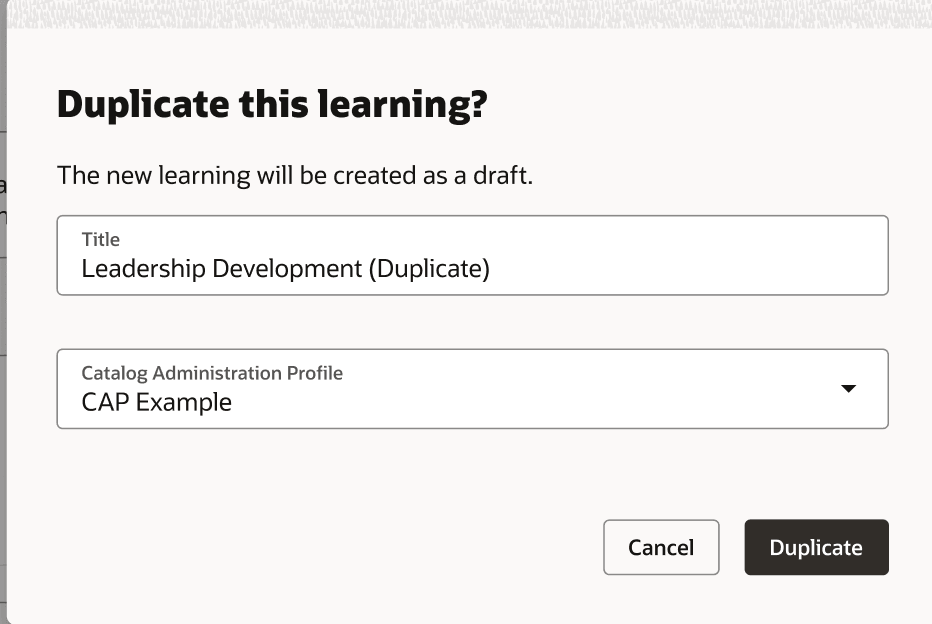
Duplicate Event Dialog Box That Appears Before the Details Page
Boost your organization’s reach by supporting learners in their preferred languages and regions, creating a truly localized experience. Speed up the creation of new events by duplicating existing events. Accelerating translation and duplication means you improve global accessibility, shorten content refresh times, and drive engagement around the world.
Steps to enable and configure
You don't need to do anything to enable this feature.
Tips and considerations
Translations
-
To start entering translations, select one or more languages. If you select multiple languages, you add translations for a language then select Update > Update and Next to add translations for the next selected language.
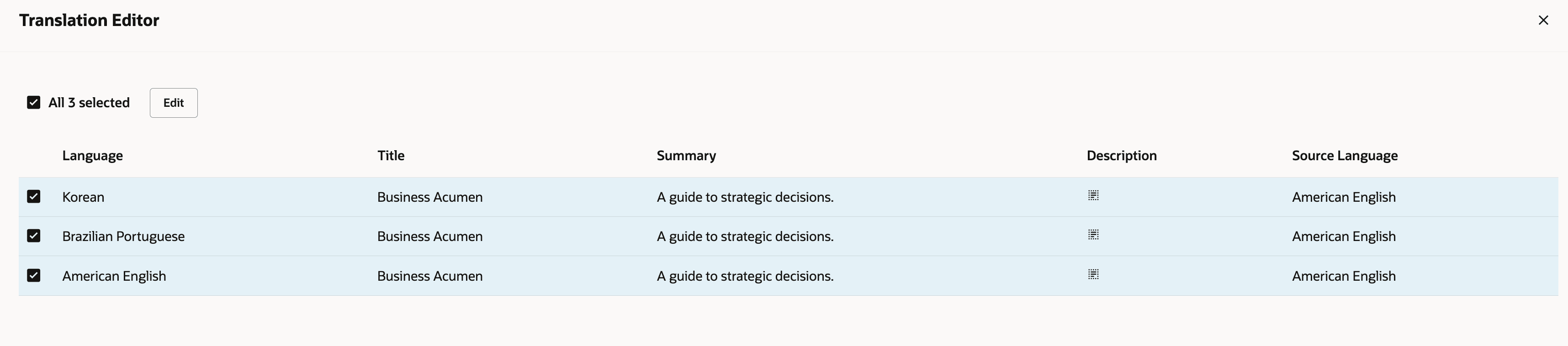
Event Translation Editor with All the Languages You Can Create Translations For
Event duplication
- Creates a draft learning with configurable attributes copied and a default title of {Original} (Duplicate) that you can edit as part of the creation process.
- Titles aren’t required to be unique.
- Doesn't include ratings, VILT attendance, and meeting recording materials.
- Manually delete drafts if you cancel creation and don't want to retain the draft.
- Learning specialists can duplicate only the events that they can manage.