Redwood Experience: Job Application AI Overview
Use the new job application's Overview tab to more efficiently review job applications with a comprehensive, AI-generated summary of each job application.
When the candidate uploads a resume while applying for a job or provides more info after they have applied, the summary on the job application's Overview tab is generated and displays info in 3 sections.
- Screening and interview highlights: This section indicates if prescreening questionnaires and assessments were completed by the candidate and when they were completed. It also shows if feedback was provided.
- Candidate summary: This section provides concise AI-driven highlights of the candidate most recent work experience (including years of experience, job titles, employers), education highlights (including school, degree, major, graduation year), achievements, skills, work preferences. When skills and work preferences are defined on the requisition and provided by the candidate, callouts indicate those matching and missing the ones in the requisition.
- Candidate attachments: This section contains documents attached by the candidate. The same documents appear on the job application’s Details tab.
Note: Application summaries are generated after you first open the job application’s Overview tab. While the summary is being created, you’ll see indicators that generation is in progress. Completion time may vary based on the number of applications queued for summary creation. Return to the Overview tab later to view the completed summary.
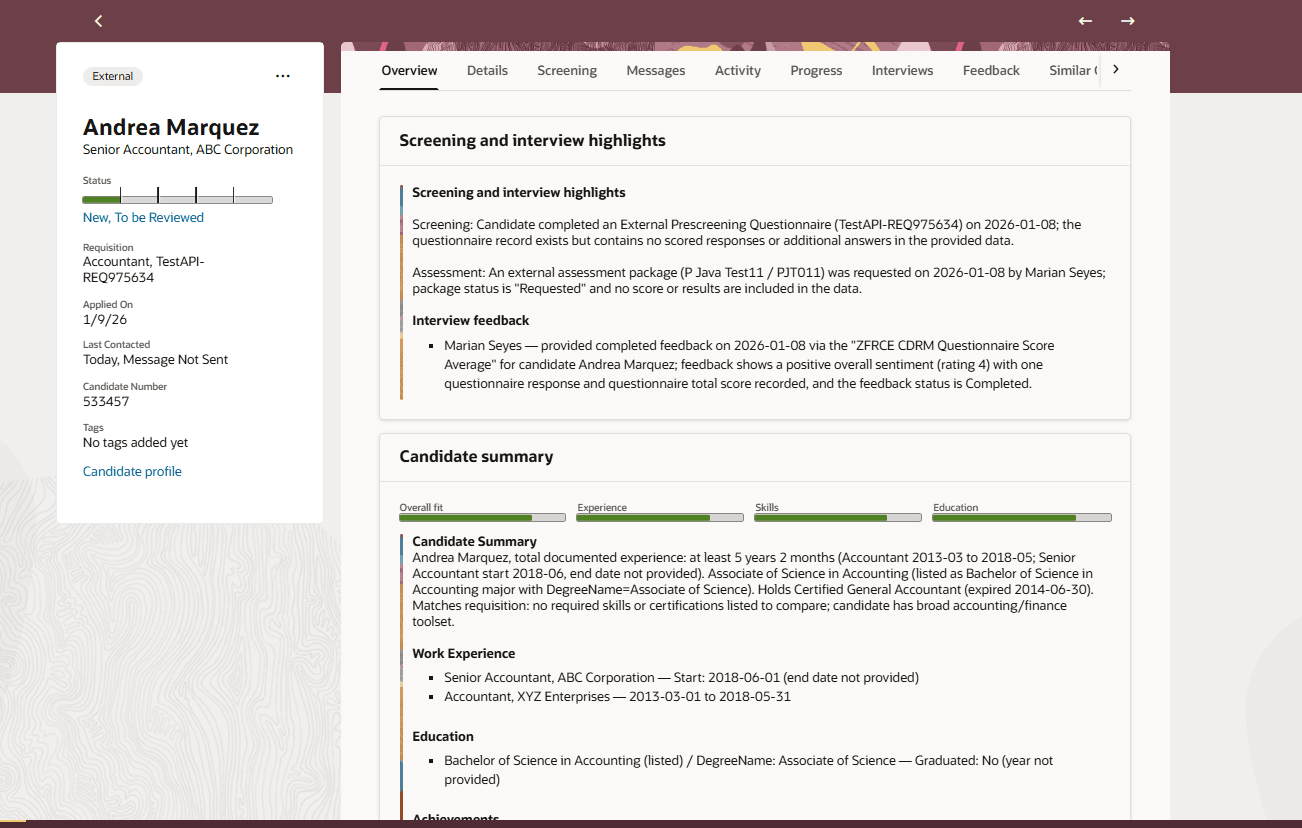
Overview Tab in a Job Application
Business benefit: The Overview tab streamlines the evaluation process of recruiters and hiring managers to make more informed hiring decisions by providing at a glance insights, reducing manual review effort, and ensuring a consistent evaluation process.
Steps to enable and configure
Here are the steps to enable and configure this feature:
- Enable and configure the Job application highlights setting
- Set up the Job Application Insights Scheduler agent
- Control the display of UI elements in Visual Builder Studio
Step 1: Enable and configure the job application highlights setting
For details, see How do I enable the job application Overview tab in Redwood?
Step 2: Set up the Job Application Insights Scheduler agent
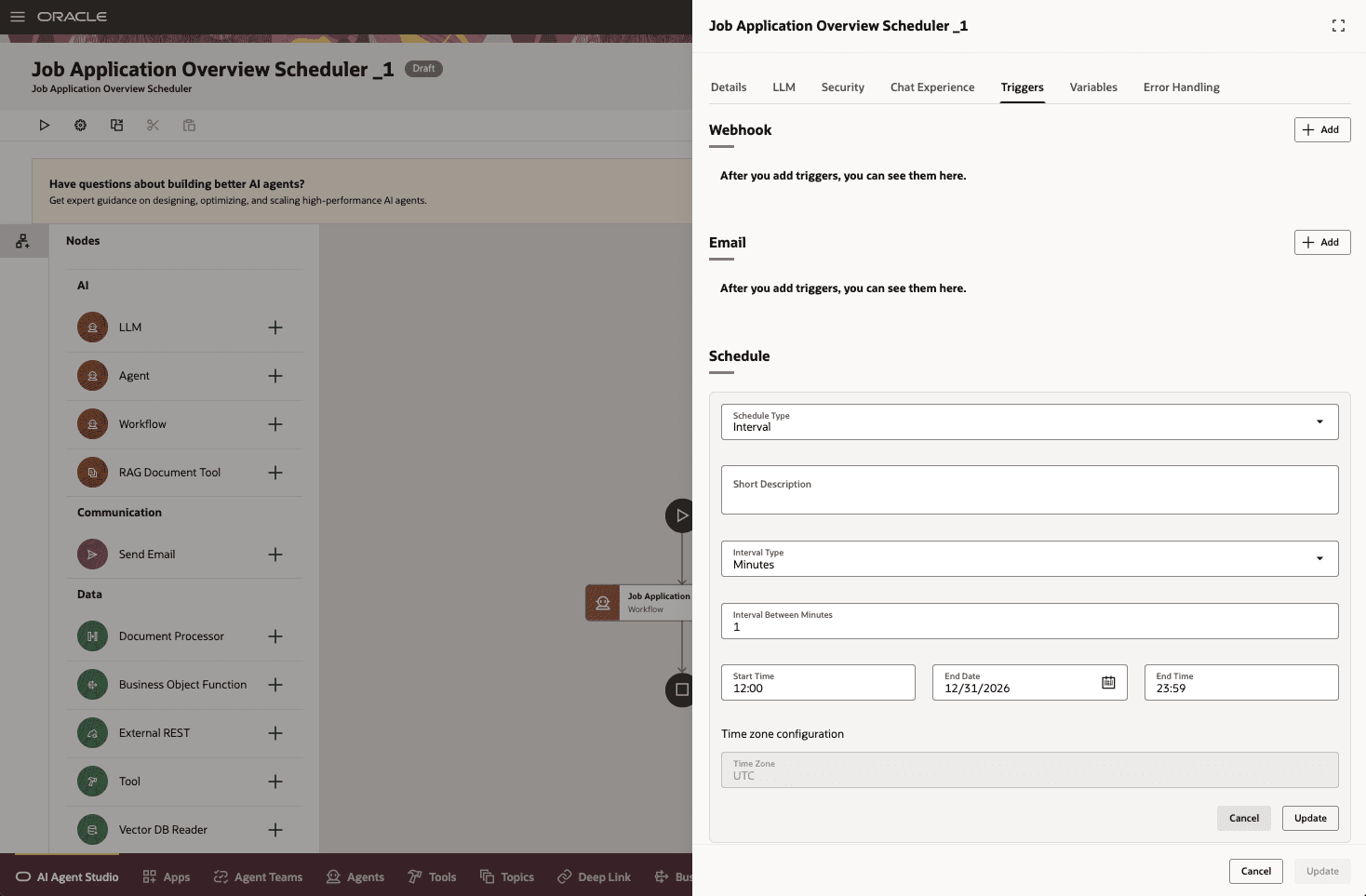
In AI Agent Studio, you need to set up the Job Application Insights Scheduler agent and schedule the job application overview to a 1 minute interval.
You need the Fai Batch Job Manager Duty (ORA_DR_FAI_BATCH_JOB_MANAGER_DUTY) role to publish a scheduler.
For details, see How do I set up the Job Application Insights Scheduler agent?
- Your environment must have the appropriate services for Oracle Applications Platform deployed. For more information, see FAQ2521 on My Oracle Cloud Support.
- Set the Enable Security Console External Application Integration(ORA_ASE_SAS_INTEGRATION_ENABLED) profile option to Yes and enable permission groups for the appropriate roles. See Access Requirements for AI Agent Studio.
To learn how to set up AI agents, see Create AI Agents Using Preconfigured Agent Team Templates.
Step 3: Control the display of UI elements in Visual Builder Studio
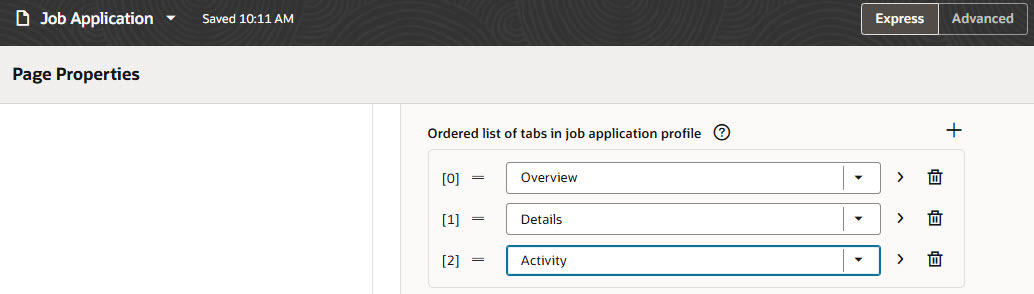
The Overview tab is the first tab that appears in job applications. If you want to change the order of tabs, use the Ordered list of tabs in job application profile page property available on the Hiring > Job Application page in Visual Builder Studio.
Page Property to Order Job Application Tabs
The Overview tab is set as the default tab by default. To change the default tab, use the Default Selected Tab page property available on the Hiring > Job Application page in Visual Builder Studio.
Page Property to Set the Job Application Default Tab
Note: If you already configured a default tab for job applications, that tab will remain your default tab. If you already ordered tabs, the ordering of tabs will be retained.
For details, see How do I control the display of a UI element in Visual Builder Studio?
To use Redwood experience, you need to enable these profile options:
- ORA_IRC_RECRUITING_REDWOOD_ENABLED
- ORA_IRC_JOB_APPLICATION_REDWOOD_ENABLED
- ORA_IRC_CANDIDATE_REDWOOD_ENABLED
- ORA_IRC_REQUISITION_REDWOOD_ENABLED
For details, see How do I enable a profile option?
For details on enabling and customizing Redwood for HCM, see How do I adopt Redwood for HCM? and Extending Redwood Applications for HCM and SCM Using Visual Builder Studio
Key resources
Access requirements
The agents you can view depend on the roles and privileges assigned to you. To access this agent, your role must be explicitly granted access to it by an AI Studio Administrator. See How can I give users access to AI agents and Access Requirements for AI Agent Studio.
The user scheduling the agent must have the Recruiter Manager role to securely access job application data.