Redwood: Team Succession Planning Dashboard
As managers, you can now leverage the succession planning dashboard to get more insights into the succession planning strength of your team. You can also view the talent pools that include your team members on this dashboard. To access the dashboard, use the Succession Planning Dashboard quick action in My Team.
This dashboard has 2 tabs:
- Employees: This provides succession planning insights to the manager.
- Talent Pools: This provides the talent pool overview for the manager’s team.
Employees Tab
On this tab, you can view these details of your team members in a grid that can help you in succession planning for your team:
- Photo
- Display name
- Business title
- Potential rating
- Risk of loss rating
- Impact of loss rating
- Count of succession plans in which the team member is an incumbent or an inferred incumbent
- Names of the candidates with a readiness of Ready Now in succession plans of the team member
The pie charts on the dashboard provide this high-level information:
- Percentage of team members with different readiness levels
- Percentage of team members who don’t have a succession plan
- Percentage of team members with different potential rating levels
Leverage this to determine the succession planning that you need to do for your team members and plan to groom your team members to improve their readiness levels to fill various key positions.
If your administrator has enabled viewing the AI-generated summary of your team’s succession plans, you can see this on the dashboard. The summary you can see depends on the agent configured by your administrator. By default, you can see this info in the summary:
- Count of team members without succession plans
- Names and count of critical team members who have a high risk of loss or impact of loss but no succession plans
- Names of team members without any Ready-Now successors
- Some recommended actions for improving the succession planning in your organization
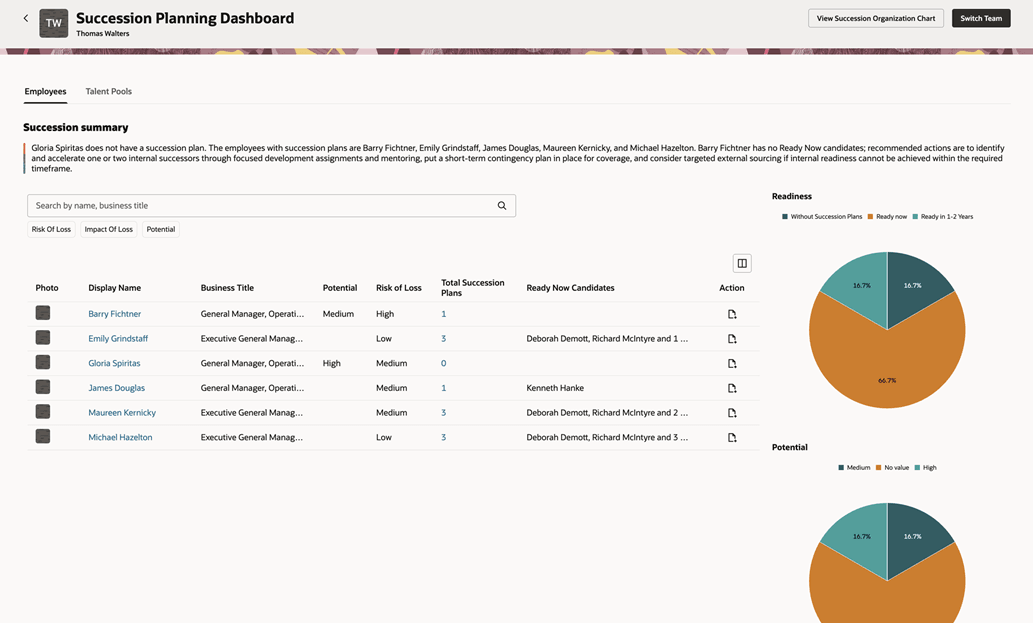
Succession Planning Dashboard of a Manager
You can search for specific team members or filter them by the value of their risk of loss, impact of loss or potential. Select a person’s name to view their details.
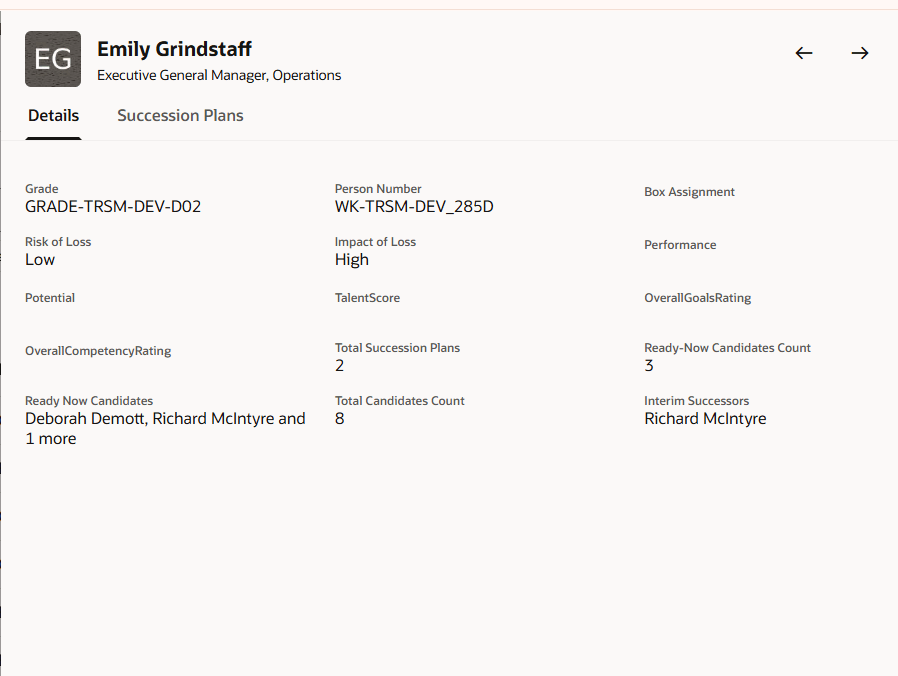
Team Member's Details
Select the succession plan count to view the details of the succession plans in which the team member is an incumbent or an inferred incumbent.
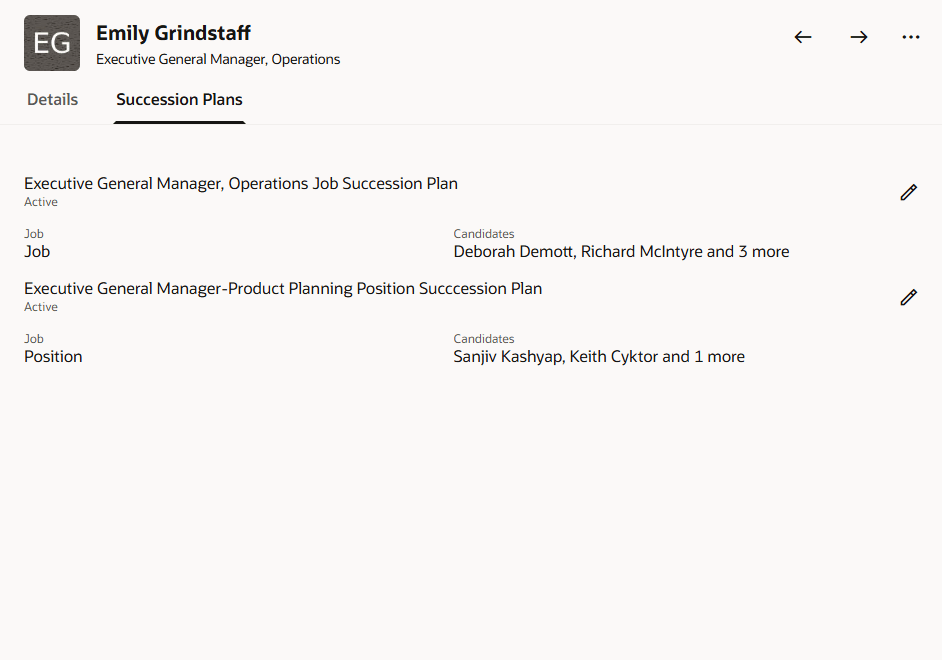
Succession Plans of a Team Member
You can edit the succession plan if you have the access to do so.
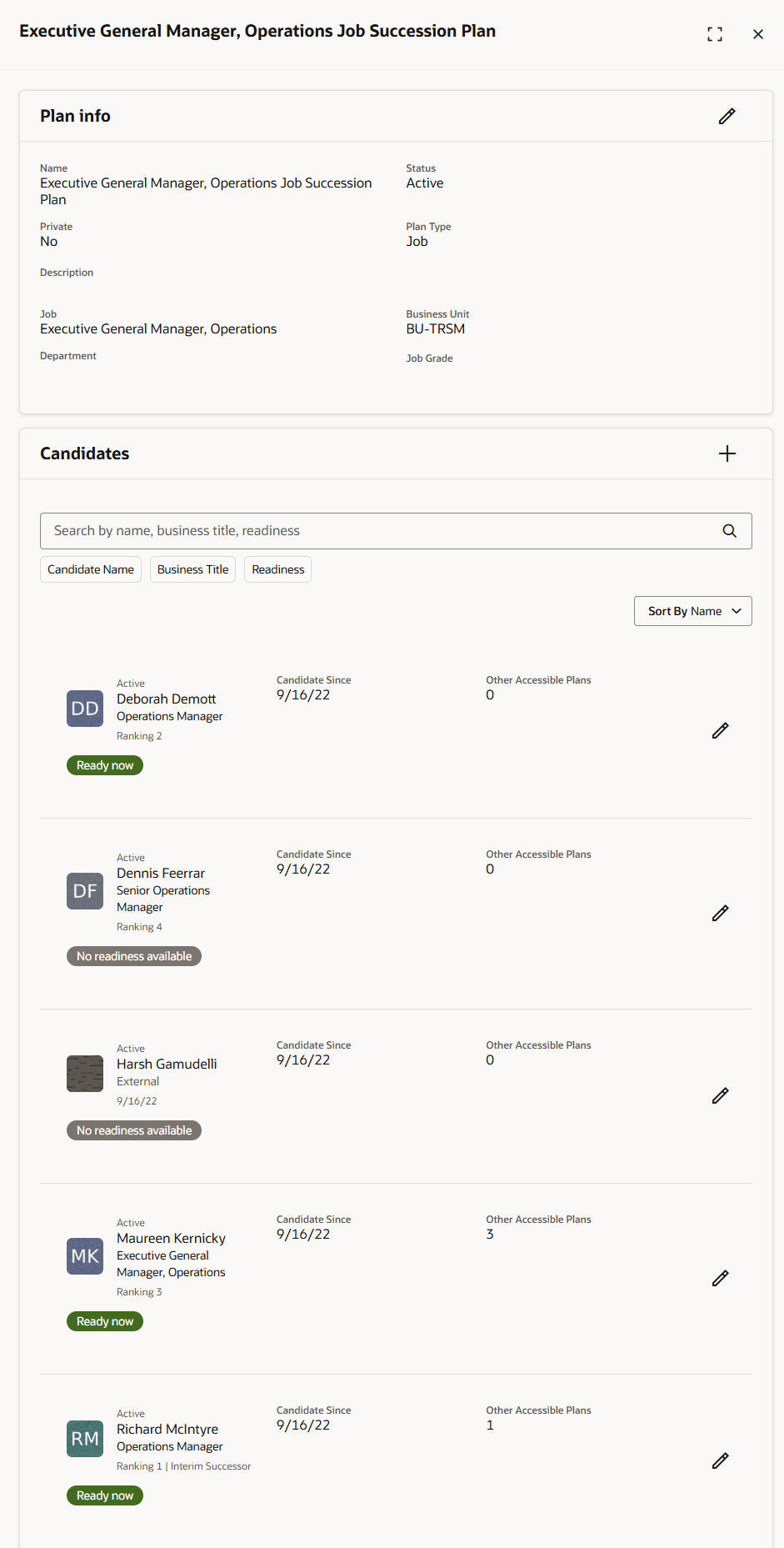
Edit Succession Plan of Team Member
You can also create succession plans for your team members. The type of succession plan created by default depends on the display sequence of the plan types configured in the HRM_SUCC_PLAN_TYPE lookup.
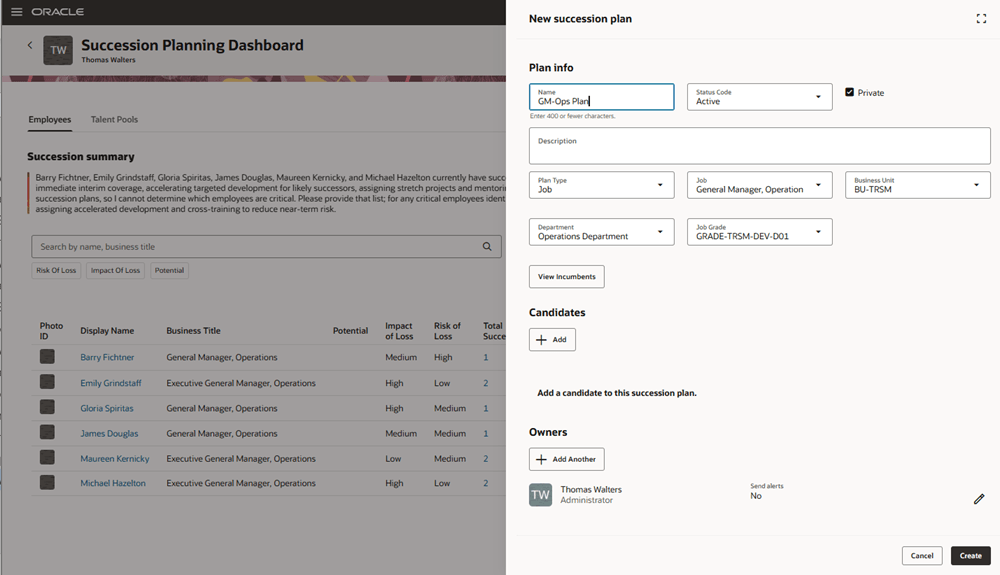
New succession plan Panel
Use the Switch Team button to view the succession planning dashboard of the team of your report. Select the person whose dashboard you want to view in the panel.
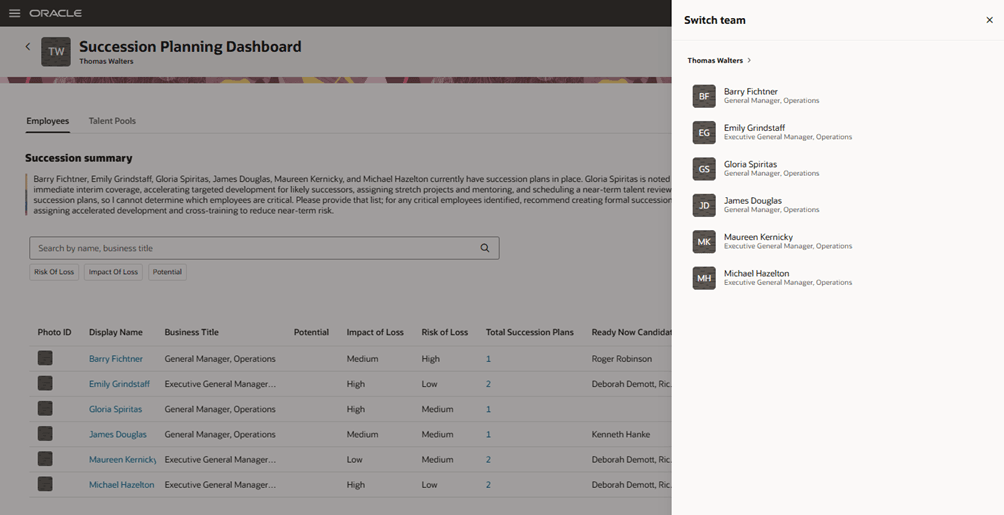
Switch team Panel
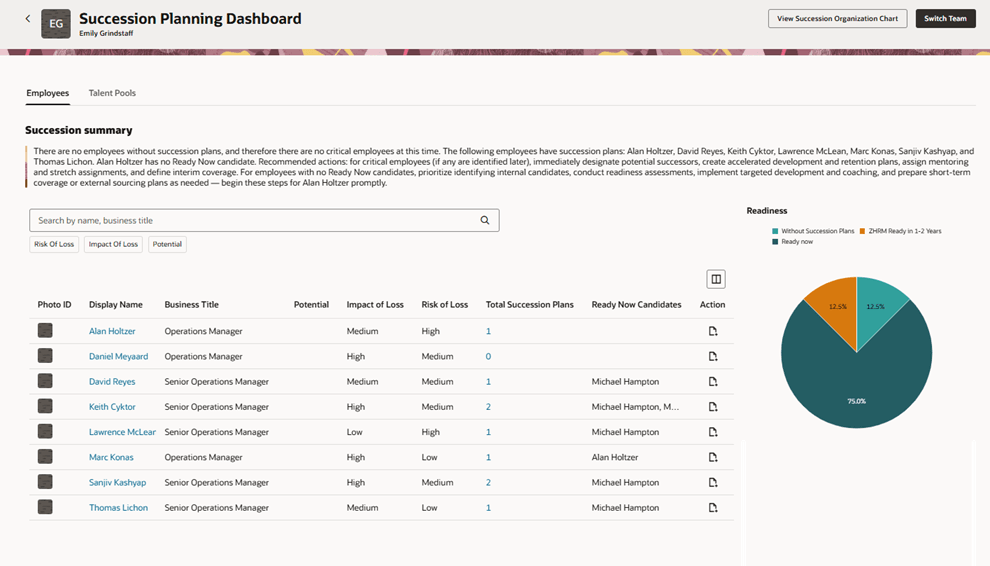
Succession Planning Dashboard of Team Member
Use the View Succession Organization chart button to view the succession organization chart of the person whose succession planning dashboard is currently shown.
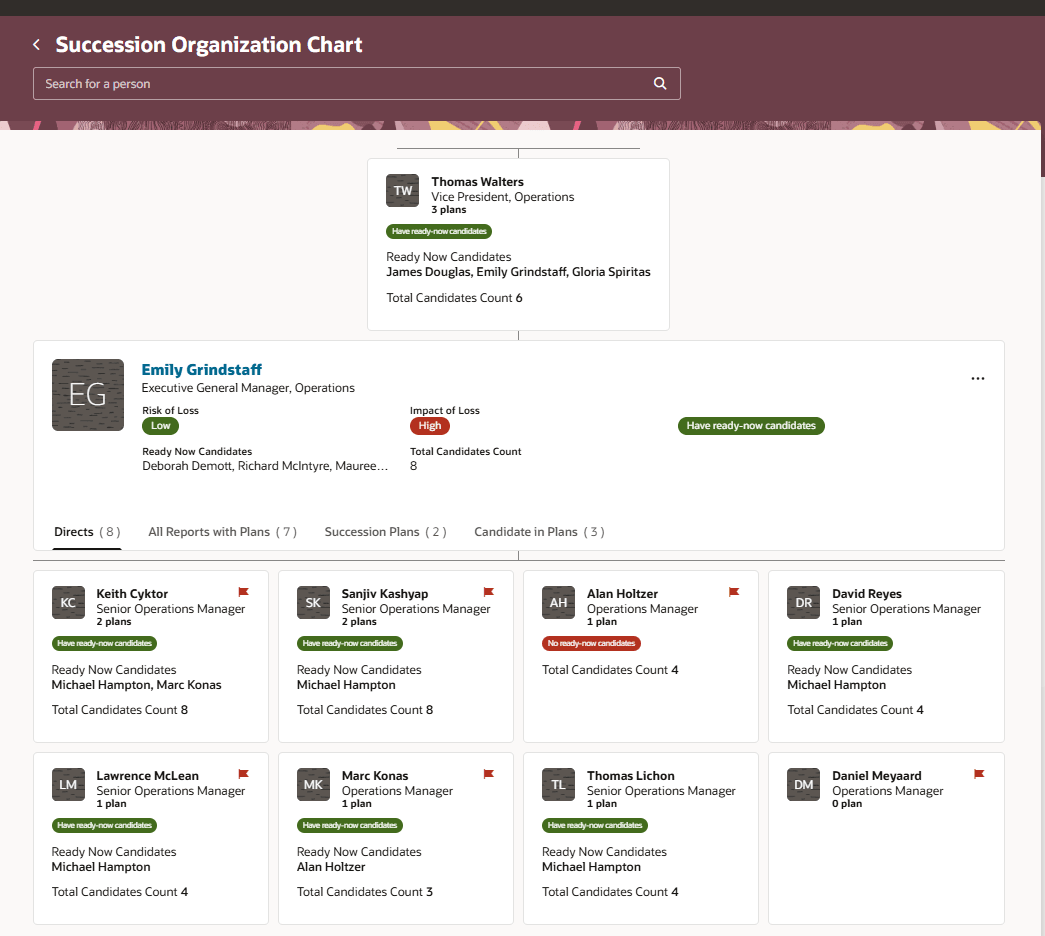
Succession Organization Chart of a Manager
Talent Pools Tab
On this tab, you can see talent pools that you have access to and create talent pools.
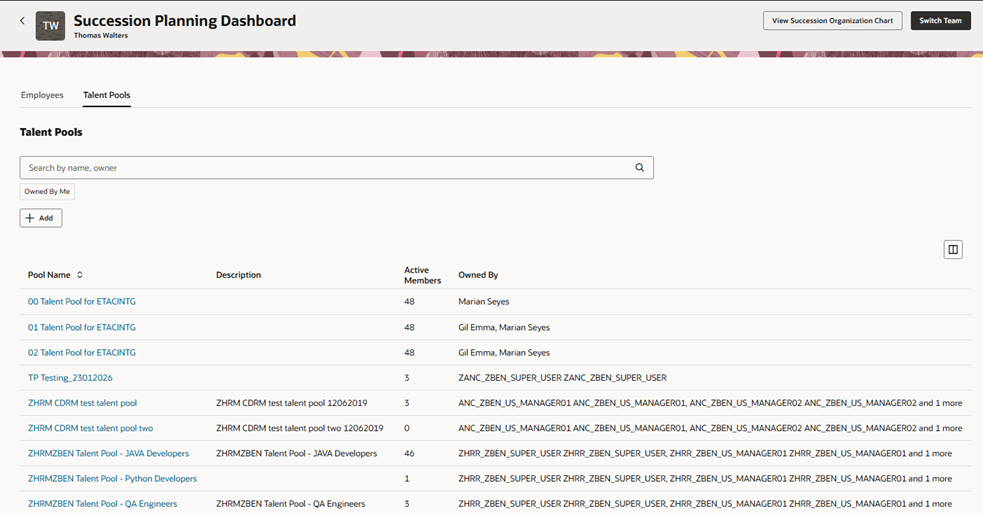
Talent Pools Tab
Select a talent pool to view its details.
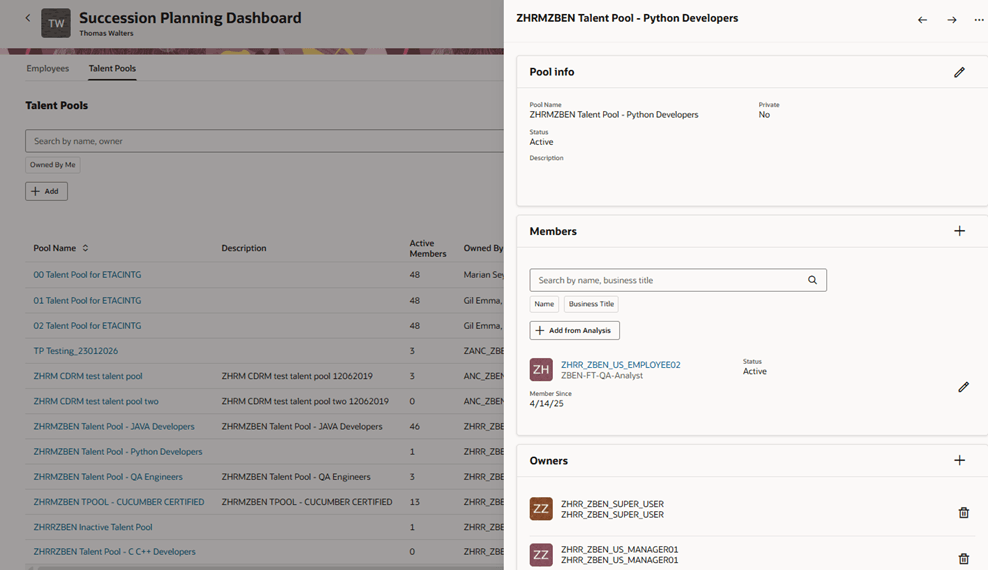
Talent Pool Details Panel
You can search and filter pool members by their name or business title. You can edit the talent pool if you are an owner in this panel.
Leverage the insights provided on the succession planning dashboard and appropriately plan the succession of your key team members. Easily manage the talent pools that you have access to and plan for the development of your team.
Steps to enable and configure
To view the Succession Planning Dashboard, you need to enable the profile options listed in this table.
|
Profile Option Code |
Profile Option Display Name |
Value |
|---|---|---|
|
ORA_HCM_VBCS_PWA_ENABLED |
Enable VBCS Progressive Web Application User Interface |
Y |
| ORA_HRM_SUCC_PLANS_REDWOOD_ENABLED | Redwood Succession Plans Enabled | Yes |
| ORA_HRM_TALENT_POOL_REDWOOD_ENABLED | Redwood Talent Pools Enabled | Yes |
To view succession organization charts, you need to enable this profile option.
|
Profile Option Code |
Profile Option Display Name |
Value |
|---|---|---|
| ORA_HRM_ENABLE_SUCCESSION_ORG_CHART | Succession Organization Chart Enabled | Y |
You need to do these steps to create the succession planning dashboard summary generator agent:
- Your environment must have certain necessary configurations. Ask your help desk to contact Oracle Support, who can verify what your environment has and address any gaps. For more information, see FAQ2521 on My Oracle Cloud Support.
- Set these profile option values as indicated in the table.
| Profile Option Name | Profile Option Code | Value |
|---|---|---|
| Enable Security Console External Application Integration | ORA_ASE_SAS_INTEGRATION_ENABLED | Yes |
| Enable VBCS Progressive Web Application User Interface | ORA_HCM_VBCS_PWA_ENABLED | Y |
For more information about setting profile option values, see How do I enable a profile option?.
- Enable permission groups for appropriate roles. For more information, see Access Requirements for AI Agent Studio.
- Copy the Succession Planning Dashboard Summary Generator agent template and add the Agent Team suffix. For more information, see Create AI Agents Using Preconfigured Agent Team Templates. Then go to Agent Teams, search for the copied template and publish it.
- Edit the Succession Planning Dashboard page in Visual Builder Studio and do these actions:
- To indicate the agent that needs to be used to generate the succession summary, you need to specify these values in the indicated page properties:
- Agent Code: Code of the agent created in AI Agent Studio
- Agent Prompt: Prompt for the agent to generate the succession summary
- To enable managers to view the succession summary, set the Show AI-Generated Succession Planning Summary page property to true.
For more information on how to do this, see How do I control the display of a UI element in Visual Builder Studio?.
Key resources
For more information on extending Redwood pages in HCM, refer to this guide on the Oracle Help Center:
For more information on using AI Agent Studio, see these resources:
Access requirements
The agents you can view depend on the roles and privileges assigned to you. To access the Succession Planning Dashboard Summary Generator agent, your role must be explicitly granted access to it by an AI Studio Administrator. For more information, see How can I give users access to AI agents and Access Requirements for AI Agent Studio.