Configure Rules for Benefits Redwood Page Properties
Benefits Redwood page properties can now use rules in Visual Builder Studio. Previously, page properties were typically configured as static values, such as enabling or disabling a setting, adding a guided journey, or defining text for the welcome area. Administrators can now create rules that allow page properties to display conditionally based on context
The Business Rules side panel now includes a Configure Page Properties button. This replaces the previous experience where individual page property fields were listed directly in the side panel. Selecting the button opens a page property configuration experience where properties are grouped by page area, such as Common Properties, Welcome Banner, Guided Journey, Pending Actions, Quick Actions, and Need Help.
For example, administrators can display a welcome banner, guided journey, or other page property based on conditions such as legal entity, business unit, country, legislation code, or role. This makes page property configuration more flexible and lets administrators tailor the Benefits Redwood experience for different worker populations or administrative contexts.
Guided journey properties use a list of values so administrators can select from predefined guided journeys and guided journey tasks where supported.
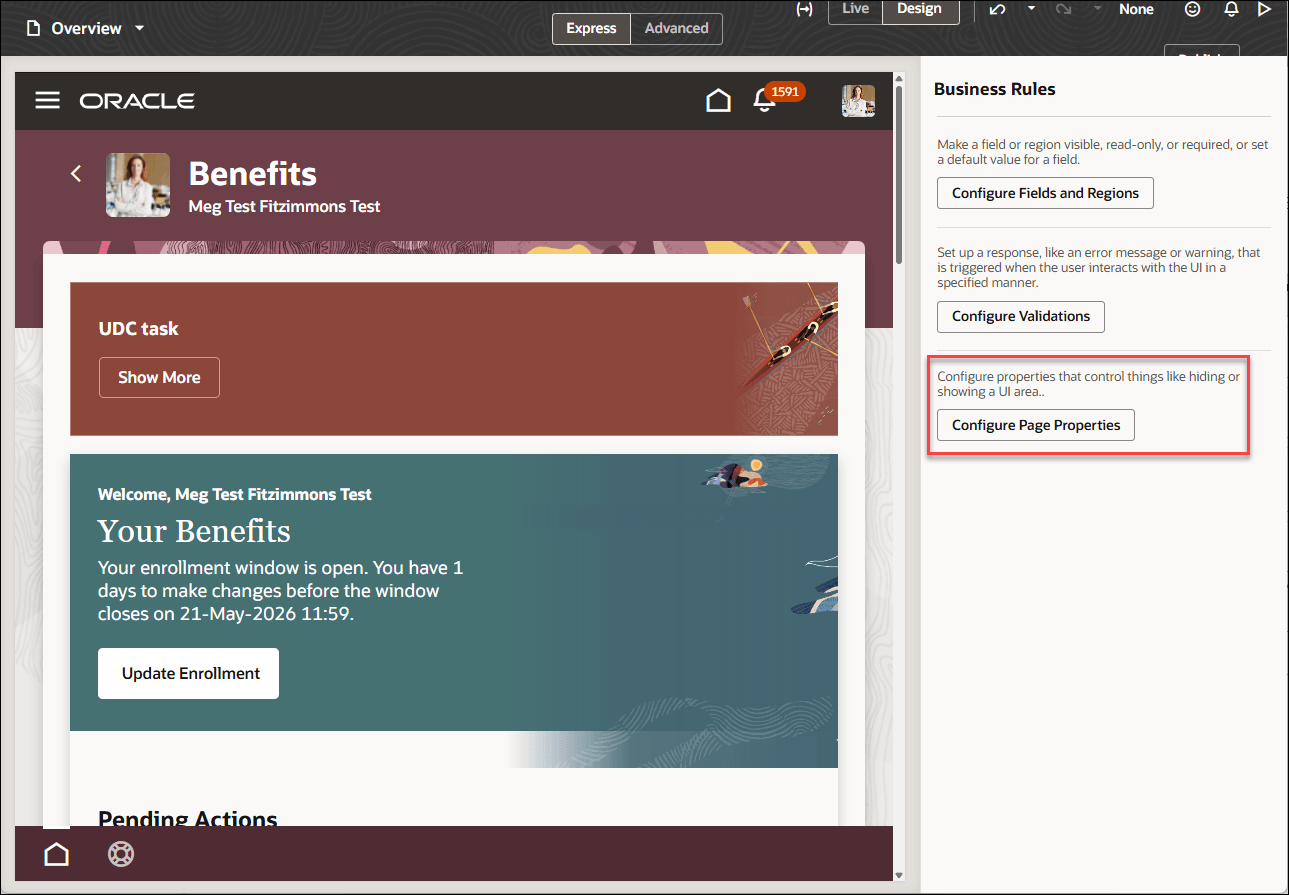
Benefits Landing Page - Configure Page Properties.
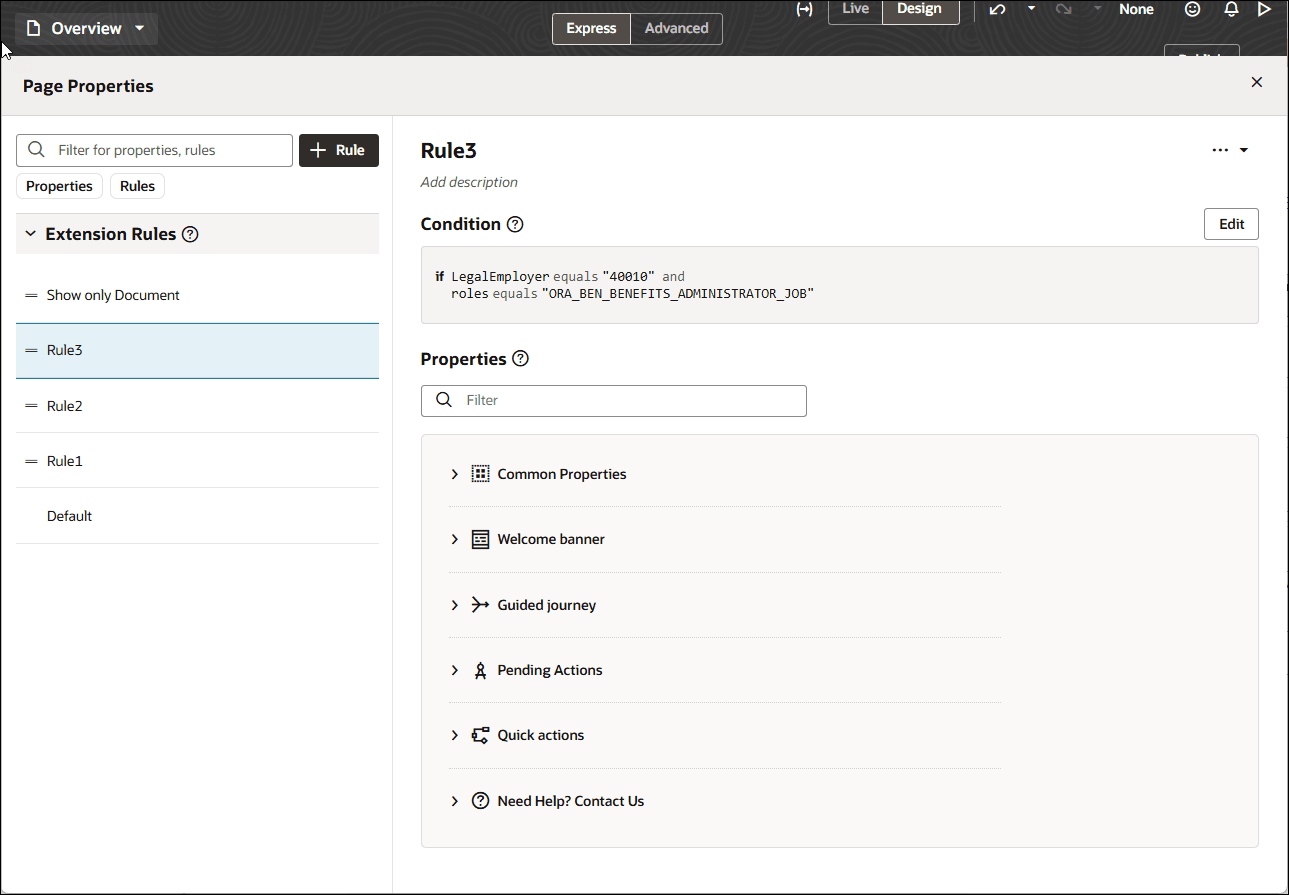
Benefits Landing Page - Page Properties Page
This feature helps administrators tailor Benefits Redwood pages without relying on a single static page property experience for all users. Conditional rules make it easier to show the right guided journeys, welcome content and page-level UI elements for the applicable worker context, organization, country or role.
The grouped page property experience also makes configuration easier to scan and maintain because related properties are organized by page area instead of appearing as one long list in the side panel.
Steps to enable and configure
Here's how you configure page property rules for supported Benefits Redwood pages:
- Open the supported Benefits Redwood page in Visual Builder Studio.
- In Business Rules, select Configure Page Properties.
- Select the applicable property group, such as Common Properties, Welcome Banner, Guided Journey, Pending Actions, Quick Actions, or Need Help.
- Configure the available page properties, such as guided journeys, welcome area content, or other page-specific UI elements.
- Add rules using the available context values, such as legal entity, business unit, country, legislation code, or role.
- Select the predefined guided journeys from the list of values where guided journey properties are available.
- Preview and publish your changes.
Tips and considerations
- Legal employer and business unit conditions use IDs, not display names.
- Legislation code and country conditions use codes, not country names.
- Supported context values vary by page. Some enrollment pages include life event context values.
- Rule behavior follows the order defined in Business Rules when more than one rule matches the same context.
Key resources
- Organize How Constants Are Listed in the Properties Pane
- What Can You Do with Visual Builder Studio in Express Mode?
- What Is an Extension?
- Components of Visual Builder Studio Express Mode
- Set Up VB Studio to Extend Oracle Cloud Applications
Access requirements
Users who configure this feature need appropriate access to edit, preview, and publish page changes in Visual Builder Studio. Users also need the existing Benefits access required to view or administer the Benefits Redwood pages they’re configuring.
Acceptable Oracle Cloud Application Roles
VB Studio Administrators
- Application Administrator
- Human Capital Management Application Administrator
- Sales Administrator
- Customer Relationship Management Application Administrator
- Synchronization Enabled Administrator Identity
VB Studio Users
- Application Developer
- Synchronization Enabled Developer Identity