Align Task Group Task Sequence with Journey Template Tasks
You can now sequence tasks from a task group so that they align correctly with the overall task sequence defined in a journey template.
Previously, when a task group was added to a journey template, the task sequence defined inside the task group could override or disrupt the sequence specified in the journey template. For example, even when a task group was placed at sequence 4 in the template, tasks from that group could appear before earlier template tasks after the journey was assigned. With this enhancement, task groups can be used in journey templates while preserving the intended order of tasks in the allocated journey.
Additionally, a Sequence column is also displayed on the journey template to show the task sequence number, helping administrators review and manage the order of tasks more clearly.
These are some key benefits of this enhancement:
-
Reduces manual maintenance across large numbers of journey templates.
-
Allows reusable task groups without disrupting the intended journey task order.
-
Improves predictability of the task sequence when journeys are assigned.
-
Makes template review easier by displaying the task sequence directly in the journey template.
Here’s an example of an onboarding journey where the standalone tasks and subtasks within a task group are sequenced in a certain order. This table shows the order of sequence.
| Template Sequence | Task Name | Task Type | Task Group Subtasks and Sequence | |
|---|---|---|---|---|
| 1 | Welcome to Our Organization | Standalone | Not applicable | |
| 2 | Employee Tasks | Task Group | Read and Sign Ethics Code of Conduct | 1 |
| Sign Confidentiality Agreement | 2 | |||
| Confirm Personal Information | 3 | |||
| 3 | Employee and HR Tasks | Task Group | Initiate Account Access | 1 |
| Procure Computer Equipment | 2 | |||
| Verify Training Completion | 3 | |||
| 4 | Onboarding Feedback | Standalone | Not applicable | |
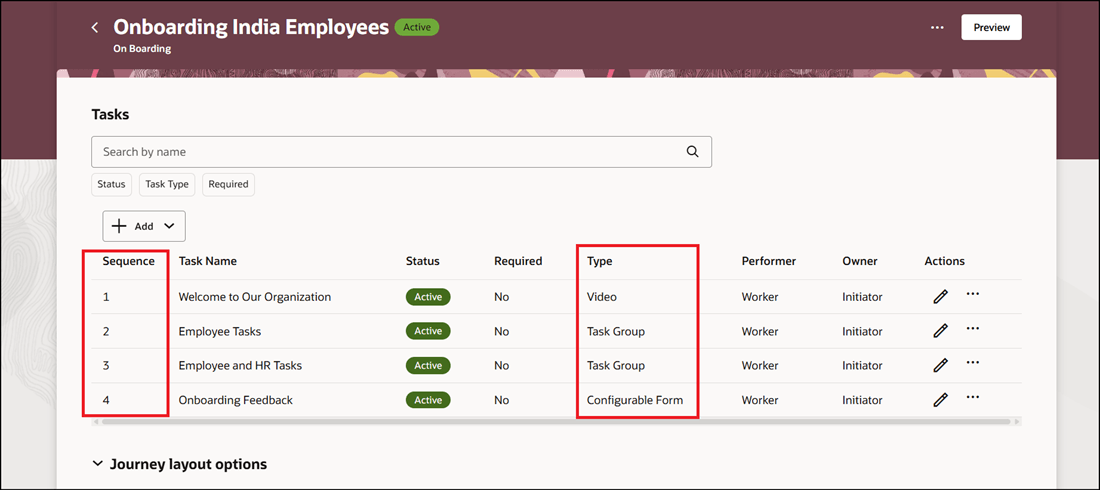
Task and Task Group Sequence in Journey Template
When the journey is assigned, the standalone tasks and task group subtasks are displayed in the correct sequence configured in the journey template. In this case, since the Employee Tasks task group is second in the journey template sequence, the subtasks are displayed after the Welcome to Our Organization standalone task. The subtasks are ordered according to their configured sequence in the task group. Similarly, the subtasks for the Employee and HR Tasks task group are displayed third in the journey tasks.
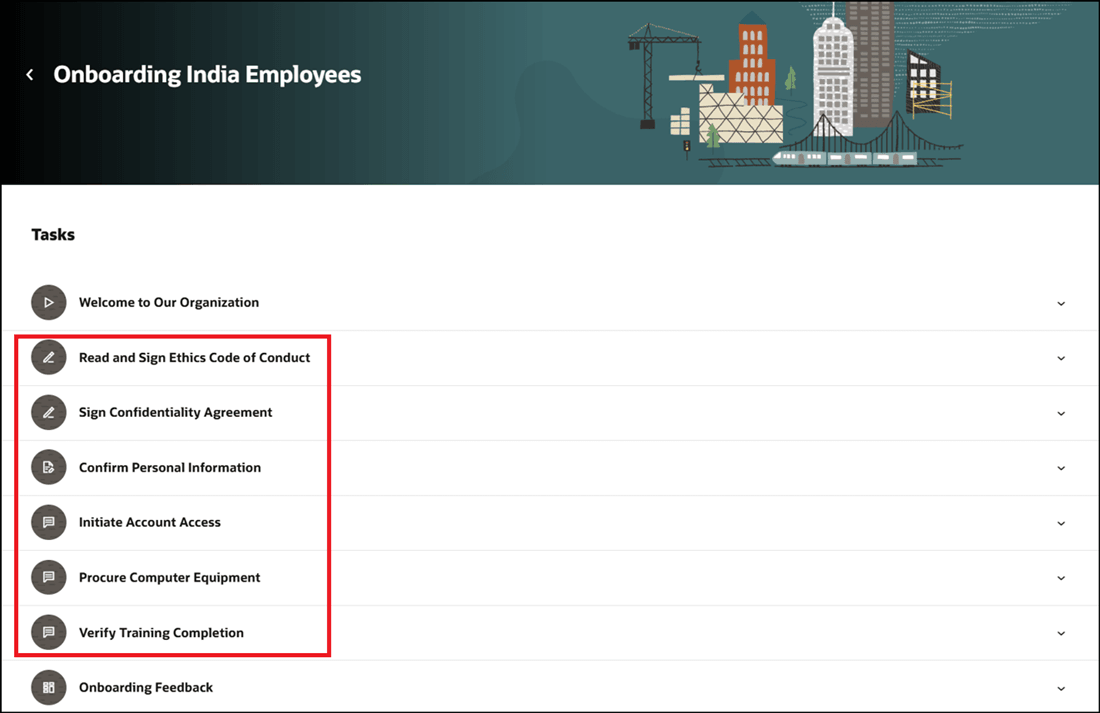
Subtasks of Task Group Displayed According to Configured Sequence
This enhancement helps administrators maintain journey templates more efficiently and consistently. Users who manage tasks across many journey templates can use task groups to reduce repetitive setup and ongoing maintenance, without losing control over task order. This is especially useful when the same group of tasks needs to be reused across multiple journeys or journey templates.
Steps to enable and configure
You don't need to do anything to enable this feature.
Tips and considerations
- The task sequence is retained in your existing assigned journeys.
- When adding a task group to a journey template, use the sequence value on the template to position the task group relative to other tasks.
- The task sequence shown on the journey template should be used to validate the intended task order before assigning the journey.
Key resources
For more information, refer to the Implementing and Using Journeys guide.
Access requirements
You must be granted the Manage Journey (ORA_PER_MANAGE_JOURNEY_TEMPLATE) aggregate privilege to work on journey templates.