Control Edit and Delete Buttons on Redwood Document Record Pages
This enhancement allows you to control the display of Save and Delete buttons using page properties depending on the user role, document type, and other supported conditions.
Organizations often need certain document records to remain read only once submitted, even if the employee has elevated roles, such as HR or manager. For example, a visa or work permit document type may include compliance rules, such as restricting changes after submission or preventing past-date modifications. An employee who also has HR access might open their own submitted document through self-service and see Save or Delete options, which can lead to unintended updates or validation errors.
With this feature, you can ensure the integrity of submitted document records by preventing employee self-service users with elevated access from reopening records and making unintended changes. This helps maintain compliance and prevents accidental data changes.
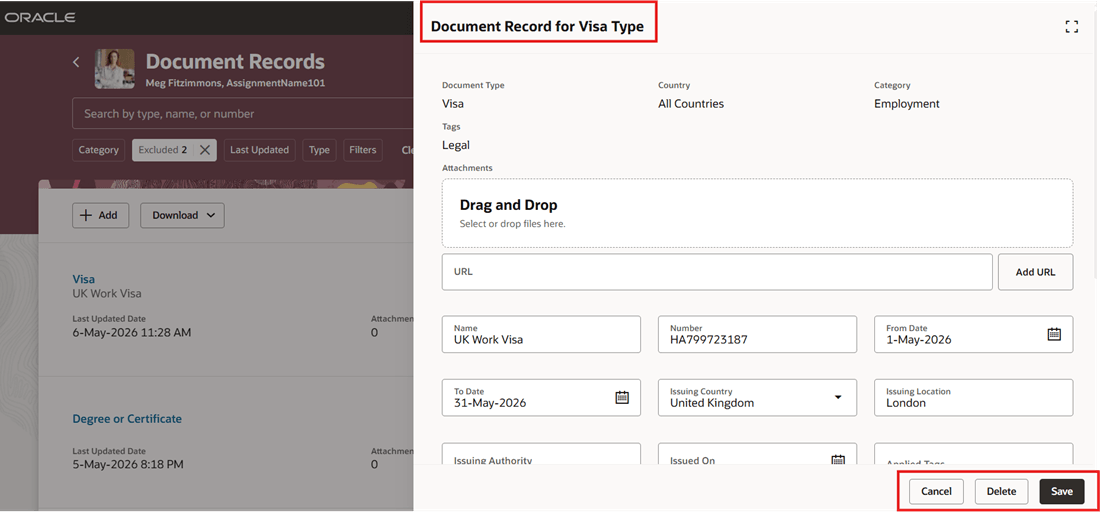
Document Record Displaying Save and Delete Buttons Before Enabling Page Properties
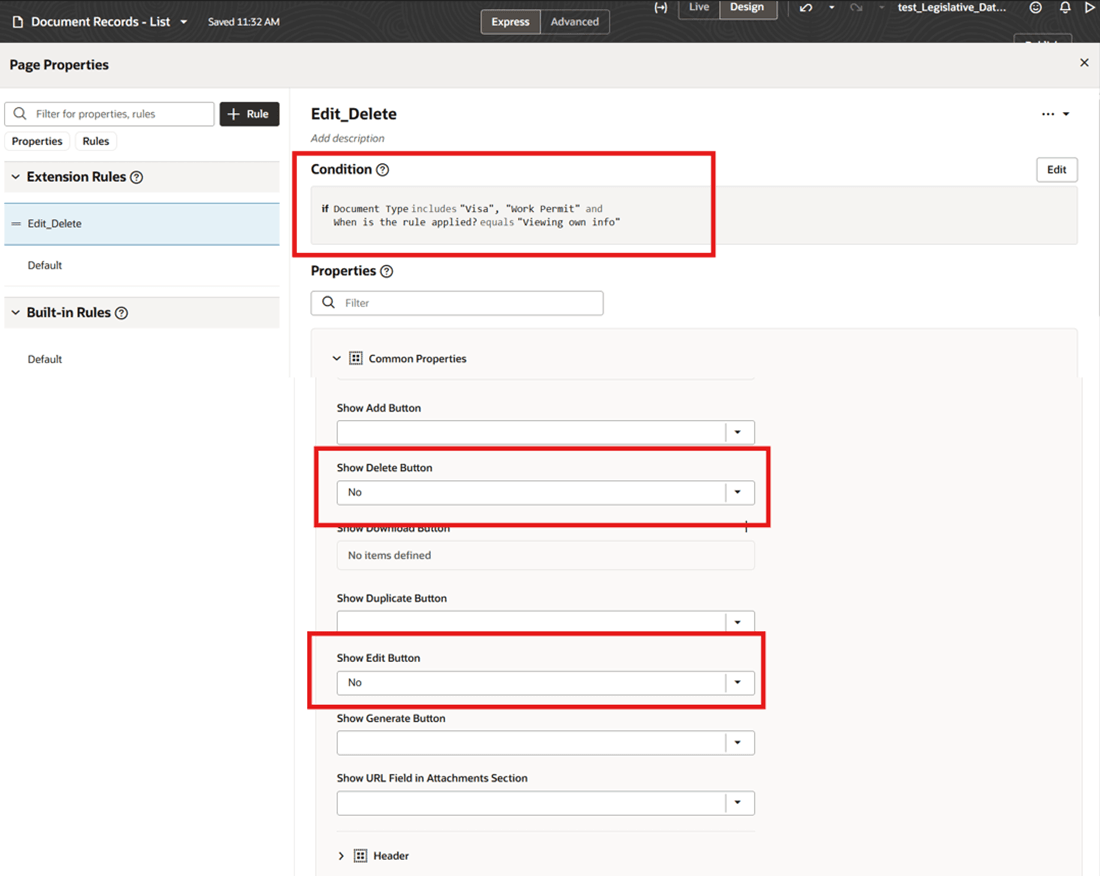
Enabling Page Properties for Edit and Delete Buttons Based on Conditions
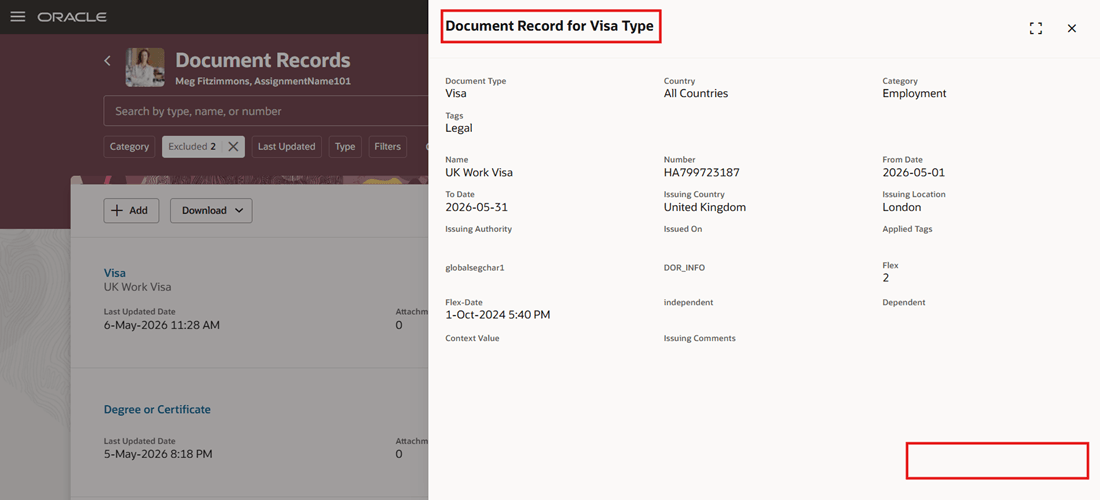
Save and Delete Buttons Hidden for Self For Visa Document Type
This feature helps keep submitted document records as read only for employees with elevated access, so they can't accidentally edit or resubmit them. It also gives HR users the right access while reducing errors.
Steps to enable and configure
For more information about how you configure page properties, see Set Property Values Using Rules.
Key resources
For more information about document records, refer to the Using Global Human Resources guide.
For information about controlling buttons and messages using page properties, see this chapter, Working with Page Properties in the Extending Redwood Applications for HCM and SCM Using Visual Builder Studio guide.