Redwood Experience: Bulk Actions on the Job Requisitions List
You can select multiple requisitions on the Job Requisitions list page and carry out the following actions in bulk.
- Submit Job Requisition
- Change Hiring Team (New)
- Suspend Job Requisition
- Resume Job Requisition
- Open for Sourcing
- Move to Posting
- Link to Pipeline Requisition
- Fill Job Requisition
- Cancel Job Requisition
- Reopen Job Requisition
- Delete Job Requisition
When you perform an action on 10 or fewer requisitions, the action is processed synchronously and you receive a message once the action is complete. When you perform an action on 11 or more requisitions, the action is processed asynchronously as a bulk operation and you receive both a message and a bell notification when processing is complete.
The actions available in the More Actions menu depend on the number of requisitions selected:
- 1 requisition: Only actions that apply to that specific requisition (based on its status) are available.
- 2 requisitions: Only actions that apply to both requisitions are available.
- More than 2 requisitions: All actions are available.
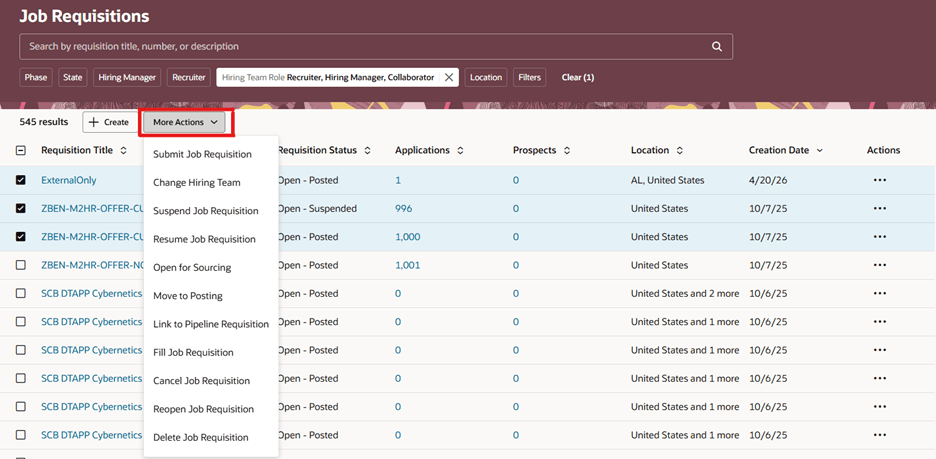
Bulk Actions Available on the Job Requisitions List
New action: Change Hiring Team
Use the Change Hiring Team action to modify the recruiter or hiring manager across multiple requisitions. This is especially useful when a recruiter or hiring manager changes roles, moves to another business unit, or leaves the organization.
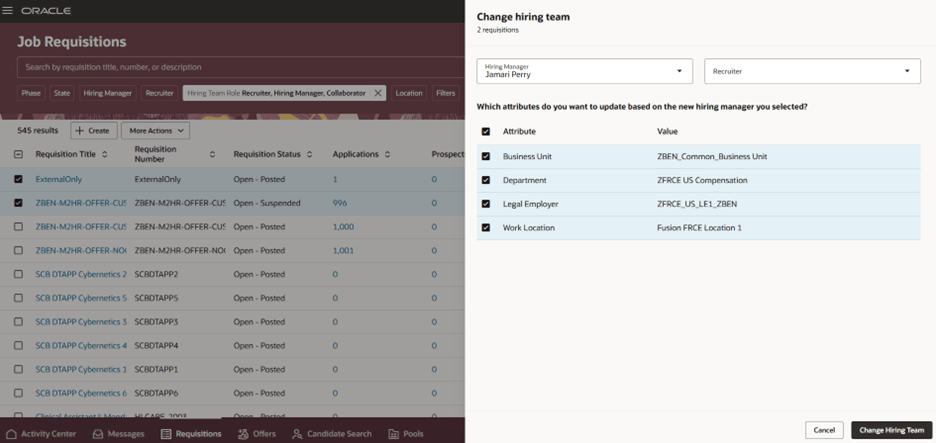
Change Hiring Team Action
Business benefits:
- Increased efficiency and time savings: Performing actions on multiple requisitions at once significantly reduces repetitive manual work.
- Improved operational scalability: Asynchronous processing enables handling large volumes of requisitions without impacting system performance.
- Consistent and streamlined user experience: Standardized bulk actions and error handling provide a predictable and user-friendly workflow.
Steps to enable and configure
By default, the More Actions button is disabled. To enable it, use the page property of the Requisition List Page in Visual Builder Studio.
To use Redwood experience, you need to enable the Recruiting Redwood pages profile options. For details, see Set profile options for Redwood pages.
For details on enabling and customizing Redwood for HCM, see How do I adopt Redwood for HCM? and Extending Redwood Applications for HCM and SCM Using Visual Builder Studio
Tips and considerations
- Some actions may initiate downstream processes, such as candidate dispositioning. For example, the Fill Job Requisition action.
- If a failure occurs, you'll need to address each requisition with an issue individually.
- All bulk actions adhere to existing role-based permissions.