Redwood Experience: Advanced Search for Position Selector
When you select a position from the Position selector, you can now use advanced search features. Start typing in the selector to reveal the More search options link. Click this link to open a drawer panel, where you can apply filters to refine the list of positions. After locating the desired position, select the row and click Select. You’ll return to the job offer creation or edit flow at the point where you opened the drawer panel.
The Position selector is available in the job requisition creation, job offer creation, and job offer edit flows.
For job offers, the Business Unit and Effective Date filters are preselected and can’t be modified in the drawer panel.
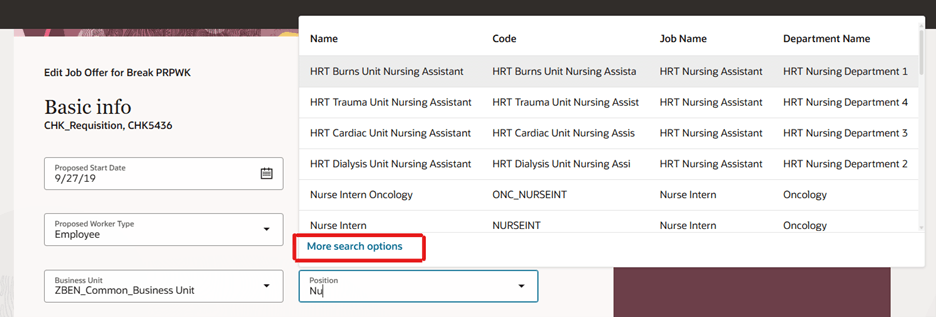
More search options in the Position selector
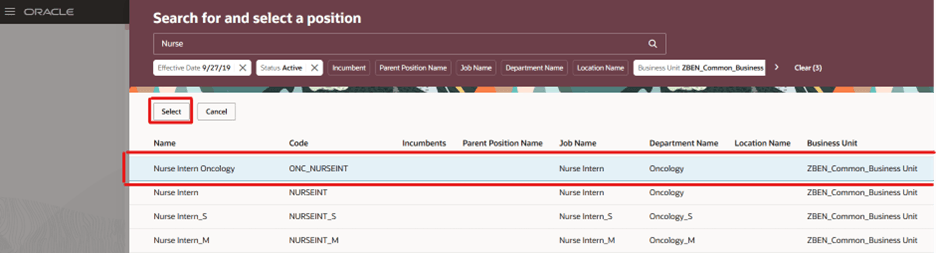
Search for and select a position panel drawer
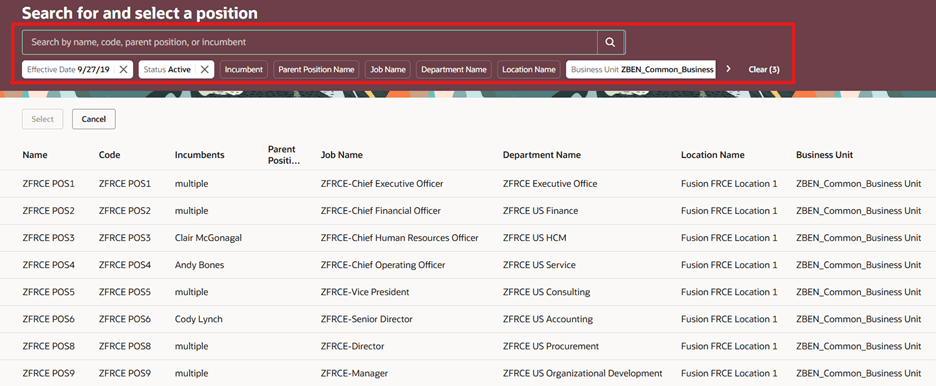
Business Unit and Effective Date filters selected by default
Business benefits:
- Faster and more efficient position selection: Advanced search with multiple filters enables users to quickly narrow down and find the right position, reducing time spent scrolling through long lists.
- Improved accuracy in data selection: Refined filtering helps users select the correct position, minimizing errors that can occur due to similar position names or large datasets.
- Enhanced user experience: The intuitive drawer-based search experience allows users to seamlessly search, filter, and return to their workflow without disruption, making the process more user-friendly.
- Context-aware filtering for better relevance: Pre-selected filters like Business Unit and Effective Date ensure that users only see relevant positions, improving decision-making and maintaining data consistency.
Steps to enable and configure
To enable advanced search in the Position selector, set the site profile value to Y for the ORA_PER_LOV_ADVANCED_SEARCH_ENABLED profile option. For details, see How do I enable a profile option?
To use Redwood experience, you need to enable the Recruiting Redwood pages profile options. For details, see Set profile options for Redwood pages.
For details on enabling and customizing Redwood for HCM, see How do I adopt Redwood for HCM? and Extending Redwood Applications for HCM and SCM Using Visual Builder Studio