Worker Team Schedule View
Use the Redwood Worker Team Schedule page to review your own schedule and relevant coworker schedules from Me > Time. The page gives workers a weekly view of who’s scheduled, who’s absent, and where coworkers are assigned, based on configured staffing departments and schedule visibility rules.
Your own schedule always appears first. Coworker rows appear only when published scheduled shifts are available for the selected week.
As a worker, you can:
- Go to Me > Time > Team Schedule.
- Review your own schedule in the first row of the weekly schedule view.
- See your claimed shifts or work pattern when no published schedule exists for you, depending on what’s available.
- Review your approved and pending absences, public holidays, and unavailability.
- Review coworker rows to see published shifts, approved absences, and public holidays for coworkers visible to you. Coworker rows are sorted alphabetically.
- Use week navigation controls to move to another week. The schedule refreshes for the next week.
- Right-click and select View details when you need more information about a shift.
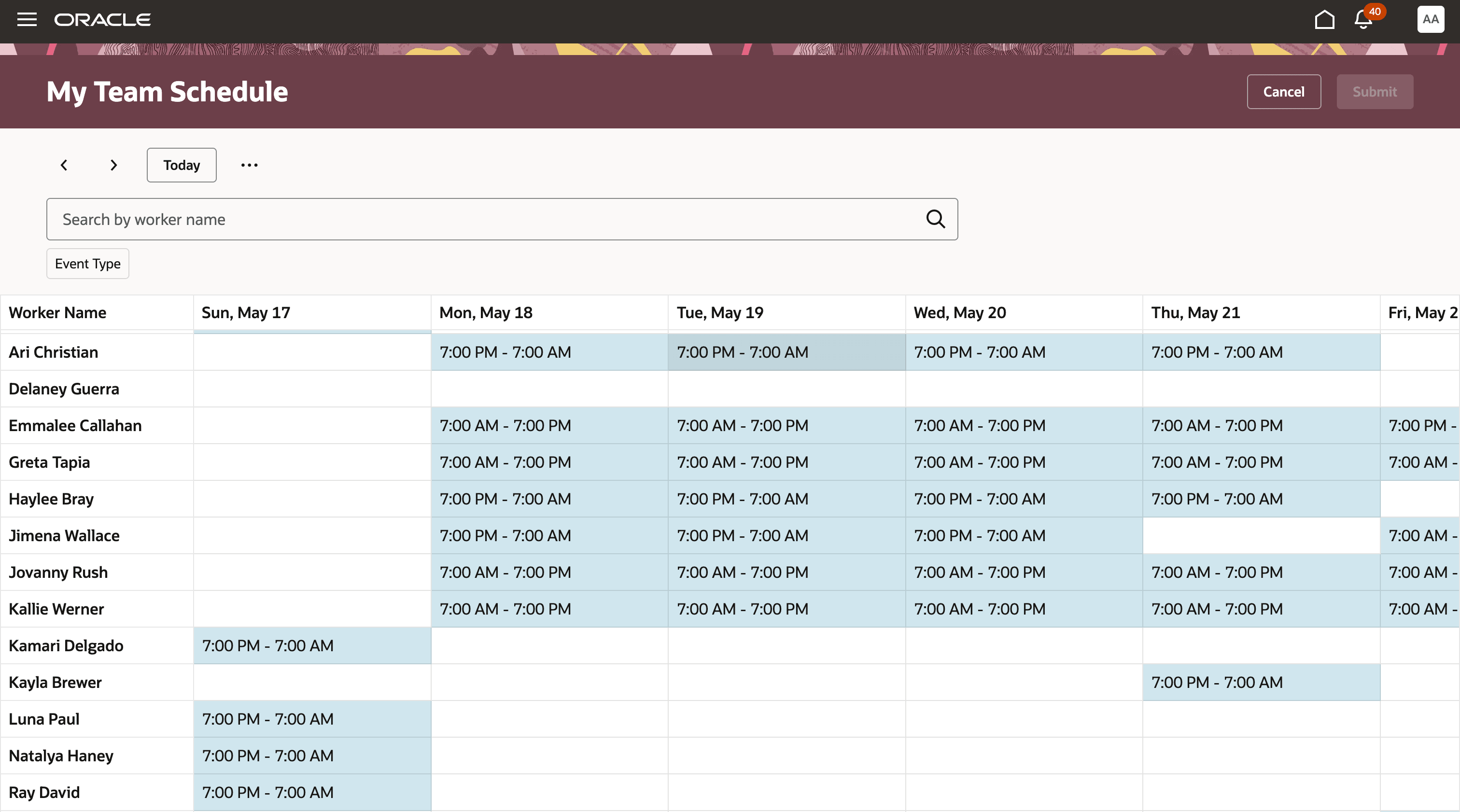
Worker Team Schedule page
Example Scenarios
- A worker planning a shift swap reviews which eligible coworkers have scheduled shifts in the same week before coordinating coverage.
- A worker in a staffing department sees coworker schedules from the same department, or from additional staffing departments when cross-department floating visibility is enabled.
- A worker in a float-enabled staffing department sees published schedules for their home department and the staffing departments included in the applicable schedule generation profiles.
- A worker sees who’s floating in from other units each day, helping them plan handoffs and orient colleagues to the unit’s workflow.
Improve schedule transparency and reduce manual coordination between workers, managers, and schedulers. Workers can make better-informed decisions about shift swaps, coverage, and collaboration while organizations maintain schedule visibility controls through existing scheduling configuration and security.
Steps to enable and configure
- Grant the View Team Schedule by Worker privilege to workers who should access the page.
- Grant the View Public Absences for Co-workers privilege so workers can see coworker absences on the Team Schedule.
- Enable the profile option that routes workers to the new Redwood Team Schedule page.
This profile option is disabled by default. When it’s disabled, workers continue to see the existing ADF Team Schedule page.
- Review your Schedule Generation Profile staffing departments to confirm the visibility model matches your intent.
- The Allow scheduling of floating resources across the following departments checkbox controls cross-department visibility for workers in standard staffing departments.
- When the checkbox is enabled, workers see colleagues across all staffing departments on the Schedule Generation Profile.
- When the checkbox is disabled, workers see only colleagues in their own department.
- Workers whose home department is a floating department always see colleagues across all staffing departments on the Schedule Generation Profile, regardless of the checkbox setting.
Tips and considerations
- A coworker appears on the Team Schedule only if they have a published scheduled shift for the selected week.
- Workers with unpublished schedules, work-pattern-only entries, or no schedule for the selected week don’t appear as coworkers.
- For coworkers, the page shows published shifts, approved absences, and public holidays. It doesn’t show work patterns, pending absences, unavailability, or availability information.
- Coworker approved absences display without exposing the absence type.
- Float pool department (core resource pool) workers can appear when they’re assigned or self-scheduled into a staffing department. But they don’t have team schedule visibility across schedule generation profiles.
- Schedules built using Advanced Workforce Scheduling and Work Patterns can be viewed using the Me > Team Schedules page.
- Legacy schedules can’t be viewed using the Me > Team Schedules page.
Key resources
For more information about workforce scheduling and shift swaps, see these resources:
Access requirements
|
Privilege Name |
Code |
Description |
|
View Public Absences for Co-workers |
ANC_VIEW_PUBLIC_ABSENCES_FOR_CO_WORKERS |
Allows a user to see public absence information for coworkers who are on the same schedule generation profile. |
| View Team Schedule by Worker | HTS_VIEW_TEAM_SCHEDULE_BY_WORKER | Allows workers to view team schedules. |