Redwood Experience for Mass Assignment Changes
The mass assignment change transaction is converted from the classic page to a modern VBCS page, delivering a streamlined user experience with fewer clicks and improved performance. The new page retains all existing functionality and validations, supports create, update, rerun, and delete transactions.
Additionally, the changes made in this page are as follows:
- The mass assignment change transactions created or updated in Redwood can't be updated from the classic UI.
- The Validated column is newly added on the dashboard page. This displays the count of validated workers in the landing page itself.
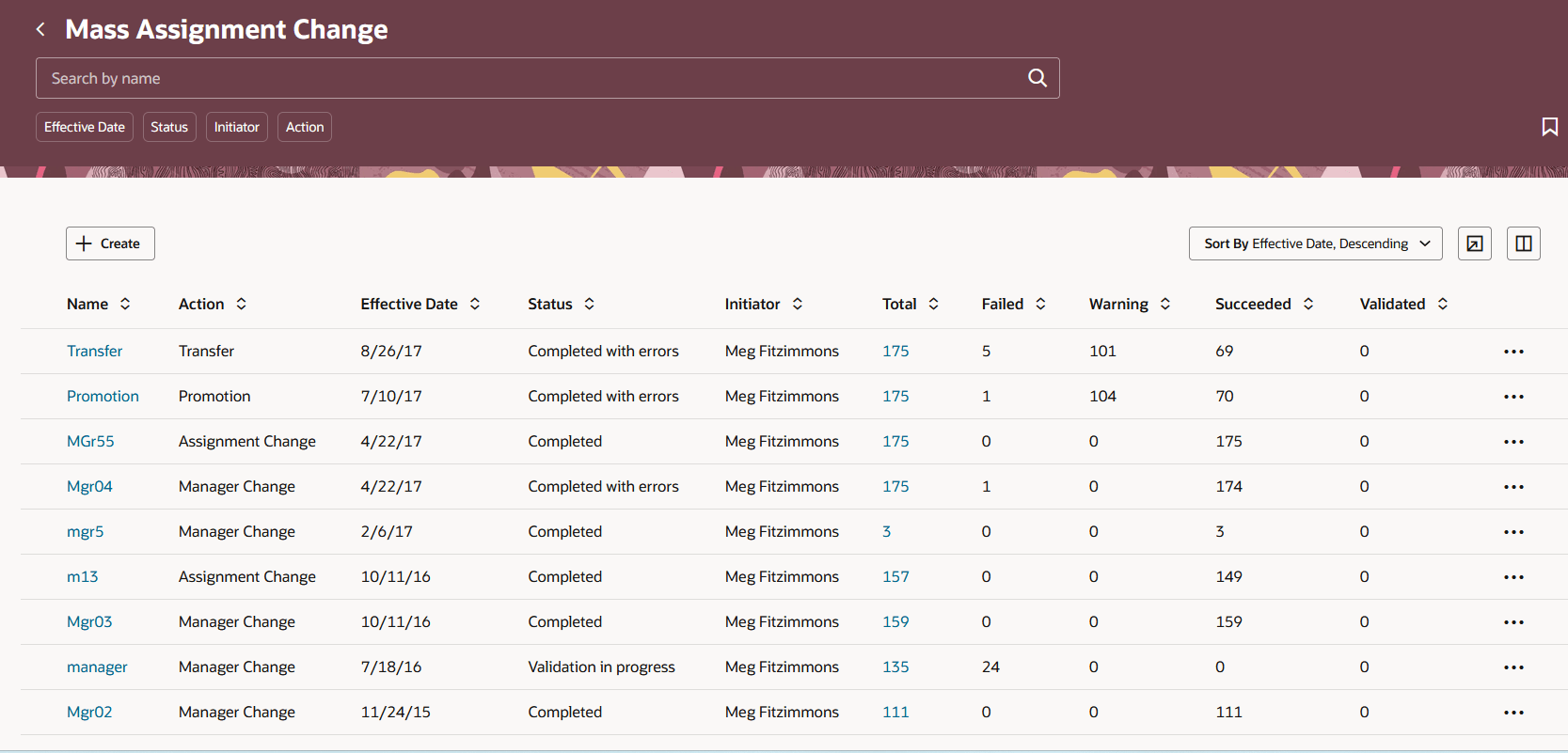
Mass Assignment Change Dashboard
- You can now select the population for which the changes are applicable using any of the following 2 options:
- Add by Criteria - You can add the population using specific criteria such as legal employer, business unit, and so on.
- Add by Assignment Number - You can add the population using specific assignment numbers. To add multiple assignments. you need to separate assignment numbers with a comma without any spaces, for example, E180777,E346777,E667843. You can add only up to 500 assignment numbers.
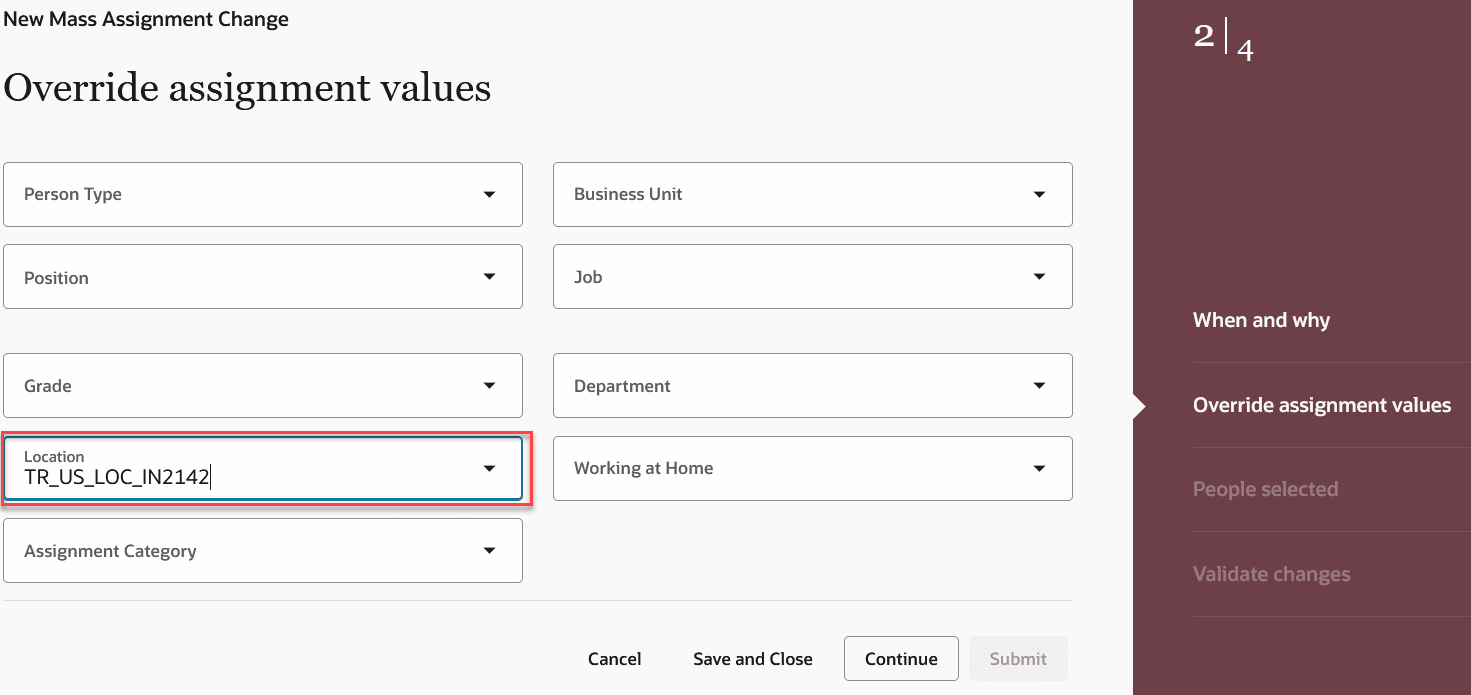
Assignment change to be updated for selected population
Improve user productivity with a modern UI that reduces clicks and enhances performance while maintaining all existing functionality and validations. Increase operational efficiency by supporting create, update, and delete interactions with integrated approval workflows. Simplify user experience through extensive personalization and accessibility compliance, enabling tailored and inclusive workflows.
Steps to enable and configure
To use the Redwood Mass Updates page, you must enable the following profile options.
|
Profile Option |
Site-level Value |
|---|---|
|
ORA_HCM_VBCS_PWA_ENABLED |
Y |
| ORA_PER_EMPL_MASS_ASG_UPDATE_REDWOOD_ENABLED | Yes |
To enable the profile options, navigate to the Setup and Maintenance work area:
- Search for and click the Manage Administrator Profile Values task.
- Search for and select each of the profile options listed above.
- Select the Level as Site.
- In the Profile Value field, update the values to Y and Yes for the above profile options.
- Click Save and Close.
Tips and considerations
- Display of tags for Worker Category and Assignment Category aren't supported in the Redwood Ui.
- Some of the fields available in the classic UI are hidden out-out-of-the-box on the Redwood UI. You need to unhide them in Business Rules
- In the classic UI, users could exclude workers from the mass assignment change by deselecting them after validation. In the Redwood UI, to exclude a worker, select the worker and click Remove on the Validate Changes step before submitting the process.
Key resources
For more information, refer to these topics on the Oracle Help Center:
- Mass Updates in the Using Global Human Resources guide
- Employment Processes in the Using Global Human Resources guide