Enhancements to Assignment Change Assistant with AI Assistance
We have enhanced the Assignment Change Assistant introduced in 26C. In addition to requesting a change, managers and HR specialists can ask the assistant for relevant employment and assignment information before deciding what to update. The assistant also supports a broader set of assignment-change scenarios and data.
- Ask for information. Retrieve relevant current employment and assignment information conversationally before requesting an update.
- Modify supported attributes more flexibly. On the review page, click Request Change to modify the proposed assignment changes. Previously, you could update only manager notes. You can now update all supported assignment attributes, including multiple attributes in one request. You can’t change the selected worker, effective date, or action because changing any of these values resets the transaction.
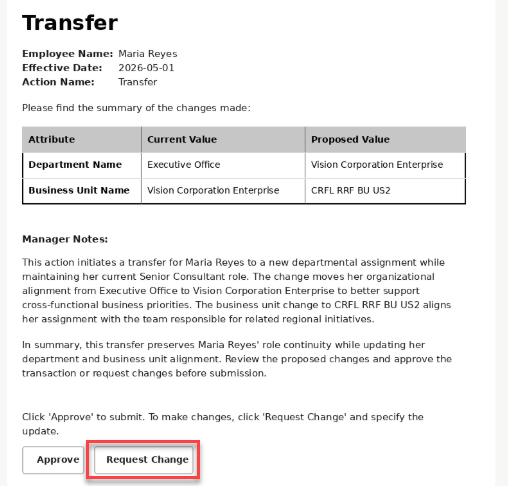
Click Request Change to modify proposed assignment changes
- Supported processes. The following 2 processes - Change Working Hours and Change Manager are now supported.
- Change working hours. Weekly working hours aren’t yet supported.
- Change a worker's manager. This assistant supports line managers only.
- Update salary amount and percentage. Managers or HR specialists can update the worker's salary directly through the agent by specifying either a new salary amount or a percentage increase. This provides flexibility to handle straightforward salary adjustments inline with the agent.
For more detailed or complex salary configurations the changes could be done from the actual quick actions.
- Derive Business Title. Derive the Business Title either based on the selected Job or the Position and include the value in the review summary before submission.
Example Uses
- Ask before acting. Ask for a worker's current manager, job, Business Title, or position before deciding whether to request a change.
- Change a worker's manager. Select David Ross as the worker's new line manager, review the manager change, and submit it through the configured approval process.
- Change working hours. Request a working-hours update for a worker and continue through the flow provided by the assistant.
- Update salary amount with an employment change. Provide a new salary amount and effective date while retaining the worker's existing supported salary basis, currency, and frequency.
- Derive Business Title during a job change. Select a new Job and review the Business Title derived by the assistant before submission.
User Story: Change a Worker's Manager
As a manager or HR specialist, I want to change a worker's line manager through a guided conversation so that I can validate the new manager, review the proposed change, and submit it using the configured approval process.
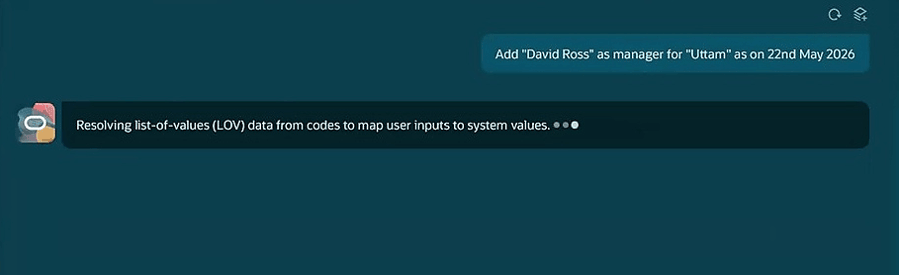
Step1: Request manager change
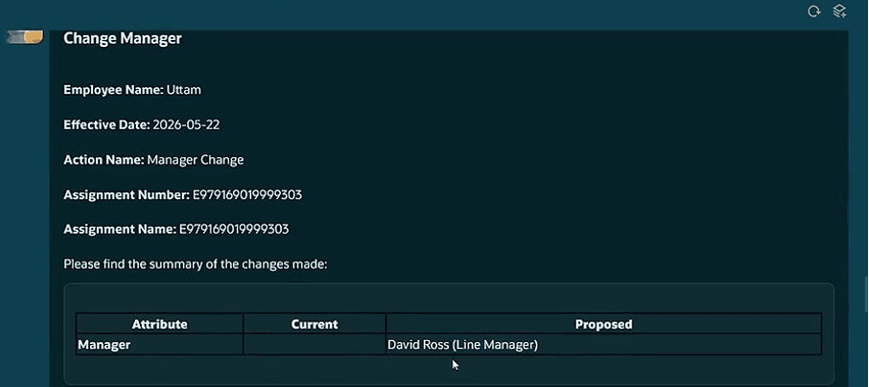
Step 2: Review the manager change

Step 3: Submit the request
The enhanced Assistant goes beyond transaction execution, that is, managers and HR specialists can retrieve relevant information, decide what needs to change, and complete additional supported updates from the same conversational starting point.
- Make better-informed changes. Ask for current worker and assignment information before initiating a transaction.
- Complete more work conversationally. Address manager, working-hours, salary, Business Title, and position-incumbent scenarios from the assistant.
- Reduce repeated entry. Derive Business Title from Job and reuse validated assignment context during the conversation.
Steps to enable and configure
The standalone Assignment Change Assistant delivered in 26C.delivers these features
- Makes the enhanced version of the Assignment Change Assistant (Employment Updates Agent) available as part of your AI Agent configuration.
- Reviews the employment actions and reasons available to users, including the manager and working-hours scenarios that you plan to support.
- Ensures that managers and HR specialists have their existing worker, assignment, and applicable salary data access.
- Validates information requests, manager changes, working-hours requests, salary updates, Business Title derivation, and position-related scenarios in a nonproduction environment.
No additional profile option is required to enable the assistant. Continue to use the environment, AI Agent Studio, permission-group, and security configuration required for the 26C feature. The assistant doesn't require additional data migration or changes to existing security profiles or personalizations.
- Your environment must have certain necessary configurations. Ask your help desk to contact Oracle Support, who can verify what your environment has and address any gaps. For more information, see FAQ2521 on My Oracle Cloud Support.
- Set the Enable Security Console External Application Integration (ORA_ASE_SAS_INTEGRATION_ENABLED) profile option to Yes, and enable permission groups for the appropriate roles. See Access Requirements for AI Agent Studio.
-
To learn how to set up AI agents, see Create AI Agents Using Preconfigured Agent Team Templates.
You need to configure security to use this feature. See the Access Requirements section.
Key resources
For the capabilities delivered in 26C, see AI Agent Support for Change Assignment Processes.
You can also refer to these resources on the Oracle Help Center:
Access requirements
Users require the existing security needed to access the relevant worker records and perform the applicable employment and assignment actions. Managers can use the assistant for workers within their access scope, and HR specialists can use it for workers within their assigned data security scope. Users who update salary also require the existing privilege and data access needed to create a salary change. The assistant doesn't require changes to existing security profiles or personalizations.
The agents you can view depend on the roles and privileges assigned to you. To access this agent, your role must be explicitly granted access to it by an AI Studio Administrator. See How can I give users access to AI agents and Access Requirements for AI Agent Studio.