Video Closed Captions Support
For self-paced learning that includes video files with closed captions, learners can turn captions on or off using the CC button in Redwood Media Player.
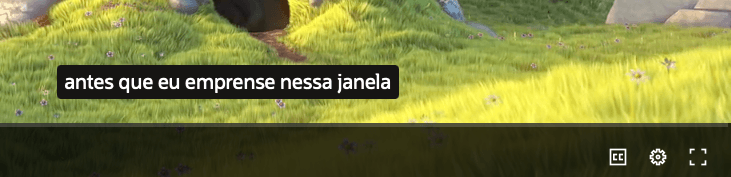
CC Button in the Redwood Media Player and Video Showing a Caption
Business benefit:
Help organizations meet accessibility goals and support more inclusive learning experiences by providing closed captions for self-paced video learning when caption content is available.
Steps to enable and configure
For MP4 videos uploaded from 26B onward that include SRT captions, no action is needed.
For MP4 videos uploaded before 26B, learning specialists need to process existing video content again:
- Open the self-paced learning that contains the MP4 video.
- Use the Process Content action to transcode the video again.
- After processing completes, captions are available if the MP4 includes SRT captions and the Redwood media player is enabled.
If you haven't already enabled the Redwood media player, see release 26A What's New: Redwood Rich Media Player
Tips and considerations
- Closed captions require the Redwood media player.
- The CC button appears only when captions are available for the video.
- There's no configuration option to disable captions when caption content is available.
Key resources
How to enable the Redwood media player.