Save and Categorize Email Attachments Manually
Recruiters can save email attachments received from external and internal candidates directly to the appropriate candidate profile or job application, without having to navigate to these contexts to upload them. The attachment can be classified by attachment type at the time of saving, helping keep candidate documents organized and accessible in the relevant context.
Recruiters can use this feature to:
- Save an incoming email attachment to a candidate profile when the email has no job application context. Save it to a job application when the email has a job application context.
- While saving, categorize the attachment based on predefined, active document types such as resume, passport, driving license and so on.
- Verify where the attachment was saved and its selected attachment type.
- Prevent duplicate saving of an attachment after it has been saved. Any changes made to the saved copy won’t affect the original attachment in the email.
Try it out
- Open the attachment preview for a candidate email.
- Select Actions. If the email is related to a submission profile, you’ll see a Save to Job Application option. If it’s related to a candidate profile, event, prospect, or pool context, you’ll see a Save to Candidate Profile option.
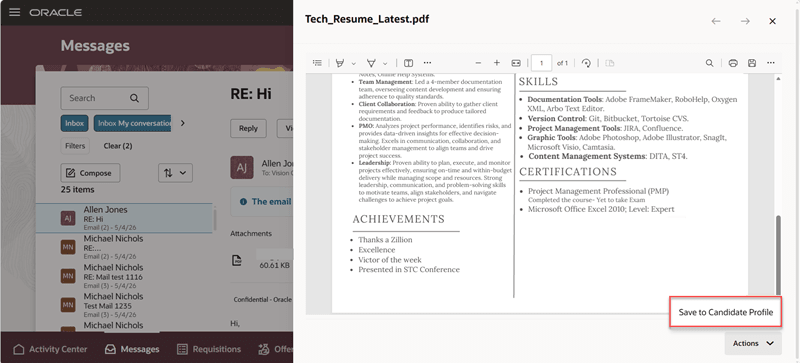
Save attachment to candidate profile
- Select an attachment type and then save it. If you don’t select a category while saving an attachment, it’s set to Miscellaneous by default, ensuring that all attachments have a valid classification.
- Review the confirmation message in the attachment preview.
- Go to the associated candidate profile page (Details tab) or job application page (Overview tab) to check whether the attachment is saved. An attachment that’s saved to a job application context won’t appear on the candidate profile page. Likewise, an attachment that's in a candidate profile won’t appear on the job application page.
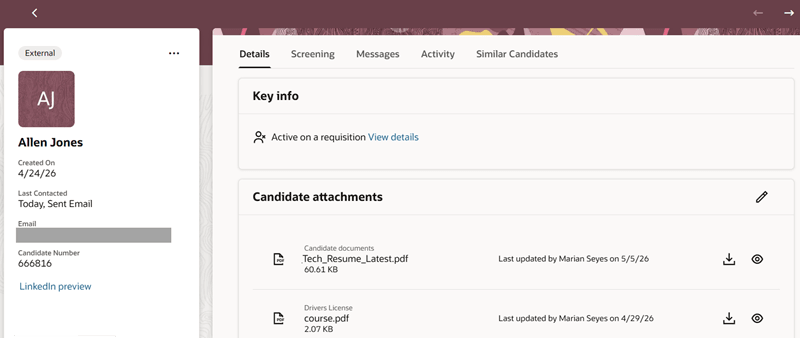
Attachment saved to the candidate profile page
Business benefit: This feature reduces manual effort by saving attachments to the correct candidate profile or job application, without having to navigate to these contexts to upload them.
Steps to enable and configure
To use this feature, complete these prerequisites:
- Enable two-way email communications.
- Enable email attachments.
- (Optional) A set of default document types is available. You can set up more document types and make them active. To do this, go to Setup and Maintenance > Recruiting and Candidate Experience > Recruiting and Candidate Experience Management > Enterprise Recruiting and Candidate Experience Information > Document Types.
Key resources
Refer to the 26C What's New feature, Categorize and Save Email Attachments Using AI Agent.
Access requirements
To save an attachment to a job application, the recruiter must have the Append Job Application Privilege. The job application must be active and not in the HR phase.