Identify Inappropriate Content in Recruiting Messages
Recruiting messaging uses the Recruiting Inbox Screening Agent to scan inbound candidate messages for abusive or inappropriate content in email, SMS, and WhatsApp messages. The agent uses intent-based detection to distinguish harmful content from ordinary criticism or frustration and protects recruiters by masking flagged message text when appropriate.
Key features are:
- Screens candidate message text for abusive, inappropriate, racist, threatening, harassing, sexual, violent, illegal, or profane content.
- Enables users with the IRC_VIEW_INAPPROPRIATE_MESSAGE_CONTENT_PRIV privilege to view unmasked, offensive content. Displays masked content for users without this privilege.
- Shows message-level indicators and banners for affected messages and conversations.
- Tags candidates with an administrator-selected label when inappropriate content is identified in at least 1 message.
- Allows authorized users to mark a message as inoffensive. When all messages from a candidate are marked inoffensive, the candidate tag is removed.
- Prevents inappropriate messages from continuing to the Career Coach Agent (for SMS and WhatsApp) and Inbox Response Agent (for emails).
- Notifies the hiring team only when messages don’t contain offensive content.
- Disables AI assist and summary generation for offensive messages.
- Identifies offensive content in candidate replies to outreach emails and closes the outreach interaction with an appropriate note.
Try it out
- Review candidate messages in Message Center or on the Messages tab. You can view the candidate tag, message indicators, and banners when the Inbox Screening Agent identifies inappropriate content.
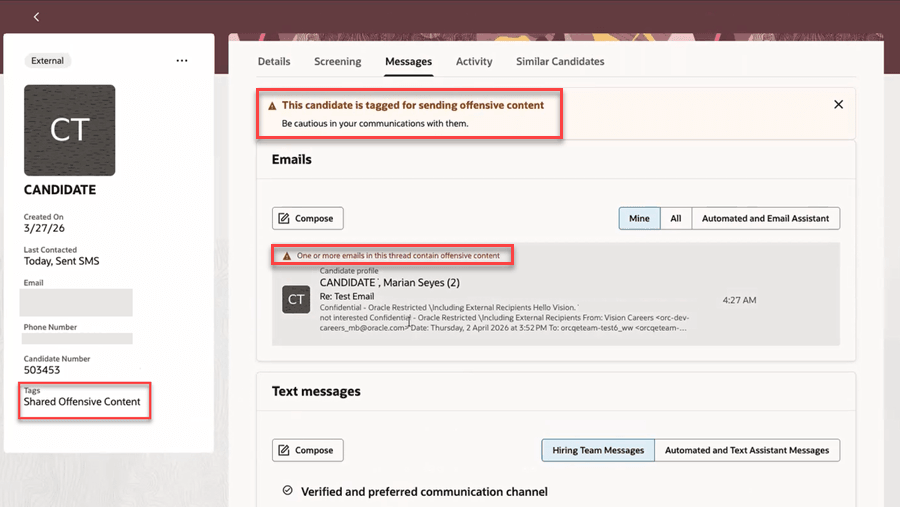
Offensive message markers on the candidate profile page
- Change the offensive marker if you think the message is appropriate. Open the SMS, email, or WhatsApp message and select Mark as Not Offensive.
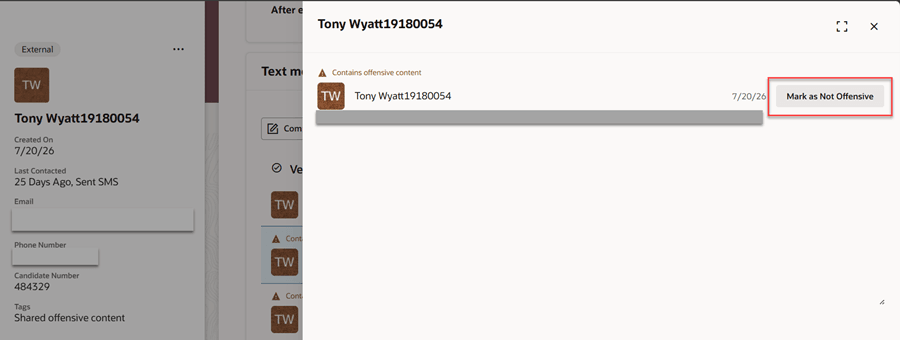
Mark message as inoffensive
- If a candidate stops sending offensive messages, you can remove their candidate tag by using the Edit tag option on the ellipsis menu of the candidate profile page.
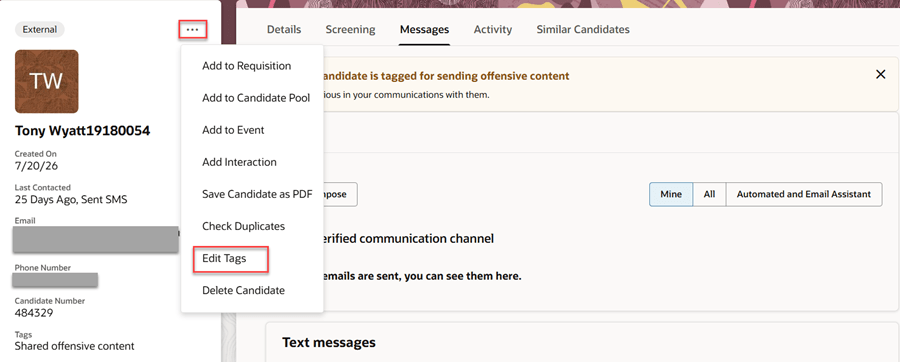
Edit Tags option on the candidate profile page
Business benefit: This capability helps protect recruiting teams from exposure to harmful candidate communications while preserving controlled access for authorized users. It also improves visibility for administrators and helps prevent inappropriate content from flowing into agent processing and hiring team notifications.
Steps to enable and configure
Prerequisites
- Enable at least one of the following channels:
- Two-way communications for email
- Two-way communications for SMS
- Go to Setup and Maintenance > Recruiting and Candidate Experience > Recruiting and Candidate Experience Management and define candidate labels using the Manage Recruiting Labels task.
- Prerequisites for using AI Agent Studio:
- Your environment must have the appropriate services for Oracle Applications Platform deployed. For more information, see FAQ2521 on My Oracle Cloud Support.
- Enable permission groups for the appropriate roles. See Access Requirements for AI Agent Studio.
Steps to enable and configure
The Recruiting Inbox Screening Agent is a delivered workflow agent in Oracle AI Agent Studio and can’t be configured. It’s parent workflow, Recruiting Inbox Screening Agent Scheduler, can be configured by adding a schedule.
Schedule the agent
- On the Workflows tab in AI Agent Studio, search for the Recruiting Inbox Screening Agent Scheduler and create a duplicate.
- Select the Settings menu icon.
- Select Triggers > Schedule.
- Add a schedule as required. Select the schedule type as Interval. We recommend running the agent at least every 5 minutes.
Enable the agent
- Go to Setup and Maintenance > Recruiting and Candidate Experience > Recruiting and Candidate Experience Management > Recruiting Messaging Configuration.
- In the Agent Settings section, enable the inbox screening agent.
- Select a candidate label to tag candidates who send offensive messages.
- Save the configuration.
If you disable the Inbox Screening Agent, any previously marked offensive messages will retain their offensive tag. Only new messages won’t be screened.
Optional configuration:
The Reply button is automatically enabled for offensive messages. To hide it, use the Visual Builder Studio page property, enableReplyForOffensiveMessages. This property separately controls the display of the Reply buttons in these page categories:
- Message Center
- Candidate, event, pool, and prospect contexts
- Job application details
Key resources
- How do I explore and use published AI agents and applications in Oracle Fusion Cloud Applications?
- How do I use AI Agent Studio?
- Choose How to Create Workflows and Agentic Applications
Access requirements
- The agents you can view depend on the roles and privileges assigned to you. To access the Recruiting Inbox Screening Agent Scheduler, your role must be explicitly granted access to it by an AI Studio Administrator. See How can I give users access to AI agents and agentic applications and Access Requirements for AI Agent Studio.
- To schedule the agent, the administrator needs to have the ORA_HCM_IRC_RECRUITING_SCHEDULED_WF_AGENT_ACCESS privilege.
- By default, recruiting manager users have the View Inappropriate Message Content (IRC_VIEW_INAPPROPRIATE_MESSAGE_CONTENT_PRIV) privilege, which enables them to view unmasked message content.