Career Coach Enhancements: Use Text Assistant for WhatsApp Messages
Recruiting organizations can extend Career Coach conversations to WhatsApp through the Text Assistant, in addition to SMS. Separate channels are available for recruiter-led conversations and text assistant responses.
Candidates can:
- Receive job recommendations, get job fit assessments, get support for interview scheduling and preparation, submit job applications, and get answers to questions related to offers, job posting and common questions on company policies.
- Perform self-service activities such as checking their application status, withdrawing their application, and adding or updating talent community preferences.
Recruiters can:
- View hiring-team conversations separately from automated and text assistant conversations in the Messages tab and Message Center when the text assistant is enabled.
- Continue recruiter and hiring-team conversations through the Hiring Team Messages channel.
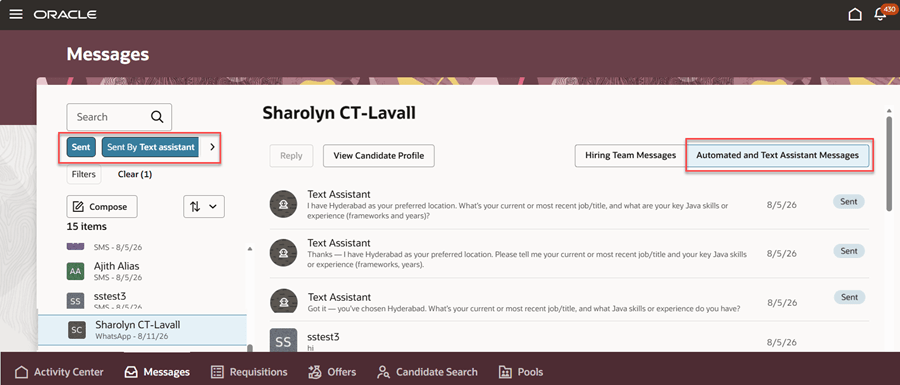
View WhatsApp responses sent by the Career Coach agent
Business benefit: Candidates can engage with the Career Coach through WhatsApp for convenient, timely assistance throughout the recruiting process. Separate channels for Text Assistant and hiring-team conversations also make messages easier to distinguish and manage.
Steps to enable and configure
Prerequisites:
Enable Career Coach for career sites. For details, see Enable AI Agent for Career Sites (MOS KB873870).
Steps to enable and configure
- Go to Setup and Maintenance > Recruiting and Candidate Experience > Recruiting and Candidate Experience Management > Recruiting Messaging Configuration.
- Define daily message limits for WhatsApp and Text Assistant messages. Text Assistant limits apply to both SMS and WhatsApp. If you've enabled SMS, enter a number that'll account for usage across both channels.
- In the Text Assistant section, confirm that the agent team code is ORA_CAREER_COACH. If you’re using a custom agent, set its agent team code.
- In the WhatsApp Messaging Providers section:
- Add a messaging provider for the Text Assistant.
- Enable the text assistant.
- Configure two distinct WhatsApp channels:
- Hiring team messages for person-to-person communication.
- Automated messages and text assistant messages for automated and Career Coach conversations.
For details, see Adding a WhatsApp Messaging Service Provider.
- (Optional) In the Additional Communication Settings section, enable visitors to send messages. Visitor messages are processed by the Text Assistant and displayed in Message Center.
- Configure the provider webhook. The Text Assistant responds to incoming messages processed only through webhook. For details, see Webhook Configuration for WhatsApp Messaging Providers.
- (Optional) Configure these profile options:
- IRC_TEXT_AGENT_MAX_RESPONSE_TIME
- RA_IRC_TEXT_AGENT_ACTIVE_SESSION
For details on the above steps, see Workflow to Set Up the Text Assistant.
Key resources
Refer to the 26B What's New feature, Career Coach Enhancements: Text Assistant Support.
Access requirements
The agents you can view depend on the roles and privileges assigned to you. To access the Career Coach agent, your role must be explicitly granted access to it by an AI Studio Administrator. See How can I give users access to AI agents and Access Requirements for AI Agent Studio.
To use the Text Assistant, add the privilege IRC_REST_SERVICE_ACCESS_INBOUND_SMS_WEBHOOK_PRIV privilege to the webhook user role.