Track Topics and Questions During Zoom Interviews
Use Interview Companion during Zoom interviews to track generated discussion topics and view suggested follow-up questions as the conversation progresses.
Use this feature to:
- View topics generated from job requisition details and interview guidelines.
- See whether each topic is Not discussed, Being Discussed, or Discussed.
- Open suggested questions on demand to view context-aware follow-up questions.
Try it out
- Open Interview Companion for a scheduled Zoom interview.
- Review recommended topics to see the discussion status for each topic.
- Open suggested questions when you need relevant follow-up questions.
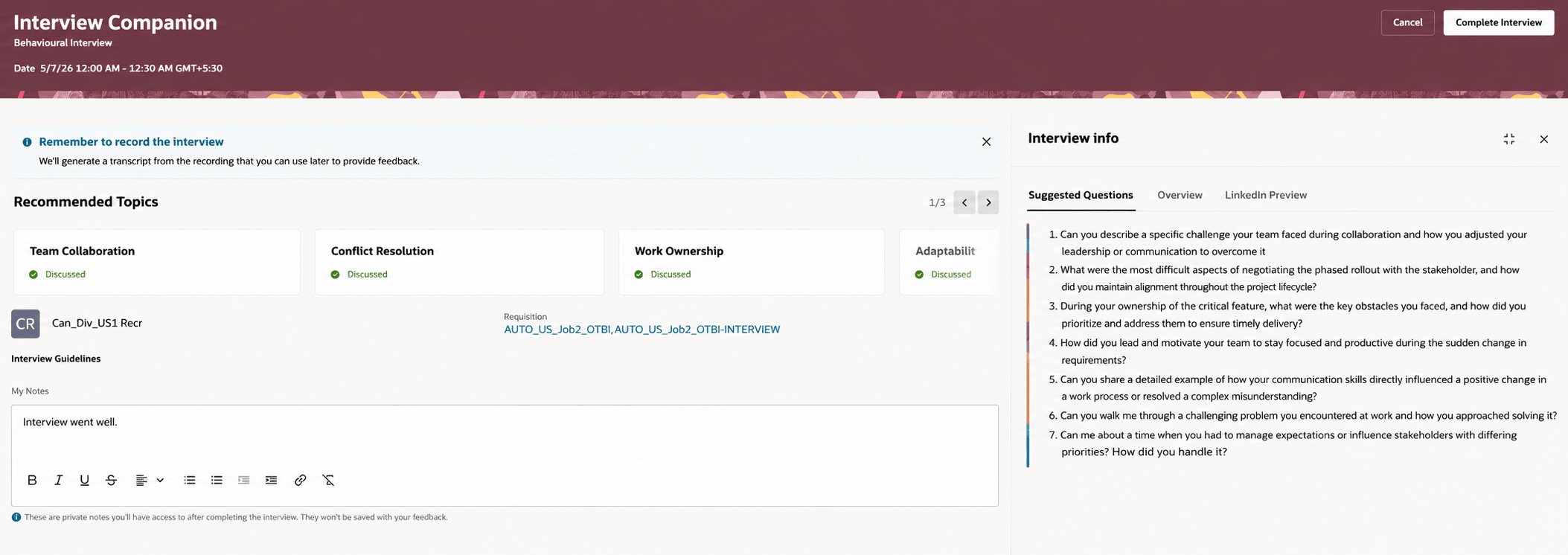
Recommended topics and suggested questions for an interview
Business benefit: Help interviewers conduct more structured and consistent interviews by providing real-time AI guidance, tracking interview coverage as topics are discussed, and recommending context-aware follow-up questions based on the live conversation. These enhancements reduce manual note-taking and help ensure important job requirements are covered during the interview.
Steps to enable and configure
To use this feature, complete these prerequisites:
- Opt in to Recruiting Booster.
- Enable and configure the Zoom integration for Oracle Recruiting.
To enable the feature:
1. Configure the Zoom integration app.
a) Subscribe to events by selecting the Webhook method and add these events:
- Start Meeting
- End Meeting
- RTMS started in Meeting
- RTMS stopped in Meeting
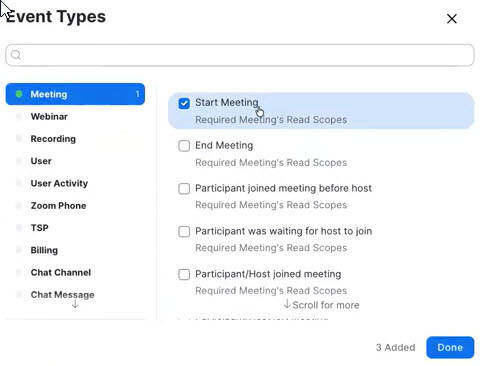
Configuring events in the Zoom app
2. In the Zoom app’s Event Subscription section:
a) Select Webhook and create an RTMS subscription.
b) Set the Event notification endpoint URL to: https://<host>/hcmRestApi/recruiting/rtmsWebhook/zoom
c) Configure either Basic Authentication or Token Authentication. The Oracle user or token used for authentication must have the IRC_REST_SERVICE_ACCESS_INTERVIEW_RTMS_WEBHOOK_PRIV privilege.
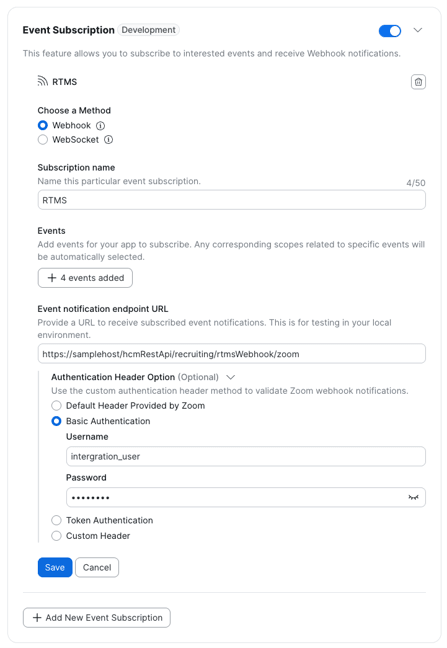
Event subscription in the Zoom app
3. Add the meeting:read:meeting_transcript scope. Adding this scope also add the meeting:read:meeting_audio scope.
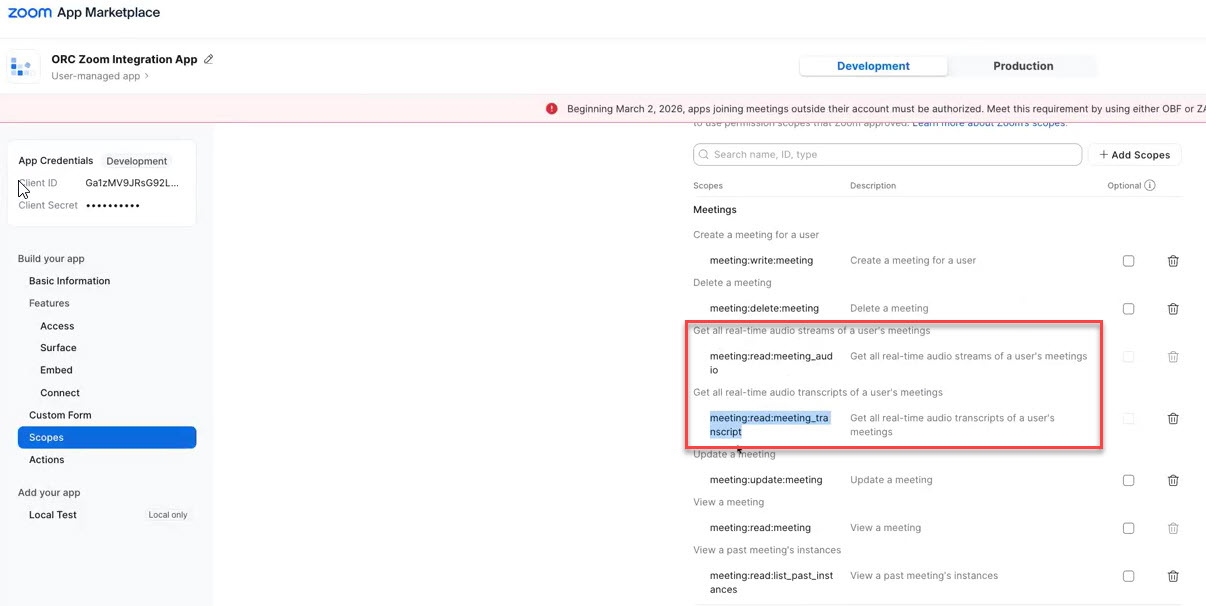
Configuring scopes in the Zoom app
4. Enable interview companion and real-time meeting streaming.
a) Go to Setup and Maintenance > Recruiting and Candidate Experience > Recruiting and Candidate Experience Management> Enterprise Recruiting and Candidate Experience Information > Interview Intelligence.
b) Enable interview companion.
c) Enable real-time meeting streaming to generate discussion topics and suggested questions.
d) Enter the number of words that must be spoken for the agent to be invoked. For example, if you enter 200, the agent is invoked every 200 words that are spoken. Default is 50 words. It’s important to enter a meaningful number to invoke the agent
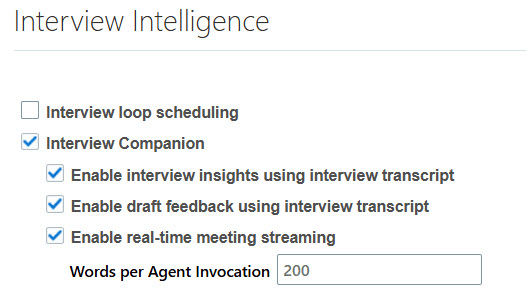
Interview Companion configuration in Setup and Maintenance
5. Schedule the Generate Interview Topics Job scheduled process using a user account that has access to all relevant requisitions and associated interview data. The process can generate topics only for interviews and requisitions that the submitting user is authorized to access.
a) Go to Navigator > Tools > Scheduled Processes > Schedule New Process.
- b) In Hours Before Interview to Generate Topics, enter how many hours before an interview topics and questions should be generated. For example, enter 24 to generate them 24 hours before scheduled interviews start.
6. Configure the Interview Insight Generator AI agent
- a) Go to Navigator > Tools > AI Agent Studio
b) The trigger for this agent is a schedule that runs every 15 minutes, between 9 am and 9 pm. You can configure the schedule as needed.
Key resources
Redwood Experience: Interview Companion