Send Attachments with Email Notification Templates
Recruiters can include attachments associated with Recruiting Notification Library templates when sending emails using the Compose and Send Message actions. Attachments are included in automated notifications as well, if the notification template contains them.
Use this feature to:
- Upload attachments to a content item in a notification template that has an email section. To do this, use the Recruiting Notification Library task in the Redwood experience.
- While composing a message using the Messages tab, Message Center, and list views, view the attachments associated with the selected notification template.
- Review, download, and preview attachments before sending a message. You can also upload your own attachments to the message.
- Remove an attachment associated with a notification template from the Compose or Send Message window, if you have the necessary privilege.
Try it out
- In the Compose or Send Message action, select a notification template that has attachments.
- Review the populated attachments and add attachments as needed before sending the message.
- Download or preview attachments.
- Send the message. The total size of the email content and all attachments must comply with the Maximum size of an email in MB setting in the Recruiting Messaging Configuration task.
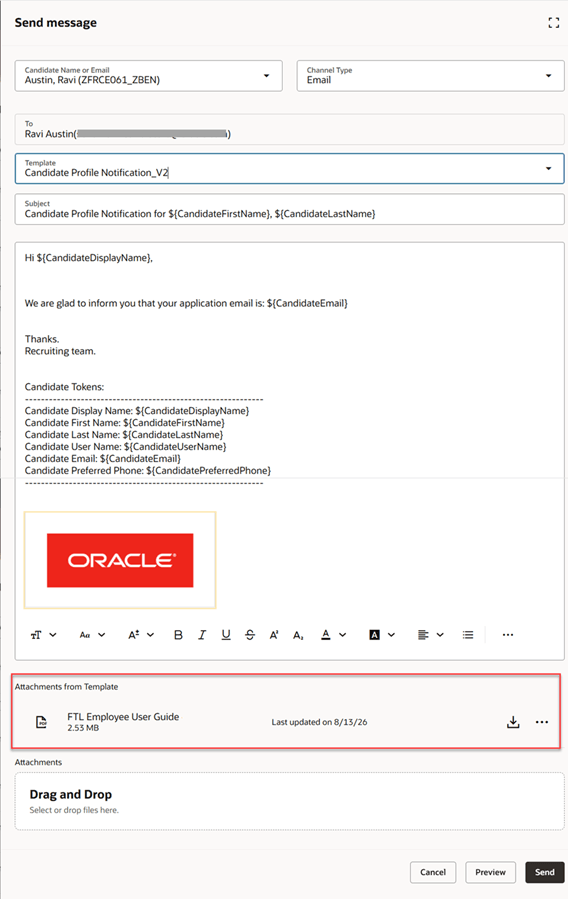
Template attachments available while composing a message
Business benefit: Recruiters can save time and ensure consistent communication by using attachments already included in notification templates.
Steps to enable and configure
Prerequisites
Notification templates must contain attachments. To upload attachments, use the Recruiting Notification Library task in the Redwood experience. For details, refer to the 26D What’s New, Manage candidate notification content in a dedicated Recruiting Notification Library.
Key resources
Access requirements
To remove attachments that came from a notification template, recruiters need the IRC_UPDATE_EMAIL_CREATED_FROM_TEMPLATE_PRIV privilege.