Manage Candidate Notification Content in a Dedicated Recruiting Notification Library
Recruiting administrators can manage candidate notification content in a dedicated Recruiting Notification Library. The library contains notification templates such as Candidate Job Application Notification, Candidate Opt-out Notification, Interview Canceled Notification.
When the Redwood experience is enabled, the Recruiting Notification Library provides improved tools to create and manage notification content such as:
- Create and manage notification content items.
- Search, filter, and sort notification content items.
- Edit, activate, deactivate, copy, and translate content items.
- Create and manage versions of notification content.
- Preview, copy, and activate versions of notification content.
- Add attachments to email notifications and insert supported tokens into message content. For details, refer to this 26D What's New feature Send attachments with email notification templates.
Try it out
- In Setup and Maintenance, open Recruiting and Candidate Experience Management.
- Select Recruiting Notification Library.
- Create a content item, then select the notification category and visibility and enter the message content.
- Save the item as a draft, or save and activate it.
- Open an existing content item to manage its versions.
Important Note: The existing Recruiting Content Library continues to contain both notification and non-notification templates and isn't available in the Redwood experience. It's recommended that you use the Redwood Recruiting Notification Library to manage notification content. Changes that you make to notification content in the Recruiting Content Library aren't reflected in the Recruiting Notification Library.
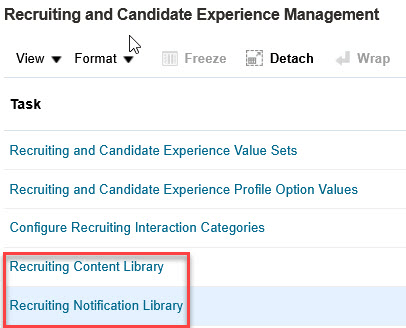
Recruiting libraries in Setup and Maintenance area
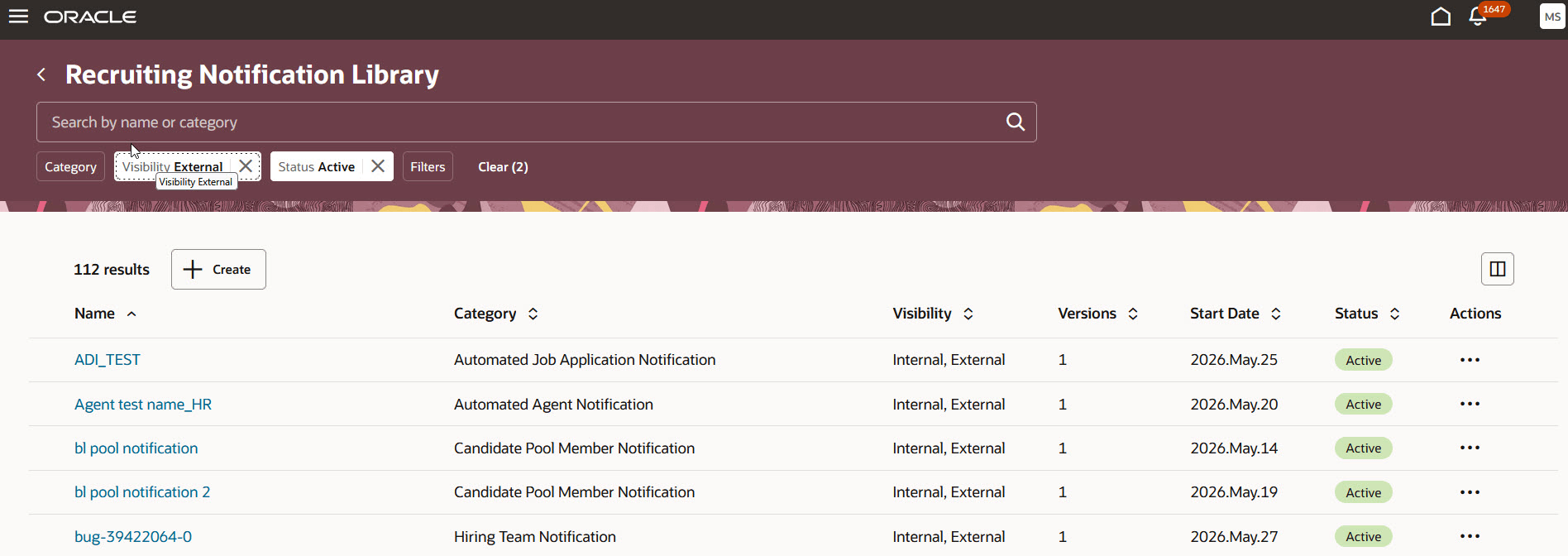
Redwood Recruiting Notification Library
Business benefit: Improves the administration of candidate communications by providing a dedicated Redwood experience for managing notification content.
Steps to enable and configure
- Set the ORA_IRC_CONTENT_AND_NOTIFICATION_LIBRARY_REDWOOD_ENABLED profile option to Y to use the Redwood Recruiting Notification Library. When the profile option is set to N (default value), the Recruiting Notification Library will be displayed in the responsive user interface.
Go to Setup and Maintenance > Search > Manage Administrator Profile Values.
2. (Optional) Enable the “Starts with” search in the Recruiting Notification Library by setting these profile options to Y:
- ORA_IRC_LOV_SEARCH_NOTIF_LIBRARY_CATEGORY_STARTSWITH: Enables “Starts with” to search for notification categories.
- ORA_IRC_LOV_SEARCH_NOTIF_LIBRARY_TOKEN_STARTSWITH: Enables “Starts with” to search for tokens.
3. Configure the maximum email size, including their attachments.
Go to Setup and Maintenance > Recruiting and Candidate Experience > Recruiting and Candidate Experience Management > Recruiting Messaging Configuration > Additional Email Settings.
Tips and considerations
- If you enable the Redwood experience, review your notification content to ensure that it continues to work as expected. Oracle recommends that you also use the Redwood experience for the Send Message and Compose pages.
- After you enable the Redwood experience, don't use the responsive user interface to modify notification content.
Access requirements
Users need the Manage Recruiting Notification Library (IRC_MANAGE_RECRUITING_NOTIFICATIONS_LIBRARY_PRIV) privilege to manage content in the Recruiting Notification Library. The Recruiting Administrator role includes this privilege along with the Manage Recruiting Content Library (IRC_MANAGE_RECRUITING_CONTENT_LIBRARY_PRIV) privilege.
See How can I give users access to AI agents and Access Requirements for AI Agent Studio.