Configure Offer Letter Options
Administrators can configure the Offer letter section of the Redwood create offer and edit offer flows to control how offer letter options are presented to recruiters. Using Visual Builder Studio business rules, administrators can determine whether specific offer letter options are displayed and set their default selected or cleared state.
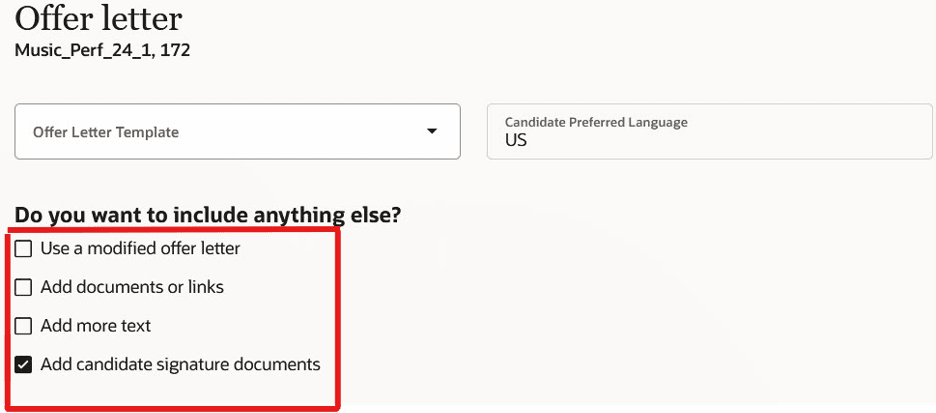
Options in the Offer letter section
Business benefit: Simplify and standardize offer creation by displaying only relevant offer letter options and providing appropriate default selections, reducing manual effort for recruiters.
Steps to enable and configure
- In Visual Builder Studio, go to Hiring > Create and Edit Offer.
- Expand the Offer letter section.
- Select the checkbox to configure.
- Configure its behavior:
- Set it to Hidden to remove the option and its label.
- Set it to Read Only to display the option without allowing changes.
- Set it to Selected by Default to select the option when the Offer letter section opens.
- Repeat the configuration for other checkboxes as needed, then test and publish the Visual Builder Studio changes.
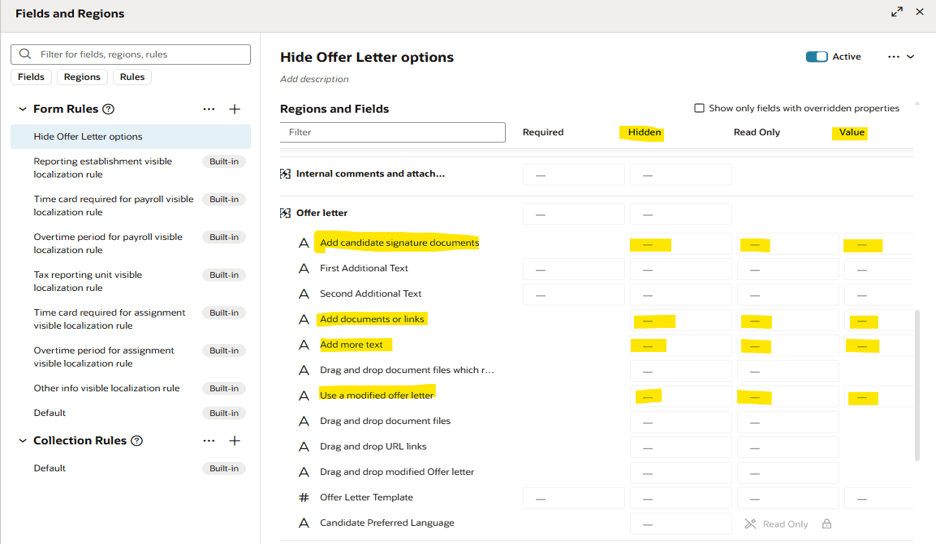
Offer letter configuration in Visual Builder Studio
Access requirements
The Use a modified offer letter option remains available only to users with the required privilege to update candidate job offer letters.