Manager Assigns Performance and Development Goals in Team Activity Center
As managers, use the Team Activity Center to assign performance or development goals to your team members. Filter and select the members to who you want to assign the goals and from the Team Actions menu, select Assign Performance Goal or Assign Development Goal. You can filter the listed team members by criteria such as direct reports or indirect reports, job, location, department, assignment status, worker type, and manager type.
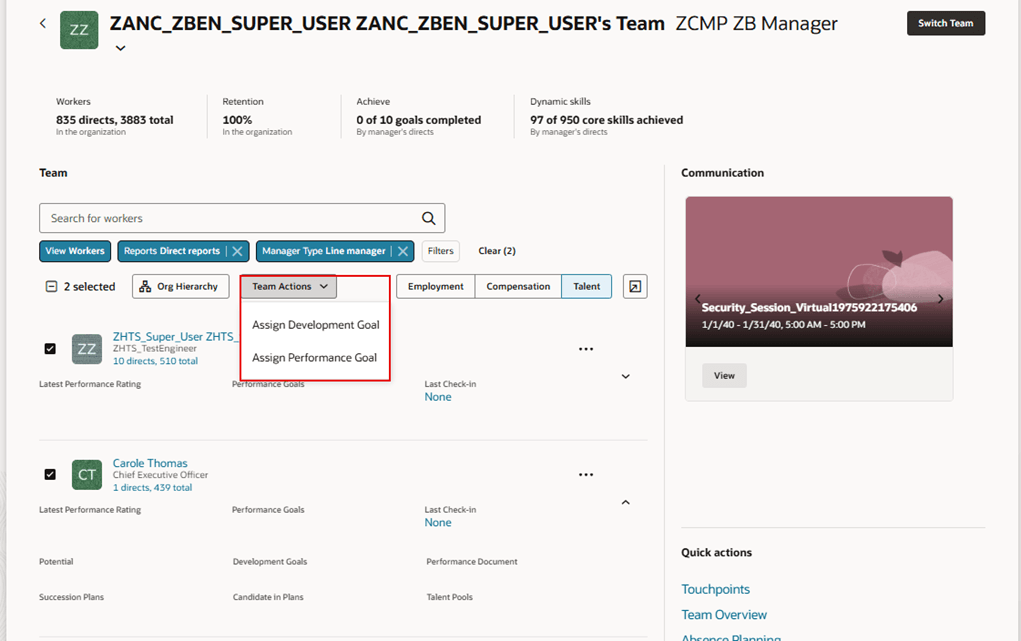
Team Activity Center
You can see the selected team members in a panel in which you can complete the goal details before submitting the assignment. For performance goals, select a review period before entering goal details. The assigned goal plan appears for each selected team member when available. You can select a different goal plan within the selected review period if the person has more than one available goal plan. For both performance and development goals, you can select a library goal when the library goal list is enabled, create a goal by entering goal details, or use generative AI to create a goal when enabled. You can also remove any of the selected team members before submission and decide whether to add the goal to your own goal plan.
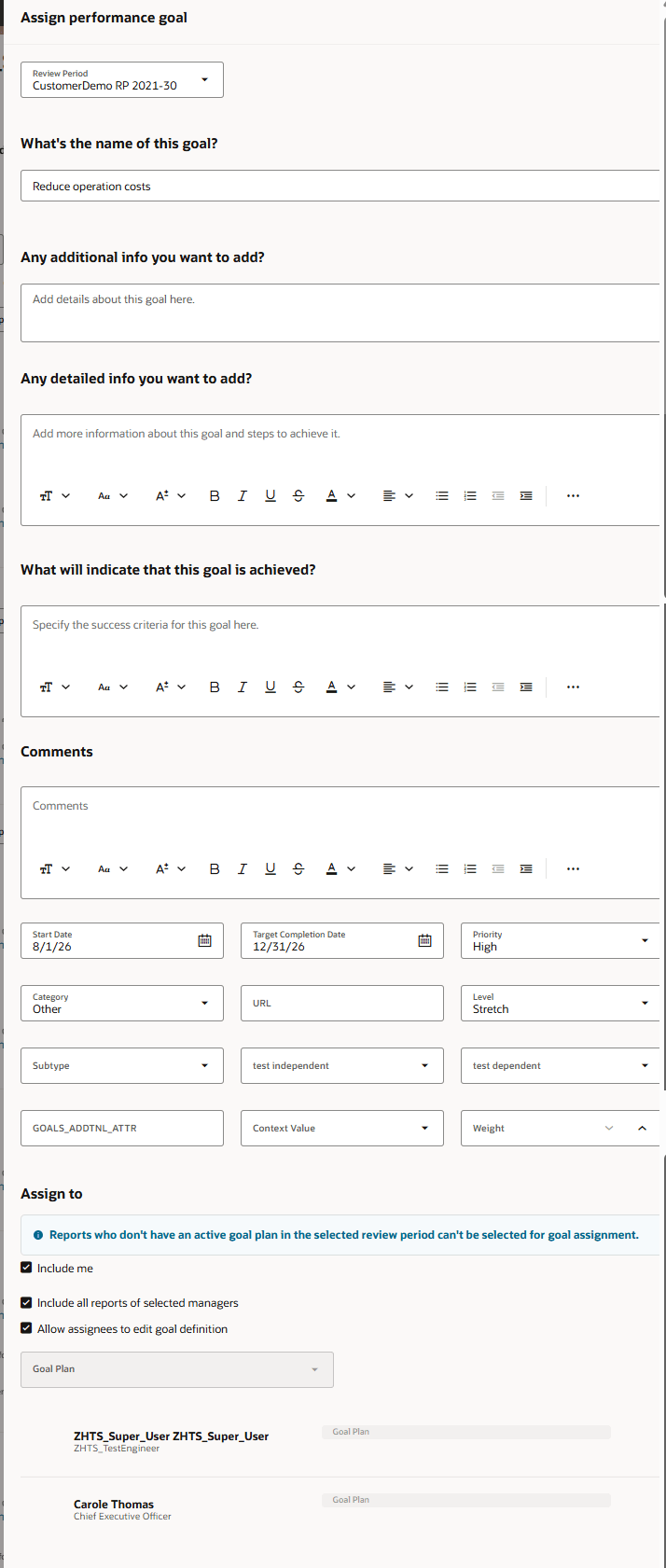
Assign performance goal panel
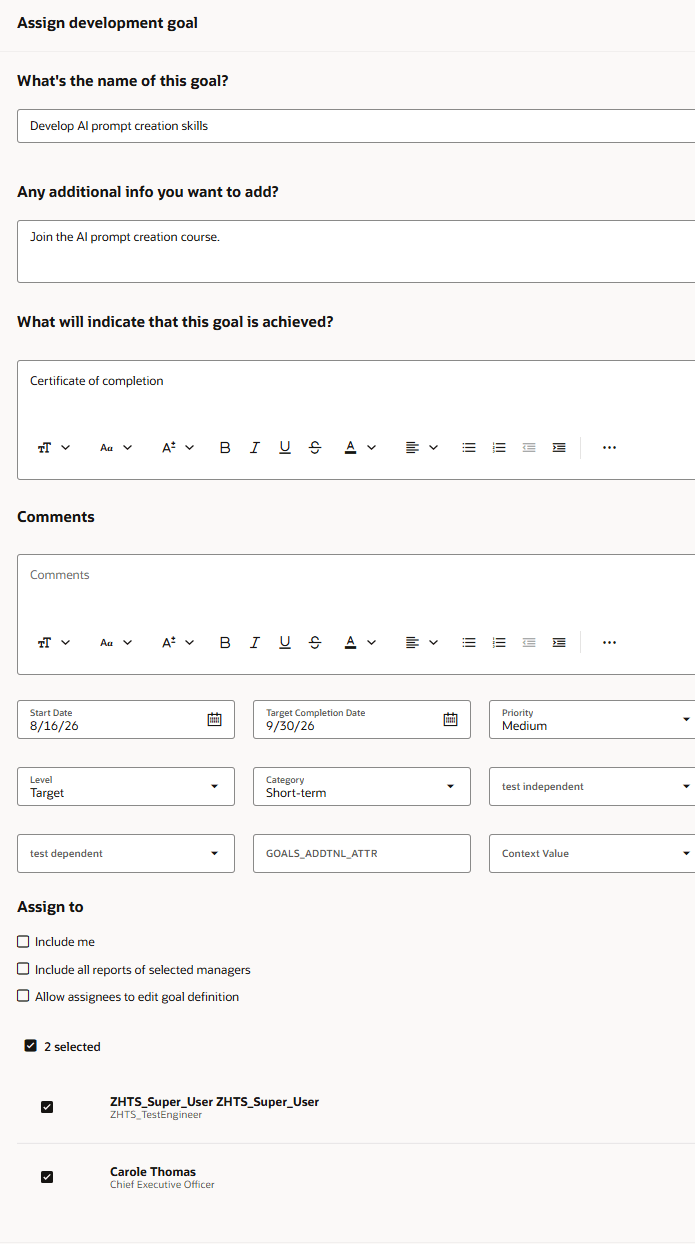
Assign development goal panel
Managers can assign performance and development goals to the appropriate workers more efficiently without repeatedly assigning the same goal one employee at a time. This improves goal assignment consistency and reduces manual effort for team goal management.
Steps to enable and configure
-
Edit the Team Activity Center page in Visual Builder Studio and select a project.
-
To display the Team Actions button, expand the Workers View section and specify the display order for the Assign Development Goal and Assign Performance Goal options for the Select the display and order of team actions page property.
-
Configure the performance goal and development goal page properties.
Tips and considerations
- Only the Active and Suspended assignment statuses are supported, the Terminated status isn't supported by Goal Management.
- Only Employee, Contingent Worker, and Nonworker worker types are supported. The Pending Worker worker type isn't supported by Goal Management.
- A deselected worker remains visible until the transaction is submitted, but the goal isn't assigned to that worker.
- If a worker doesn't have an available goal plan for the selected review period, a message indicates that the goal couldn't be assigned to that worker.
- If the appropriate goal assignment notifications are enabled in Alerts Composer, employees assigned the goal and their managers receive a notification after the assignment process completes. For more information, see Alerts Composer Templates for Performance and Development Goals.
- Goal validation and defaulting rules aren't supported in this release.