Upload Media Files to Generate Conversation Summary
The Check-Ins Conversation Summary feature released in 26B is enhanced to support upload recordings, store transcripts, and generate conversation summaries using media files.
As a manager or employee, after creating a check-in, you can upload a media file of up to 25 MB to generate a conversation summary. The file type is validated while uploading the file and an error message appears if the file type is not supported. The supported file types are: .txt, .csv, .srt, .vtt, .json, .m4a, .wav, and .mp4.
Choosing the Store transcript in the system option while creating the check-in template saves the file and makes it available for download.
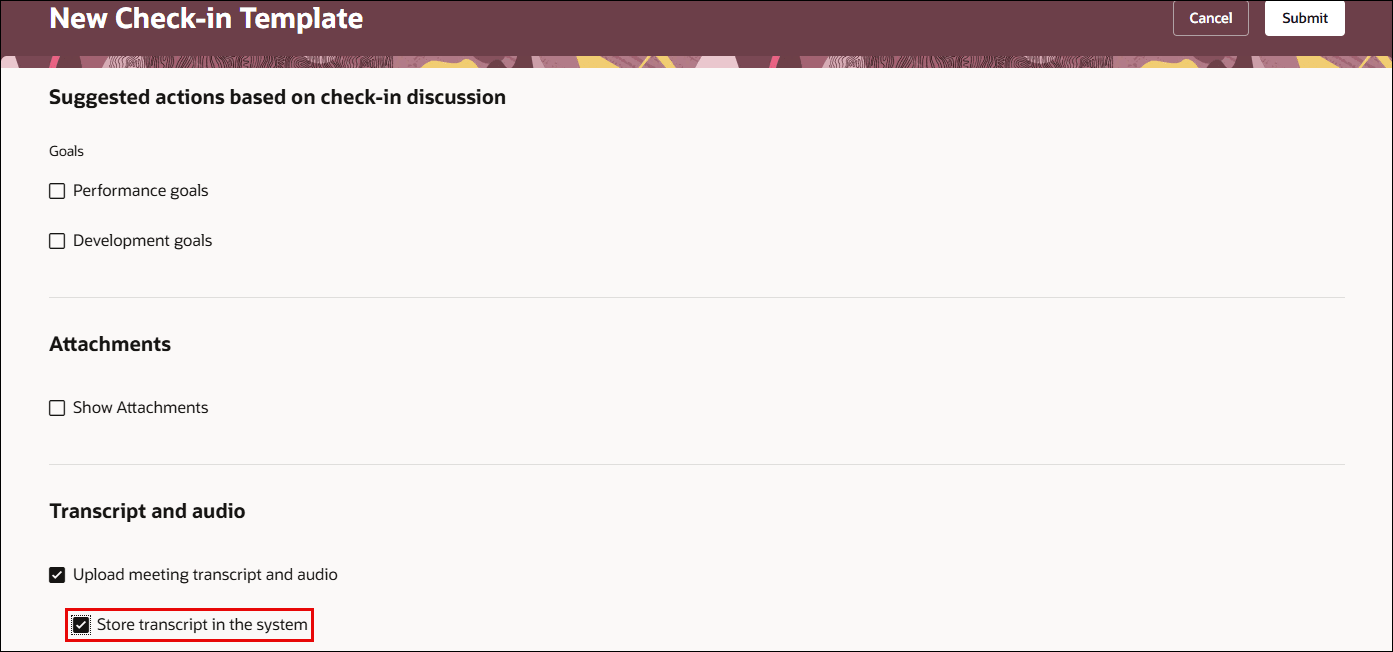
Store check-in transcript
After a successful upload, the Check-In Transcript Assistant agent parses the uploaded file to generate a concise professional summary from the check-in conversation. You need not wait on the page until the summary is generated. An email notification is sent when the check-in summary is ready. The notification contains a link to the related check-in.
Note: A transcript is not generated when the attachment cannot be read or no parsed text is available. An email notification is sent in case of failure to generate a transcript.
The response from the agent is organized into two sections:
- Summary: Describes the work-related topics discussions, which includes goals, progress, blockers, feedback, decisions, coaching, and development themes.
- Action Items: Lists commitment for next steps, follow-up, decision to act or perform a task.
Note: The Summary and Action Items sections are independent. Each bullet in the Summary section may not correspond to an action item.
The agent excludes the following:
- Personal discussions-related to health, family, medication, etc.
- Personal Identifiable Information.
Business benefit
This feature helps managers and employees capture the outcome of check-in conversations more easily and review them later without manually taking notes.
Steps to enable and configure
For details, see: How does an HR Specialist enable uploading and saving meeting transcripts?
Configure the agent
- Your environment must have the appropriate services for Oracle Applications Platform deployed. For more information, see FAQ2521 on My Oracle Cloud Support.
- Set the Enable Security Console External Application Integration (ORA_ASE_SAS_INTEGRATION_ENABLED) profile option to Yes and enable permission groups for the appropriate roles. See Access Requirements for AI Agent Studio.
To learn how to set up AI agents, see Create AI Agents Using Preconfigured Agent Team Templates.
Key resources
- Check-In Conversation Summary
- Explore AI Agents for Oracle Fusion Cloud Applications
- How do I use AI Agent Studio?
Access requirements
The agents you can view depend on the roles and privileges assigned to you. To access this agent, your role must be explicitly granted access to it by an AI Studio Administrator. See How can I give users access to AI agents and Access Requirements for AI Agent Studio.
To access all applicable Touchpoints features, managers and employees must have appropriate user roles.
| Duty Roles | Role Code | Job or Abstract Role | Privileges |
|---|---|---|---|
|
Access Touchpoints by Worker |
ORA_HRE_ACCESS_TOUCHPOINTS_BY_WORKER | Employee Contingent Worker |
HRE_ACCESS_TOUCHPOINTS_BY_WORKER_PRIV |
| Access Touchpoints by Manager | ORA_HRE_ACCESS_TOUCHPOINTS_BY_MANAGER | Line Manager | HRE_ACCESS_TOUCHPOINTS_BY_MANAGER_PRIV |
| Human Resource Specialist | ORA_PER_HUMAN_RESOURCE_SPECIALIST_JOB | Human Resource Specialist | N/A |